
1. Introducció
Thank you for choosing the Abask J05 PRO Dash Cam. This device is designed to provide reliable video evidence of your journeys, offering both front and cabin recording in high resolution. Equipped with advanced features such as G-Sensor, Loop Recording, Parking Monitor, and WiFi connectivity, it ensures comprehensive coverage and ease of use. Please read this manual thoroughly before operation to ensure proper installation and optimal performance.
2. Informació de seguretat
- No feu servir la càmera del salpicader ni accediu a la configuració mentre conduïu. Atureu-vos sempre amb seguretat abans de fer cap ajust.
- Assegureu-vos que la càmera del salpicader estigui instal·lada en un lloc que no obstrueixi la vista del conductor. view o interferir amb el desplegament de l'airbag.
- Use only the original power adapter and cables provided to prevent damage to the device and vehicle.
- Eviteu exposar la càmera del salpicader a temperatures extremes, a la llum solar directa durant períodes prolongats o a una humitat excessiva.
- Mantingueu el dispositiu allunyat de camps magnètics forts.
- No intenteu desmuntar ni reparar la càmera del salpicader vosaltres mateixos. Poseu-vos en contacte amb el servei d'atenció al client per obtenir ajuda.
3. Contingut del paquet
Si us plau, comproveu el paquet per veure si hi ha els elements següents:
- 1x Abask J05 Car Camera
- 1x 32 GB Micro SD Card
- 1x Cigarette Lighter Adapter (3.5 m)
- 1x USB Cable (0.5 m)
- 1 x Succió amb ventosa
- 1x palanca
- 1 x manual d'usuari
- 4x brides de cable

4. Producte acabatview
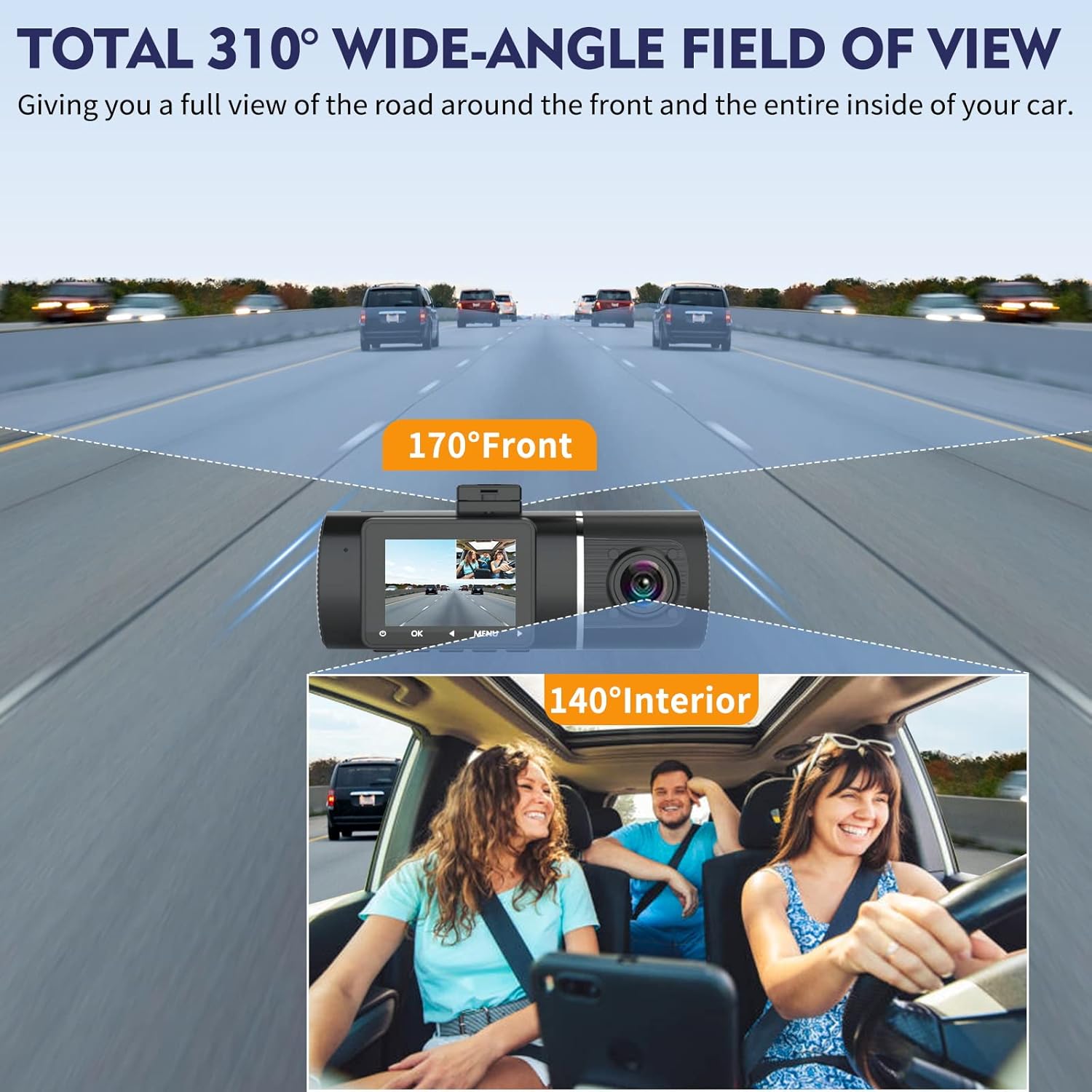
The Abask J05 PRO Dash Cam features a compact design with dual cameras for comprehensive recording. The front camera captures the road ahead, while the cabin camera monitors the vehicle's interior. A built-in display allows for live view and playback, and intuitive buttons provide easy navigation through settings and functions.
Components clau:
- Lent de la càmera frontal: Records the view outside the vehicle.
- Cabin Camera Lens: Records the interior of the vehicle.
- Pantalla de visualització: Shows live view, playback, and menu options.
- Micròfon: Records audio inside the cabin.
- Ponent: For audio playback and alerts.
- Botó d'encesa: To manually turn the device on/off.
- Botó de menú: Accedeix a la configuració i les opcions.
- Botó D'acord: Confirms selections and starts/stops recording.
- Botons de navegació: For moving through menu options.
- Ranura per a targetes Micro SD: Per inserir la targeta de memòria.
- Port USB: For power supply and data transfer.
5. Configuració
5.1. Installing the Dash Cam
- Trieu una ubicació: Select a spot on your windshield, preferably behind the rearview mirror, that does not obstruct your driving view. Ensure the front camera has a clear view of the road and the cabin camera has a clear view de l'interior.
- Neteja el parabrisa: Thoroughly clean the chosen area on the windshield to ensure the suction cup adheres firmly.
- Col·loqueu el suport de la ventosa: Premeu la ventosa fermament contra el parabrisa i gireu la palanca per fixar-la.
- Muntar la càmera del salpicadero: Slide the dash cam onto the mount until it clicks into place. Adjust the angle of both cameras to ensure optimal recording coverage.
- Connectar l'alimentació: Plug the mini USB end of the power cable into the dash cam's USB port and the cigarette lighter adapter into your vehicle's 12V power outlet.
- Encamina el cable: Carefully route the power cable along the edge of the windshield and dashboard to keep it tidy and out of the way, using the provided cable ties or crowbar if necessary.


5.2. Inserting and Formatting the SD Card
The dash cam requires a Micro SD card (Class 10 or higher, U3 recommended) for recording. A 32GB card is included, and the device supports up to 128GB.
- Inseriu la targeta SD: With the dash cam powered off, gently insert the Micro SD card into the card slot until it clicks into place.
- Format de la targeta SD: It is highly recommended to format the SD card inside the dash cam before first use and periodically (e.g., once a month) to ensure stable recording and prevent data corruption.
- Engega la càmera del salpicader.
- Premeu el botó Menú botó per entrar a la configuració.
- Navegueu fins a Format option and confirm.
- The dash cam will format the card, deleting all existing data.
6. Funcionament de la càmera del salpicader
6.1. Encendre/apagar
The dash cam is designed to automatically power on and begin recording when your vehicle's ignition is turned on (and the power adapter receives power). It will automatically power off shortly after the ignition is turned off.
- Encès manual: Manteniu premut el botó Poder botó durant uns segons.
- Apagat manual: Manteniu premut el botó Poder botó durant uns segons.
6.2. Modes d'enregistrament
The Abask J05 PRO records simultaneously from both the front and cabin cameras.
- Càmera frontal: Records in 4K resolution (3840x2160P).
- Càmera de cabina: Records in 1080P resolution (1920x1080P).


6.3. Supervisió nocturna
The dash cam is equipped with advanced night vision technology, including an F1.8 aperture, 4 infrared (IR) lights for the cabin camera, and Wide Dynamic Range (WDR) for the front camera. This ensures clear and detailed recordings even in low-light conditions or complete darkness.

6.4. Sensor G (bloqueig d'emergència)
The built-in G-Sensor automatically detects sudden shakes or collisions. When an impact is detected, the current video footage is automatically locked and saved to a protected folder, preventing it from being overwritten by loop recording. This ensures critical evidence is preserved.
- The G-Sensor sensitivity can be adjusted in the settings menu (Low, Medium, High, Off).
6.5. Enregistrament en bucle
Loop recording allows the dash cam to continuously record by overwriting the oldest unlocked video files when the Micro SD card reaches its storage limit. This ensures that recording never stops due to a full memory card.
- Video segments can typically be set to 1, 3, or 5 minutes in the settings.

6.6. Parking Monitor (Motion Activated)
When enabled, the parking monitor feature allows the dash cam to automatically turn on and record a short video if it detects a collision or motion around your parked vehicle. This provides surveillance even when you are away from your car.
- Nota: This feature requires a hardwire kit (not included) to provide continuous power to the dash cam when the vehicle is off.
6.7. WiFi & App Control
The Abask J05 PRO features built-in WiFi, allowing you to connect your smartphone to the dash cam via a dedicated app. This enables you to view viu footage, change settings, download recorded videos, and share them directly from your phone.
- Nom de l'aplicació: LuckyCam
- Descarrega: Cerca "LuckyCam" in your smartphone's app store or scan the QR codes below.
- Passos de connexió:
- Turn on the dash cam's WiFi in the settings menu.
- On your smartphone, go to WiFi settings and connect to the dash cam's WiFi network (usually named something like "Abask_XXXX"). The default password is typically "12345678" or found in the dash cam's WiFi settings.
- Open the LuckyCam app. You should now see the live view and be able to access controls and files.


Android App Link: Google Play Store
iOS App Link: App Store (via Tencent)
7. Manteniment
- Format de la targeta SD: Regularly format the Micro SD card (e.g., monthly) to prevent data corruption and ensure optimal recording performance. This can be done through the dash cam's settings menu.
- Cleaning Lenses and Screen: Use a soft, lint-free cloth to gently wipe the camera lenses and the display screen. Do not use abrasive cleaners or solvents.
- Actualitzacions de firmware: Check the official Abask website periodically for any available firmware updates. Updates can improve performance and add new features.
8. Solució De Problemes
If you encounter issues with your Abask J05 PRO Dash Cam, please refer to the following common solutions:
| Problema | Possible causa/solució |
|---|---|
| La càmera del salpicader no s'encén. | Check if the power cable is securely connected to the dash cam and the vehicle's power outlet. Ensure the vehicle's ignition is on. Test the power outlet with another device. |
| Dash cam freezes or hangs. | Press and hold the power button to force a restart. If the issue persists, try formatting the SD card. Ensure the SD card is a high-quality Class 10 (U3 recommended) card. |
| Recording stops or shows errors. | Format the Micro SD card. Ensure the SD card is not full. Replace the SD card if it is old or damaged. Ensure the card meets the recommended specifications (Class 10, U3). |
| La qualitat del vídeo és deficient o borrosa. | Clean the camera lenses with a soft cloth. Ensure the protective film (if any) has been removed from the lenses. Check if the windshield is clean. Adjust camera angles. |
| Parking monitor does not work. | Ensure the parking monitor feature is enabled in the settings. Verify that a hardwire kit is properly installed and providing continuous power to the dash cam. |
| Problemes de connexió Wi-Fi. | Ensure WiFi is enabled on the dash cam. Restart both the dash cam and your smartphone. Re-enter the WiFi password. Ensure you are within close range of the dash cam. |
If the problem persists after trying these solutions, please contact Abask customer support for further assistance.
9. Especificacions
| Característica | Detall |
|---|---|
| Marca | Abask |
| Nom del model | J05 PRO |
| Dimensions del producte | 10 x 14 x 6 cm |
| Pes de l'article | 370 grams |
| Resolució de vídeo frontal | 4K (2160p) |
| Cabin Video Resolution | 1080P |
| Mida de la pantalla | 1.5 polzades |
| Camp de View (Davant) | 170 graus |
| Camp de View (cabana) | 140 graus |
| Característiques especials | G Sensor, Loop Recording, Night Vision, Parking Monitor, WiFi |
| Tipus de targeta de memòria | Micro SD (Class 10, U3 recommended) |
| Mida de la targeta de memòria inclosa | 32 GB |
| Max Supported Memory Card | 128 GB |
| Font d'alimentació | Lithium Ion Battery (included), Car Charger |
| Tipus de muntatge | Muntatge del parabrisa |
| Dispositius compatibles | Cars, Trucks, Motorcycles, Smartphones, PCs |
10. Garantia i Suport
Abask products come with a standard warranty. For specific warranty terms and conditions, please refer to the warranty card included in your package or visit the official Abask website. If you have any questions, require technical assistance, or need to claim warranty service, please contact Abask customer support through the contact information provided on the official weblloc web o la vostra plataforma de compra.
Ens comprometem a oferir productes d'alta qualitat i un excel·lent servei al client.