
1. Introducció
The Goobay 58486 HDMI Switch is a compact device designed to manage HDMI connections efficiently. It allows you to connect up to two HDMI source devices to a single HDMI display, or one HDMI source device to two HDMI displays, and switch between them manually. This prevents the need for frequent cable swapping and protects your device ports. It supports high-resolution video up to 4K Ultra HD at 60 Hz and is compatible with HDMI 2.0 and HDCP 2.2 standards.
Les característiques clau inclouen:
- Bidirectional functionality: 2 inputs to 1 output, or 1 input to 2 outputs.
- Supports resolutions up to 4K @ 60 Hz (2160p).
- Compatible with HDMI 2.0 and HDCP 2.2.
- Manual switching via a push button.
- No external power supply required; powered directly via connected HDMI devices.
- Plug & Play operation, no driver installation needed.
- LED indicators show the active port.
2. Configuració i connexió
Follow these steps to connect your Goobay 58486 HDMI Switch:
- Identifica els ports: The switch has two HDMI input/output ports (labeled 'CHANNEL 1' and 'CHANNEL 2') and one HDMI output/input port. The functionality (2-in-1-out or 1-in-2-out) depends on how you connect your devices.
- Connect Source Devices (2-in-1-out mode): Connect your two HDMI source devices (e.g., game console, laptop, Blu-ray player) to the 'CHANNEL 1' and 'CHANNEL 2' ports using HDMI cables.
- Connect Display Device (2-in-1-out mode): Connect your HDMI display device (e.g., TV, monitor, projector) to the single HDMI port.
- Connect Source Device (1-in-2-out mode): Alternatively, connect one HDMI source device to the single HDMI port.
- Connect Display Devices (1-in-2-out mode): Connect your two HDMI display devices to the 'CHANNEL 1' and 'CHANNEL 2' ports. Note: In 1-in-2-out mode, only one display can be active at a time. The switch does not function as a splitter to show the same source on two displays simultaneously.
- Potència: The switch draws power directly from the connected HDMI devices. No external power adapter is required. Ensure your source devices are powered on for the switch to function.
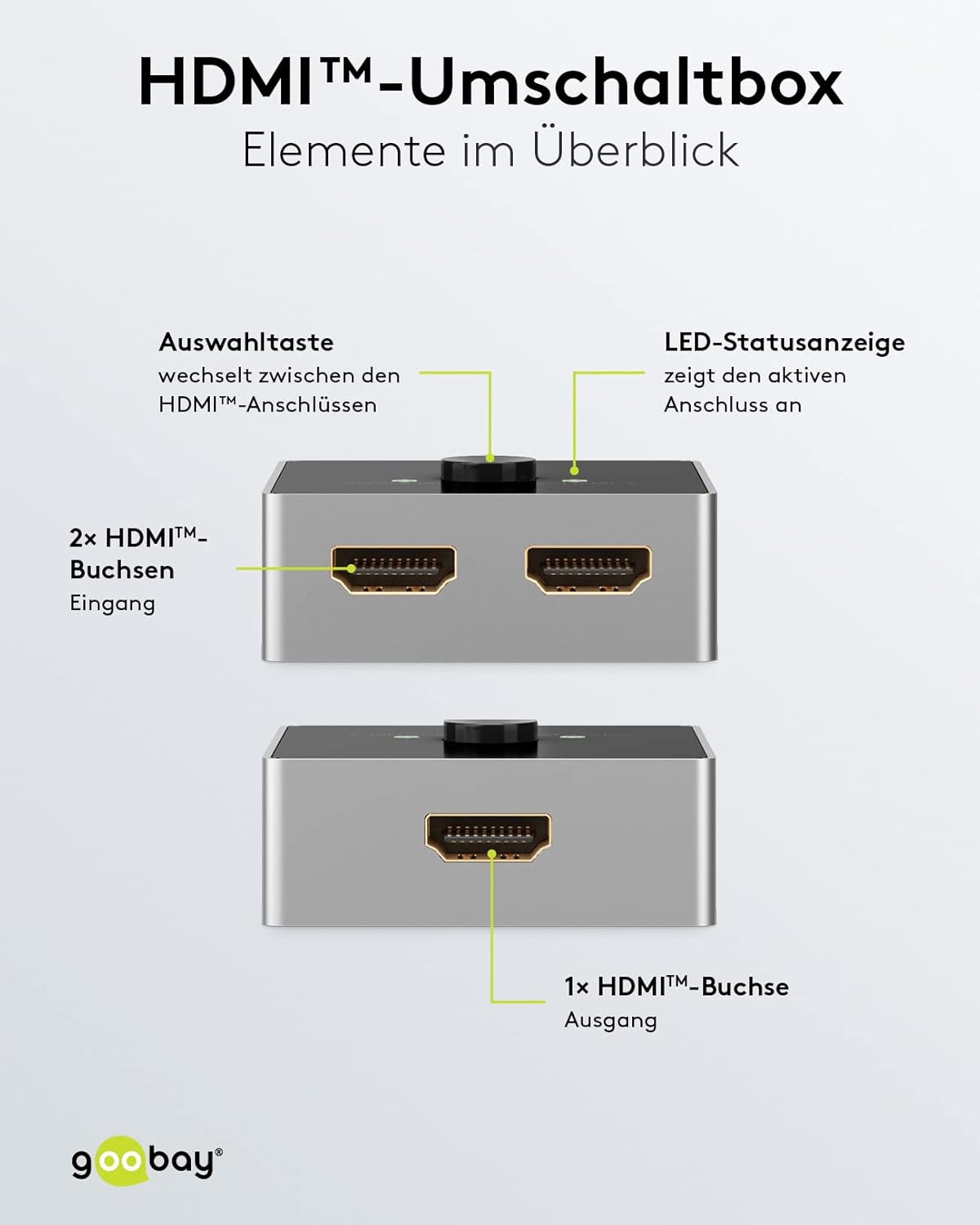
Imatge: Un detallat view of the Goobay HDMI switch, labeling its key components: the selection button, LED status indicators for active ports, two HDMI input sockets, and one HDMI output socket. This clarifies the connection points for users.

Imatge: This diagram illustrates the primary function of the Goobay HDMI switch, allowing two video sources (e.g., an Xbox and a laptop) to share a single display. The switch is bidirectional, meaning it can also connect one source to two displays, and features a selection button to switch between inputs.

Imatge: This image demonstrates a typical setup where the Goobay HDMI switch is used to connect multiple HDMI source devices, such as a PlayStation 5 and a laptop, to a single HDMI display like a monitor, allowing easy switching between them.
3. Instruccions de funcionament
Operating the Goobay 58486 HDMI Switch is straightforward:
- Switching Inputs/Outputs: Press the circular button on the top of the switch to toggle between the connected HDMI channels. Each press will switch to the next available active channel.
- Indicadors LED: The switch features two LED indicators, one for 'CHANNEL 1' and one for 'CHANNEL 2'. The illuminated LED indicates which channel is currently active.
- Detecció automàtica: In most cases, the switch will automatically detect and display the signal from the active source. If multiple sources are active, use the button to select your desired input.

Imatge: This image summarizes the advantages of the Goobay HDMI switch: it operates without an external power supply, drawing power directly from the connected HDMI device; it allows for comfortable manual switching between sources with a single button press, protecting connections by avoiding frequent cable changes.
4. Manteniment
To ensure the longevity and optimal performance of your Goobay 58486 HDMI Switch, follow these simple maintenance guidelines:
- Neteja: Use a soft, dry cloth to clean the exterior of the switch. Do not use liquid cleaners or abrasive materials, as they may damage the surface or internal components.
- Emmagatzematge: Quan no l'utilitzeu durant períodes prolongats, guardeu l'interruptor en un lloc fresc i sec, allunyat de la llum solar directa i de temperatures extremes.
- Manipulació: Avoid dropping the device or subjecting it to strong impacts, which can damage the internal circuitry.
- Ventilació: Ensure the switch is placed in an area with adequate ventilation to prevent overheating, although its low power consumption typically minimizes this risk.
5. Solució De Problemes
If you encounter issues with your Goobay 58486 HDMI Switch, refer to the following common problems and solutions:
- Sense imatge/senyal:
- Ensure all HDMI cables are securely connected to both the switch and your devices.
- Verify that your source devices and display are powered on.
- Press the selection button on the switch to cycle through the channels and ensure the correct input is selected (indicated by the LED).
- Try connecting the source device directly to the display to rule out cable or device issues.
- Some devices may require a specific boot order. Try powering on the source device first, then the display, and finally the switch (by ensuring the source is active).
- Mala qualitat d'imatge o parpelleig:
- Ensure you are using high-quality HDMI 2.0 cables, especially for 4K @ 60Hz resolutions. Longer cables may require active HDMI cables.
- Check if the resolution and refresh rate settings on your source device are compatible with your display and the switch (up to 4K @ 60Hz).
- Prova un altre cable HDMI.
- L'interruptor no respon:
- Confirm that at least one source device is powered on and sending an HDMI signal, as the switch draws power from the connected devices.
- Disconnect and reconnect all HDMI cables to reset the connections.
- Important Note: Not a Splitter: This device is an HDMI switch, not an HDMI splitter. It cannot display one source on two screens simultaneously. In 1-in-2-out mode, you must manually select which of the two displays receives the signal.
6. Especificacions
Technical specifications for the Goobay 58486 HDMI Switch:
| Característica | Detall |
|---|---|
| Número de model | 58486 |
| Marca | Goobay |
| Tipus de connector | HDMI |
| Nombre de Ports | 2 (bidirectional) |
| Màx. Resolució | 4K Ultra HD 2160p @ 60 Hz |
| Estàndards de vídeo compatibles | 4K Ultra HD 2160p (60 Hz), 4K Ultra HD 2160p (30 Hz), Full HD 1080p (60 Hz), Full HD 1080i (60 Hz), 3D signal |
| Màx. Taxa de transferència | 18 Gbps |
| Estàndards d'àudio compatibles | Dolby Atmos, Dolby Digital HD (DTS HD), Dolby Digital TrueHD, Dolby Digital 5.1 (AC-3), Dolby 5.1, Dolby 7.1, LPCM, Stereo, Enhanced Audio Return Channel (eARC), Audio Return Channel (ARC) |
| Further Supported Standards | HDCP 2.2, HDCP 1.4 |
| Direcció del senyal | Bidireccional |
| Color | Plata/Negre |
| Temperatura de funcionament | 0 °C a 40 °C |
| Pes de l'article | 60 grams |
| Fabricant | Wentronic |

Imatge: This image provides the physical dimensions of the Goobay HDMI switch, illustrating its compact design with measurements of 55mm length, 55mm width, and 22.5mm height.
7. Garantia i Suport
Informació de la garantia:
Goobay products are designed for reliability and performance. For specific warranty terms and conditions applicable to your region, please refer to the documentation provided with your purchase or visit the official Goobay weblloc.
Atenció al client:
If you require further assistance, have questions not covered in this manual, or experience issues that cannot be resolved with the troubleshooting steps, please contact Goobay customer support. Contact details can typically be found on the product packaging, the official Goobay weblloc web o a través del vostre distribuïdor.