
Introducció
This manual provides instructions for the use and care of Memoking M110 Thermal Labels. These labels are designed for compatibility with various Phomemo label makers, offering a versatile solution for organizing, tagging, and labeling needs. The labels feature a durable, self-adhesive design suitable for a wide range of applications.
Setup: Loading Labels into Your Printer
Properly loading the thermal labels into your compatible Phomemo label maker is essential for optimal printing. Follow these general steps:
- Open the Printer Cover: Locate and open the cover of your label maker. This usually involves pressing a release button or sliding a latch.
- Remove Paper Holder: Take out the paper holder mechanism from inside the printer.
- Carregar el rotlle d'etiquetes: Place the M110 thermal label roll onto the paper holder. Ensure the print side of the labels is facing upwards or in the direction indicated by your printer's specific instructions.
- Insert Paper Holder: Reinsert the paper holder with the label roll into the printer. Make sure it is securely seated.
- Tancar la coberta: Close the printer cover until it clicks into place.
- Feed Labels: Press the paper feed button on your printer to advance a few labels, ensuring they are aligned correctly for printing.
For a visual guide on loading labels and initial setup, please refer to the operation guide video below:
Video: Phomemo M200 Bluetooth Thermal Label Printer Operation Guide. This video demonstrates the process of loading labels and basic printer operation.
Operating Your Label Maker with M110 Labels
The M110 thermal labels are designed for use with compatible Phomemo label makers, typically controlled via a smartphone application. The 'Print Master' app offers various functionalities for creating and printing labels.
Connexió i ús de l'aplicació
- Turn On Printer: Long press the power button on your label maker to turn it on.
- Activa el Bluetooth: Assegureu-vos que el Bluetooth estigui habilitat al vostre telèfon intel·ligent.
- Open 'Print Master' App: Launch the 'Print Master' application on your smartphone.
- Connecta la impressora: Within the app, select your printer model (e.g., M200 Series) and connect via Bluetooth. The app should indicate a successful connection.
- Select/Create Template: Choose from a variety of pre-defined templates or create a custom label design. Templates are available for name labels, cable labels, rectangular labels, jewelry labels, and round labels.
- Edit Content: Customize the text, font, size, position, and add elements like barcodes or QR codes as needed.
- Imprimeix: Once your design is complete, initiate printing from the app.
Watch the video below for a demonstration of using templates and printing effects:
Video: How to Use Quick Template/Printing Effect Showcase. This video illustrates how to select and customize various label templates within the app.
Per examples of multi-functional labeling, including 1D/QR codes, price tags, and logos, see the following video:
Video: Multifunction printer for labeling products/1D/QR/Price/Logo. This video demonstrates the versatility of the label maker for different types of labels.
Features of M110 Thermal Labels
- Detalls de l'etiqueta: Each roll contains 130 labels, with 3 rolls (390 labels total) per box. Label color is white, and output print color is black. The label size is 0.98"x2.63" (25x67mm).
- Impressió sense tinta: M110 thermal labels utilize direct thermal printing technology, requiring no ink or toner.
- Durabilitat: These labels are BPA-free, waterproof, oil-proof, and scratch-proof, designed to withstand daily wear and tear.
- Adhesió: The labels feature strong back adhesion for secure attachment and are residue-free upon removal.
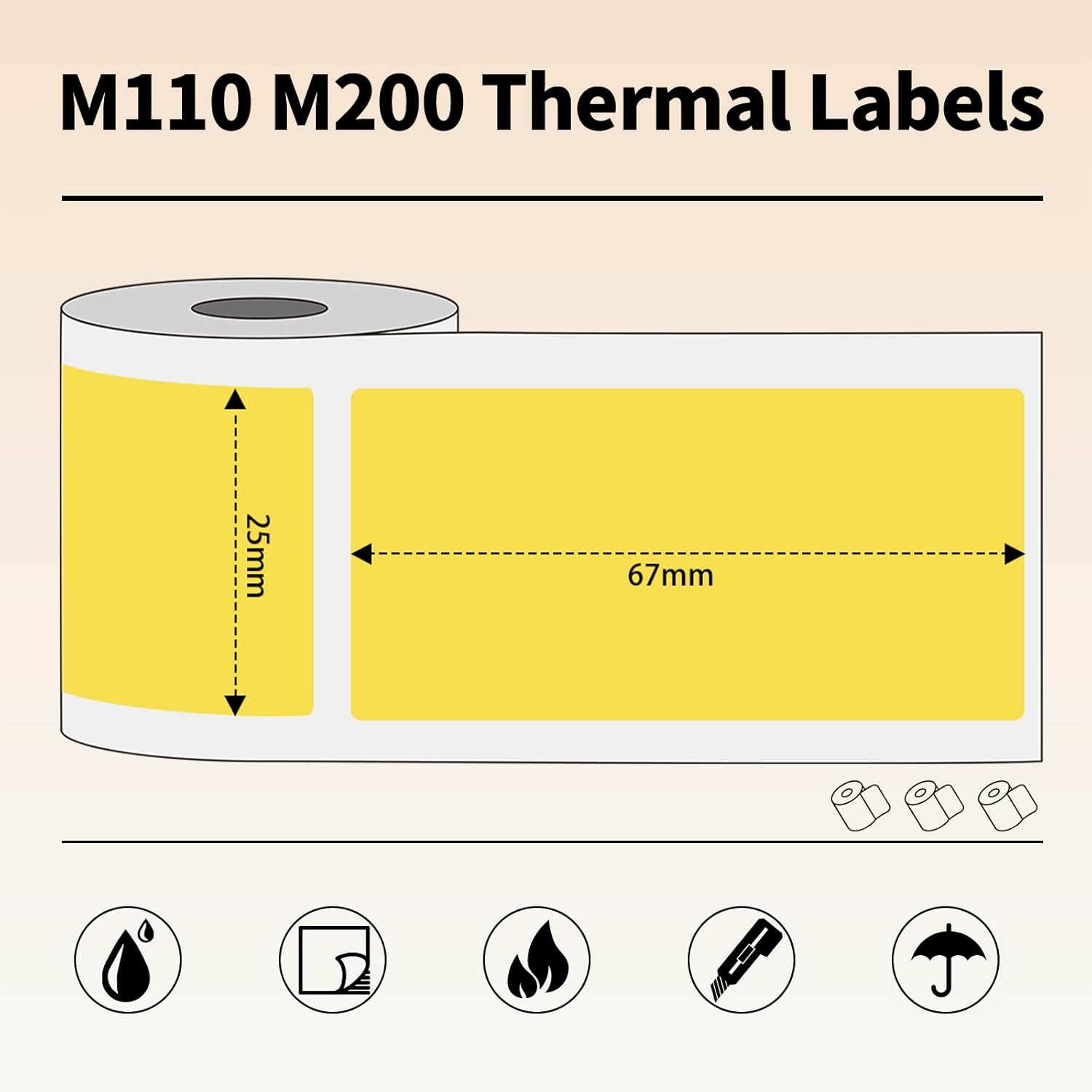
Image: M110 M200 Thermal Labels dimensions. This image shows the dimensions of the thermal labels, which are 25mm by 67mm.

Image: BPA-free, No Ink, No Ribbon labels. This image highlights the eco-friendly and convenient aspects of the thermal labels.

Image: Waterproof, Oil-proof, Scratch Resistant, Tear Off No Residue labels. This image demonstrates the durability and clean removal of the labels.

Image: 6 Layers of Composite Material for labels. This image illustrates the multi-layer structure of the labels, contributing to their print quality and durability.
Compatibilitat
Memoking M110 Thermal Labels are compatible with a range of popular label maker series printers. These include:
- Phomemo M100 Series
- Phomemo M110 Series
- Phomemo M120 Series
- Phomemo M150 Series
- Phomemo M160 Series
- Phomemo M200 Series
- Phomemo M220 Series
- Phomemo M221 Series
- Phomemo M250 Series
- Phomemo M260 Series
- Phomemo M421 Series
These labels are also compatible with other "Printer Master" label makers. Nota: These labels are not compatible with Nelko printers.

Image: Compatible Phomemo label printers. This image displays various Phomemo label printer models compatible with M110 thermal labels.
Aplicació àmplia
M110 thermal labels are suitable for diverse applications in both business and personal settings:
- Business Use: Ideal for QR codes, clothing tags, joieria tags, price labels, barcodes, and custom DIY logos. Perfect for small businesses, retail, and crafts.
- Organització de la llar: Useful for organizing household items, tools, and kitchen supplies.
- Ocasions especials: Great for creating personalized decorations or gifts for events like Christmas and Halloween.
- Mailing and Address: Suitable for creating clear and durable mailing and address labels.

Image: Mailing label on an envelope. This image shows a thermal label used as an address label on a brown envelope.
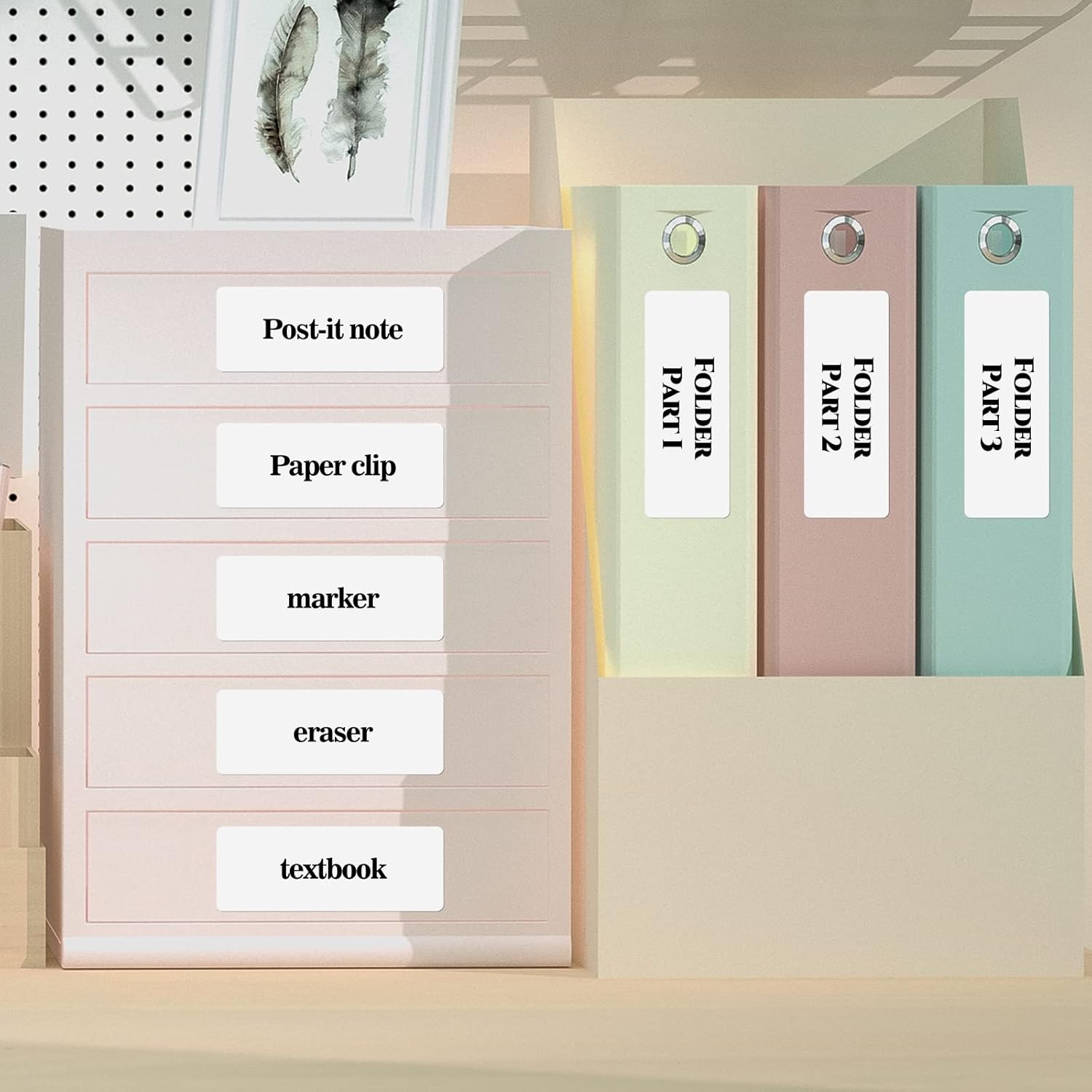
Image: Labels for home organization. This image illustrates labels used on clear storage drawers and binders for organizing various items.
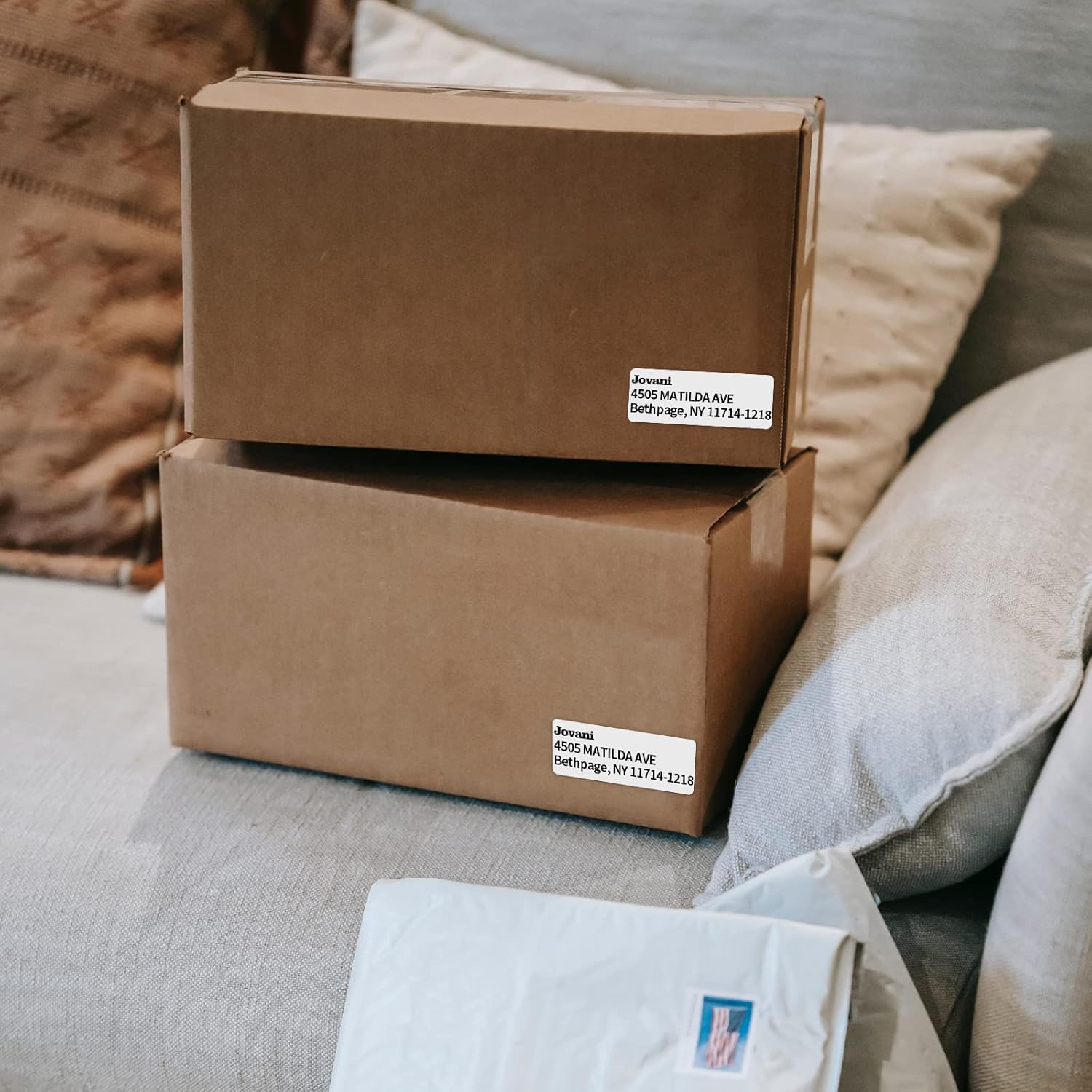
Image: Labels on shipping boxes. This image shows thermal labels applied to brown shipping boxes.
Manteniment
To ensure the longevity and performance of your M110 thermal labels and the print quality, consider the following maintenance tips:
- Emmagatzematge: Store unused label rolls in a cool, dry place away from direct sunlight and excessive heat. Prolonged exposure to heat or light can cause the labels to darken prematurely.
- Manipulació: Avoid touching the thermal printing surface of the labels with bare hands as oils and dirt can affect print quality.
- Neteja de la impressora: Regularly clean the print head of your label maker according to its specific instruction manual. A dirty print head can lead to faded or incomplete prints on the thermal labels.
- Eviteu els abrasius: Do not use abrasive cleaners or materials on the labels or the printer, as this can damage the thermal coating or printer components.
Resolució de problemes
If you encounter issues while using your M110 thermal labels, consider these common troubleshooting steps:
- Faded or Blank Prints:
- Ensure the label roll is inserted correctly with the print side facing the print head.
- Check if the print head is clean. Refer to your printer's manual for cleaning instructions.
- Verify that the labels are not expired or have not been exposed to excessive heat or light during storage.
- Etiquetes que no alimenten correctament:
- Ensure the label roll is properly seated in the paper holder and the holder is correctly installed in the printer.
- Check for any obstructions in the paper path.
- Make sure the label size selected in the app matches the physical labels being used.
- Mala adherència:
- Ensure the surface where the label is applied is clean, dry, and smooth.
- Apply firm pressure evenly across the label when attaching it.
- La impressora no es connecta per Bluetooth:
- Ensure Bluetooth is enabled on your device and the printer is turned on.
- Restart both your smartphone/device and the label printer.
- Check the 'Print Master' app for any connection errors or updates.
Especificacions
| Característica | Detall |
|---|---|
| Marca | Memoking |
| Número de model | YXY-M200-AP2567-3SET-US |
| Tipus d'etiqueta | Etiquetes tèrmiques |
| Mida de l'etiqueta | 0.98"x2.63" (25x67mm) |
| Labels per Roll | 130 Etiquetes |
| Rolls per Box | 3 Rolls (390 Labels total) |
| Color de l'etiqueta | Blanc |
| Color de sortida | Negre |
| Tipus de material | Paper, Plastic, Vinyl |
| Característiques especials | BPA-free, Waterproof, Oil-proof, Scratch-proof, Self-Adhesive, Residue-Free |
| Pes de l'article | 5.3 unces |
| Dimensions del producte | 3.15 x 6.14 x 2.28 polzades |
Garantia i Suport
For specific warranty information and customer support, please refer to the documentation included with your Memoking product or visit the official Memoking website. General support for product inquiries, troubleshooting, and replacement parts can typically be found through these channels.
També podeu visitar el Memoking Store on Amazon per obtenir informació addicional sobre el producte i opcions de contacte.