
1. Introducció
The PikDik Mini Portable Photo Printer PD-Q2 is a compact thermal printer designed for on-the-go printing. It connects via Bluetooth to compatible Android and iOS devices, allowing users to print photos, labels, lists, and more without the need for ink cartridges. This manual provides essential information for setting up, operating, maintaining, and troubleshooting your PD-Q2 printer.
2. Informació de seguretat
- No exposeu la impressora a l'aigua ni a una humitat excessiva.
- Avoid extreme temperatures. Operate and store the printer within recommended environmental conditions.
- Use only the provided charging cable and recommended power sources.
- Mantenir fora de l'abast dels nens.
- No intenteu desmuntar ni reparar la impressora vosaltres mateixos. Poseu-vos en contacte amb el servei d'atenció al client per obtenir ajuda.
3. Contingut del paquet
Si us plau, comproveu el paquet per veure si hi ha els elements següents:
- PikDik Mini Portable Photo Printer PD-Q2
- Cable de càrrega USB tipus C
- Roll of Thermal Photo Paper
- Manual d'usuari
4. Producte acabatview
The PD-Q2 printer features a compact design with a single power/function button and a paper output slot. It utilizes thermal printing technology, eliminating the need for ink. The device is powered by a built-in rechargeable lithium battery.
5. Guia de configuració
5.1 Càrrega de la impressora
Before first use, fully charge the printer. Connect the provided USB Type-C cable to the printer's charging port and a compatible USB power adapter. The LED indicator will show charging status.
5.2 Càrrega de paper tèrmic
- Obriu la tapa del compartiment de paper de la impressora.
- Insert a new roll of thermal paper, ensuring the printing side faces the print head.
- Pull a small length of paper out of the slot and close the cover securely.
5.3 Instal·lació de l'aplicació i connexió Bluetooth
The PikDik PD-Q2 printer requires the "Meta Print" application for operation. Follow these steps to connect your device:
- Enceneu la impressora: Premeu i manteniu premut el botó d'engegada fins que s'il·lumini l'indicador lluminós.
- Download and Install the "Meta Print" APP: Cerca "Meta Print" on your smartphone's app store (Google Play for Android or App Store for iOS) and install it.
- Activa el Bluetooth: On your phone or tablet, go to your device's settings and ensure Bluetooth is turned on.
- Connect in the APP: Open the "Meta Print" app. The app will guide you to link the printer via Bluetooth. Select the PD-Q2 from the list of available devices.
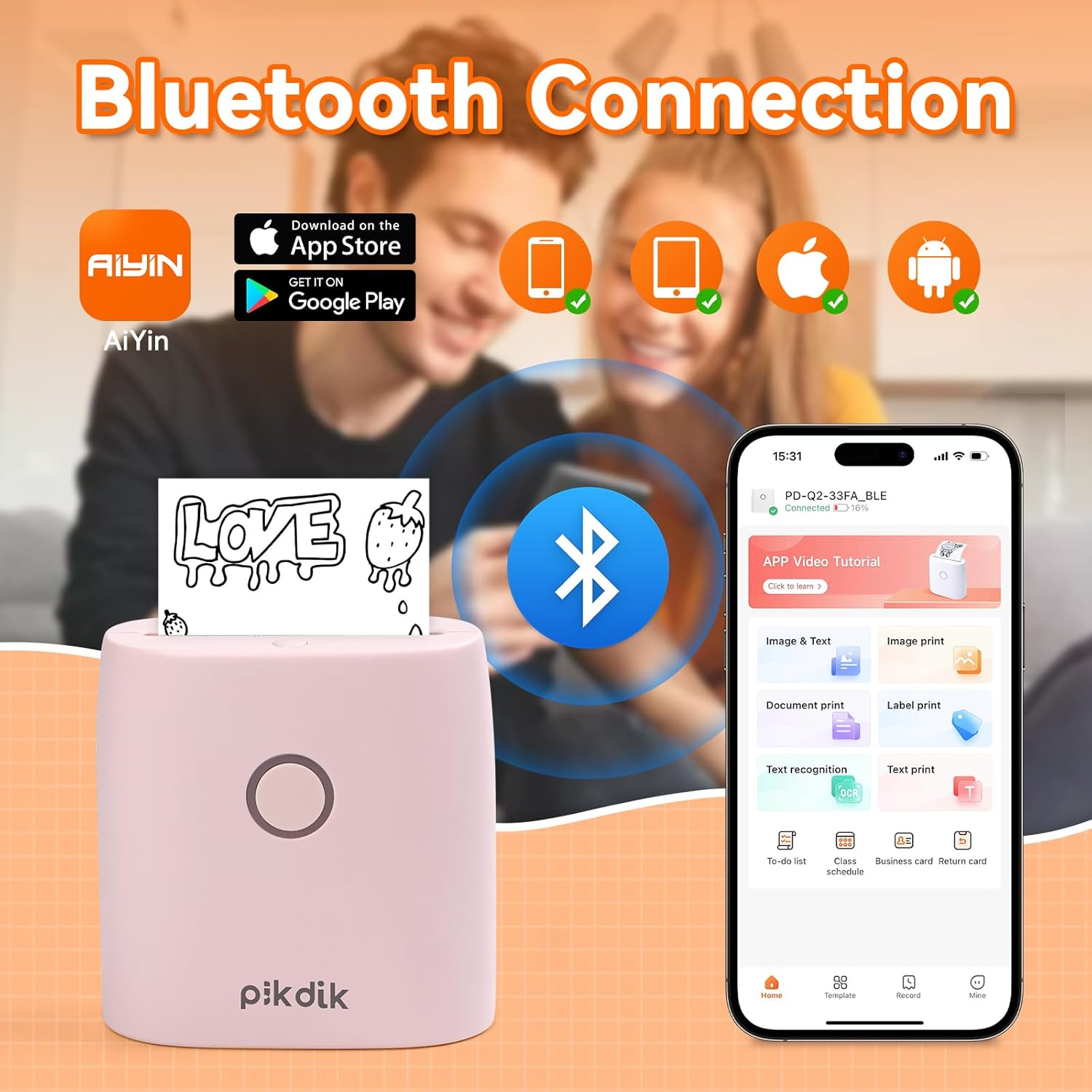
Image: The printer connects to your smartphone via Bluetooth using the Meta Print app, available on both Android and iOS.
6. Instruccions de funcionament
6.1 Printing Content
Once connected to the "Meta Print" app, you can select various content types for printing:
- Image & Text: Print photos, graphics, or combine them with text.
- Document Print: Print documents or notes.
- Label Print: Create and print custom labels.
- Reconeixement de text: Convert images of text into editable text for printing.
- Plantilles: Utilize pre-designed templates for to-do lists, business cards, emojis, and more.
After selecting and editing your content within the app, tap the print button to initiate printing. The printer will output the thermal paper with your printed content.

Image: The printer is suitable for various applications such as journaling, scrapbooking, printing shopping lists, and notes.
6.2 Print Quality and Limitations
The PD-Q2 printer offers a 300 DPI resolution for clear and detailed black and white prints. As a thermal printer, it does not support color printing.
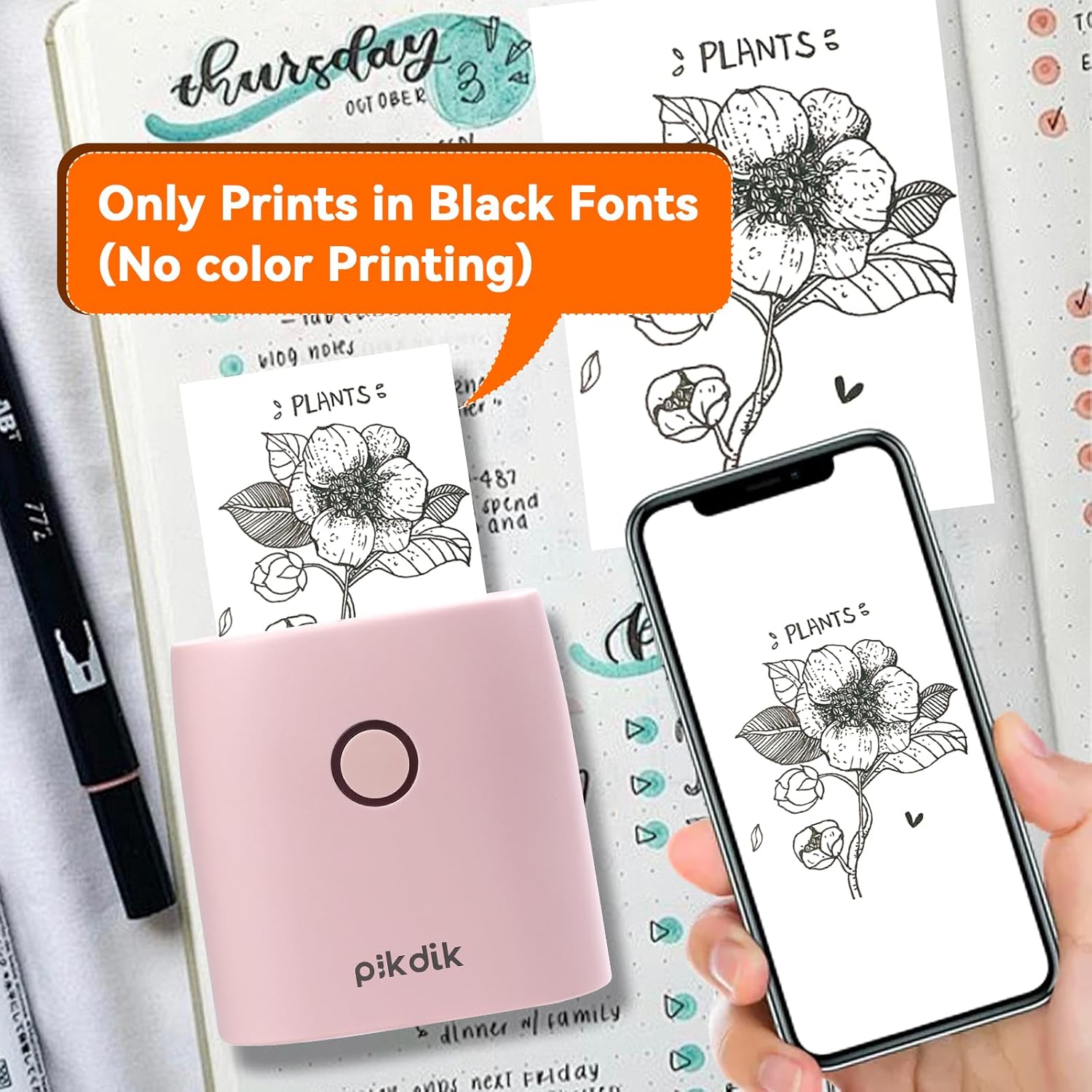
Image: The printer produces prints exclusively in black and white, as shown with a plant illustration.

Image: The 300 DPI resolution of the Q2 printer provides enhanced clarity and detail in prints compared to lower resolution alternatives.
7. Manteniment
7.1 Neteja de la impressora
To maintain optimal print quality, periodically clean the print head. Use a soft, lint-free cloth lightly dampened with isopropyl alcohol. Gently wipe the print head surface. Ensure the printer is turned off and completely dry before use.
7.2 Replacing Thermal Paper
When the paper roll is depleted, replace it by following the steps in Section 5.2. Use only thermal paper compatible with the PD-Q2 printer to ensure proper function and print quality.
8. Solució De Problemes
| Problema | Causa possible | Solució |
|---|---|---|
| La impressora no s'encén | Bateria baixa; el botó d'engegada no s'ha premut correctament | Carregueu la impressora; manteniu premut el botó d'engegada durant uns segons. |
| No es pot connectar mitjançant Bluetooth | Bluetooth off on phone; Printer not in pairing mode; App issue | Ensure phone Bluetooth is on; Restart printer and app; Re-pair device in app. |
| Poor print quality (faint, pixelated) | Low battery; Print head dirty; Incorrect paper type; Image resolution too low | Charge printer; Clean print head (Section 7.1); Use correct thermal paper; Use higher resolution images. |
| Embús de paper | Paper not loaded correctly; Foreign object in paper path | Open cover, remove jammed paper, reload correctly; Check for obstructions. |
| La impressora no respon | Error del sistema | Perform a soft reset by turning the printer off and on again. If issue persists, contact support. |
9. Especificacions
| Característica | Detall |
|---|---|
| Model | Q2 |
| Dimensions (P x A x A) | 4.1 x 8.4 x 8.4 cm (1.6 x 3.3 x 3.3 polzades) |
| Pes | 0.57 lliures (aprox. 258.55 g) |
| Tecnologia d'impressió | Tèrmica |
| Resolució d'impressió | 300 DPI (Monochrome) |
| Connectivitat | Bluetooth |
| Dispositius compatibles | Smartphones, Tablets (Android, iOS) |
| Mida màxima del suport | 2 polzades |
| Font d'alimentació | Built-in Lithium Polymer Battery (Rechargeable via USB Type-C) |
| Nom de l'aplicació | Meta Print |
10. Garantia i Suport
For warranty information and technical support, please refer to the warranty card included with your product or contact PikDik customer service directly. Keep your purchase receipt as proof of purchase.