
1. Introducció
The RSH Air Tracker Tag is a compact Bluetooth item finder designed to help you locate your personal belongings quickly and efficiently. Utilizing the Apple Find My network, this smart tag allows you to track items such as luggage, keys, backpacks, and wallets directly from your iPhone, iPad, or Mac. It features a built-in speaker for audible alerts and a replaceable battery for long-term use.

Figure 1: RSH Air Tracker Tags (2-pack shown)
2. Configuració
2.1 Activació inicial
Before first use, you must activate the RSH Air Tracker Tag by pulling out the insulating sheet from the side of the device. You will hear a confirmation sound indicating it is ready for pairing.

Figure 2: RSH Smart Tag dimensions and features, including battery life and waterproof rating.
2.2 Pairing with Apple Find My App (iOS Only)
The RSH Air Tracker Tag is designed exclusively for use with Apple devices and the Find My network. It is not compatible with Android devices.
- Assegura't que el Bluetooth estigui activat al teu iPhone, iPad o Mac.
- Obriu el Troba el meu aplicació al teu dispositiu Apple.
- Toqueu Elements pestanya a la part inferior de la pantalla.
- Toqueu + icona i, a continuació, seleccioneu Add Other Supported Item.
- Hold the RSH Air Tracker Tag close to your device. The app will begin searching for the tag.
- Once detected, follow the on-screen instructions to name your item and select an emoji to represent it.
- Toqueu D'acord to acknowledge that this item will be linked to your Apple ID.
- Toqueu Acabar per completar el procés d'aparellament.
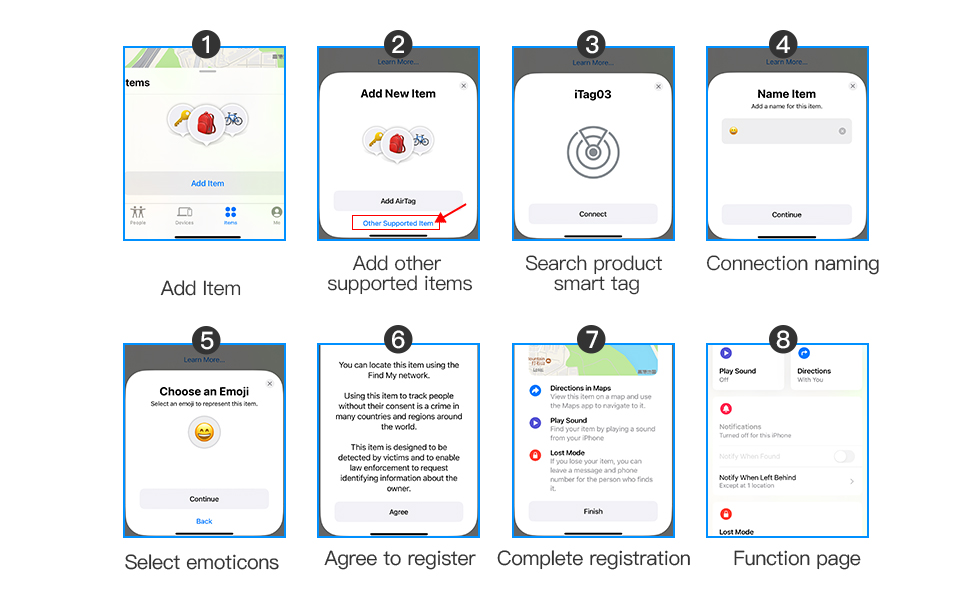
Figure 3: Step-by-step guide for pairing the RSH Smart Tag with the Find My app.
3. Operating the RSH Air Tracker Tag
3.1 Finding Nearby with Alert
If your item is within Bluetooth range (approximately 30-60 meters or 100-200 feet), you can make the RSH Air Tracker Tag emit a sound to help you locate it. Open the Find My app, select your item, and tap Reprodueix el so. The built-in speaker will play a loud beep sound (80-100dB) to guide you to your item.

Figure 4: Using the 'Play Sound' feature to locate a nearby RSH Smart Tag.
3.2 Finding Far Away (Find My Network)
If your item is lost and out of Bluetooth range, the Find My network can help you locate it. Hundreds of millions of Apple devices worldwide anonymously and securely detect your RSH Air Tracker Tag and relay its location to you. The map in the Find My app will display the last known location where the tag was detected, guiding you to its vicinity.

Figure 5: Tracking your RSH Smart Tag's location on a map using the Find My app.
3.3 Left Behind Remind
Enable the 'Notify When Left Behind' feature in the Find My app. If your RSH Air Tracker Tag disconnects from your Apple device's Bluetooth, you will receive an instant notification on your phone, reminding you to retrieve your item.
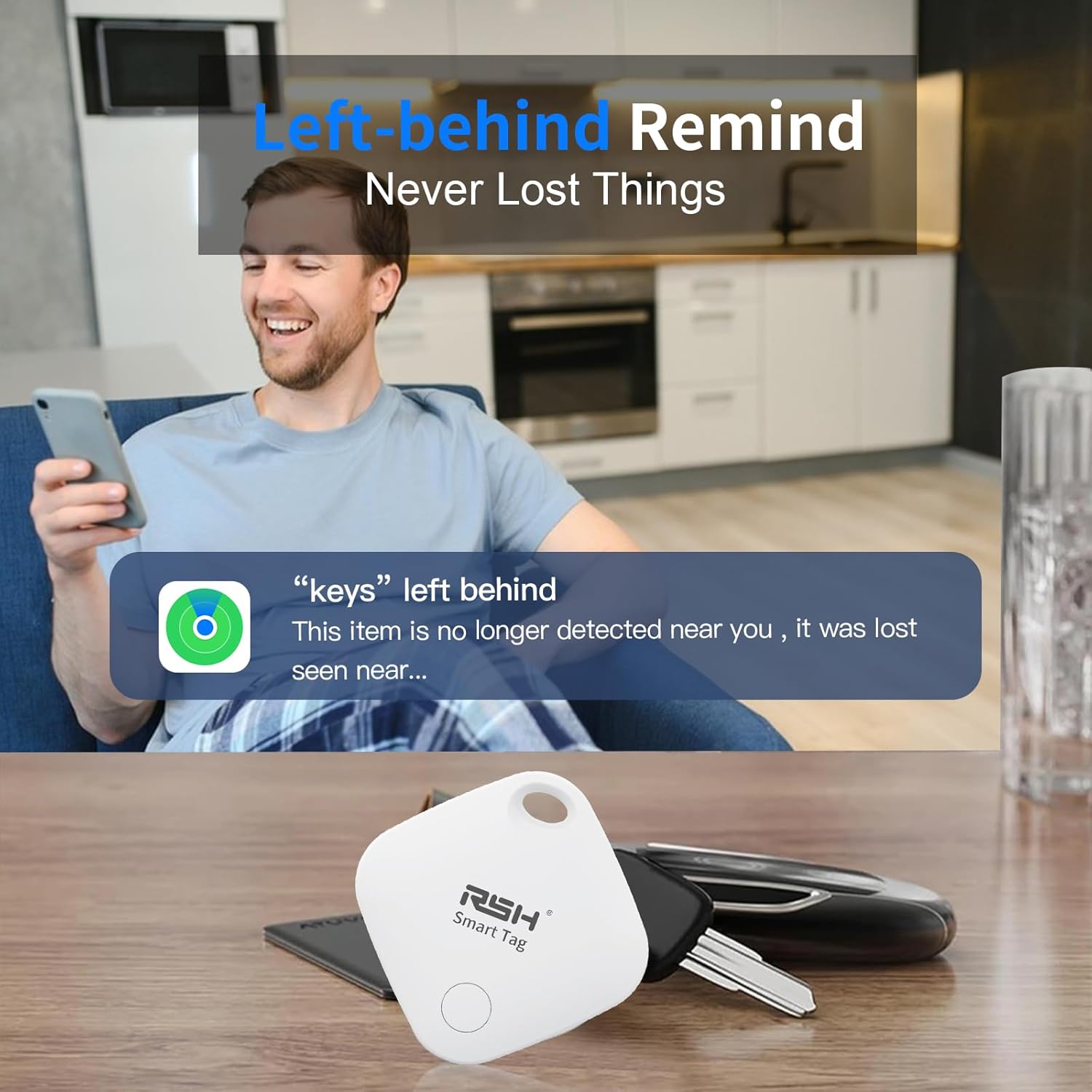
Figure 6: 'Left Behind Remind' notification on a smartphone.
3.4 Mode perdut
If your item is truly lost, you can enable 'Lost Mode' in the Find My app. Enter your contact information, and if someone finds your RSH Air Tracker Tag, they can use their Apple device to view your contact details and return the item. You will also be automatically notified when your tag is detected by another device in the Find My network.
3.5 Share with Friends and Family (iOS 17+)
For users with iOS 17 or later, the Find My app allows you to share the location of your RSH Air Tracker Tag with trusted friends and family members. This feature is useful for shared items or for family coordination.
Video 1: Official product video demonstrating the features and usage of the RSH Air Tracker Tag, including its application as a key finder and luggage tracker.
4. Substitució de la bateria
The RSH Air Tracker Tag uses a replaceable CR2032 coin cell battery, which typically lasts over a year. To replace the battery:
- Locate the small groove on the side of the RSH Air Tracker Tag.
- Use the included spudger tool (or a similar thin, non-metallic object) to gently pry open the casing.
- Traieu la bateria CR2032 antiga.
- Inseriu una nova bateria CR2032 amb el costat positiu (+) cap amunt.
- Carefully snap the casintorneu a enganxar-les fins que quedi ben tancada.

Figure 7: CR2032 battery for replacement.
5. Especificacions
- Model: Tag03
- Dimensions: 1.4 x 1.4 x 0.3 polzades (35 x 35 x 7 mm)
- Pes: 1.76 unces (11 g)
- Connectivitat: Bluetooth 5.1
- Bateria: 1 x CR2032 (reemplaçable)
- Durada de la bateria: Aproximadament 1 any
- Nivell de so: 80-100 dB
- Rang Bluetooth: 30-60 metres (100-200 peus)
- Material: Silicona
- Compatibilitat: Apple iOS 14.5 or later
6. Solució De Problemes
- Tag no s'aparella: Ensure the insulating sheet has been removed. Make sure Bluetooth is enabled on your Apple device and the tag is within range. Try restarting your Apple device and the Find My app.
- Sense so tag: Check the battery level in the Find My app. If low, replace the battery. Ensure the 'Play Sound' function is selected correctly.
- Ubicació incorrecta: The Find My network relies on nearby Apple devices. In areas with fewer Apple devices, location accuracy may be reduced. This tag does not feature Ultra-Wideband for precision finding.
- La bateria es descarrega ràpidament: Assegureu-vos el tag is not constantly out of range, which can cause it to search more frequently. Replace with a fresh, high-quality CR2032 battery.
- Tag unresponsive: Try removing the battery and reinserting it to perform a soft reset. If issues persist, remove the item from the Find My app and re-pair it.
7. Informació de seguretat
- Keep the RSH Air Tracker Tag and its battery out of reach of small children and pets. The coin cell battery can be a choking hazard if swallowed.
- Do not attempt to disassemble or modify the device beyond battery replacement.
- Eliminar les bateries usades d'acord amb la normativa local.
- Eviteu exposar el dispositiu a temperatures extremes o a la llum solar directa durant períodes prolongats.
8. Garantia i Suport
For warranty information and technical support, please refer to the product packaging or contact RSH customer service through the retailer where the product was purchased. Keep your proof of purchase for any warranty claims.


