
Introducció
This manual provides comprehensive instructions for the setup, operation, and maintenance of your XtremeMac Bluetooth Wireless Keyboard and Mouse. Please read this manual thoroughly before using the product to ensure optimal performance and longevity.
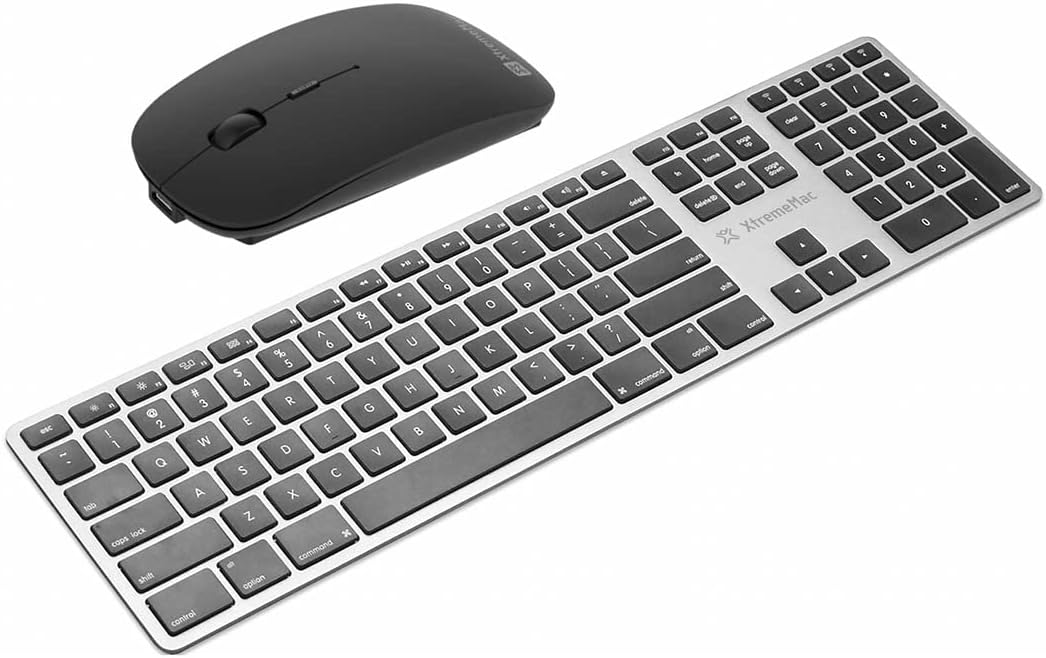
Una sobrecàrrega view of the XtremeMac Bluetooth wireless keyboard and mouse. The keyboard is silver with black keys, featuring a full layout including a numeric keypad. The mouse is black and has a sleek, ergonomic design.
Contingut del paquet
Verifiqueu que tots els elements siguin presents al paquet:
- XtremeMac Bluetooth Wireless Keyboard
- XtremeMac Bluetooth Wireless Mouse
Instruccions de configuració
1. Encès
Teclat: Locate the power switch, usually on the top edge or underside of the keyboard. Slide it to the "ON" position. An indicator light may briefly illuminate.
Ratolí: Locate the power switch on the underside of the mouse. Slide it to the "ON" position. An optical sensor light may activate.
2. Emparellament Bluetooth
Ensure your Mac's Bluetooth is enabled. Navigate to Configuració del sistema (o Preferències del sistema on older macOS versions) > Bluetooth.
Vinculació del teclat:
- With the keyboard powered on, press and hold the Bluetooth pairing button (often located on the underside or top edge, sometimes combined with a function key) until the indicator light begins to flash, indicating it is in pairing mode.
- On your Mac, look for "XtremeMac Keyboard" or a similar name in the list of nearby Bluetooth devices.
- Click "Connect" or "Pair." Follow any on-screen prompts, such as typing a code on the keyboard and pressing Enter.
- Once connected, the indicator light on the keyboard will stop flashing and remain solid or turn off.
Emparellament del ratolí:
- With the mouse powered on, press and hold the Bluetooth pairing button (usually on the underside) until the indicator light begins to flash.
- On your Mac, look for "XtremeMac Mouse" or a similar name in the list of nearby Bluetooth devices.
- Click "Connect" or "Pair."
- Once connected, the indicator light on the mouse will stop flashing and remain solid or turn off.
Nota: The XtremeMac keyboard and mouse are designed for use with Mac OS. Compatibility with other operating systems may vary.
Instruccions de funcionament
Ús del teclat
- Mecanografia estàndard: Use the keys as you would a standard keyboard.
- Tecles de funció: The top row of keys typically includes media controls and system functions. These may require pressing the "Fn" key simultaneously for their secondary function, depending on your Mac's settings.
- Mac-Specific Keys: Utilize the Command (⌘) and Option (⌥) keys for macOS shortcuts.
- Teclat numèric: The dedicated numeric keypad allows for efficient data entry.
Ús del ratolí
- Clic esquerre: Acció primària, selecció.
- Clic dret: Menú contextual.
- Roda de desplaçament: Desplaça't pels documents i web pàgines.
- Seguiment òptic: The mouse uses optical technology for precise cursor movement on most surfaces.
Manteniment
- Neteja: Utilitzeu un drap suau i sense pelusa lleugerament dampened with water or a mild cleaning solution to clean the surfaces of the keyboard and mouse. Avoid excessive moisture.
- Substitució de la bateria: If the devices become unresponsive or the indicator lights dim, it may be time to replace the batteries. Refer to the battery compartment on the underside of each device for battery type and replacement instructions.
- Emmagatzematge: Quan no els feu servir durant períodes prolongats, apagueu tots dos dispositius per estalviar bateria. Guardeu-los en un lloc fresc i sec.
Resolució de problemes
Device Not Connecting or Unresponsive
- Comproveu la potència: Ensure both the keyboard and mouse are powered on and have sufficient battery charge. Replace batteries if necessary.
- Reemparella els dispositius: Go to your Mac's Bluetooth settings, remove the XtremeMac keyboard and mouse from the list of devices, and then repeat the pairing process as described in the "Setup Instructions" section.
- Bluetooth on Mac: Verify that Bluetooth is enabled on your Mac and that it is not in Airplane Mode.
- Reinicieu els dispositius: Turn off and then turn on both the keyboard, mouse, and your Mac.
- Interferència: Move the devices closer to your Mac and away from other wireless devices that might cause interference (e.g., Wi-Fi routers, cordless phones).
Cursor Jumps or Lagging (Mouse)
- Superfície: Ensure the mouse is used on a clean, non-reflective, and opaque surface.
- Bateria: Replace the mouse batteries.
- Sensor òptic: Check the optical sensor on the underside of the mouse for any obstructions or dirt.
Especificacions
| Marca: | Xtrememac |
| Número de model: | XWH-BBT-13 |
| Tecnologia de connectivitat: | Bluetooth |
| Dispositius compatibles: | Laptop, Personal Computer (Mac OS) |
| Mouse Tracking Technology: | Òptic |
| Dimensions aproximades (paquet): | 54.5 x 14.4 x 3.4 cm |
| Pes aproximat (paquet): | 690 g |
Garantia i Suport
XtremeMac products are covered by a limited warranty. For detailed warranty information, product registration, or technical support, please visit the official XtremeMac weblloc web o poseu-vos en contacte amb el servei d'atenció al client. Conserveu el comprovant de compra per a reclamacions de garantia.
Fabricant: XTREMEMAC