
Introducció
This manual provides essential information for setting up, operating, and maintaining your GEEKOM Mini PC AS5. Please read these instructions carefully before using the device to ensure optimal performance and longevity. The GEEKOM Mini PC AS5 is a compact and powerful computing solution designed for various applications, from home entertainment to professional tasks.
Contingut del paquet
Abans de continuar amb la configuració, comproveu que tots els elements que s'enumeren a continuació s'inclouen al paquet:
- GEEKOM Mini PC AS5
- Adaptador d'alimentació
- VESA Mount (with screws)
- SSD Mounting Screws
- HDD Mounting Screws
- Guia ràpida
- Manual d'usuari (aquest document)
- Cable USB-C a USB-C

Figura 1: Contents of the GEEKOM Mini PC AS5 package.
Guia de configuració
1. Connexió de perifèrics
Connect your monitor, keyboard, and mouse to the GEEKOM Mini PC AS5. Refer to the port diagram below for correct connections.
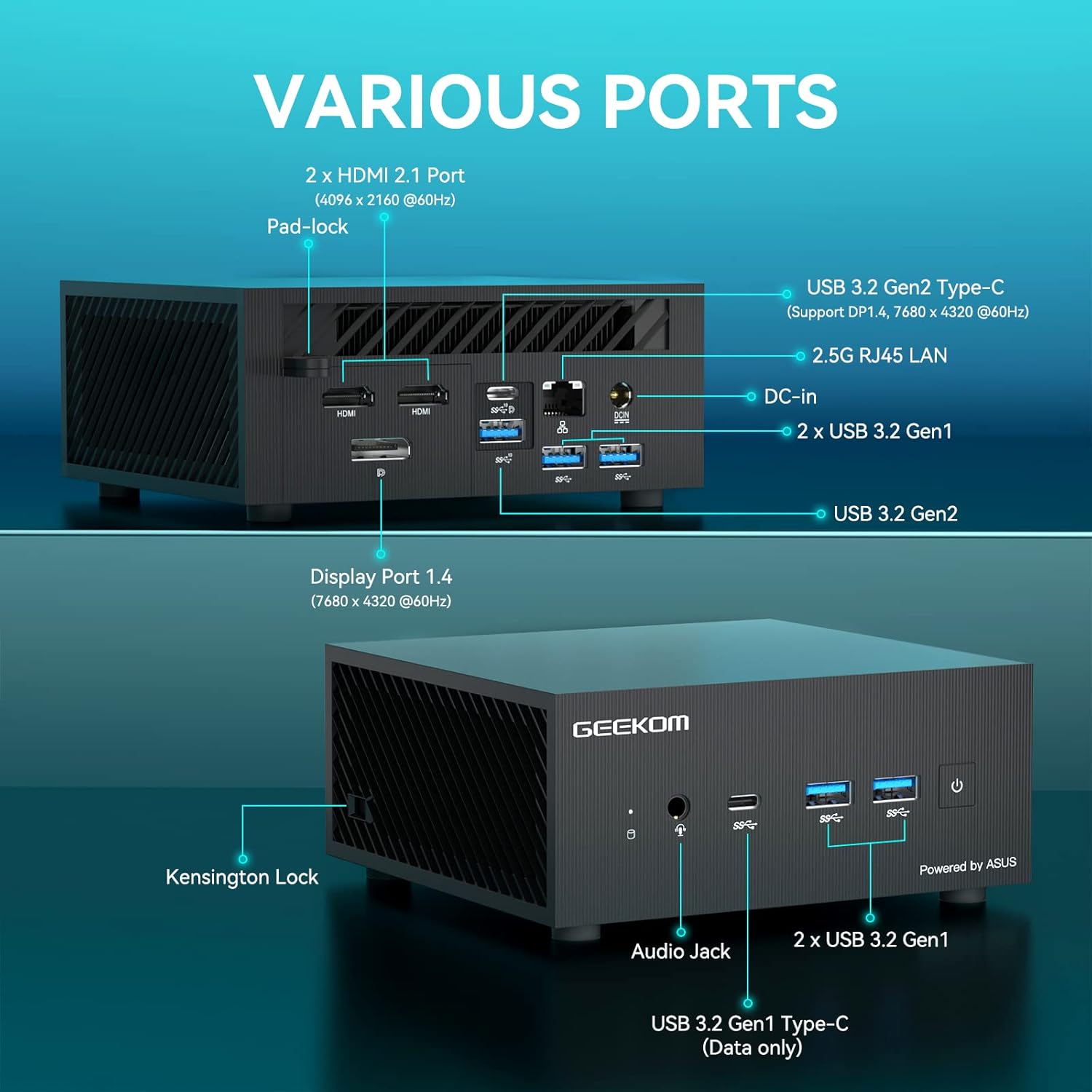
Figura 2: Acabatview of available ports on the GEEKOM Mini PC AS5.
- Connexió de visualització: Use an HDMI cable to connect your monitor to one of the two HDMI 2.1 ports, or a DisplayPort cable to the Display Port 1.4. The USB 3.2 Gen2 Type-C port also supports DisplayPort 1.4 for video output.
- Dispositius USB: Connect your keyboard, mouse, and other USB devices to the available USB 3.2 Gen1 and Gen2 ports.
- Connexió de xarxa: For a wired network connection, connect an Ethernet cable to the 2.5G RJ45 LAN port. For wireless, ensure your Wi-Fi network is available.
- Àudio: Connect headphones or speakers to the Audio Jack.
2. Connexió d'alimentació
Connect the power adapter to the DC-In port on the Mini PC, then plug the power adapter into a wall outlet.
3. Engegada inicial
Press the power button located on the front of the Mini PC. The system will boot up, and you will see the operating system loading on your connected display.
4. Configuració del sistema operatiu
Follow the on-screen instructions to complete the initial setup of Windows 10 Pro, including language selection, network configuration, and user account creation.
Instruccions de funcionament
Funcionament bàsic
- Encès/apagat: Press the power button to turn the device on. To turn off, use the Windows shutdown option or press and hold the power button for 5 seconds.
- Reinicia: Use the restart option within the Windows operating system.
- Mode de repòs: The system will enter sleep mode after a period of inactivity. Press any key or move the mouse to wake it up.
Configuració de la pantalla
The GEEKOM Mini PC AS5 supports multiple displays, including up to four 4K displays or ultra-realistic 8K visuals.

Figura 3: The GEEKOM Mini PC AS5 supports ultra-realistic 8K visuals.

Figura 4: Multitasking across four 4K displays with the GEEKOM Mini PC AS5.
To configure multiple displays, right-click on the desktop, select "Display settings," and arrange your monitors as desired.
Network Connectivity (Wi-Fi 6E)
The Mini PC supports Wi-Fi 6E, offering enhanced wireless performance. To connect to a Wi-Fi network:

Figura 5: GEEKOM Mini PC AS5 featuring Wi-Fi 6E support for faster, lower-latency wireless connectivity.
- Click the Wi-Fi icon in the system tray.
- Seleccioneu la xarxa desitjada de la llista.
- Introduïu la contrasenya de xarxa si se us demana.
- Feu clic a "Connecta".
Manteniment
Neteja
- Assegureu-vos que el dispositiu estigui apagat i desconnectat abans de netejar-lo.
- Feu servir un drap suau i sec per netejar l'exterior del Mini PC.
- Per a marques difícils, esbandiu lleugeramentampRenta el drap amb aigua. Evita productes químics agressius o netejadors abrasius.
- Keep ventilation openings clear of dust and debris using compressed air.
Actualitzacions de programari
Actualitzeu regularment el sistema operatiu i els controladors de Windows per garantir un rendiment i una seguretat òptims. Podeu comprovar si hi ha actualitzacions a través de la configuració de Windows Update.
Gestió d'emmagatzematge
Revisa periòdicament l'ús de l'emmagatzematge i elimina els elements innecessaris files to maintain system speed. The Mini PC supports additional storage expansion (SSD/HDD) if needed.
Resolució de problemes
- Sense energia:
- Assegureu-vos que l'adaptador de corrent estigui connectat correctament tant al Mini PC com a una presa de corrent que funcioni.
- Verifiqueu que la presa de corrent funciona connectant-hi un altre dispositiu.
- Sense pantalla:
- Check that the monitor is powered on and the correct input source is selected.
- Ensure the HDMI or DisplayPort cable is securely connected to both the Mini PC and the monitor.
- Prova un cable o monitor diferent si és possible.
- Sense connexió a Internet:
- Per a connexions amb cable, comproveu l'estat del cable Ethernet i del router.
- Per al Wi-Fi, assegureu-vos que el Wi-Fi estigui habilitat a la configuració de Windows i que estigueu connectat a la xarxa correcta amb la contrasenya correcta.
- Reinicieu el router i el mini PC.
- Alentiment del sistema:
- Tanca les aplicacions innecessàries que s'executen en segon pla.
- Comproveu i instal·leu les actualitzacions pendents de Windows.
- Run a disk cleanup and defragmentation (for HDDs) or TRIM (for SSDs).
- Escaneja per detectar programari maliciós o virus.
Especificacions
| Nom del model | AS5 |
| Processador | AMD Ryzen™ 9 5900HX (8 Cores, 16 Threads, Max Turbo Frequency 4.60 GHz, 16MB Cache, cTDP 35W) |
| Sistema operatiu | Windows 10 Pro |
| RAM | 32 GB DDR4 SDRAM |
| Emmagatzematge | 1 TB (PCIE x 2 interface) |
| Gràfics | AMD Radeon™ Vega 8 Graphics (supports 8K visuals) |
| Connectivitat sense fil | Wi-Fi 6E |
| Ports |
|
| Dimensions | 13 x 12 x 5.8 cm |

Figura 6: AMD Ryzen™ 9 5900HX Processor details.
Garantia i suport
Informació de la garantia
GEEKOM products typically come with a standard manufacturer's warranty. Please refer to the warranty card included in your package or visit the official GEEKOM weblloc web per obtenir informació detallada sobre els termes i condicions de la garantia específics per a la vostra regió i data de compra. Conserveu el comprovant de compra per a reclamacions de garantia.
Atenció al client
For technical assistance, troubleshooting beyond this manual, or warranty inquiries, please contact GEEKOM customer support. You can usually find contact information on the official GEEKOM website or in the quick guide provided with your product.
GEEKOM Official Weblloc: www.geekompc.com