
1. Introducció
This manual provides detailed instructions for the setup, operation, maintenance, and troubleshooting of your Volcora 80mm Thermal Receipt Printer. This printer is designed for Point-of-Sale (POS) applications, offering fast and efficient thermal printing with an auto-cutter. It supports USB and Ethernet connectivity and is compatible with Android, Windows, and Linux operating systems.
2. Informació de seguretat
- Assegureu-vos que la impressora estigui connectada a una presa de corrent amb connexió a terra.
- No exposeu la impressora a l'aigua ni a una humitat excessiva.
- Eviteu col·locar la impressora sota la llum solar directa o a prop de fonts de calor.
- Use only the power adapter provided with the printer.
- Mantingueu la impressora lluny dels nens.
- No intenteu desmuntar ni reparar la impressora vosaltres mateixos. Poseu-vos en contacte amb el servei d'atenció al client per obtenir ajuda.
3. Contingut del paquet
Verifiqueu que tots els elements siguin presents al paquet:
- Volcora 80mm Thermal Receipt Printer
- Cable d'alimentació
- Cable USB
- Rotlle de paper de prova
- CD d’instal·lació

Figure 3.1: Package Contents. The image displays the Volcora Thermal Receipt Printer along with its accessories: a power cord, a USB cable, a roll of test paper, and an installation CD.
4. Producte acabatview
4.1. Ports i botons
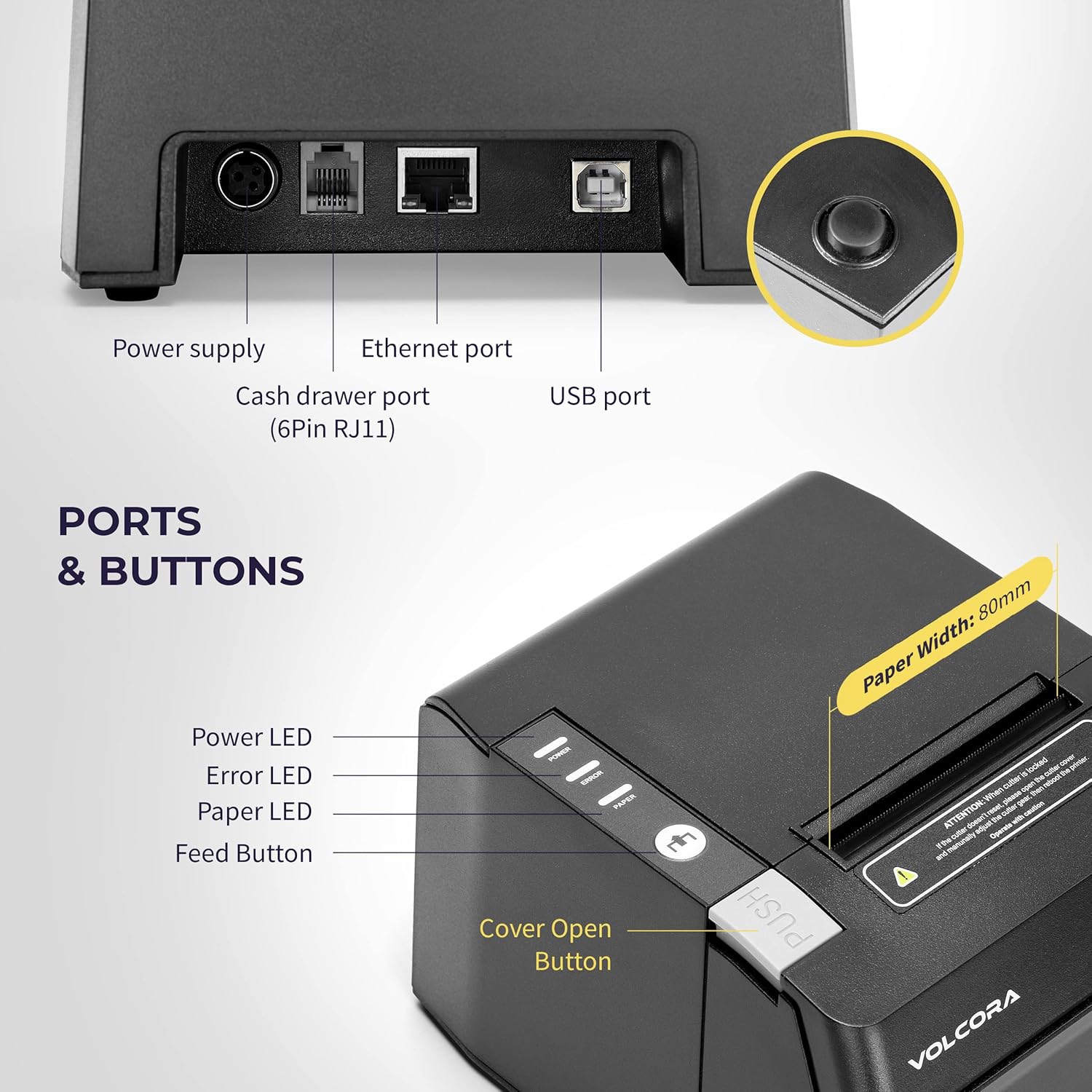
Figure 4.1: Printer Ports and Buttons. This image illustrates the rear ports including Power Supply, Ethernet Port, Cash Drawer Port (6Pin RJ11), and USB Port. It also shows the front panel with Power LED, Error LED, Paper LED, Feed Button, and Cover Open Button.
- Port d'alimentació: Es connecta a l'adaptador de corrent.
- Port Ethernet: For network connectivity (LAN).
- Cash Drawer Port (6Pin RJ11): Connects to a cash drawer.
- Port USB: Per a la connexió directa a un ordinador.
- LED d'alimentació: Indica l'estat d'alimentació.
- LED d'error: Indicates printer errors.
- Paper LED: Indicates paper status (e.g., low paper).
- Botó d'alimentació: Manually feeds paper.
- Botó d'obertura de la coberta: Releases the printer cover to access the paper roll.

Figura 4.2: Múltiple views of the Volcora Thermal Receipt Printer, showing its compact design and various connection points.
5. Configuració
5.1. Unboxing and Connecting
- Desembaleu la impressora i traieu tots els materials d'embalatge.
- Connecteu l'adaptador de corrent a la impressora i després a una presa de corrent.
- Connect the printer to your Windows PC using the provided USB cable.
Video 5.1: Getting Started with Volcora Thermal Receipt Printer. This video demonstrates the unboxing, connecting the printer to power and a Windows PC via USB, and performing a self-test.
5.2. Instal·lació del rotlle de paper
- Press the Cover Open Button to open the printer cover.
- Insert the thermal paper roll with the printing side facing up.
- Pull a small length of paper out past the cutter.
- Tanqueu la coberta de la impressora fermament fins que encaixi al seu lloc.
5.3. Driver Installation (Windows)
- Download the latest driver for Windows from the Volcora support weblloc: volcora.com/support.
- Descomprimiu el descarregat file i executeu l'instal·lador del controlador.
- Follow the on-screen prompts, agreeing to the license and selecting your printer model (e.g., 500108).
- Ensure the printer is connected via USB during installation.
- After successful installation, the printer should be recognized in your computer's "Printers & scanners" settings.

Figure 5.2: Easy Installation Steps. This diagram outlines the four main steps: Download drivers, Install drivers, Connect the printer, and Test print.
5.4. Network Configuration (Ethernet)
If you are using the Ethernet connection, you may need to configure the printer's IP address to match your network's subnet. This can be done using the Setting Tool software.
- First, identify your PC's IP address and subnet mask.
- Perform a printer self-test (see Section 6.2) to get the printer's current IP address.
- If the printer's IP is not in the same subnet as your PC, you will need to adjust either the PC's IP or the printer's IP.
- Open the Setting Tool software (available from volcora.com/support).
- Select the printer model and choose 'NET' for the port type.
- Enter the printer's current IP address and click 'Get Param' to retrieve its network settings.
- Modify the IP address, subnet mask, and gateway to align with your network configuration.
- Click 'Set' to apply the new settings to the printer.
- Perform another self-test to confirm the IP address has been updated.
Video 5.2: How to Modify LAN IP Address of Volcora Receipt Printer. This video guides you through identifying current IP addresses, changing PC host IP, and using the Setting Tool to configure the printer's IP address for Ethernet connectivity.
5.5. Opcions de col·locació

Figure 5.3: Multiple Use & Placement. The printer can be wall-mounted for kitchen use or placed on a counter for receipt printing.
6. Instruccions de funcionament
6.1. Impressió bàsica
Once the printer is connected and drivers are installed, you can print receipts from your POS software or any application that supports printing. The printer features a 203 dpi resolution for clear prints and an auto-cutter for efficient receipt handling.

Figure 6.1: Efficient Printing. This image highlights the printer's fast print speed, low noise operation, and clear 203 dpi output, showing a receipt with a QR code and a barcode.
The printer supports various barcode types including UPC-A, UPC-E, EAN13, EAN8, CODE39, ITF25, CODABAR, CODE93, CODE128, QRCODE, PDF417, and Data matrix.
6.2. Printer Self-Test
A self-test prints the printer's configuration, including its IP address (if connected via Ethernet), and confirms basic functionality.
- Assegureu-vos que la impressora estigui apagada.
- Press and hold the "Feed" button.
- While holding the "Feed" button, power on the printer.
- Continue holding the "Feed" button for approximately 5 seconds until the self-test page begins to print.
6.3. Compatibilitat
The Volcora Thermal Receipt Printer is compatible with various POS systems and operating environments. It supports ESC/POS commands.

Figure 6.2: Printer Compatibility. This chart lists compatible POS systems such as Loyverse, SumUp, Gloria Food, FoodZaps, TabShop POS, POSAPP.vn POS, Olsera POS, and KaHero POS. It also lists systems that are not compatible, including Square, Toast, Ubereats, Grubhub, Doordash, Postmates, Clover, and Shopify.
Sistemes operatius compatibles: Android, Windows, Linux. (Note: A software development kit (SDK) is required for custom application development on Ethernet-supported systems, including Windows, Linux, and MAC.)
No compatible amb: Delivery platforms or POS applications such as Ubereats, Grubhub, Doordash, Postmates, Square, Clover, or Shopify. Does not offer Bluetooth or WiFi printing options.

Figure 6.3: Detailed Compatibility Table. This table shows compatibility for USB and Serial connections across various operating systems (Windows, Mac OS, Linux, Android, iOS) and notes about SDK and ESC/POS commands.
7. Manteniment
7.1. Neteja
- Regularly clean the printer's exterior with a soft, damp tela.
- To clean the thermal print head, use an alcohol swab. Ensure the printer is off and cool before cleaning.
- Remove any paper dust or debris from the paper path.
8. Solució De Problemes
8.1. Problemes comuns i solucions
| Problema | Causa possible | Solució |
|---|---|---|
| La impressora no respon | Power issue, loose cable, driver not installed. | Check power connection. Ensure USB/Ethernet cable is securely connected. Verify driver installation (Section 5.3). |
| Blank pages or faint print | Thermal paper loaded incorrectly, print head dirty. | Reload paper with the thermal side facing up. Clean the thermal print head (Section 7.1). |
| Embús de paper | Incorrect paper loading, foreign object. | Open the cover, remove jammed paper, and ensure proper loading. Remove any obstructions. |
| Ethernet connection issues | Incorrect IP address configuration. | Perform a self-test to check the printer's IP. Use the Setting Tool to configure the IP address to match your network (Section 5.4). |
| Printer not compatible with POS software | Software not supported. | Refer to the compatibility list (Section 6.3). Contact your POS software provider for compatibility information. |
For further assistance, refer to the Volcora support center or contact customer service.
9. Especificacions
| Característica | Detall |
|---|---|
| Marca | Volcora |
| Número de model | 500108 |
| Tecnologia d'impressió | Tèrmica |
| Velocitat d'impressió | Fins a 220 mm/s |
| Resolució d'impressió | 203 ppp |
| Amplada del paper | 80mm (3 1/8") |
| Amplada d'impressió | 72 mm |
| Interfície | USB, Ethernet (LAN), Cash Drawer (RJ11) |
| Vida útil del tallador automàtic | 1.5 milió de retallades |
| Potència d'entrada | CA 110V/240V, 50-60Hz |
| Potència de sortida | DC 24V/2A |
| Dimensions del producte | 7"D x 6"W x 4.5"H (approx. 16 x 4 x 16 inches as per some specs) |
| Pes de l'article | 3.76 lliures |
| Codis de barres compatibles | UPC-A, UPC-E, EAN13, EAN8, CODE39, ITF25, CODABAR, CODE93, CODE128, QRCODE, PDF417, Data matrix |
| Comandament de la impressora | ESC/POS |
10. Garantia
This Volcora Thermal Receipt Printer comes with a Garantia limitada. Please refer to the warranty card included in your package or visit the Volcora support weblloc per obtenir els termes i condicions detallats.
11. Atenció al client
For additional assistance, troubleshooting, or to download drivers and tools, please use the following resources:
- Volcora Help Portal: https://help.volcora.com
- Download Support Center: https://volcora.com/support
- Correu electrònic d’atenció al client: support@volcora.com
Our U.S. based customer support team is available to assist with any integration issues.