
1. Introducció
This manual provides detailed instructions for the setup, operation, maintenance, and troubleshooting of your Tera USB Wired 1D 2D QR Barcode Scanner, Model 3206. Please read this manual thoroughly before using the product to ensure proper functionality and to maximize its performance.
2. Informació de seguretat
- No exposeu l'escàner a temperatures extremes, humitat ni substàncies corrosives.
- Eviteu deixar caure l'escàner ni sotmetre'l a impactes forts.
- Do not attempt to disassemble or modify the scanner. This will void the warranty.
- Keep the scanner away from strong electromagnetic fields.
- Do not stare directly into the scanning light beam.
3. Producte acabatview
The Tera Model 3206 is a versatile wired barcode scanner designed to read various 1D, 2D, and QR codes from both printed materials and digital screens. It features a comfortable handheld design and simple USB connectivity.

Figure 1: Tera USB Wired Barcode Scanner Model 3206
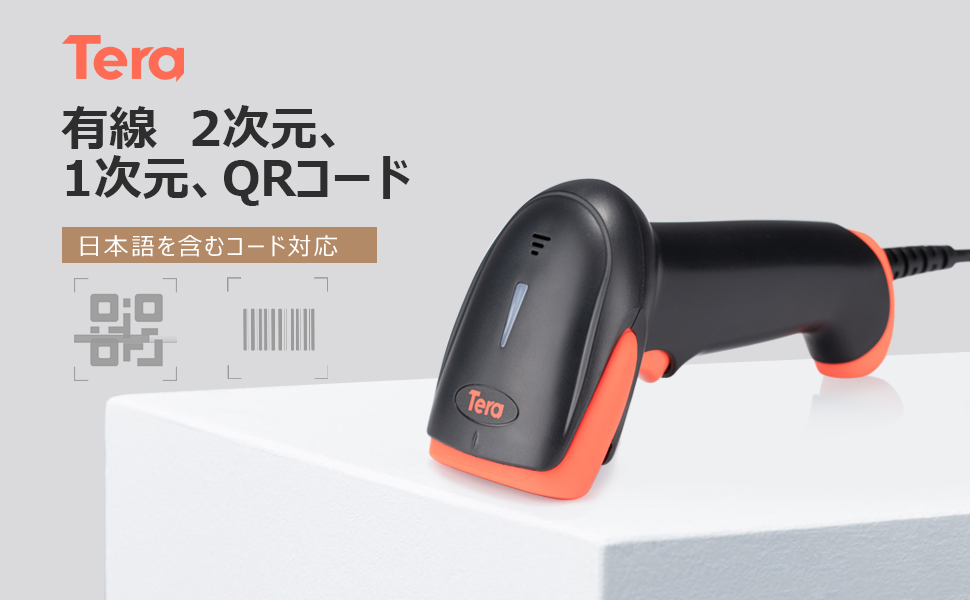
Figure 2: The scanner supports 1D, 2D, and QR codes, including EAN13, UPC, QR Code, and PDF417. It can read codes from both printed surfaces and LCD screens.
4. Configuració
The Tera Model 3206 barcode scanner is designed for plug-and-play operation, requiring no driver installation.
4.1 Connexió de l'escàner
- Connecteu el cable USB de l'escàner a un port USB disponible de l'ordinador.
- L'ordinador detectarà i instal·larà automàticament els controladors necessaris. Aquest procés pot trigar uns instants.
- Once installation is complete, the scanner is ready for use.

Figure 3: Connect the scanner to your computer via USB. No drivers are required for installation.
5. Instruccions de funcionament
5.1 Escaneig bàsic
- Open a text editor, spreadsheet, or any application where you want the scanned data to appear.
- Point the scanner at the barcode you wish to read.
- Press the trigger button (if in manual scan mode) or allow the scanner to automatically detect the code (if in automatic detection mode).
- A successful scan will typically be indicated by an audible beep and the data appearing in your active application.
5.2 Supported Code Types
The scanner supports a wide range of 1D and 2D barcodes, including:
- Codis de barres 1D: EAN13, UPC, Code 39, Code 128, etc.
- Codis de barres 2D: QR Code, PDF417, Data Matrix, etc.
Note: While this is a 2D scanner and can read long 1D codes, for extremely long 1D codes, a dedicated 1D laser scanner might be more suitable.
5.3 Japanese Character Support
The Tera Model 3206 scanner is capable of reading barcodes that contain Japanese characters (Hiragana, Katakana, and Kanji). This allows for seamless input of complex Japanese text into compatible applications.

Figura 4: Examples of barcodes containing Japanese characters (numbers + Hiragana, English + Hiragana + Katakana, numbers + Katakana, Hiragana + Katakana + punctuation).
Nota de compatibilitat: Barcodes containing Japanese characters cannot be directly input into smartphones, tablets, or Macs. Windows Explorer is also not supported for this functionality. This feature is primarily for Windows PCs with compatible applications like Excel, Word, or Notepad.
6. Configuració
The scanner offers various configuration options to suit different operational needs.
6.1 modes d'escaneig
You can switch between two primary scan modes:
- Escaneig manual: Press the trigger button to initiate a scan.
- Automatic Detection Scan: The scanner automatically detects and reads barcodes when they are presented within its scanning range.

Figure 5: The scanner supports both manual (trigger) and automatic detection scan modes.
6.2 Barcode Editing Functions
The scanner includes functions to edit barcode data before it is transmitted to your computer:
- Afegeix un prefix: Add custom characters to the beginning of scanned data.
- Afegeix el sufix: Add custom characters to the end of scanned data.
- Hide Leading Characters: Remove a specified number of characters from the beginning of scanned data.
- Hide Trailing Characters: Remove a specified number of characters from the end of scanned data.
Refer to the included quick setup guide (usually a small booklet with configuration barcodes) for specific barcodes to activate these editing functions.

Figure 6: Barcode editing functions allow for adding prefixes/suffixes and hiding leading/trailing characters.
6.3 Keyboard Language Support
The scanner supports various keyboard layouts to ensure correct character output for different languages. Supported languages include English, Spanish, German, Japanese, French, and Italian.
To change the keyboard language, scan the appropriate configuration barcode from the quick setup guide.
7. Manteniment
7.1 Neteja
- Regularly clean the scanner's window with a soft, lint-free cloth.
- Per a la brutícia persistent, lleugerament dampen the cloth with water or a mild, non-abrasive cleaning solution.
- Do not use harsh chemicals or abrasive materials, as they can damage the scanner's surface.
7.2 Emmagatzematge
Quan no l'utilitzeu, guardeu l'escàner en un lloc fresc i sec, allunyat de la llum solar directa i de temperatures extremes.
8. Solució De Problemes
Si teniu problemes amb l'escàner, consulteu els problemes i solucions més comuns següents:
| Problema | Causa possible | Solució |
|---|---|---|
| L'ordinador no reconeix l'escàner | Loose USB connection, faulty USB port, or driver issue. | Ensure the USB cable is securely connected. Try a different USB port or computer. Restart your computer. |
| No data output after scanning | Application not in focus, incorrect scan mode, or barcode unreadable. | Ensure the target application is active. Check the scan mode (manual/auto). Verify the barcode is clear and undamaged. |
| Scanned data is incorrect or contains wrong characters (e.g., ':' becomes '+') | Incorrect keyboard language setting on the scanner. | Scan the appropriate configuration barcode from the quick setup guide to set the correct keyboard language (e.g., Japanese keyboard for Japanese characters). |
| Scanner is slow or unresponsive | Poor barcode quality, environmental interference, or scanner settings. | Ensure barcodes are clear. Avoid scanning in very bright or very dim conditions. Check if any advanced settings (e.g., data formatting) are causing delays. |
| Cannot scan certain barcode types | Barcode type is disabled or not supported. | Refer to the quick setup guide to enable specific barcode symbologies if they are disabled. Confirm the barcode type is supported by Model 3206. |
9. Especificacions
- Número de model: 3206
- Marca: Tera
- Connectivitat: Cable USB
- Dimensions: 8.9 x 7 x 16.2 cm
- Pes: 100 g
- Resolució: 300 ppp
- Tipus d'escàner: 1D and 2D Barcode Scanner (supports QR Code, EAN13, UPC, PDF417, etc.)
- Sistemes operatius compatibles: Windows, iOS, Linux, Android
- Angle d'escaneig: Up/Down ±40°, Left/Right ±40°
10. Garantia i Suport
Tera products are designed for reliability and performance. For warranty information, technical support, or service inquiries, please refer to the contact information provided with your purchase or visit the official Tera weblloc.


