
AZDOME M301
AZDOME M301 2K Dash Cam User Manual
Model: M301 | Brand: AZDOME
1. Introducció
The AZDOME M301 is a high-definition 2K (2560x1440P) dash cam designed to enhance your driving safety and provide reliable recording. Featuring a front and rear camera system, built-in Wi-Fi, voice control, and advanced parking monitoring, the M301 ensures comprehensive coverage and ease of use. This manual provides detailed instructions for setup, operation, maintenance, and troubleshooting to help you get the most out of your device.

Figure 1: AZDOME M301 2K Dash Cam overview.
2. Què hi ha a la caixa
Upon unboxing your AZDOME M301 Dash Cam, please verify that all the following components are included:
- AZDOME M301 2K Dash Cam (Front Camera)
- Rear Camera (6m/20ft cable)
- Micro USB Power Cable (3.5m/12ft)
- USB Car Charger (Dual Port)
- 64GB Micro SD Card (Pre-installed or included separately)
- Pel·lícules electrostàtiques (x2)
- Cable Hiding Clips (x5)
- Eina de cablejat del cotxe
- Manual d'usuari
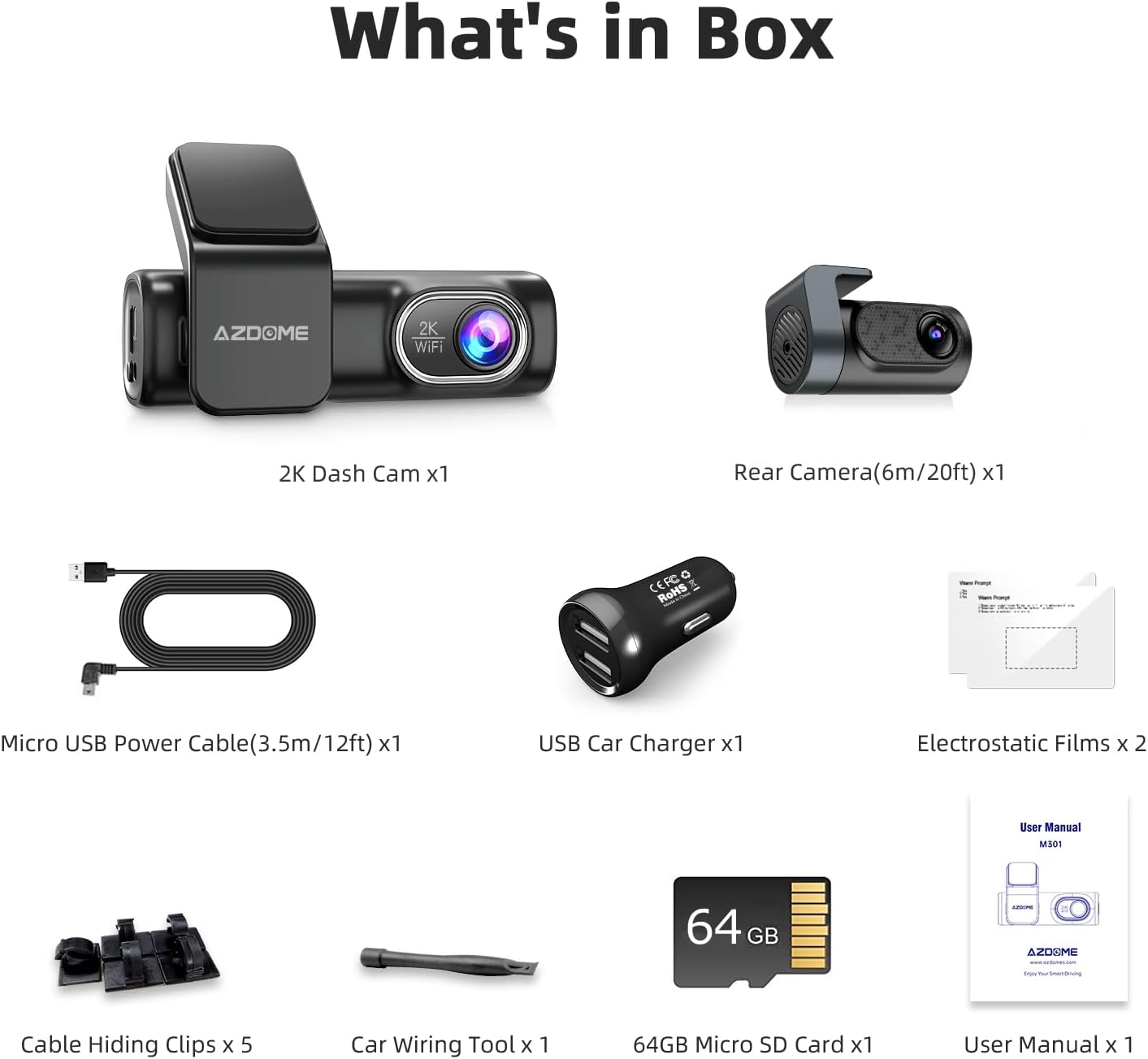
Figure 2: All components included in the AZDOME M301 package.
Vídeo 1: Acabatview of the AZDOME M301 dash cam product and its included accessories.
3. Configuració
3.1 Preparació inicial
- Format de la targeta SD: Before first use, insert the included 64GB Micro SD card into the dash cam. It is crucial to format the SD card using the dash cam's settings to ensure proper functionality. Refer to the 'Operating' section for instructions on formatting via the mobile app.
- Neteja el parabrisa: Assegureu-vos que la zona del parabrisa on es muntarà la càmera del salpicader estigui neta i seca.
- Aplicar pel·lícula electrostàtica: Apply one of the electrostatic films to the desired mounting location on your windshield. This helps prevent adhesive residue on your glass.
3.2 Muntatge de la càmera del salpicader
- Connecteu la càmera frontal: Peel off the adhesive backing from the front dash cam's mount and firmly press it onto the electrostatic film on your windshield. Ensure the camera lens has a clear view de la carretera.
- Muntar la càmera posterior: Attach the rear camera to your rear windshield using its adhesive mount. Route the rear camera cable discreetly along the vehicle's headliner and A-pillars to the front dash cam.

Figure 3: Dual dash cam setup with front (2K) and rear (720P) cameras.
3.3 Connexió d'alimentació
- Connecteu el cable d'alimentació: Plug the Micro USB power cable into the front dash cam and the USB car charger. Insert the car charger into your vehicle's 12V power outlet.
- Gestió de cables: Use the provided cable hiding clips and car wiring tool to neatly tuck away the power and rear camera cables, ensuring they do not obstruct your view o interferir en la conducció.

Figure 4: The dash cam supports 24-hour parking monitoring (requires optional hardwire kit).
Video 2: Detailed instructions on how to install and use the AZDOME M301 dash cam.
4. Funcionament de la càmera del salpicader
4.1 Enregistrament automàtic
The AZDOME M301 automatically begins recording when your vehicle's ignition is turned on and stops recording when the ignition is turned off. This ensures continuous coverage during your drives.
4.2 Built-in Wi-Fi and App Control
The dash cam features built-in Wi-Fi, allowing you to connect it to your smartphone via the "AZDOME" App. This app enables remote control, real-time footage viewing, photo/video capture, playback of recordings, and file downloads to your phone for easy sharing.

Figure 5: Connect to the AZDOME app via Wi-Fi to manage your dash cam.
4.3 Hands-Free Voice Control
The M301 supports voice commands for convenient hands-free operation. Simply speak commands like "Turn on WiFi/Turn off WiFi," "Take picture," "Open Recording/Turn off Recording," and "Lock the video." Nota: Voice commands are currently supported only in English.

Figure 6: Utilize voice control for hands-free operation while driving.
4.4 Funcions avançades
- Enregistrament en bucle: When the SD card reaches its capacity, the dash cam automatically overwrites the oldest video files per continuar gravant.
- Sensor G: The built-in G-sensor detects sudden shocks or collisions. In such events, the camera automatically locks the current video file, evitant que es sobreescrigui amb l'enregistrament en bucle.
- Monitor d'aparcament: With this feature enabled, the dash cam detects vibrations 24/7, even when the car is parked. This requires a continuous power supply, typically achieved with an optional hardwire kit (sold separately).
- Supervisió nocturna: The M301 enhances exposure in low-light conditions with WDR and F1.8 large aperture, providing clear imaging for license plates and road signs, ensuring reliable recording day or night.

Figure 7: Super Night Vision capability for clear recordings in low-light conditions.
5. Manteniment
- SD Card Reformatting: To ensure optimal performance and prevent data corruption, it is recommended to reformat your Micro SD card monthly using the dash cam's settings via the mobile app.
- Resistència a la temperatura: The M301 is powered by a super capacitor, making it highly resistant to extreme weather conditions (-4°F to 158°F). This design contributes to a longer lifespan compared to lithium-ion battery dash cams.
- Neteja: Use a soft, dry cloth to clean the camera lenses and the device body. Avoid using harsh chemicals or abrasive materials.
6. Solució De Problemes
If you encounter any issues with your AZDOME M301 Dash Cam, please refer to the following common problems and solutions:
| Problema | Causa possible | Solució |
|---|---|---|
| Dash cam not turning on/recording | No power supply; SD card issue. | Ensure the car charger is properly connected and the vehicle's 12V outlet is active. Format the SD card or try a different compatible SD card (Class 10 or U3 above). |
| App connectivity issues (Wi-Fi disconnects, no live view) | Incorrect Wi-Fi connection; App glitch. | Ensure your phone is connected to the dash cam's Wi-Fi network (M301-DashCam-XXXX). Restart the app and power cycle the dash cam. For iOS, ensure Wireless Data is set to WLAN for the AZDOME app. |
| Voice commands not working consistently | Limited command set; Environmental noise. | Ensure you are using one of the six supported English voice commands. Speak clearly and reduce background noise if possible. |
| Parking monitor not functioning 24/7 | Requires continuous power. | The parking monitor feature requires a hardwire kit (not included) or an external battery to provide continuous power when the vehicle is off. |
| Sticky residue on windshield after removal | Electrostatic film not used. | Always use the provided electrostatic films between the adhesive mount and your windshield to prevent residue. |
Nota important: Arbitrary disassembly of the device is not covered under warranty. For complex issues, please contact AZDOME customer support.
7. Especificacions
| Característica | Detall |
|---|---|
| Nom del model | M301 |
| Resolució de captura de vídeo | Front: 2K (2560x1440P) UHD; Rear: 720P |
| Camp de View | 170 graus (frontal) |
| Tecnologia de connectivitat | Wi-Fi |
| Característiques especials | G-Sensor, Voice Control, Loop Recording, Parking Monitor, Super Night Vision, WDR, F1.8 Large Aperture |
| Suport d'emmagatzematge | Micro SD cards up to 128GB (Class 10 - U3 speed recommended) |
| Font d'alimentació | Super Capacitor (for extreme temperatures) |
| Temperatura de funcionament | -4 °F a 158 °F (-20 °C a 70 °C) |
| Tipus de muntatge | Muntatge del parabrisa |
| Dimensions del producte | 9.45 x 2.36 x 5.51 polzades |
| Pes de l'article | 1.29 lliures |
8. Garantia i Suport
AZDOME is committed to providing high-quality automotive intelligent electronics products. While specific warranty periods may vary by region, AZDOME offers ongoing support for the M301 dash cam, including firmware updates, PDF user manuals, and assistance with camera accessories.
For any inquiries, technical support, or to access the latest firmware and user manual updates, please visit the official AZDOME website or contact their customer service directly. Contact information can typically be found on the product packaging or the AZDOME brand store.
Ask a question about this manual
Ask about setup, troubleshooting, compatibility, parts, safety, or missing instructions. Manuals+ will review the question and use this page’s manual context to help answer it.