
Canon G3430
Canon PIXMA G3430 Wireless Colour 3-in-1 Refillable MegaTank Printer User Manual
Model: G3430
1. Producte acabatview
The Canon PIXMA G3430 is a versatile 3-in-1 MegaTank printer designed for high-volume printing with refillable ink tanks. It offers printing, scanning, and copying functionalities, along with wireless connectivity for convenient use. This manual provides essential information for setting up, operating, and maintaining your printer.

Image 1.1: Canon PIXMA G3430 printer with included accessories, including ink bottles and power cable.
Característiques principals:
- Impressió ràpida: Achieves fast print speeds for increased productivity.
- High Quality Printing: Delivers sharp, clear print resolution for high-quality photos and documents.
- Funcionalitat 3 en 1: Combines print, scan, and copy capabilities in a single device.
- Refillable MegaTank System: Features large, refillable ink tanks for cost-effective and high-volume printing.
- Connectivitat sense fils: Supports Wi-Fi for easy printing from various devices.
2. Guia de configuració
2.1 Desembalatge i preparació inicial
- Traieu amb cura la impressora i tots els materials d'embalatge de la caixa.
- Remove all protective tapes and films from the printer.
- Col·loqueu la impressora sobre una superfície estable i plana.
2.2 Connexió d'alimentació
- Connecteu el cable d'alimentació a l'entrada d'alimentació de la impressora.
- Connecteu l'altre extrem del cable d'alimentació a una presa de corrent.
- Premeu el botó d'engegada per encendre la impressora.
2.3 Ink Installation and Filling
The PIXMA G3430 uses a refillable ink tank system. Follow these steps to fill the ink tanks:
- Open the ink tank covers located on the front of the printer.
- Open the caps of the individual ink tanks (Black, Cyan, Magenta, Yellow).
- Uncap the corresponding ink bottles.
- Carefully invert each ink bottle and insert its nozzle into the correct ink tank. The ink will flow automatically.
- Once the tank is full, remove the bottle and securely close the ink tank cap and cover.

Imatge 2.1: Primer pla view of the refillable ink bottles and the printer's ink tank system.
2.4 Càrrega de paper
- Obriu el suport del paper i traieu la safata de sortida del paper.
- Ajusteu les guies del paper a l'amplada del paper.
- Load paper into the rear tray with the print side facing up.

Image 2.2: The printer with its paper support and output tray extended, ready for paper loading.
2.5 Instal·lació i connectivitat del programari
To utilize all printer functions, install the necessary drivers and software.
- Insert the Installation CD-ROM into your computer's drive, or download the latest drivers from the official Canon weblloc.
- Seguiu les instruccions a la pantalla per completar la instal·lació.
- For wireless setup, select 'Wireless LAN Connection' during installation and follow the prompts to connect to your Wi-Fi network.
- Alternatively, connect the printer directly to your computer using a USB cable (not included).
3. Funcionament de la impressora
3.1 Tauler de control acabatview

Imatge 3.1: Frontal view of the printer's control panel with various buttons and indicators.
The control panel features buttons for power, Wi-Fi, paper selection, and operation controls (OK, Black, Color, Stop).
3.2 Impressió de documents i fotos
- Ensure paper is loaded in the rear tray.
- Des de l'ordinador o dispositiu mòbil, obriu el document o la foto que voleu imprimir.
- Seleccioneu "Imprimir" al menú de l'aplicació.
- Choose the Canon PIXMA G3430 as your printer.
- Adjust print settings (e.g., paper size, print quality, color/black & white) as needed.
- Feu clic a "Imprimeix".

Image 3.2: The printer supports mobile printing from smartphones and tablets.
3.3 Escaneig de documents
- Lift the document cover.
- Col·loqueu el document cara avall sobre el vidre de l'escàner, alineant-lo amb la marca d'alineació.
- Tanqueu la coberta del document.
- On your computer, open the Canon scanning software (e.g., IJ Scan Utility).
- Select the desired scan type (e.g., Photo, Document) and settings.
- Click 'Scan'. The scanned image will be saved to your computer.
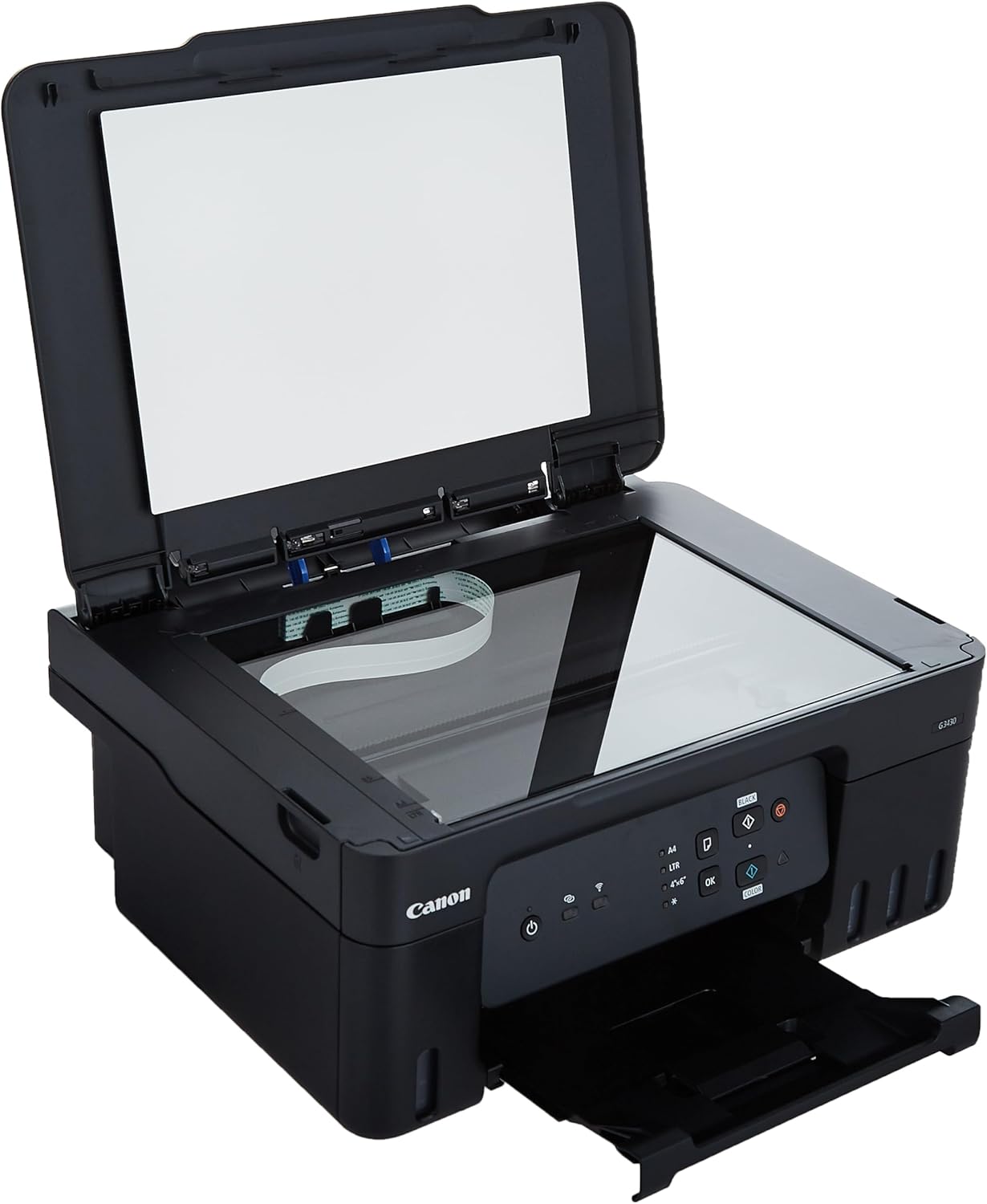
Image 3.3: The printer with its scanner lid open, revealing the scanner glass.
3.4 Còpia de documents
- Col·loqueu el document cara avall sobre el vidre de l'escàner.
- Ensure paper is loaded in the rear tray.
- On the printer's control panel, press the 'Black' button for a black & white copy or the 'Color' button for a color copy.
- To make multiple copies, press the respective button repeatedly for the desired number of copies.
4. Manteniment
4.1 Comprovació dels nivells de tinta
Visually inspect the ink tanks on the front of the printer to monitor ink levels. Refill tanks before they run completely empty to prevent air from entering the ink tubes.
4.2 Reomplir els dipòsits de tinta
When an ink tank is low, follow the steps in Section 2.3 to refill it using genuine Canon ink bottles.
4.3 Neteja del capçal d'impressió
If print quality declines (e.g., streaks, missing colors), perform a print head cleaning:
- From your computer, open the printer driver settings.
- Navigate to the 'Maintenance' or 'Utilities' tab.
- Select 'Print Head Cleaning' or 'Nozzle Check'.
- Follow the on-screen instructions. A deep cleaning option is available for more stubborn clogs.
4.4 Print Head Alignment
If printed text or lines appear misaligned, perform a print head alignment:
- From your computer, open the printer driver settings.
- Navigate to the 'Maintenance' or 'Utilities' tab.
- Select 'Print Head Alignment'.
- Follow the on-screen instructions, which typically involve printing a test pattern and selecting the best alignment.
5. Solució De Problemes
| Problema | Causa possible | Solució |
|---|---|---|
| La impressora no s'encén | Cable d'alimentació desconnectat; problema amb la presa de corrent | Assegureu-vos que el cable d'alimentació estigui connectat correctament a la impressora i a una presa de corrent que funcioni. |
| La impressora no imprimeix | No paper; low ink; incorrect drivers; connectivity issue | Load paper; refill ink; reinstall drivers; check Wi-Fi/USB connection. |
| Mala qualitat d'impressió (ratlles, colors descolorits) | Clogged print head; low ink; incorrect paper type | Perform print head cleaning; refill ink; use recommended paper. |
| Problemes de connexió Wi-Fi | Incorrect network password; printer too far from router; router issue | Re-enter password; move printer closer to router; restart router. |
| Embussos de paper | Improperly loaded paper; damaged paper; foreign object | Remove jammed paper carefully; ensure paper is loaded correctly; check for obstructions. |
6. Especificacions

Image 6.1: Approximate dimensions of the Canon PIXMA G3430 printer.
| Característica | Detall |
|---|---|
| Nom del model | G3430 |
| Dimensions del producte | 33.7 D x 41.6 W x 17.7 H centímetres |
| Pes de l'article | 6 quilos |
| Tecnologia de connectivitat | Wi-Fi, USB 2.0 |
| Tecnologia d'impressió | Injecció de tinta |
| Resolució màxima d'impressió en color | 4800 x 1200 ppp |
| Resolució màxima d'impressió en blanc i negre | 4800 x 1200 ppp |
| Velocitat màxima d'impressió (color) | 11 ppm |
| Velocitat màxima d'impressió (monocrom) | 11 ppm |
| Tipus d'escàner | Llit pla |
| Capacitat màxima del full d'entrada | 100 fulls |
| Impressió a doble cara | Sí |
| Components inclosos | Instruction Manual, Installation CD-ROM, Label Paper |
7. Garantia i Suport
7.1 Informació de la garantia
Your Canon PIXMA G3430 printer comes with a standard manufacturer's warranty. Please refer to the warranty card included in your product packaging for specific terms, conditions, and duration. Keep your proof of purchase for warranty claims.
7.2 Atenció al client
For technical assistance, troubleshooting beyond this manual, or warranty service, please contact Canon customer support. You can find contact information on the official Canon weblloc web o a la documentació que s'inclou amb la impressora.
Recursos en línia:
- Visita el servei d'assistència oficial de Canon website for drivers, software, FAQs, and additional manuals.
- Explora el Botiga Canon a Amazon per a informació sobre productes i accessoris.
Documents relacionats - G3430
 |
Manual en línia de la sèrie Canon G6000 Manual complet en línia per a les impressores de la sèrie Canon G6000, que cobreix la configuració, el funcionament, la connectivitat de xarxa, el manteniment i la resolució de problemes. |
 |
Manual en línia de la sèrie Canon G7000: Guia de configuració, funcionament i resolució de problemes Manual complet en línia per a la impressora multifunció Canon sèrie G7000. Troba instruccions detallades sobre la configuració, el funcionament bàsic, la connectivitat de xarxa, la manipulació del paper, la recàrrega de tinta, el manteniment, la seguretat i la resolució de problemes. |
 |
Canon Quick Menu Онлайн-руководство: функции, настройка и устранение неполадок Подробное руководство пользователя для Canon Quick Menu, охватывающее его функции, настройку ярлыкапив,созкащее i решение распространенных проблем. Информация для пользователей Windows. |
 |
Canon PIXMA sèrie G7000: Guia d'introducció A comprehensive guide for setting up and getting started with the Canon PIXMA G7000 series printer. It covers unboxing, installing print heads, filling ink tanks, turning on the printer, loading paper, connecting to computers and smartphones, and transporting the device. Includes troubleshooting tips for common error codes. |
 |
Manual d'usuari en línia de la sèrie Canon PIXMA MG2500 El manual d'usuari oficial en línia per a la sèrie Canon PIXMA MG2500. Aquesta guia proporciona instruccions detallades sobre la configuració, la impressió, la còpia, l'escaneig, el manteniment i la resolució de problemes de la impressora multifunció de raig de tinta Canon. Traieu el màxim profit del vostre dispositiu amb passos fàcils de seguir i consells útils. |
 |
Manual en línia de la sèrie Canon MG2900: configuració, funcionament i resolució de problemes Manual complet en línia per a la impressora multifunció de la sèrie Canon MG2900. Cobreix la configuració, les funcions, la impressió, l'escaneig, la còpia, el manteniment, la connectivitat de xarxa i la resolució de problemes. |
Ask a question about this manual
Ask about setup, troubleshooting, compatibility, parts, safety, or missing instructions. Manuals+ will review the question and use this page’s manual context to help answer it.