
Introducció
Thank you for choosing the cimetech Ultra-Thin 2.4G Wireless Keyboard and Mouse Combo. This manual provides detailed instructions for setting up, operating, and maintaining your new wireless peripheral set. Designed for comfort and efficiency, this combo offers a stable 2.4 GHz wireless connection, quiet operation, and an ergonomic design for an enhanced user experience.
Contingut del paquet
- 1 x teclat sense fils
- 1 x ratolí sense fil
- 1 x USB Receiver (2-in-1, stored inside the mouse)
- 1 x Manual d'usuari
Configuració
1. Introducció de piles
The keyboard and mouse require batteries (not included) for operation.
- Per al ratolí: Open the battery compartment on the underside of the mouse. Insert 1 bateria AA, ensuring correct polarity.
- Per al teclat: Open the battery compartment on the underside of the keyboard. Insert 2 piles AA, ensuring correct polarity.
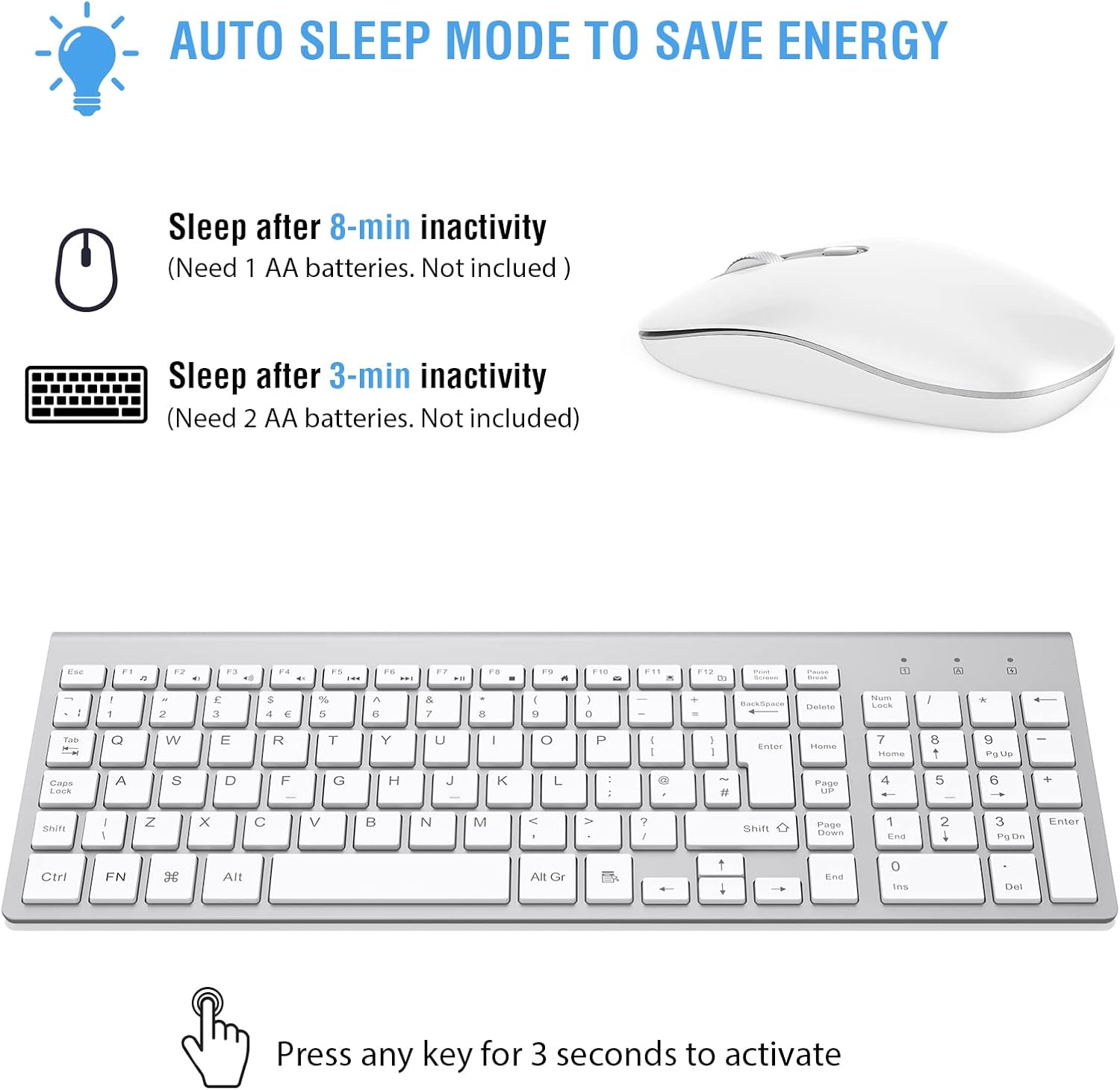
Figura 1: Battery installation and auto-sleep mode details for the keyboard and mouse. The mouse requires 1 AA battery, and the keyboard requires 2 AA batteries.
2. Connexió del receptor USB
- Locate the 2-in-1 USB receiver. It is typically stored in a compartment on the underside of the mouse.
- Plug the USB receiver into an available USB port on your computer (laptop, desktop, etc.).
- Your computer should automatically detect and install the necessary drivers. No additional software installation is required.
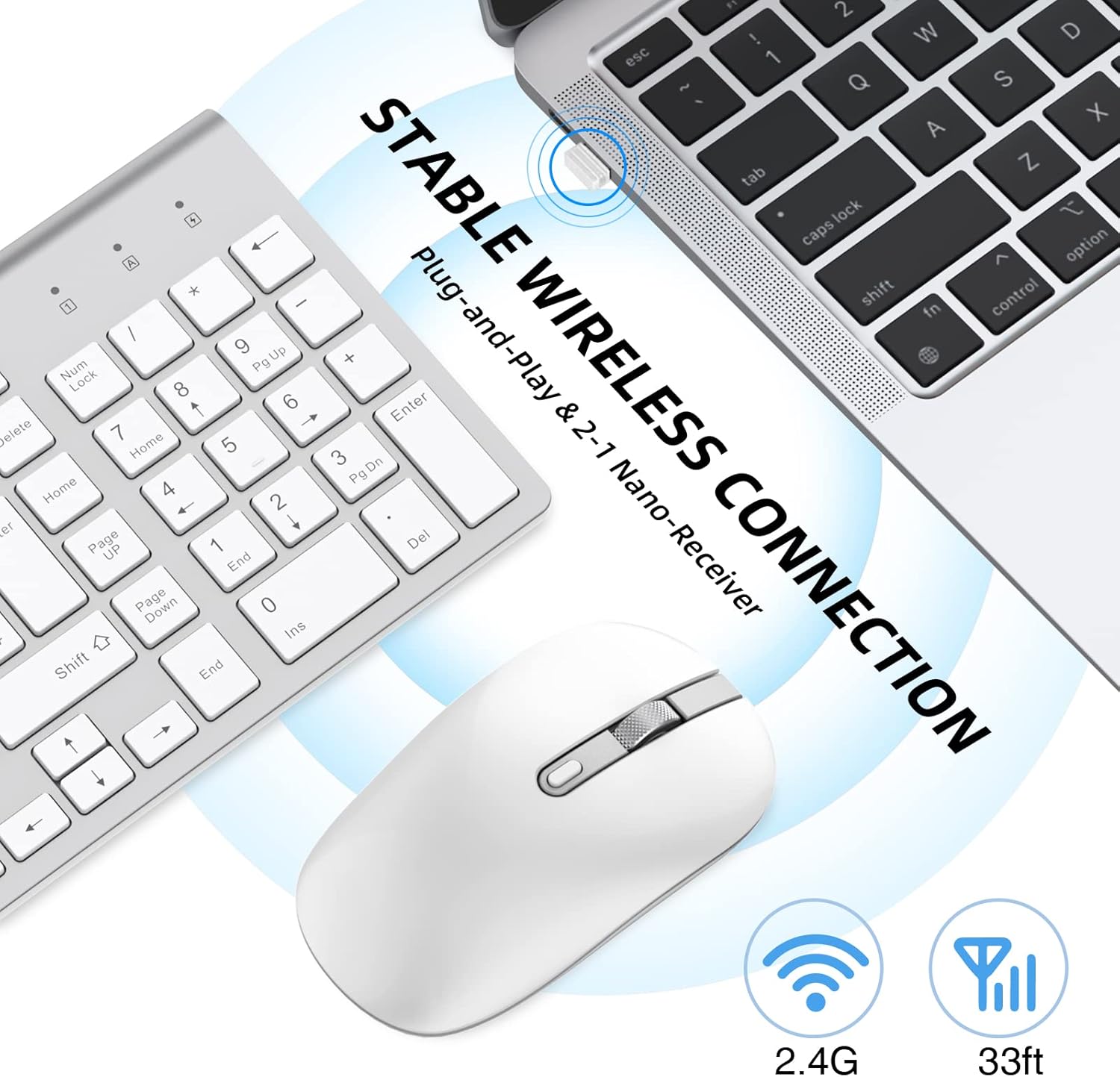
Figura 2: The USB receiver provides a stable 2.4G wireless connection. It is a plug-and-play device, requiring no additional drivers.

Figura 3: The USB receiver is conveniently stored in a dedicated compartment on the underside of the mouse.
3. Encès
- Ratolí: Ensure the ON/OFF switch on the underside of the mouse is set to "ON".
- Teclat: El teclat normalment s'encén automàticament un cop s'han inserit les piles i s'ha connectat el receptor.
The keyboard and mouse are now ready for use. The wireless connection has a working range of up to 10 meters (33 feet).
Funcionament
Funcions del teclat
- Tecles de tisora: El teclat té una baixa eficiènciafile scissor-switch keys for a responsive, quiet, and comfortable typing experience.
- Disseny a mida completa: Includes a full QWERTY layout with a dedicated numeric keypad.
- Tecles d'accés directe multimèdia: Access common functions like music control, internet, email, and volume directly using the multimedia hotkeys. Note that hotkey compatibility may vary with different operating systems.
- Disseny ergonòmic: The keyboard has an inclined angle for an ergonomic typing position.

Figura 4: The keyboard utilizes scissor-switch technology for faster response and quieter typing.
Funcions del ratolí
- DPI ajustable: The mouse offers three adjustable DPI levels (800, 1200, 1600) to customize cursor sensitivity. Press the DPI button (usually located near the scroll wheel) to cycle through the settings.
- Clic silenciós: Designed for quiet operation, the mouse features whisper-quiet clicks to minimize disturbance.
- Disseny ergonòmic: The contoured shape and skin-friendly finish provide comfortable use for extended periods.
Figura 5: The slim silent mouse features adjustable DPI levels (800/1200/1600), whisper-quiet clicks, and an ON/OFF switch.
Mode d'estalvi d'energia
To conserve battery life, both the keyboard and mouse enter an automatic sleep mode after periods of inactivity:
- Ratolí: Enters sleep mode after approximately 8 minutes of inactivity.
- Teclat: Enters sleep mode after approximately 3 minutes of inactivity.
To wake the devices, simply click any mouse button or press any key on the keyboard. The devices will reactivate within 3 seconds.
Figura 6: The auto-sleep mode helps conserve battery power. The mouse sleeps after 8 minutes, and the keyboard after 3 minutes of inactivity. Press any key or button to wake.
Compatibilitat
This wireless keyboard and mouse combo is compatible with a wide range of devices and operating systems, including:
- Sistemes operatius: Windows XP, Windows Vista, Windows 7, Windows 8, Windows 10.
- Dispositius: Laptops, desktop computers, personal computers, projectors, game consoles, televisions.
Manteniment
Neteja
- To clean the keyboard and mouse, use a soft, dry, lint-free cloth.
- Per a la brutícia persistent, lleugerament dampNetegeu el drap amb aigua o una solució de neteja suau i no abrasiva. Eviteu la humitat excessiva.
- Do not immerse the devices in water or use harsh chemicals.
Canvi de bateria
- When the devices stop responding or exhibit erratic behavior, it may be time to replace the batteries.
- Follow the instructions in the "Inserting Batteries" section to replace the AA batteries in both the keyboard and mouse.
- Eliminar les bateries usades de manera responsable d'acord amb la normativa local.
Resolució de problemes
- Cap resposta del teclat/ratolí:
- Assegureu-vos que les piles estiguin correctament inserides i que no estiguin esgotades. Substituïu-les si cal.
- Check if the mouse's ON/OFF switch is in the "ON" position.
- Verifiqueu que el receptor USB estigui ben connectat a un port USB que funcioni de l'ordinador. Proveu-ho amb un altre port USB.
- Acosteu el teclat i el ratolí al receptor USB per descartar problemes d'abast.
- Reinicieu l'ordinador.
- Connexió endarrerida o intermitent:
- Ensure there are no large metallic objects or other wireless devices (e.g., Wi-Fi routers, cordless phones) operating too close to the receiver, which could cause interference.
- Mou el receptor USB a un port USB frontal o utilitza un cable d'extensió USB per apropar-lo als dispositius.
- Canvieu les piles si estan baixes.
- Mouse Cursor Movement is Erratic:
- Netegeu el sensor òptic de la part inferior del ratolí.
- Ensure you are using the mouse on a suitable surface. Avoid highly reflective or transparent surfaces. A mouse pad is recommended.
- Ajusteu la configuració de DPI del ratolí.
- Multimedia Hotkeys Not Working:
- Some hotkeys may have limited functionality or require specific software/drivers depending on your operating system.
- Assegureu-vos que el vostre sistema operatiu estigui actualitzat.
Especificacions
| Marca | cimetech |
| Model | Ultra-Thin 2.4G Wireless Keyboard and Mouse Combo |
| Color | Plata/Blanc |
| Connectivitat | Sense fil de 2.4 GHz |
| abast sense fils | Fins a 10 metres (33 peus) |
| Tipus de teclat | Full-size QWERTY, Scissor-Switch, Ergonomic |
| Tipus de ratolí | Optical, Silent Click, Ergonomic, Right-hand orientation |
| Nivells de DPI del ratolí | 800 / 1200 / 1600 |
| Bateria del teclat | 2 piles AA (no incloses) |
| Bateria del ratolí | 1 x piles AA (no incloses) |
| Auto-Sleep (Keyboard) | Després de 3 minuts d'inactivitat |
| Auto-Sleep (Mouse) | Després de 8 minuts d'inactivitat |
| Sistema operatiu compatible | Windows XP, Vista, 7, 8, 10 |
| Dispositius compatibles | PC, Laptop, Projector, Game Console, TV |
Garantia i Suport
For warranty information or technical support, please refer to the documentation provided with your purchase or contact cimetech customer service through their official website or the retailer where the product was purchased. Please have your product model and purchase date available when seeking support.