
1. Introducció
This manual provides essential information for the safe and efficient operation of your DUODUOGO S2 10-inch Android WiFi Tablet. Please read it thoroughly before using the device and keep it for future reference.
2. Informació de seguretat
- No exposeu la tauleta a temperatures extremes, llum solar directa ni humitat elevada.
- Avoid dropping or subjecting the tablet to strong impacts.
- Use only the original charger and accessories provided with the device.
- Do not attempt to disassemble or repair the tablet yourself. Contact customer support for assistance.
- Mantingueu la tauleta allunyada de l'aigua i altres líquids.
- Desfeu-vos de la bateria i del dispositiu d'acord amb la normativa local.
3. Contingut del paquet
Verifiqueu que tots els elements siguin presents al paquet:
- DUODUOGO S2 Tablet
- Cable USB-Type C
- Adaptador d'alimentació
- Manual d'usuari (aquest document)
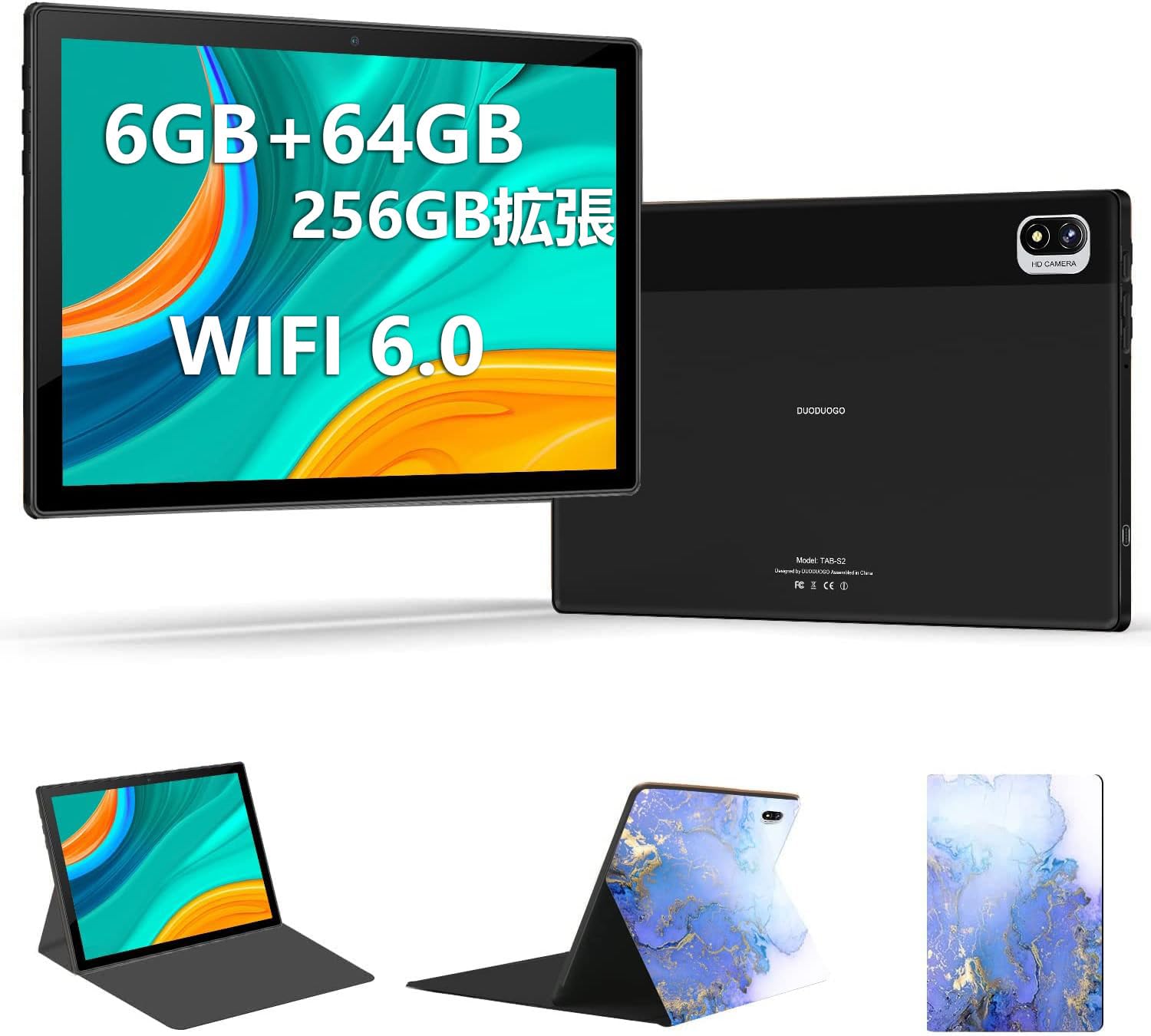
Image: DUODUOGO S2 Tablet and included accessories.
4. Disseny del dispositiu
Familiarize yourself with the physical features and ports of your DUODUOGO S2 tablet.

Image: Diagram showing the tablet's side view with labels for the power button, volume buttons (Vol+, Vol-), Type-C port, headphone jack, and TF card slot. The front and rear cameras are also indicated.
- Botó d'encesa: Press and hold to power on/off or restart. Press briefly to turn the screen on/off.
- Volume Buttons (Vol+, Vol-): Ajusteu el volum d'àudio.
- Port de tipus C: Per a càrrega i transferència de dades.
- Auriculars Jack: Connecteu auriculars de 3.5 mm.
- Ranura per a targetes TF: Insert a microSD card for expandable storage (up to 256GB).
- Càmera frontal: Càmera de 5MP per a videotrucades i selfies.
- Càmera posterior: 8MP camera for photos and videos.
- Altaveus duals: Located on the sides for enhanced audio output.
5. Configuració
5.1 Càrrec inicial
Before first use, fully charge the tablet using the provided USB Type-C cable and power adapter. The battery indicator on the screen will show charging progress.
5.2 Encès/Apagat
- Per encendre: Press and hold the Power Button until the DUODUOGO logo appears.
- Per apagar: Press and hold the Power Button, then select "Power Off" from the options on the screen.
- Per reiniciar: Press and hold the Power Button, then select "Restart" from the options.
5.3 Assistent de configuració inicial
En engegar-la per primera vegada, la tauleta us guiarà a través d'un procés de configuració inicial. Això inclou:
- Selecció de la llengua
- Connexió a la xarxa Wi-Fi
- Google account setup (optional, but recommended for app downloads)
- Configuració de data i hora
5.4 Connexió a Wi-Fi
Per connectar-se a una xarxa Wi-Fi:
- Vés a Configuració > Xarxa i Internet > Wi-Fi.
- Activa la Wi-Fi.
- Seleccioneu la xarxa desitjada de la llista.
- Introduïu la contrasenya si us demana i toqueu Connecta't.

Image: The tablet screen showing a video playback, highlighting its dual-band 2.4G/5G WiFi capability for stable internet connection.
6. Instruccions de funcionament
6.1 Navegació per la interfície d'Android
The DUODUOGO S2 runs on Android 11. Common gestures include:
- Toca: Selecciona un element o obre una aplicació.
- Llisca: Desplaçar-se per pantalles o llistes.
- Pessigar: Apropar o allunyar les imatges i web pàgines.
- Premsa llarga: Accedir a menús contextuals o moure icones.

Image: The tablet displaying the Android 11 home screen with various application icons, demonstrating the user interface.
6.2 Instal·lació d'aplicacions
You can download and install applications from the Google Play Store. Ensure you are logged in with a Google account.
- Obriu el Play Store aplicació.
- Cerca l'aplicació desitjada.
- Toqueu Instal·lar.
6.3 Funcionament de la càmera
La tauleta té una càmera frontal de 5 MP i una càmera posterior de 8 MP.
- Obriu el Càmera aplicació.
- Toqueu el botó de l'obturador per fer una foto.
- Canvieu entre la càmera frontal i la posterior mitjançant la icona de canvi de càmera.

Image: The tablet displaying a high-resolution image, illustrating the 10.1-inch IPS HD screen and indicating the 5MP front and 8MP rear camera capabilities.
6.4 Gestió d'emmagatzematge
The tablet comes with 64GB of internal storage. You can expand this by inserting a TF (microSD) card up to 256GB.
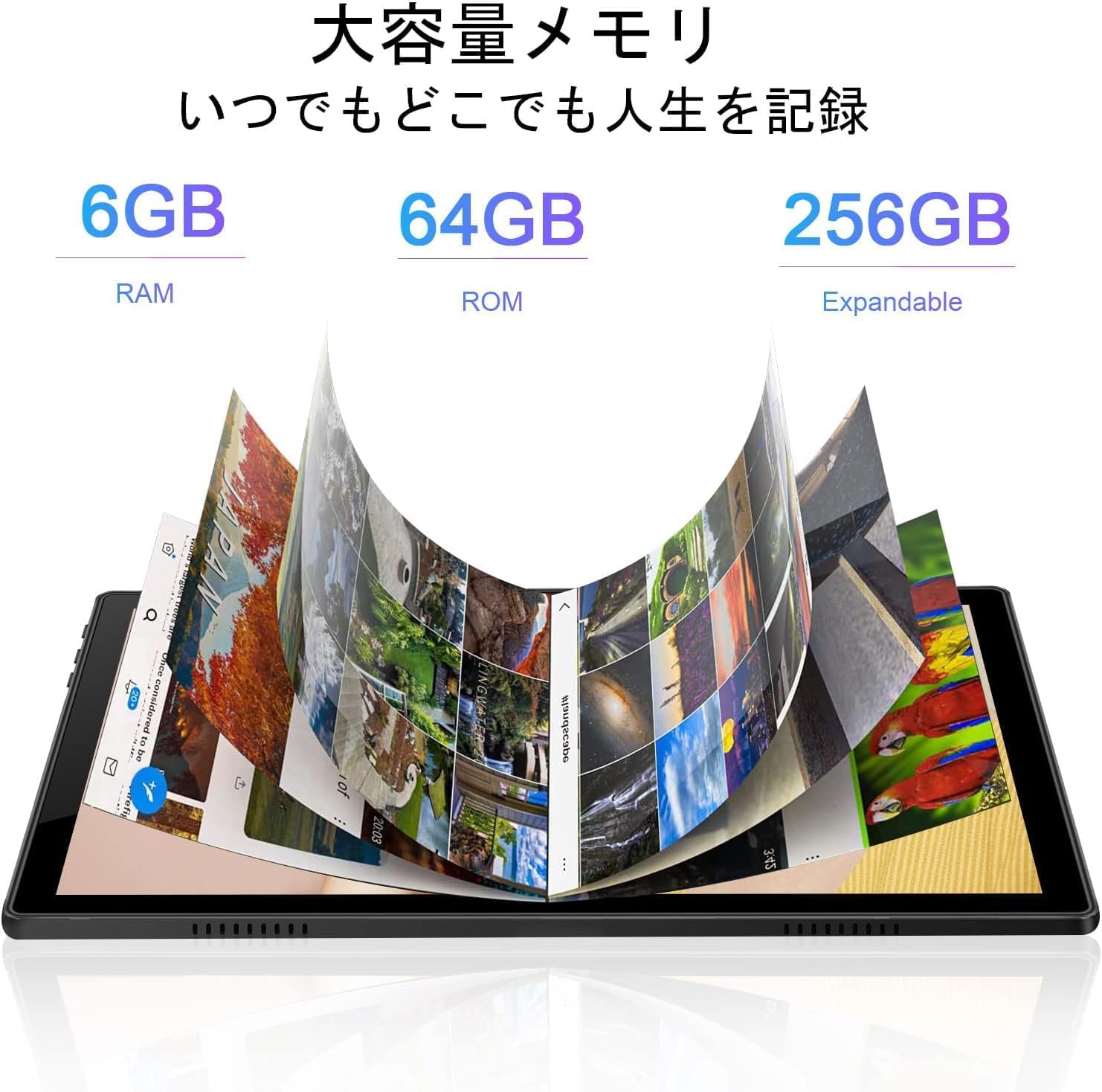
Image: A visual representation of the tablet's memory, showing 6GB RAM, 64GB internal storage (ROM), and the option to expand storage up to 256GB with a TF card.
7. Manteniment
- Neteja: Use a soft, lint-free cloth to clean the screen and body of the tablet. Do not use abrasive cleaners or solvents.
- Actualitzacions de programari: Comproveu i instal·leu regularment si hi ha actualitzacions del sistema per garantir un rendiment i una seguretat òptims. Aneu a Configuració > Sistema > Actualització del sistema.
- Cura de la bateria: To prolong battery life, avoid fully discharging the battery frequently. Charge the tablet when the battery level is low.
- Optimització de l'emmagatzematge: Netegeu periòdicament els innecessaris files and uninstall unused apps to free up storage space and improve performance.
8. Solució De Problemes
| Problema | Possible solució |
|---|---|
| La tauleta no s'encén. | Ensure the battery is charged. Connect the charger and wait a few minutes before attempting to power on again. If it still doesn't turn on, perform a forced restart by holding the power button for 10-15 seconds. |
| La pantalla no respon. | Reinicia la tauleta. Si el problema persisteix, assegura't que la pantalla estigui neta i sense brutícia. |
| No es pot connectar a la Wi-Fi. | Check if Wi-Fi is enabled in settings. Ensure the Wi-Fi password is correct. Restart your router and the tablet. Try connecting to a different Wi-Fi network to isolate the issue. |
| Les aplicacions es bloquegen o funcionen lentament. | Tanca les aplicacions en segon pla. Esborra la memòria cau de l'aplicació (Configuració > Aplicacions > selecciona l'aplicació > Emmagatzematge i memòria cau > Esborra la memòria cau). Assegureu-vos que hi hagi prou espai d'emmagatzematge disponible. Reinicieu la tauleta. |
| La bateria s'esgota ràpidament. | Reduce screen brightness. Close unused apps. Turn off Wi-Fi or Bluetooth when not in use. Check battery usage in Configuració > Bateria per identificar aplicacions que consumeixen molta energia. |
9. Especificacions
| Característica | Detall |
|---|---|
| Marca | DUODUOGO |
| Model | S2 |
| Sistema operatiu | Android 11 |
| Processador | 8 nuclis, 2.0 GHz |
| RAM | 6 GB |
| Emmagatzematge intern | 64 GB |
| Emmagatzematge ampliable | Up to 256 GB via TF (microSD) card |
| Mida de la pantalla | 10.1 polzades |
| Tipus de visualització | IPS HD |
| Resolució | 1280 x 800 píxels |
| Càmera posterior | 8 MP |
| Càmera frontal | 5 MP |
| Connectivitat | Wi-Fi (2.4G/5G, 802.11a/b/g/n), Bluetooth 4.3 |
| Capacitat de la bateria | Polímer de liti de 6000 mAh |
| Ports | USB Type-C, 3.5mm Headphone Jack, TF Card Slot |

Imatge: Un cop mésview of the DUODUOGO S2 tablet, visually summarizing its main features and specifications.
10. Garantia i Suport
DUODUOGO is committed to providing quality products and user experience. If you encounter any issues or have questions regarding your DUODUOGO S2 tablet, please contact our customer support.
- Atenció al client: Refer to the contact information provided with your purchase or on the official DUODUOGO weblloc.
- Garantia: This product comes with a standard manufacturer's warranty. Please retain your proof of purchase for warranty claims.
Our support team aims to respond within 24 hours to assist you with any concerns.