
1. Introducció
Thank you for choosing the Dpofirs DL-5C Mini Wireless Keyboard. This manual provides detailed instructions for setting up, operating, and maintaining your new device. Please read this manual carefully before use to ensure optimal performance and longevity of your keyboard.
The DL-5C is a versatile 2.4GHz wireless keyboard featuring a built-in touchpad, RGB 7-color backlighting, and a compact design. It is ideal for various applications, including PC gaming, smart TV control, and general computer use.
2. Producte acabatview
The Dpofirs DL-5C Mini Wireless Keyboard combines a full QWERTY keyboard with a multi-touch touchpad, multimedia control keys, and a 2.4GHz USB receiver for seamless wireless connectivity.
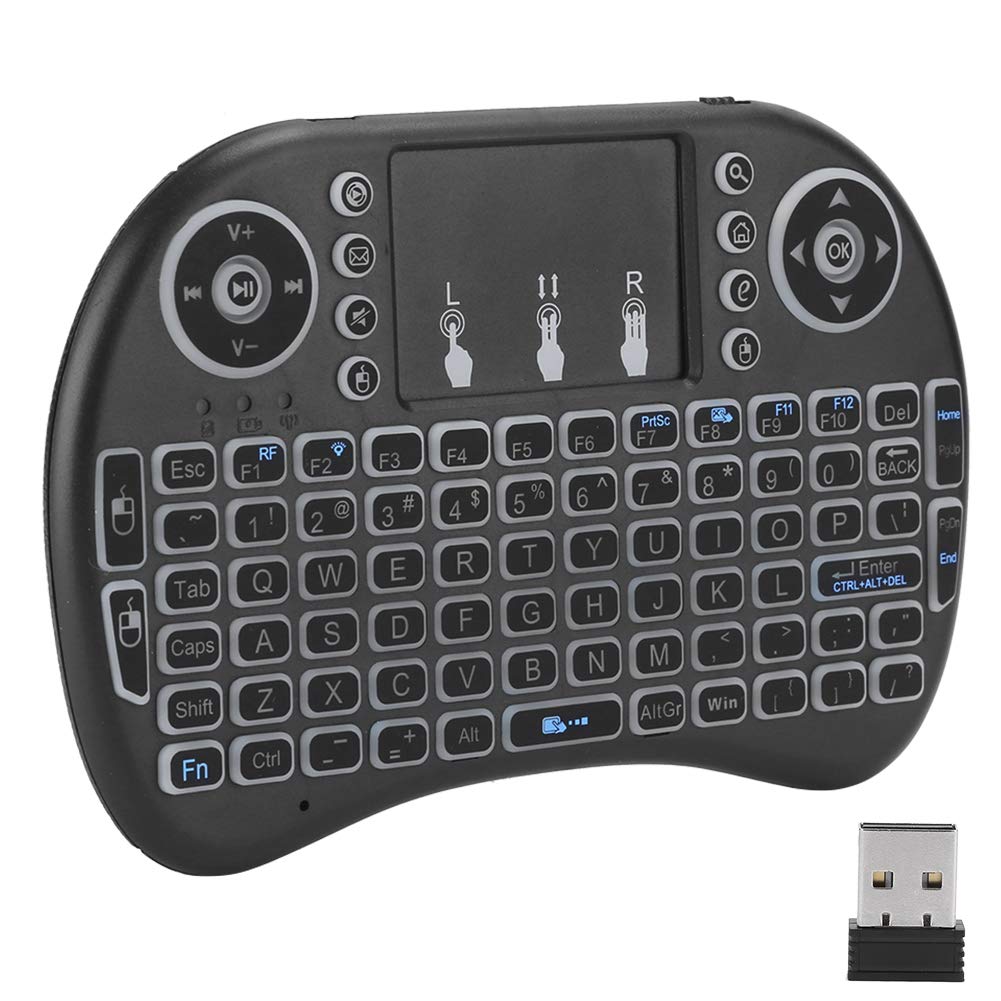
The DL-5C Mini Wireless Keyboard features a compact design with a built-in touchpad and a dedicated USB receiver for wireless connectivity.

This image displays the full layout of the DL-5C keyboard, including the QWERTY keys, touchpad, and multimedia controls, alongside its 2.4GHz USB receiver.

The keyboard features RGB 7-color backlighting, which can be adjusted to blue, red, or green, as shown in these examples.

The ergonomic design of the DL-5C Mini Wireless Keyboard allows for comfortable two-hand operation, making it suitable for various applications.

Demonstration of the DL-5C Mini Wireless Keyboard's 2.4GHz wireless connection, providing seamless control for devices like laptops.

This image illustrates the keyboard's backlight feature and reminds users that pressing Fn + F2 allows changing the backlight color to blue, red, or green.
3. Configuració
3.1 Càrrega del teclat
The DL-5C keyboard features a built-in rechargeable lithium battery. Before first use, ensure the keyboard is fully charged.
- Locate the charging port on the keyboard (usually a Micro-USB or USB-C port).
- Connect the provided USB charging cable to the keyboard and a standard USB power source (e.g., computer USB port, USB wall adapter).
- El llum indicador de càrrega s'il·luminarà durant la càrrega i normalment s'apagarà o canviarà de color quan estigui completament carregat.
3.2 Connexió del receptor USB
The keyboard uses a 2.4GHz wireless connection via a USB receiver.
- Locate the USB receiver, which is typically stored in a compartment on the back of the keyboard.
- Insert the USB receiver into an available USB port on your device (e.g., computer, smart TV, game console).
- The device should automatically recognize the keyboard. No additional software or drivers are usually required (plug and play).
3.3 Engegada/apagada
Locate the power switch on the keyboard (usually on the side or back). Slide the switch to the 'ON' position to power on the keyboard. Slide it to the 'OFF' position when not in use to conserve battery life.
4. Instruccions de funcionament
4.1 Funcions bàsiques del teclat
The DL-5C functions as a standard QWERTY keyboard. Simply type as you would on a regular keyboard.
4.2 Touchpad Gestures
The integrated high-sensitivity touchpad allows for precise cursor control.
- Toc senzill: Funciona com un clic esquerre.
- Doble toc: Functions as a double-click.
- Desplaçament amb dos dits: Drag two fingers up or down on the touchpad to scroll vertically.
- Clic amb el botó dret: A dedicated right-click button is usually available near the touchpad, or a two-finger tap may function as a right-click depending on the specific model.
4.3 Tecles multimèdia
The keyboard includes dedicated multimedia control keys (e.g., volume up/down, play/pause, next/previous track) for convenient media management. These are typically located around the edges or top of the keyboard.
Control de retroiluminació 4.4
The keyboard features RGB 7-color backlighting.
- Per canviar el color de la retroiluminació, manteniu premut el botó [Fn] i després premeu la tecla [F2] tecla simultàniament.
- Repeat this action to cycle through available colors (blue, red, green, and potentially others).
4.5 Funcionalitat del control remot
The DL-5C can also function as a remote control, converting spatial movement into on-screen displacement, similar to an air mouse. Some models may allow programming to learn important keys from a TV remote.
5. Manteniment
5.1 Neteja
To clean the keyboard, power it off and disconnect it from any power source. Use a soft, dry cloth to wipe the surface. For stubborn dirt, a slightly damp Es pot fer servir un drap amb sabó suau, assegurant-se que no entri líquid al dispositiu. Eviteu productes químics agressius o materials abrasius.
5.2 Cura de la bateria
Per allargar la durada de la bateria:
- Eviteu descarregar completament la bateria amb freqüència.
- Charge the keyboard regularly, even if not in constant use.
- Guardeu el teclat en un lloc fresc i sec quan no el feu servir durant períodes prolongats.
5.3 Emmagatzematge
When storing the keyboard for an extended period, ensure it is powered off and fully charged. Keep it in a protective case or original packaging to prevent damage from dust or impacts.
6. Solució De Problemes
6.1 El teclat no respon
- Comproveu la potència: Ensure the keyboard is powered on and the battery is charged.
- Comprovació del receptor USB: Ensure the USB receiver is securely plugged into your device's USB port. Try a different USB port.
- Torna a emparellar: Some keyboards may require re-pairing. Refer to specific instructions if provided with your model, though most 2.4GHz devices are plug-and-play.
- Interferència: Move the keyboard closer to the USB receiver and away from other wireless devices that might cause interference.
6.2 El touchpad no funciona
- Clean Touchpad: Ensure the touchpad surface is clean and free of debris.
- Comprova la configuració: On your operating system, ensure touchpad functionality is enabled.
- Reinicia: Power off and then power on the keyboard.
6.3 Backlight Not Changing Color
- Assegureu-vos que esteu prement [Fn] + [F2] simultàniament.
- Check if the battery level is critically low, which might disable some features.
7. Especificacions
| Característica | Especificació |
|---|---|
| Marca | Dpofirs |
| Número de model | Dpofirsv18rpk0adb |
| Tipus de producte | Mini teclat sense fil amb touchpad |
| Connectivitat | Sense fil de 2.4 GHz (receptor USB) |
| Les claus | 92 keys (74 Standard Keys + 18 Media Keys) |
| Llum de fons | RGB 7-Color LED (Blue, Red, Green selectable) |
| Touchpad | High-sensitivity, multi-touch |
| Bateria | Bateria de liti recarregable incorporada |
| Material | ABS |
| Color | Negre |
| Pes | Aprox. 120 g (4.23 oz) |
| Dimensions del paquet | Aprox. 16 x 10.8 x 3 cm (6.3 x 4.25 x 1.18 polzades) |
| Plug and Play | Sí |
8. Garantia i Suport
Per obtenir informació sobre la garantia i assistència tècnica, consulteu la documentació proporcionada en el moment de la compra o poseu-vos en contacte amb el vostre distribuïdor. Conserveu el comprovant de compra per a qualsevol reclamació de garantia.