1. Introducció
Aquest manual d'usuari proporciona instruccions detallades per a la instal·lació, el funcionament i el manteniment de la impressora tèrmica de rebuts Xprinter XP-D200N. La XP-D200N és una impressora tèrmica d'alta velocitat dissenyada per a la impressió de rebuts fiable i eficient en diversos entorns empresarials. Llegiu atentament aquest manual abans d'utilitzar la impressora per garantir-ne el funcionament correcte i evitar danys.
2. Informació de seguretat
Per garantir un funcionament segur i evitar danys a la impressora o lesions personals, observeu les precaucions de seguretat següents:
- Feu servir sempre l'adaptador de corrent proporcionat. L'ús d'un adaptador incorrecte pot fer malbé la impressora i anul·lar la garantia.
- No exposeu la impressora a l'aigua, la humitat ni a temperatures extremes.
- Eviteu col·locar la impressora sota la llum solar directa o a prop de fonts de calor.
- No intenteu desmuntar ni reparar la impressora vosaltres mateixos. Encarregueu totes les tasques de manteniment a personal qualificat.
- Assegureu-vos que la impressora estigui col·locada sobre una superfície estable i anivellada.
- Mantingueu la impressora allunyada de la pols i les deixalles per mantenir un rendiment òptim.
3. Contingut del paquet
Si us plau, comproveu el contingut del vostre paquet. Si falta algun article o està malmès, poseu-vos en contacte amb el vostre venedor immediatament.
- Impressora de rebuts tèrmica Xprinter XP-D200N
- Adaptador d'alimentació
- Cable d'alimentació
- Cable USB
- Rotlle de paper tèrmic (iniciador)
- Manual d'usuari (aquest document)
4. Producte acabatview
La Xprinter XP-D200N és una impressora tèrmica de rebuts compacta i eficient. A continuació es mostren imatges que il·lustren els seus components clau i el seu disseny.
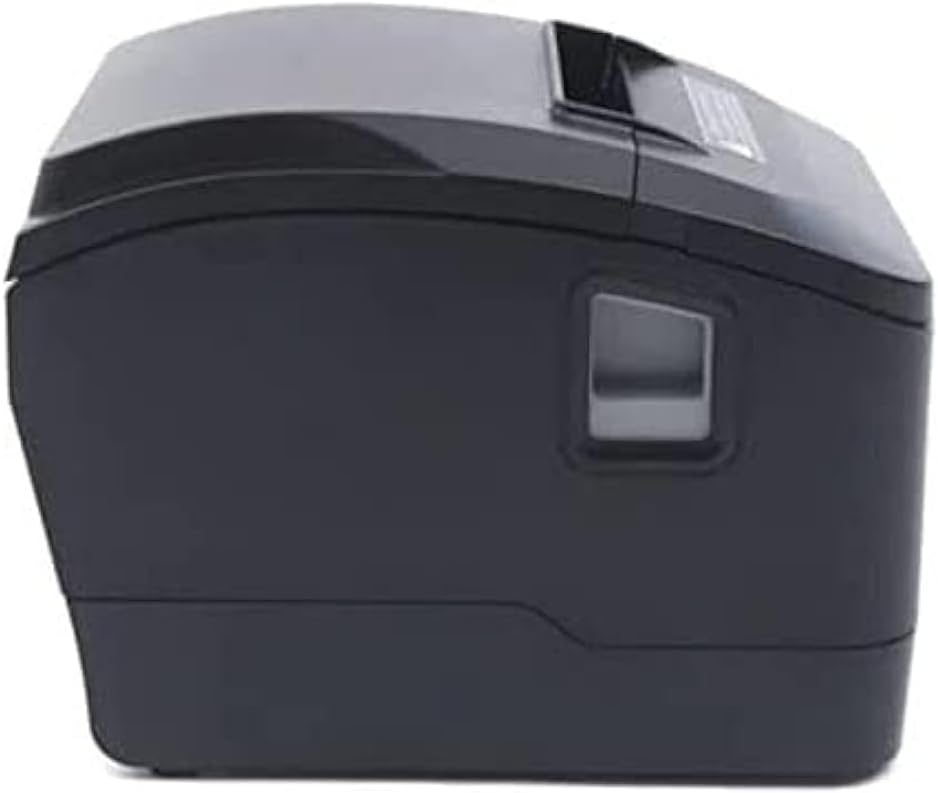
Figura 4.1: Frontal view de la impressora tèrmica de rebuts Xprinter XP-D200N. Aquesta imatge mostra l'elegant i negra casing i la ranura de sortida del paper.
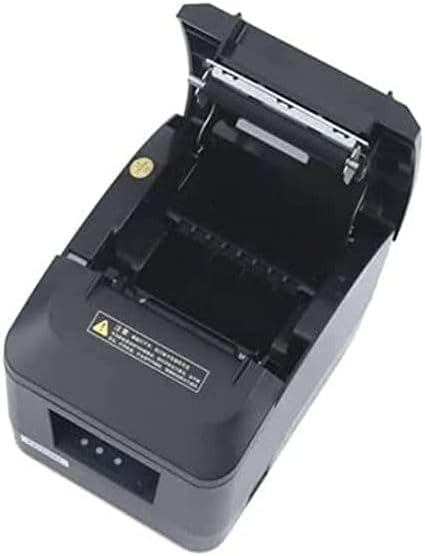
Figura 4.2: lateral view de la impressora tèrmica de rebuts Xprinter XP-D200N. Aquesta perspectiva destaca el disseny compacte i l'interruptor d'engegada al costat dret.

Figura 4.3: A dalt view de la impressora tèrmica de rebuts Xprinter XP-D200N amb la coberta oberta, revelant el compartiment del rotlle de paper tèrmic i el mecanisme del capçal d'impressió. Això view és essencial per a la càrrega i el manteniment del paper.
5. Configuració
5.1 Connexió de l'alimentació
- Assegureu-vos que l'interruptor d'alimentació de la impressora estigui en la posició OFF.
- Connecteu l'adaptador de corrent al port d'entrada d'alimentació de la part posterior de la impressora.
- Connecteu el cable d'alimentació a l'adaptador de corrent i després a una presa de corrent estàndard.
5.2 Connexió a un ordinador
El XP-D200N admet connectivitat USB i LAN.
Connexió USB:
- Connecteu un extrem del cable USB al port USB de la impressora.
- Connecteu l'altre extrem del cable USB a un port USB disponible de l'ordinador.
Connexió LAN (Ethernet):
- Connecteu un cable Ethernet al port LAN de la impressora.
- Connecteu l'altre extrem del cable Ethernet al vostre encaminador o commutador de xarxa.
- Consulteu la configuració avançada de la impressora o la utilitat del controlador per a la configuració de xarxa (per exemple, la configuració de l'adreça IP).
5.3 Càrrega de paper tèrmic
- Obriu la coberta de la impressora prement el botó d'alliberament o aixecant el pestell de la coberta. (Vegeu la Figura 4.3).
- Introduïu el rotlle de paper tèrmic al compartiment amb el paper alimentant-lo des de la part inferior i la vora davantera estenent-se cap a la part frontal de la impressora. Assegureu-vos que el paper estigui alineat correctament.
- Estireu una petita quantitat de paper per treure-la del tallador.
- Tanqueu la coberta de la impressora fermament fins que encaixi al seu lloc.
5.4 Instal·lació del controlador
Després de connectar la impressora, haureu d'instal·lar els controladors adequats a l'ordinador. Els controladors normalment es proporcionen en un CD inclòs amb la impressora o es poden descarregar des de la pàgina oficial de Xprinter. weblloc. Seguiu les instruccions que apareixen a la pantalla durant la instal·lació.
6. Instruccions de funcionament
6.1 Engegada/apagada
- Per engegar: assegureu-vos que el cable d'alimentació estigui connectat i, a continuació, gireu l'interruptor d'alimentació a la posició ON. L'indicador lluminós s'il·luminarà.
- Per apagar: Gireu l'interruptor d'alimentació a la posició OFF.
6.2 Impressió bàsica
Un cop connectada la impressora i instal·lats els controladors, podeu imprimir rebuts des del programari de punt de venda (TPV) o altres aplicacions. Seleccioneu la Xprinter XP-D200N com a impressora predeterminada a la configuració d'impressió de l'aplicació.
6.3 Indicadors d'estat
La impressora té indicadors lluminosos (normalment al panell frontal) que proporcionen informació sobre el seu estat:
- Indicador d'alimentació: La llum fixa indica que la impressora està engegada.
- Indicador d'error: Si la llum parpelleja o és fixa, indica un error (per exemple, paper sense, coberta oberta, sobreescalfament del capçal d'impressió). Consulteu la secció de resolució de problemes.
- Indicador de paper esgotat: S'il·lumina quan el rotlle de paper està buit o gairebé buit.
7. Manteniment
7.1 Neteja del capçal d'impressió
La neteja regular del capçal d'impressió garanteix una qualitat d'impressió òptima i allarga la vida útil de la impressora.
- Apagueu la impressora i desconnecteu el cable d'alimentació.
- Obriu la coberta de la impressora.
- Feu servir un bastonet de cotó lleugeramentampNetegeu suaument la superfície del capçal d'impressió tèrmica amb alcohol isopropílic (70 % o més). Eviteu tocar el capçal d'impressió amb les mans nues.
- Deixeu que el capçal d'impressió s'assequi completament abans de tancar la coberta i tornar a connectar l'alimentació (aproximadament 2-3 minuts).
7.2 Neteja general
Netegeu l'exterior de la impressora amb un drap suau i secamp tela. No utilitzeu netejadors abrasius ni dissolvents.
7.3 Substitució del rotlle de paper
Quan l'indicador de paper esgotat s'il·lumina o la qualitat d'impressió es degrada, és hora de substituir el rotlle de paper. Seguiu els passos de la Secció 5.3 "Càrrega de paper tèrmic".
8. Solució De Problemes
| Problema | Causa possible | Solució |
|---|---|---|
| La impressora no s'encén. | Sense corrent, adaptador/cable de corrent defectuós. | Comproveu les connexions d'alimentació. Assegureu-vos que l'interruptor d'alimentació estigui encès. Proveu la presa de corrent. |
| Sense impressió. | Sense paper, tapa oberta, controlador incorrecte, impressora incorrecta seleccionada, cable desconnectat. | Carregueu paper, tanqueu la coberta, comproveu la connexió USB/LAN, verifiqueu la instal·lació del controlador i seleccioneu la impressora correcta al programari. |
| Mala qualitat d'impressió (línies tènues i en blanc). | Capçal d'impressió brut, paper tèrmic de baixa qualitat, capçal d'impressió danyat. | Netegeu el capçal d'impressió (Secció 7.1). Substituïu el paper tèrmic. Si el problema persisteix, contacteu amb el servei d'assistència. |
| Emballament de paper. | Càrrega incorrecta del paper, objecte estrany. | Apagueu la impressora, obriu la coberta i retireu amb cura el paper encallat. Torneu a carregar el paper correctament. |
| El llum indicador d'error està encès/parpelleja. | Error general, paper fora, coberta oberta. | Comproveu si hi ha paper i assegureu-vos que la tapa estigui tancada. Apagueu i torneu a apagar la impressora. Si l'error persisteix, consulteu el servei d'assistència del fabricant. |
9. Especificacions
| Marca: | Xprinter |
| Model: | XP-D200N |
| Tipus d'impressora: | Impressora de recepció tèrmica |
| Mètode d'impressió: | Tèrmica directa |
| Velocitat d'impressió: | 220 mm/seg (segons la descripció del producte) |
| Mida màxima del suport: | 8 cm (80 mm) |
| Connectivitat: | USB, LAN (Ethernet) |
| Entrada d'alimentació: | 24 V - 2.5 A |
| Sortida de la impressora: | Monocrom |
| Característiques especials: | Disseny elegant, compacte i lleuger, alta qualitat d'impressió, durabilitat, baix soroll, tall automàtic de paper |
| Dimensions del producte: | 18.4 x 14 x 13.5 cm |
| Pes de l'article: | 1.63 kg |
10. Garantia i Suport
La impressora tèrmica de rebuts Xprinter XP-D200N inclou una garantia estàndard del fabricant. Per conèixer els termes i condicions específics de la garantia, consulteu la targeta de garantia inclosa amb el producte o visiteu el lloc web oficial de Xprinter. weblloc web. Per a assistència tècnica, descàrregues de controladors o consultes de servei, poseu-vos en contacte amb el vostre distribuïdor local o amb l'equip d'atenció al client de Xprinter a través dels seus canals oficials.
Per obtenir la informació i els recursos de suport més recents, visiteu: www.xprinter.net