
1. Introducció
This manual provides detailed instructions for the installation, operation, and maintenance of your ASHATA RTL8852CE 6E Card. This NGFF (M.2) module is designed to enhance your computer's wireless connectivity with Wi-Fi 6E technology and Bluetooth 5.3, offering high speeds and low latency across 2.4GHz, 5GHz, and 6GHz bands.

Image 1.1: The ASHATA 6E Card, highlighting its capability to deliver higher rates and lower latency over a wider spectrum range with WiFi 6E technology.
2. Informació de seguretat
Please read the following safety precautions before installing or using the device:
- Always disconnect power from your computer before opening the case or installing any internal components.
- Handle the card by its edges to avoid touching the gold connectors or electronic components, which can be sensitive to static electricity.
- Assegureu-vos d'una connexió a terra adequada per evitar danys per descàrrega electrostàtica (ESD).
- Keep the device away from moisture, dust, and extreme temperatures.
3. Contingut del paquet
Verifiqueu que tots els elements siguin presents al vostre paquet:
- 1 x ASHATA 6E Card (RTL8852CE)
- 1 x Bracket Plate (for securing the card)
- 1 x Screw (for installation)
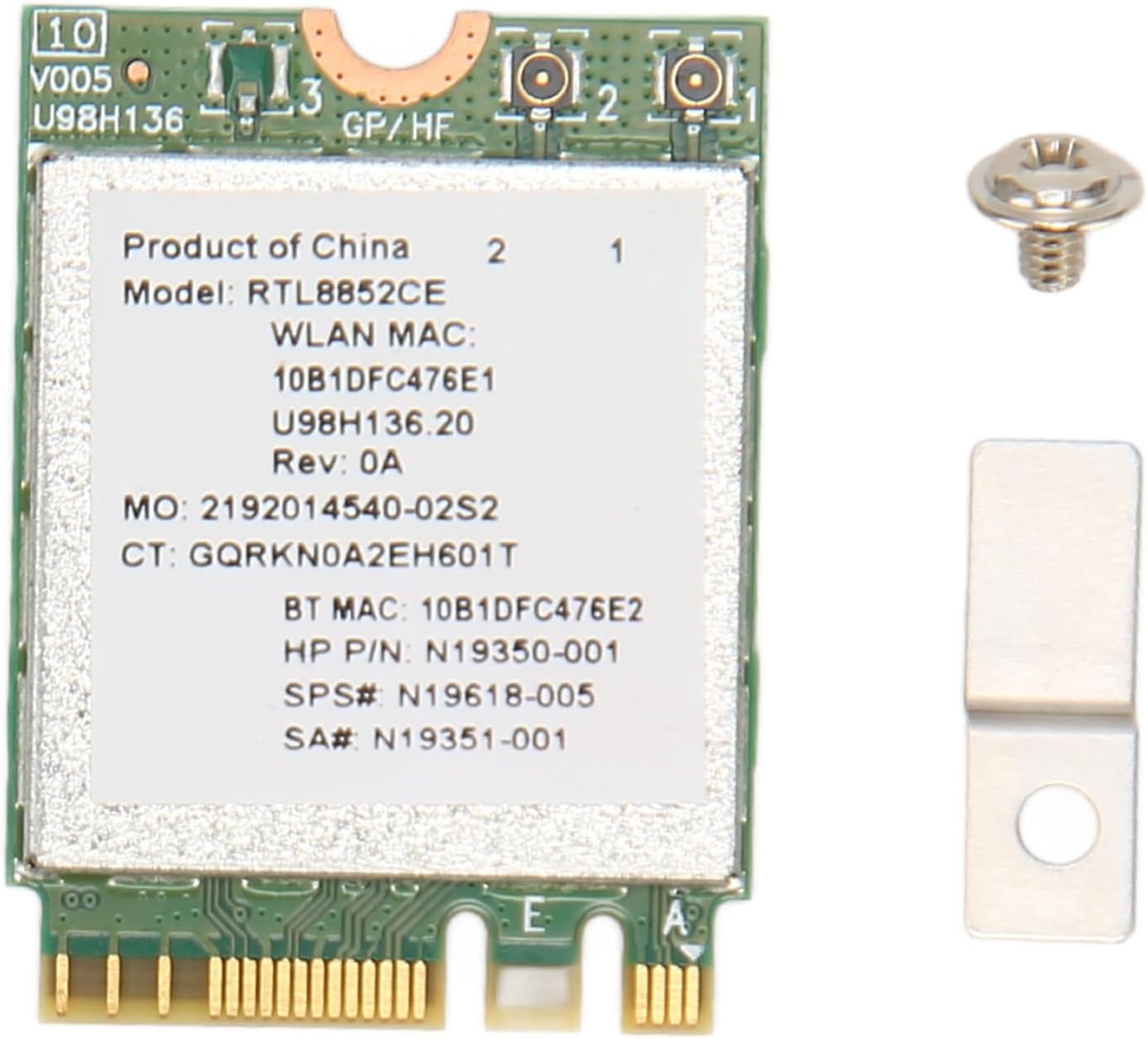
Image 3.1: The ASHATA 6E Card shown with its accompanying bracket plate and screw, which are essential for installation.
4. Especificacions
| Característica | Descripció |
|---|---|
| Model | RTL8852CE |
| Tipus d'interfície | NGFF (M.2) |
| Bandes de freqüència | 2.4 GHz, 5 GHz, 6 GHz (Triple Band) |
| Velocitat màxima | 5374 Mbps (574 Mbps/2.4 GHz + 2400 Mbps/5 GHz + 2400 Mbps/6 GHz) |
| Versió Bluetooth | BT 5.3 |
| Protocol d'enllaç de dades | Bluetooth, WiFi |
| Dispositius compatibles | Escriptori, ordinador portàtil |
| Pes de l'article | 5 grams |

Imatge 4.1: Primer pla view of the ASHATA 6E Card, showing the RTL8852CE chip which provides fast and stable wireless connectivity across 2.4GHz, 5GHz, and 6GHz bands.
5. Configuració i instal·lació
Installing the ASHATA 6E Card requires careful attention to detail, especially regarding driver installation. Follow these steps:
5.1. Pre-Installation: Driver Download
- Before disconnecting your computer from the internet, identify the model number on the back of your Wi-Fi card (e.g., RTL8852CE).
- Search online for the latest drivers for the RTL8852CE chip, specifically for your operating system (e.g., Windows 10, Windows 11). It is recommended to search on the official Realtek website or your computer/motherboard manufacturer's support page.
- Download the Wi-Fi and Bluetooth drivers. Unzip or unpack them into an easily accessible folder on your computer (e.g., a folder on your desktop).
5.2. Instal·lació física
- Power down your computer completely i desconnecteu-lo de la font d'alimentació.
- Open your computer case (for desktops) or access the M.2 slot (for laptops). Refer to your computer's manual for specific instructions on how to do this.
- Carefully insert the ASHATA 6E Card into an available NGFF (M.2) slot. Ensure it is seated firmly.
- Secure the card with the provided screw and bracket plate, if applicable.
- Connect your Wi-Fi antennas to the card's connectors (if external antennas are used). Ensure they are properly connected for optimal performance.
- Tanqueu la funda de l'ordinador.

Imatge 5.1: Davant i darrere views of the ASHATA 6E Card, showing the M.2 connector and component layout for proper installation.
5.3. Driver Installation (Post-Physical Installation)
- Reconnect your computer to power and turn it on. Allow it to boot into your operating system.
- Your internet connection may not be working immediately. Wait a minute or two to see if Windows automatically detects and installs the drivers. This is unlikely for new hardware.
- Obert Gestor de dispositius. You can usually find this by right-clicking the Start button (Windows) and selecting 'Device Manager'.
- Look for an 'Unknown device' or a device with a yellow exclamation mark next to it, typically under 'Network adapters' or 'Other devices'. This is likely your newly installed Wi-Fi card.
- Right-click on this device and select 'Update driver'.
- Choose 'Browse my computer for drivers'.
- Navigate to the folder where you downloaded and unzipped the drivers in Step 5.1. Select this folder. The system should then begin installing the drivers.
- Repeat this process for both the Wi-Fi and Bluetooth components if they appear as separate unknown devices.
- Once the installation is successful, close Device Manager. Your Wi-Fi and Bluetooth functionalities should now be available.
6. Instruccions de funcionament
6.1. Connexió a Wi-Fi
- After successful driver installation, click on the Wi-Fi icon in your system tray (usually bottom-right of the screen).
- Seleccioneu la xarxa Wi-Fi desitjada de la llista de xarxes disponibles.
- Introduïu la contrasenya de xarxa si se us demana i feu clic a "Connecta".
- Your computer should now be connected to the internet via the ASHATA 6E Card.
6.2. Emparellar dispositius Bluetooth
- Ensure Bluetooth is enabled on your computer. You can usually find this in your operating system's settings (e.g., Windows Settings > Devices > Bluetooth & other devices).
- Put your Bluetooth device (headphones, speaker, keyboard, etc.) into pairing mode. Refer to your device's manual for specific instructions.
- On your computer, click 'Add Bluetooth or other device' and select 'Bluetooth'.
- Seleccioneu el dispositiu de la llista i seguiu les instruccions que apareixen a la pantalla per completar el procés d'emparellament.
7. Manteniment
To ensure optimal performance and longevity of your ASHATA 6E Card:
- Mantenir els controladors actualitzats: Periodically check for updated Wi-Fi and Bluetooth drivers for the RTL8852CE chip from the manufacturer's website. Updated drivers can improve performance, stability, and security.
- Neteja física: If your computer case is opened for other maintenance, gently clean any dust accumulation around the card using compressed air. Ensure the computer is powered off before doing so.
- Connexió d'antena: Ensure that any external antennas are securely connected and positioned for the best signal reception.
8. Solució De Problemes
If you encounter issues with your ASHATA 6E Card, refer to the following common problems and solutions:
| Problema | Solució |
|---|---|
| Wi-Fi or Bluetooth not working after installation. | This is typically a driver issue. Revisit Section 5.3 (Driver Installation). Ensure you have downloaded and installed the correct drivers for both Wi-Fi and Bluetooth for your operating system. Check Device Manager for any 'Unknown devices' or devices with error symbols. |
| Only Bluetooth is working, but no Wi-Fi (or vice-versa). | This indicates that one of the drivers (either Wi-Fi or Bluetooth) was not installed correctly or is missing. Go to Device Manager and check the status of both the Wi-Fi adapter and Bluetooth radio. Reinstall the problematic driver. |
| Slow Wi-Fi speeds or frequent disconnections. | Ensure your antennas are securely connected to the card and positioned optimally. Update your Wi-Fi drivers to the latest version. Check for interference from other devices or physical obstructions. Ensure your router supports Wi-Fi 6E for optimal performance. |
| Card not detected in Device Manager. | Power down your computer and re-seat the card in the M.2 slot to ensure it is properly connected. Check your computer's BIOS/UEFI settings to ensure the M.2 slot is enabled. |
9. Garantia i Suport
Per obtenir informació sobre la garantia o assistència tècnica, consulteu la documentació que s'inclou amb la compra o poseu-vos en contacte amb el vostre distribuïdor. Conserveu el comprovant de compra per a reclamacions de garantia.
For further assistance, you may also visit the ASHATA brand store on Amazon: ASHATA Store