
Introducció
This manual provides detailed instructions for the Contour Design Wireless Black Balance Keyboard (Model 102104). This keyboard is engineered to complement Contour Design RollerMouse and SliderMouse products, promoting an ergonomic workspace by minimizing reach and supporting a natural hand position.
Característiques clau
- Disseny ergonòmic: Reduces forward reach to minimize wrist and shoulder strain, especially when paired with RollerMouse or SliderMouse.
- Inclinació ajustable: Offers negative, neutral, and positive tilt options for personalized comfort and optimal typing posture.
- Funcionalitat completa: Includes a numeric keypad, function keys (F1-F12), media controls, and shortcut keys.
- Connectivitat sense fils: Supports both USB-A receiver (2.4GHz Contour protocol) and Bluetooth connections.
- Compatibilitat entre plataformes: Works with both PC and Mac operating systems.
- Compact Profile: Pro baixfile keys and a slim design optimize desk space.
Contingut del paquet
- Contour Design Wireless Black Balance Keyboard
- Receptor USB-A
- 2 piles AAA (preinstal·lades o incloses per separat)
- Manual d'usuari (aquest document)
Configuració
1. Instal·lació de la bateria
The keyboard requires 2 AAA batteries. These are typically included with your purchase.
- Localitzeu el compartiment de la bateria a la part inferior del teclat.
- Obriu la coberta del compartiment.
- Introduïu les 2 piles AAA, assegurant-vos de la polaritat correcta (+/-).
- Tanqueu bé la tapa del compartiment de la bateria.
2. Connexió del teclat
The Balance Keyboard offers two wireless connection methods: via USB-A receiver or Bluetooth.
Option A: USB-A Receiver (2.4GHz Wireless)
- Locate the USB-A receiver, usually found in the battery compartment or packaged separately.
- Plug the USB-A receiver into an available USB port on your computer (PC or Mac).
- Turn on the keyboard using the power switch, typically located on the side or back.
- The keyboard should automatically connect to your computer. No additional drivers are usually required.
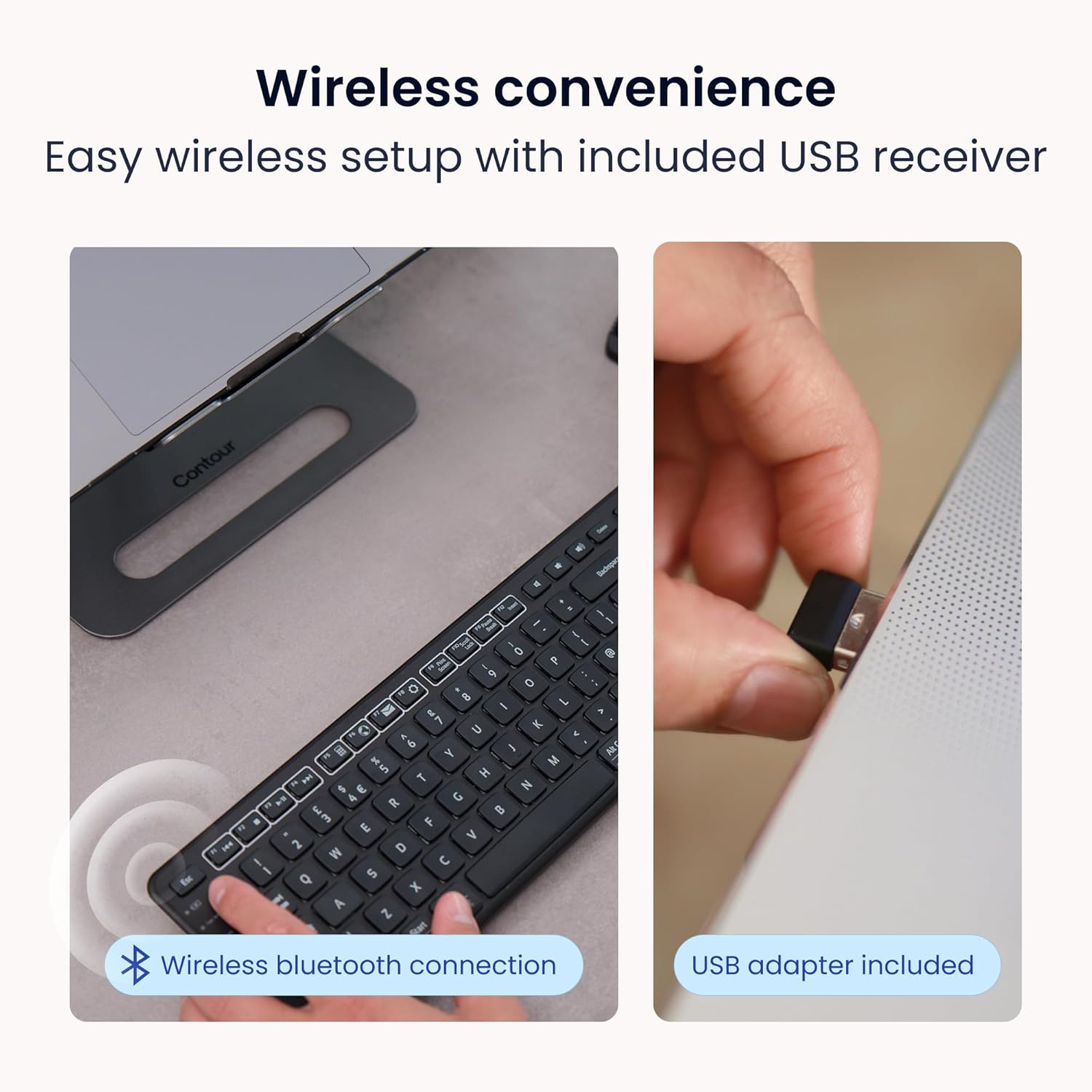
Image: Wireless convenience with USB adapter. This image shows the USB receiver being inserted into a computer port, illustrating the plug-and-play setup for wireless connectivity.
Option B: Bluetooth Connection
- Assegureu-vos que el teclat estigui encès.
- Activate Bluetooth pairing mode on the keyboard. (Refer to the keyboard's specific button for Bluetooth pairing, often indicated by a Bluetooth icon or a dedicated pairing button).
- On your computer (PC or Mac), open Bluetooth settings.
- Cerca available devices and select "Contour Balance Keyboard" or a similar name.
- Seguiu les indicacions de la pantalla per completar el procés de vinculació.
Instruccions de funcionament
Basic Typing and Layout
The Balance Keyboard features a standard QWERTY layout with a full numeric keypad.

Imatge: De dalt a baix view of the Contour Design Wireless Black Balance Keyboard. This image displays the full keyboard layout, including the numeric keypad and function keys.
Function Keys (F1-F12) and Media Controls
The top row of keys serves dual functions. By default, they may act as media controls (e.g., volume, play/pause) or shortcuts. To access the traditional F1-F12 functions, use the Fn key, typically located near the bottom left of the keyboard. Some keyboards feature an Pany de Fn feature to toggle between these modes.
Inclinació ajustable
The keyboard is designed with adjustable legs to allow for three different tilt positions: negative, neutral, and positive. Adjusting the tilt can help optimize your typing posture and reduce wrist strain.
- Inclinació negativa: Tilts the keyboard downwards towards the user, often considered optimal for a natural hand angle.
- Neutral Tilt: The keyboard lies flat on the desk.
- Inclinació positiva: Tilts the keyboard upwards away from the user, a more traditional keyboard angle.
To adjust, locate the adjustable feet on the underside of the keyboard and extend or retract them as desired.

Image: Adjustable tilt options. This diagram illustrates the three available tilt positions: positive, neutral, and negative, demonstrating how to customize the keyboard angle for comfort.
Pairing with RollerMouse and SliderMouse
The Balance Keyboard is specifically designed to integrate seamlessly with Contour Design RollerMouse Pro and SliderMouse Pro devices. Its compact design minimizes the distance you need to reach, promoting a more centralized and ergonomic workspace.

Image: Seamless RollerMouse pairing. This image shows the Balance Keyboard positioned directly above a RollerMouse, demonstrating an ideal ergonomic setup.

Image: Natural hand position. This image illustrates a user typing on the Balance Keyboard with a RollerMouse, highlighting how the setup keeps hands close and promotes a healthier posture.

Image: Slim profile. A side view of the keyboard on a desk, emphasizing its low-profile keys and compact design that saves desk space.

Image: Ergonomic design in use. This image shows a user working with the Balance Keyboard and a RollerMouse, demonstrating how the setup reduces forward reach and minimizes wrist and shoulder strain. It also highlights compatibility with Mac and Windows, and multiple screens.
Manteniment
To ensure the longevity and optimal performance of your Balance Keyboard, follow these maintenance guidelines:
- Neteja: Utilitzeu un drap suau i sense pelusa lleugerament dampened with water or a mild, non-abrasive cleaner to wipe the surface of the keyboard. Avoid excessive moisture. Do not spray cleaners directly onto the keyboard.
- Eliminació de pols: Feu servir aire comprimit per eliminar la pols i les restes que hi ha entre les tecles.
- Substitució de la bateria: Replace AAA batteries when the low battery indicator (if present) illuminates, or when keyboard responsiveness decreases.
- Emmagatzematge: Quan no l'utilitzeu durant períodes prolongats, guardeu el teclat en un lloc sec i fresc, allunyat de la llum solar directa i de temperatures extremes.
Resolució de problemes
If you encounter issues with your Balance Keyboard, refer to the following common solutions:
| Problema | Possible solució |
|---|---|
| Keyboard not responding (USB-A receiver) |
|
| El teclat no respon (Bluetooth) |
|
| Les tecles són enganxoses o no responen |
|
| Durada de la bateria curta |
|
Especificacions
| Característica | Detall |
|---|---|
| Número de model | 102104 |
| Dimensions del producte | 44.45 cm de llargada x 15.24 cm d'amplada x 3.81 cm d'alçada |
| Pes de l'article | 1.28 lliures (0.58 kg) |
| Tecnologia de connectivitat | RF (2.4GHz via USB-A receiver), Bluetooth |
| Dispositius compatibles | Mac, PC |
| Font d'alimentació | 2 piles AAA (incloses) |
| Color | Negre |
| Material | Plàstic |
| Característiques especials | Adjustable Tilt, Compact Keyboard, Ergonomic, Full-size Keyboard, Numeric Keypad, Plug & Play, Wireless |
Informació de la garantia
The Contour Design Wireless Black Balance Keyboard is backed by a 2 any de garantia des de la data de compra. Aquesta garantia cobreix els defectes de fabricació i garanteix que el producte compleix els estàndards de rendiment especificats en condicions d'ús normal. Conserveu el comprovant de compra per a reclamacions de garantia.
Suport
For technical assistance, troubleshooting beyond this manual, or warranty inquiries, please contact Contour Design's customer support team.
- Weblloc: Visit the official Contour Design weblloc web amb recursos de suport, preguntes freqüents i informació de contacte.
- Contacte: Refer to the packaging or the official website for specific contact methods (phone, email, support portal).
Our friendly and professional support team is available to assist you.