
1. Producte acabatview
The SOLAKAKA K21 is a versatile 21-key mechanical number pad featuring tri-mode connectivity (Bluetooth, 2.4GHz wireless, and Type-C wired), RGB backlighting, and hot-swappable switches. It is designed for compatibility with various devices including PCs, laptops, MacBooks, and mobile phones.

Imatge 1.1: acabatview of the SOLAKAKA K21 Mechanical Number Pad.

Image 1.2: Visual representation of the K21's main features.
2. Contingut del paquet
Si us plau, verifiqueu que tots els elements siguin presents al paquet:
- SOLAKAKA K21 Mechanical Number Pad
- Cable USB-Type C
- Dongle USB de 2.4 GHz
- Customization Software (downloadable)
3. Configuració i connexió
The K21 number pad supports three connection modes: 2.4GHz wireless, Bluetooth, and wired via USB Type-C. It can save up to 5 devices simultaneously.
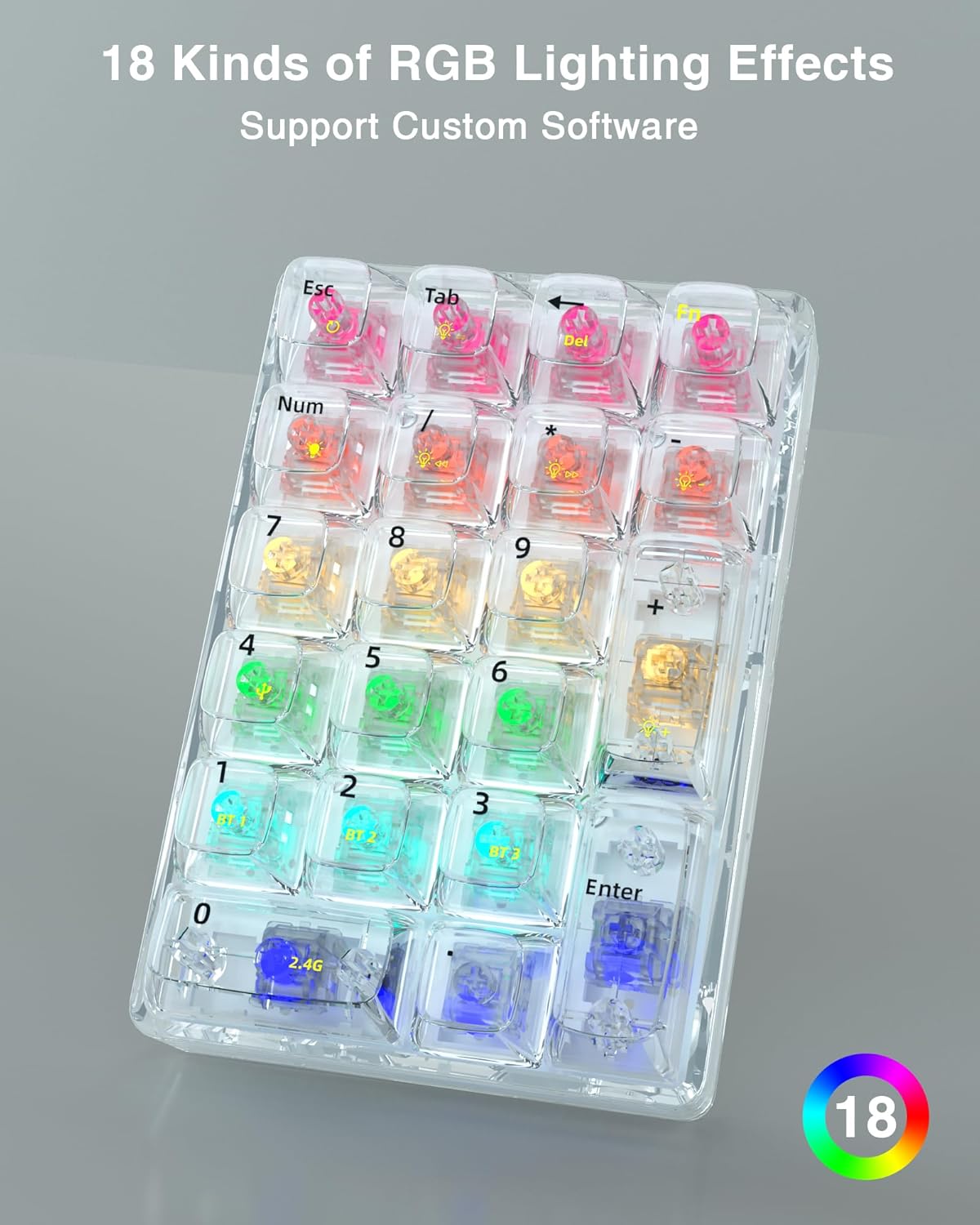
Image 3.1: Illustration of the three connection modes and key combinations.
3.1. Connexió sense fil de 2.4 GHz
- Insert the 2.4GHz USB dongle into an available USB port on your computer.
- On the K21 number pad, press FN + 0 to switch to 2.4GHz mode. The indicator light will confirm the connection.
3.2. Connexió Bluetooth
The K21 supports up to three Bluetooth connections (BT1, BT2, BT3).
- On the K21 number pad, press FN + 1 (per a BT1), FN + 2 (per a BT2), o FN + 3 (for BT3) to select a Bluetooth channel.
- Hold down the selected FN + (1/2/3) combinació de tecles durant 3-5 segons fins que l'indicador lluminós parpellegi ràpidament, indicant el mode d'emparellament.
- On your device (PC, laptop, MacBook, mobile phone), navigate to Bluetooth settings and search for "K21" or a similar device name.
- Select the K21 to pair. The indicator light on the number pad will become solid once connected.
3.3. Connexió per cable
- Connect the provided USB Type-C cable to the K21 number pad and to an available USB port on your computer.
- The number pad will automatically switch to wired mode. No additional drivers are typically required.
4. Funcionament
4.1. Retroil·luminació RGB
The K21 features 18 RGB lighting effects. These can be cycled through and adjusted using specific key combinations. Refer to the keycap legends for specific lighting control functions, often accessed via the FN clau en combinació amb altres tecles.

Imatge 4.1: Ex.amples of RGB lighting effects on the K21 number pad.
4.2. Customization Software
The K21 supports macro settings and personalized keyboard customization through dedicated software. This software allows users to remap keys, create macros, and adjust lighting effects.

Image 4.2: Interface of the K21 customization software.
Per descarregar el programari:
- Visit the official download page: bit.ly/m/solakaka
- Select the "K21" model.
- Download and install the provided software.
The software is compatible with Windows 7, 8, 10, XP, VISTA, and MAC OS. Basic functionality does not require the software, but it is necessary for advanced customization.
5. Commutadors intercanviables en calent
The K21 features a 3-pin and 5-pin hot-swappable design, compatible with Cherry-style switches. This allows users to easily replace both keycaps and mechanical switches to customize the typing feel and sound according to personal preference.

Image 5.1: The hot-swappable design of the K21, showing removable keycaps and switches.
5.1. Substitució d'interruptors
- Traieu suaument la tapa de les tecles amb un extractor de taps de tecles (no inclòs).
- Use a switch puller (not included) to carefully extract the existing switch from the PCB.
- Alineeu els pins del nou interruptor amb els forats de la placa de circuit imprès i premeu fermament fins que encaixin al seu lloc. Assegureu-vos que els pins no estiguin doblegats.
- Torneu a col·locar la tapa de les tecles.
6. Manteniment
6.1. Neteja
- Disconnect the number pad from your device before cleaning.
- Use a soft, dry cloth to wipe the surface of the number pad.
- For deeper cleaning, remove keycaps and use compressed air to clear debris from between switches.
- Eviteu utilitzar productes químics o materials abrasius.
6.2. Cura de la bateria
- The K21 uses a built-in Lithium Ion battery.
- Carregueu el dispositiu amb el cable USB tipus C proporcionat.
- Eviteu exposar la bateria a temperatures extremes.
7. Solució De Problemes
7.1. Problemes de connectivitat
- Number pad not connecting via 2.4GHz: Ensure the USB dongle is securely plugged in and the number pad is set to 2.4GHz mode (FN + 0). Try a different USB port.
- Error d'emparellament Bluetooth: Ensure the number pad is in pairing mode (rapidly flashing indicator light after holding FN + 1/2/3). Remove previous pairings from your device's Bluetooth list and try again. Ensure the number pad is charged.
- Delayed response in wireless modes: This can sometimes occur after periods of inactivity as the device wakes from sleep mode. Ensure the number pad is fully charged.
7.2. Les tecles no responen
- Individual keys not working: Check if the switch is properly seated. If you have hot-swappable switches, try reseating or replacing the affected switch.
- Totes les tecles no funcionen: Ensure the number pad is powered on and properly connected (wired, 2.4GHz, or Bluetooth). Check battery level if in wireless mode.
7.3. Problemes d'il·luminació RGB
- Els llums no s'encenen: Ensure the number pad is powered on. Check if the lighting is turned off or dimmed via key combinations.
- Il·luminació inconsistent: Ensure the customization software is not overriding settings. Try resetting the lighting effects.
8. Especificacions
| Model | K21 |
| Tecnologia de connectivitat | Bluetooth (BLE), 2.4GHz Wireless, USB Type-C Wired |
| Nombre de claus | 21 |
| Tipus de canvi | Ice Crystal Switch (Hot-Swappable) |
| Il·luminació de fons | 18 efectes d'il·luminació RGB |
| Dispositius compatibles | PCs, Laptops, MacBooks, Mobile Phones |
| Font d'alimentació | Funciona amb bateria (1 bateria d'ions de liti inclosa) |
| Pes de l'article | 12.8 unces |
| Dimensions del paquet | 6.97 x 6.61 x 2.2 polzades |

Image 8.1: Design features including ergonomics, non-slip feet, and Type-C charging port.
9. Garantia i Suport
SOLAKAKA is committed to providing satisfactory after-sales service. For any questions, technical support, or warranty inquiries, please refer to the official support channels or the website where the customization software is available.
For software downloads and support information, please visit: bit.ly/m/solakaka