
1. Introducció
This manual provides essential information for setting up, operating, and maintaining your ECOPAD Android 15 Tablet. Please read this guide thoroughly to ensure optimal performance and longevity of your device.

Image 1.1: The ECOPAD Android 15 Tablet shown with its accompanying keyboard, mouse, stylus, charger, and USB-C cable.
2. Què hi ha a la caixa
Verifiqueu que tots els elements siguin presents al paquet:
- 1x ECOPAD K12 Tablet
- 1 teclat sense fil
- 1x ratolí
- 1x Stylus
- 1x Protector de pantalla
- 1x adaptador de corrent
- 1 cable tipus C
- 1x Tablet Case (Stand Folio Protective Cover)
- 1x Manual d'usuari (aquest document)

Image 2.1: Visual representation of the items included in the ECOPAD tablet package, including the tablet, keyboard, mouse, stylus, and charging accessories.
3. Producte acabatview
3.1 Característiques clau
- Sistema operatiu: Android 15 amb certificació GMS
- Visualització: 10.1-inch HD IPS Touch Screen (1280x800 resolution)
- Processador: Quad-Core ARM Processor (Mali-Gxx MPx Graphics Coprocessor)
- Memòria: 12GB RAM (4GB+8GB)
- Emmagatzematge: 64GB ROM, expandable up to 1TB via Micro SD card
- Càmeres: Càmera frontal de 2 MP, càmera posterior de 8 MP
- Connectivitat: WiFi 6 (802.11ax), Bluetooth 5.0
- Bateria: 6000mAh Lithium Battery (up to 6 hours average life)
- Funcionalitat: 2-in-1 Tablet with Keyboard and Mouse support, Smart Split-Screen
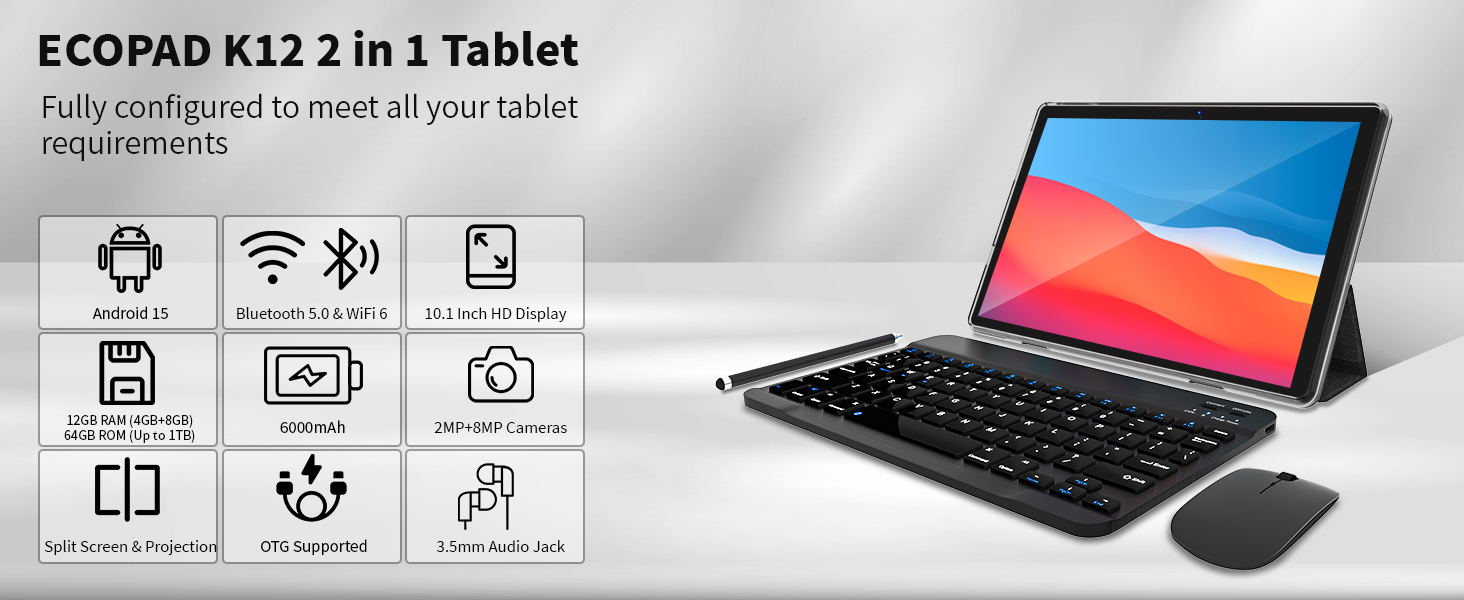
Imatge 3.1: Un sobreview graphic highlighting the ECOPAD K12 tablet's key features, including Android 15, Bluetooth 5.0 & WiFi 6, 10.1-inch HD Display, 12GB RAM, 64GB ROM, 6000mAh battery, and 2MP+8MP cameras.
4. Configuració
4.1 Encès inicial
- Press and hold the Power button located on the side of the tablet until the ECOPAD logo appears.
- Follow the on-screen prompts to select your language, region, and accept the terms of service.
4.2 Connexió a Wi-Fi
- Des de la pantalla d'inici, llisqueu el dit cap avall des de la part superior per obrir el tauler Configuració ràpida.
- Tap the Wi-Fi icon to enable it.
- Tap and hold the Wi-Fi icon to go to Wi-Fi settings.
- Seleccioneu la xarxa desitjada de la llista i introduïu la contrasenya si se us demana.
- Tap 'Connect'.

Image 4.1: The tablet screen showcasing its WiFi 6 connectivity, indicating faster and smoother wireless performance compared to 5GHz WiFi.
4.3 Configuració del compte de Google
To access the Google Play Store and other Google services, you will need to sign in with your Google account during the initial setup or later via the Settings app.
- During initial setup, select 'Sign in' when prompted.
- Enter your Google email or phone number and password.
- Follow any additional verification steps.
- Si configureu més tard, aneu a Settings > Accounts > Add account > Google.
4.4 Connecting Keyboard and Mouse
The included wireless keyboard and mouse connect via Bluetooth.
- Assegureu-vos que el teclat i el ratolí estiguin carregats i encesos.
- A la tauleta, vés a Configuració > Dispositius connectats > Bluetooth.
- Enable Bluetooth. The tablet will scan for available devices.
- Put your keyboard and mouse into pairing mode (refer to their individual manuals if needed).
- Select the keyboard and mouse from the list of available devices on your tablet to pair them.
5. Funcionament de la tauleta
5.1 Navegació bàsica
- Gestos tàctils: Toca per seleccionar, llisca per desplaçar-te, pessiga per ampliar.
- Pantalla d'inici: Access apps and widgets.
- Calaix d'aplicacions: Feu lliscar cap amunt des de la part inferior de la pantalla fins a view totes les aplicacions instal·lades.
- Notificacions i configuració ràpida: Feu lliscar el dit cap avall des de la part superior de la pantalla.
5.2 Funcionalitat 2 en 1
The ECOPAD tablet can be used in two primary modes:
- Mode tauleta: Use the touchscreen for direct interaction. Ideal for media consumption, reading, and casual browsing.
- Mode portàtil: Attach the keyboard and use the mouse for a more traditional computing experience. Suitable for productivity tasks like typing documents or managing spreadsheets.
5.3 Smart Split-Screen
The split-screen feature allows you to run two applications simultaneously, enhancing multitasking efficiency.
- Obriu la primera aplicació que vulgueu utilitzar.
- Toqueu el botó d'aplicacions recents (normalment una icona quadrada) per view aplicacions obertes.
- Tap and hold the icon of the first app at the top of its card, then select 'Split screen'.
- Choose the second application from your recent apps or app drawer to fill the other half of the screen.

Image 5.1: The 10.1-inch HD display demonstrating the split-screen feature, allowing two applications to be viewed and used simultaneously for improved productivity.
5.4 Instal·lació d'aplicacions
The tablet is GMS certified, providing full access to the Google Play Store.
- Open the 'Play Store' app from your home screen or app drawer.
- Cerca the desired application.
- Tap 'Install' to download and install the app.
5.5 Expansió d'emmagatzematge
The tablet supports Micro SD cards up to 1TB for additional storage.
- Localitza la ranura per a targetes Micro SD al lateral de la tauleta.
- Carefully insert the Micro SD card until it clicks into place.
- Follow any on-screen prompts to format the card if necessary.
5.6 Ús de la càmera
La tauleta té una càmera frontal de 2 MP i una càmera posterior de 8 MP.
- Obre l'aplicació "Càmera".
- Toqueu el botó de l'obturador per fer fotos.
- Canvia entre la càmera frontal i la posterior amb la icona de commutació de la càmera.
- Seleccioneu el mode de vídeo per gravar vídeos.

Image 5.2: The tablet displaying a video conference call, demonstrating the clarity of the 10.1-inch Full HD IPS screen and the functionality of the dual cameras for communication.
6. Manteniment
6.1 Cura de la bateria
- Eviteu les temperatures extremes, ja que poden reduir la durada de la bateria.
- Charge the tablet using the provided Type-C cable and power adapter.
- No deixeu que la bateria es descarregui completament amb freqüència.

Image 6.1: Information regarding the 6000mAh Lithium Battery, including Type-C 10W Charging, 480H Standby, 20H Music playback, and 7H Video playback.
6.2 Neteja del dispositiu
- Feu servir un drap suau i sense borrissol per netejar la pantalla i la carcassa.
- Eviteu utilitzar productes químics o materials abrasius.
- Ensure the tablet is powered off before cleaning.
6.3 Actualitzacions de programari
Comproveu i instal·leu regularment si hi ha actualitzacions de programari per assegurar-vos que la tauleta tingui les funcions i els pegats de seguretat més recents.
- Vés a Configuració > Sistema > Actualització del sistema.
- Tap 'Check for update' and follow the on-screen instructions.
7. Solució De Problemes
La tauleta 7.1 no s'encén
- Ensure the tablet is charged. Connect it to the charger for at least 30 minutes.
- Mantingueu premut el botó d'engegada durant 10-15 segons per realitzar un reinici forçat.
7.2 Problemes de connectivitat Wi-Fi
- Reinicieu el vostre encaminador Wi-Fi.
- Oblida't de la xarxa a la configuració del Wi-Fi i torna a connectar-te.
- Ensure the tablet is within range of the Wi-Fi signal.
7.3 El teclat/ratolí no es connecta
- Ensure both devices are charged and powered on.
- Verify Bluetooth is enabled on the tablet.
- Unpair and re-pair the devices in Bluetooth settings.
- Check the individual manuals for the keyboard and mouse for specific pairing instructions.
7.4 Les aplicacions es bloquegen o es bloquegen
- Tanca i torna a obrir l'aplicació.
- Esborra la memòria cau i les dades de l'aplicació mitjançant Configuració > Aplicacions > [Nom de l'aplicació] > Emmagatzematge > Esborra la memòria cau/Esborra les dades.
- Desinstal·leu i torneu a instal·lar l'aplicació.
- Assegura't que el programari de la tauleta estigui actualitzat.
8. Especificacions
| Característica | Especificació |
|---|---|
| Marca | ECOPAD |
| Número de model | 2025-2023 |
| Sistema operatiu | Android 15 |
| Mida de la pantalla | 10.1 polzades |
| Resolució de pantalla | 1280 x 800 píxels (HD IPS) |
| Marca del processador | ARM Quad-Core |
| Coprocessador gràfic | Mali-Gxx MPx |
| RAM | 12 GB |
| Mida de la memòria flash | 64 GB |
| Emmagatzematge ampliable | Up to 1 TB (Micro SD) |
| posterior WebResolució de la càmera | 8 MP |
| Davant WebResolució de la càmera | 2 MP |
| Tipus sense fil | 802.11ax (WiFi 6) |
| Bluetooth | 5.0 |
| Capacitat de la bateria | Polímer de liti de 6000 mAh |
| Durada mitjana de la bateria | 6 hores |
| Pes de l'article | 2.75 lliures |
| Dimensions del producte | 9.7 x 6 x 0.3 polzades |
9. Garantia i Suport
ECOPAD is committed to product quality and customer satisfaction. If you encounter any issues with your product, please do not hesitate to contact customer support.
- Most questions are answered within 24 hours.
- All products undergo strict quality testing before leaving the factory.
For further assistance, please refer to the contact information provided with your purchase or visit the official ECOPAD support weblloc.