
1. Introducció
This manual provides comprehensive instructions for the AOSHIDA Topping D70 Pro OCTO Hi-Res DAC. Please read this manual thoroughly before operating the device to ensure proper usage and optimal performance. Keep this manual for future reference.
Característiques principals:
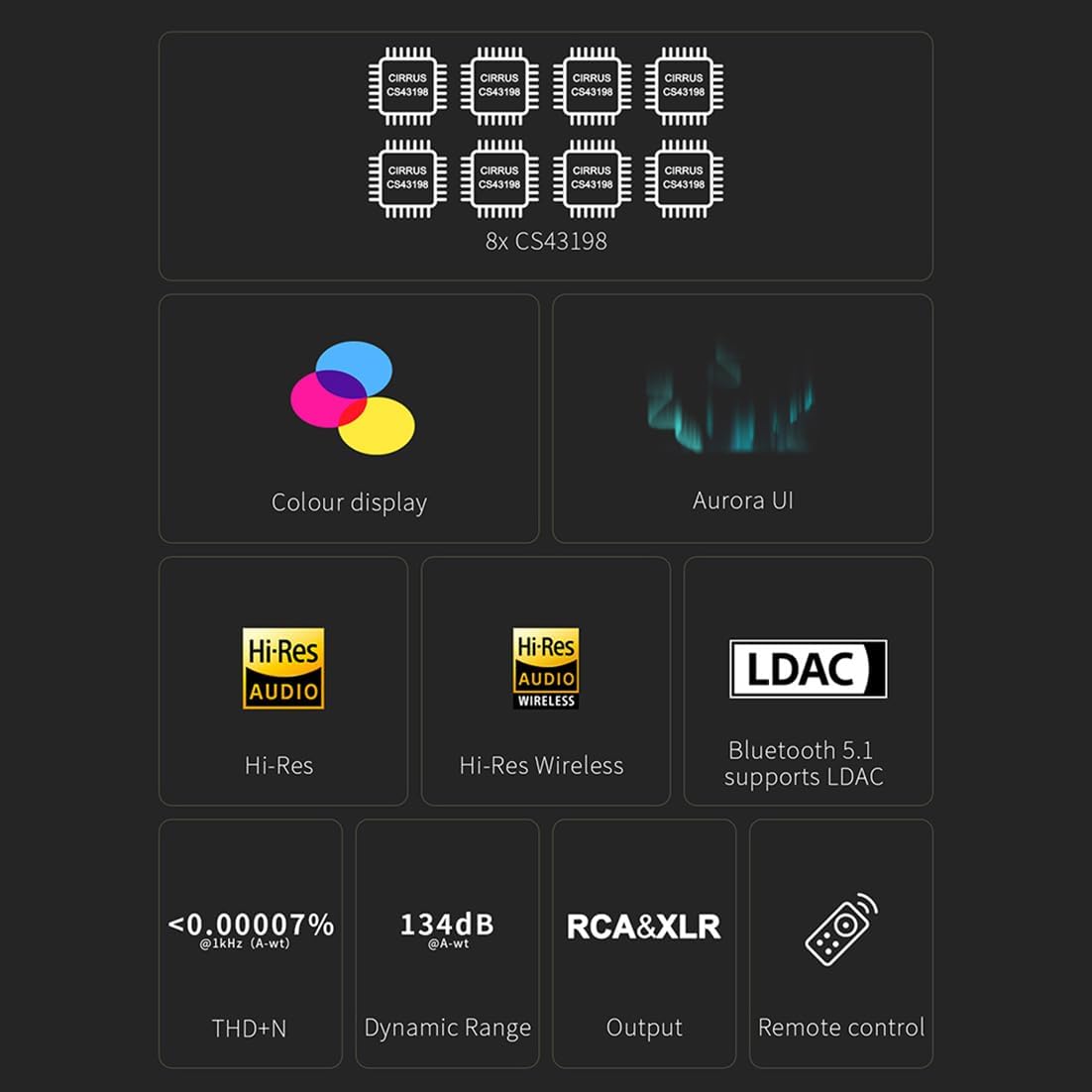
- Equipped with 8 Cirrus Logic CS43198 flagship DAC chips for exceptional audio fidelity.
- Supports PCM up to 768kHz/32bit and DSD512 audio decoding via USB.
- Features Bluetooth 5.1 connectivity with support for LDAC, aptX-Adaptive, aptX HD, aptX, AAC, and SBC codecs.
- Full-color display with three touch buttons for an intuitive user interface, including playback information, FFT, and VU meter.
- Versatile output options: RCA single-ended and XLR balanced outputs, with switchable output modes.
- Low THD+N (<0.00007%) and high SNR (134dB) for pristine sound reproduction.
2. Contingut del paquet
Verifiqueu que tots els elements que s'enumeren a continuació siguin presents al vostre paquet:
- 1 x D70 Pro OCTO Unit
- 1 x cable USB
- 1 x cable d'alimentació CA
- 1 x comandament a distància
- 1 x Guia d'inici ràpid
- 1 x antena Bluetooth

3. Configuració
3.1 Connexió del dispositiu
- Connexió d'alimentació: Connect the supplied AC power cable to the D70 Pro OCTO and a suitable power outlet.
- Connexió USB: For computer audio, connect the USB cable from your computer to the USB input on the D70 Pro OCTO.
- Sortida d'àudio: Connecteu el vostre amplifier or active speakers to the D70 Pro OCTO using either RCA (single-ended) or XLR (balanced) cables.
- Antena Bluetooth: Screw the Bluetooth antenna onto the designated connector on the rear panel for optimal wireless performance.

3.2 Instal·lació del controlador (només per a Windows)
For Windows operating systems, especially when using ASIO applications, driver installation may be required. The D70 Pro OCTO utilizes the XMOS XU316 solution. For other operating systems like MAC, Linux, iOS, and Android, the device is typically driver-free.
3.3 Vinculació Bluetooth
Per vincular un dispositiu Bluetooth:
- Ensure the Bluetooth function is enabled in the D70 Pro OCTO's setup menu.
- On your Bluetooth device (e.g., smartphone), search for available devices and select "D70 Pro OCTO".
- The D70 Pro OCTO supports LDAC, aptX-Adaptive, aptX HD, aptX, AAC, and SBC for high-quality wireless audio transmission.

4. Instruccions de funcionament
4.1 Encès/Apagat
Press the power button on the front panel or the remote control to turn the unit on or off.
4.2 Interfície d'usuari i navegació
The D70 Pro OCTO features a full-color screen and three touch buttons for navigation. You can toggle between different display modes, including playback information, FFT (Fast Fourier Transform) spectrum analysis, and VU (Volume Unit) meters.
4.3 Selecció d'entrada
Use the input selection button on the front panel or remote control to cycle through available inputs: USB, AES, Bluetooth, Optical, and Coaxial.
4.4 Selecció del mode de sortida
The D70 Pro OCTO allows switching between RCA single-ended output, XLR balanced output, or enabling both simultaneously. This can be adjusted via the setup menu to suit your connected equipment.
4.5 Control de volum
Adjust the volume using the rotary knob on the front panel or the volume buttons on the remote control. Note that in DAC mode, the volume is fixed at maximum; switch to PRE mode if adjustable volume is desired.
5. Especificacions
Audio Performance (Line Out/USB In@96kHz):
- THD+N (A-wt): RCA: <0.00008% @1kHz; XLR: <0.00007% @1kHz
- THD @90kBw (No-wt): RCA: <0.0004% @20-20kHz; XLR: <0.0002% @20-20kHz
- SNR (A-wt): RCA: 128dB @1kHz; XLR: 134dB @1kHz
- Dynamic Range (A-wt): RCA: 128dB @1kHz; XLR: 134dB @1kHz
- Resposta de freqüència: RCA: 20Hz-20kHz (±0.05dB), 20Hz-40kHz (±0.2dB); XLR: 20Hz-20kHz (±0.05dB), 20Hz-40kHz (±0.2dB)
- Nivell de sortida: RCA: 2.1Vrms (4V Mode), 2.6Vrms (5V Mode); XLR: 4.2Vrms (4V Mode), 5.2Vrms (5V Mode)
- Noise (A-wt): RCA: <1.0uVrms; XLR: <1.0uVrms
- Canal Crosstalk: RCA: -124dB @1kHz; XLR: -149dB @1kHz
- Saldo del canal: RCA: 0.3dB; XLR: 0.3dB
- Impedància de sortida: RCA: 50Ω; XLR: 100Ω
Especificacions generals:
- Dimensions del producte: 22.2 x 17.6 x 4.8 cm (8.74"L x 6.93"W)
- Pes de l'article: 3.39 lliures
- Tipus d'interfície: USB, AES, Bluetooth, Optical, Coaxial
- Nombre de canals: 2
- DAC Chips: 8 x Cirrus Logic CS43198
- USB Input Support: PCM768kHz/32bit, DSD512
- Versió Bluetooth: 5.1
- Còdecs Bluetooth: LDAC, aptX-Adaptive, aptX HD, aptX, AAC, SBC


6. Manteniment
To ensure the longevity and optimal performance of your D70 Pro OCTO, follow these maintenance guidelines:
- Neteja: Feu servir un drap suau i sec per netejar l'exterior de la unitat. Eviteu utilitzar netejadors abrasius, dissolvents o esprais químics, ja que poden danyar l'acabat.
- Ventilació: Ensure the unit has adequate ventilation. Do not block the ventilation openings.
- Medi ambient: Operate the device in a clean, dry environment, away from direct sunlight, excessive heat, humidity, and dust.
- Apagueu quan no estigui en ús: Si la unitat no s'utilitzarà durant un període prolongat, desconnecteu-la de la font d'alimentació.
7. Solució De Problemes
If you encounter issues with your D70 Pro OCTO, refer to the following common problems and solutions. For persistent issues, please contact customer support.
Problemes comuns i solucions:
- Can't be turned on:
- Comproveu la connexió d'alimentació.
- Comproveu si l'interruptor d'alimentació del panell posterior està a la posició ON.
- Try with another power cable.
- Try with another power outlet.
- Sense sortida de so:
- Inseriu els cables de connexió fins al final.
- Check the volume of all devices and whether they are muted.
- For Bluetooth input: If volume is too low on phone, adjust phone volume.
- For USB input: If volume is too low on PC, check and adjust computer system volume, music player volume, and driver volume. Select the default output device of your music player or computer as this unit.
- Noisy playback:
- Try with other songs.
- Ensure the specifications of songs are supported by this unit.
- If noise appears only when playing DSD files, check and adjust the computer system volume, music player volume, and driver volume to the maximum.
- Check if the problem is with the source, downstream equipment, and cables.
- If the noise disappears after unplugging the USB cable, it may be interference from the source. Consider adding a USB isolation device between this unit and the source.
- One channel with noise / no output:
- Check if the problem is with the source, downstream equipment, and cables.
- Try swapping the left and right channel connections and test with another source.
- Channel imbalance:
- Set to C (Balance) in [Setup Menu - Advance - Channel balance].
- Check to see if the problem is with the source, downstream equipment, and cables. You can try swapping the left and right channel connections and try with another source.
- Cannot pair Bluetooth:
- Enable Bluetooth function in the setup menu first.
- The unit may already be connected to another Bluetooth device. Press and hold the headphone button on the remote control to let this unit enter pairing mode.
- Apropa el dispositiu Bluetooth a aquesta unitat.
- Turn the power of the unit off and on again, and then try again.
- Bluetooth audio cut off:
- Apropa el dispositiu Bluetooth a aquesta unitat.
- Elimineu les obstruccions entre el dispositiu Bluetooth i aquesta unitat.
- To prevent electromagnetic interference, locate this unit away from microwave ovens, wireless LAN devices, and other Bluetooth devices.
- Torneu a connectar el dispositiu Bluetooth.
- Connected USB device not recognized:
- USB cable not connected properly. Please check or change the cable.
- Try with another USB port.
- Driver problem. Try to reinstall the driver.
- May be caused by the PC. Check or try with another PC.
- Alguns telèfons requereixen que la funció OTG estigui activada primer.
- El comandament a distància no respon:
- Enable remote control function in the setup menu first.
- Try to insert two fresh AAA batteries.
- Aim at the remote control receiver.
- Bring the remote control close to the device.
- Use your Android phone's camera to look at the transmitter at the top of the remote; if it doesn't blink when you press the remote button, the remote is defective.
- If you have more than one Topping device, check that you are using the correct remote control.
- Can't adjust unit's volume:
- Please check if DAC mode was set in [Setup Menu - Advanced-DAC mode]. In DAC mode, the volume is not adjustable and is the maximum value, while in PRE mode the volume can be adjusted. Set it to PRE mode if you need to adjust the volume.
- Sample rate displayed does not match music file:
- The choice of music player app, the setting of music player, and the setting of computer/phone will all have an impact on the samptaxa de ling.
- El sampling rate displayed by this unit is the sampling rate of the input signal, and it will not change the sampling rate by itself.
- If the music player can be set to exclusive mode, the audio signal will not be resampled by the computer/phone, so the sampling rate of the output signal is the sampling rate of the original file, i el sampling rate displayed by this unit is also the sampling rate of the original file.
- Because some players can't be set to exclusive mode, the audio signal will be resampled by the computer/phone and then output. So this unit will always display the sampling rate set by the computer/phone.
- We recommend using Audirvana player on MAC OS and Foobar on Windows OS.
- DAC abnormal, DIR abnormal, PN voltage abnormal, 5V voltage abnormal, FFT module abnormal:
- Disconnect other devices and reboot. If the problem still persists, your unit may be defective. Please contact the store where you purchased it.
- Firmware issues (File size large, Firmware damage, Topping other firmware, Unknown file, Update failed, No firmware):
- Please re-flash the correct firmware.
- For 'File size large', try to reboot the computer or use another computer.
8. Garantia i Suport
8.1 Informació de la garantia
This product is covered by a limited manufacturer's warranty. Please refer to the warranty card included in your package or contact your retailer for specific warranty terms and conditions. Keep your proof of purchase for warranty claims.
8.2 Atenció al client
For any questions, technical assistance, or support regarding your AOSHIDA Topping D70 Pro OCTO, please contact AOSHIDA customer service. They are available to guide you through any issues you may encounter during use.
Contact information can typically be found on the AOSHIDA official weblloc web o a través del vostre distribuïdor autoritzat.


