
CUPEISI YQ10S MAX
CUPEISI YQ10S MAX Android 15 Tablet User Manual
Model: YQ10S MAX | Brand: CUPEISI
1. Introducció
This manual provides detailed instructions for the setup, operation, maintenance, and troubleshooting of your CUPEISI YQ10S MAX Android 15 Tablet. Please read this manual thoroughly before using your device to ensure proper functionality and to maximize your user experience. Keep this manual for future reference.

Image 1.1: CUPEISI YQ10S MAX Android 15 Tablet with included accessories (keyboard, mouse, stylus, and protective case).
2. Contingut del paquet
Verifiqueu que tots els elements que s'enumeren a continuació siguin presents al paquet del producte:
- CUPEISI YQ10S MAX Android 15 Tablet
- Teclat sense fil
- Ratolí Bluetooth
- Foldable Protective Cover
- Stylus
- Cable tipus C
- Carregador
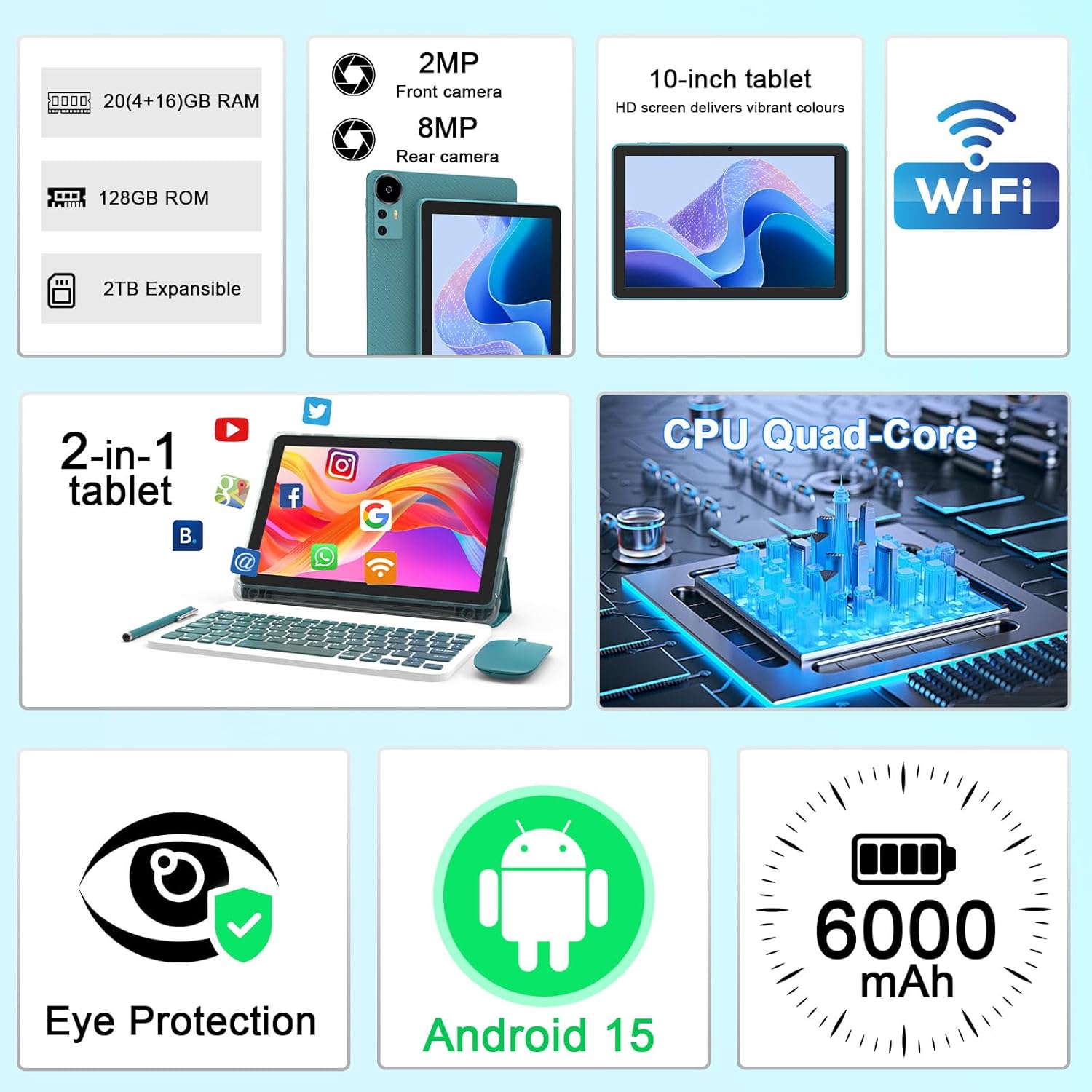
Imatge 2.1: acabatview of key features and included components.
3. Configuració inicial
3.1 Engegada/apagada
- Per encendre: Premeu i manteniu premut el botó d'engegada situat al lateral de la tauleta fins que la pantalla s'il·lumini.
- Per apagar: Mantingueu premut el botó d'engegada i, a continuació, seleccioneu "Apagar" de les opcions que apareixen a la pantalla.
- Per reiniciar: Press and hold the power button, then select 'Restart' from the options.
3.2 Càrrega de la tauleta
Before first use, fully charge the tablet. Use the provided Type-C cable and charger.
- Connect the Type-C cable to the tablet's charging port.
- Connecteu l'altre extrem del cable a l'adaptador d'alimentació.
- Connecteu l'adaptador de corrent a una presa de corrent.
- The battery icon on the screen will indicate charging status. A full charge typically takes several hours.

Image 3.1: Battery and charging information.
3.3 Connecting Accessories (Keyboard, Mouse, Stylus)
The tablet supports Bluetooth connectivity for the included keyboard and mouse.
- Activa el Bluetooth: Vés a Configuració > Dispositius connectats > Bluetooth i enceneu-lo.
- Pair Keyboard/Mouse: Put the keyboard or mouse into pairing mode (refer to their individual instructions if needed). Select the device name from the list of available Bluetooth devices on your tablet to pair.
- stylus: The included stylus is typically passive and does not require pairing. It can be used directly on the screen for navigation or drawing.
3.4 Connexió Wi-Fi
Connect your tablet to a Wi-Fi network for internet access.
- Vés a Configuració > Xarxa i Internet > Wi-Fi.
- Turn on Wi-Fi. The tablet will scan for available networks.
- Seleccioneu la xarxa desitjada de la llista.
- Si us demana, introduïu la contrasenya de xarxa i toqueu Connecta't.
4. Funcionament bàsic
4.1 Navegació per Android 15
Your tablet runs on Android 15, offering an intuitive user interface. Swipe gestures, tap actions, and the navigation bar (Back, Home, Recents) are standard for interaction. The Google Mobile Services (GMS) certification ensures access to the Google Play Store and other Google applications.

Image 4.1: Android 15 operating system features.
4.2 Configuració de la pantalla
The 10.1-inch IPS display with 1280x800 resolution provides clear visuals. You can adjust display settings to suit your preferences:
- Brillantor: Adjust screen brightness from the quick settings panel or in Configuració > Mostra.
- Mode de lectura: Enable 'Reading Mode' in display settings to reduce blue light emission, which can enhance comfort during extended reading sessions.
- Mida de la font: Customize text size for better readability.

Image 4.2: Details of the 10.1-inch HD screen display.
4.3 Gestió d'emmagatzematge
The tablet features 128GB of internal storage and 20GB RAM (4GB physical + 16GB virtual expansion). Storage can be expanded up to 2TB using a microSD card (not included).
- Comprova l'emmagatzematge: Vés a Configuració > Emmagatzematge a view internal and external storage usage.
- Inseriu la targeta MicroSD: Locate the microSD card slot on the tablet, insert the card gently until it clicks into place.

Image 4.3: Storage and RAM configuration.
4.4 Ús de la càmera
The tablet is equipped with an 8MP rear camera and a 2MP front camera.
- Open Camera App: Toca la icona de la càmera a la pantalla d'inici o al calaix d'aplicacions.
- Canvia de càmeres: Use the camera switch icon to toggle between front and rear cameras.
- Capturar fotos/vídeos: Toqueu el botó de l'obturador per fer una foto o iniciar/aturar la gravació de vídeo.

Image 4.4: Camera specifications and modes.
4.5 Reproducció multimèdia
The tablet supports Widevine L1, enabling high-definition streaming from platforms like Netflix, Hulu, YouTube, and Prime Video.
- Ensure a stable internet connection for optimal streaming quality.
- Download streaming apps from the Google Play Store.

Image 4.5: Widevine L1 support for multimedia streaming.
4.6 Multitasca
Android 15 enhances multitasking capabilities. Use the 'Recents' button to switch between open applications or utilize split-screen mode for running two apps simultaneously.
- Pantalla dividida: From the 'Recents' view, tap the app icon at the top of an app's card and select 'Split screen'. Choose a second app to open alongside it.
- The included keyboard and mouse facilitate a laptop-like experience for productivity tasks.

Image 4.6: Tablet used in 2-in-1 mode with keyboard and mouse.
5. Cura i Manteniment
5.1 Neteja
- Feu servir un drap suau i sense borrissol per netejar la pantalla i el cos de la tauleta.
- Eviteu utilitzar productes químics agressius, netejadors abrasius o aerosols.
- Assegureu-vos que la tauleta estigui apagada i desendollada abans de netejar-la.
5.2 Cura de la bateria
- Eviteu exposar la tauleta a temperatures extremes (calor o fred).
- No deixeu la tauleta completament descarregada durant períodes prolongats.
- Feu servir només el carregador i el cable proporcionats per evitar danys a la bateria.
5.3 Actualitzacions de programari
- Comproveu i instal·leu regularment si hi ha actualitzacions de programari per garantir un rendiment òptim, seguretat i accés a noves funcions.
- Vés a Configuració > Sistema > Actualització del sistema per comprovar si hi ha actualitzacions disponibles.
6. Solució De Problemes
If you encounter issues with your tablet, refer to the following common problems and solutions:
6.1 Problemes d'energia
- La tauleta no s'encén: Assegureu-vos que la bateria estigui carregada. Connecteu el carregador i espereu uns minuts abans d'intentar tornar-lo a engegar.
- Tablet freezes: Premeu i manteniu premut el botó d'engegada durant uns 10-15 segons per forçar un reinici.
6.2 Problemes de connectivitat
- El Wi-Fi no es connecta: Check if Wi-Fi is enabled in settings. Restart your router and the tablet. Ensure you are entering the correct password.
- El dispositiu Bluetooth no s'emparella: Ensure the Bluetooth accessory is in pairing mode and within range. Restart Bluetooth on the tablet and try pairing again.
6.3 Performance Lags
- Rendiment lent: Close unused applications running in the background. Clear cache data for frequently used apps. Consider adding a microSD card for additional storage if internal storage is nearly full.
- Les aplicacions es bloquegen: Ensure apps are updated to their latest versions. Clear the app's cache and data (Configuració > Aplicacions > [Nom de l'aplicació] > Emmagatzematge).
7. Especificacions del producte
| Característica | Especificació |
|---|---|
| Marca | CUPEISI |
| Nom del model | CP31M (Item model number: YQ10S MAX) |
| Sistema operatiu | Android 15 |
| Mida de la pantalla | 10.1 polzades |
| Resolució de pantalla | 1280 x 800 píxels (HD) |
| Processador | Quadrucs de 2.0 GHz |
| RAM | 20GB (4GB physical + 16GB expansion) |
| Emmagatzematge intern | 128 GB |
| Emmagatzematge ampliable | Up to 2TB with microSD card (not included) |
| Tipus sense fil | 802.11ax (Wi-Fi 6.0, 2.4G/5G) |
| Bluetooth | BT 5.0 |
| Càmera posterior | 8 MP |
| Càmera frontal | 2 MP |
| Capacitat de la bateria | 6000 mAh |
| Durada mitjana de la bateria | 6-8 Hours (usage dependent) |
| Dimensions (LxWxH) | 9.7 x 6.5 x 0.3 polzades |
| Pes de l'article | 0.176 unces |
| Color | NavyBlue |
8. Garantia i Suport
For warranty information, please refer to the warranty card included in your product packaging or contact CUPEISI customer support directly. If you require technical assistance or have questions not covered in this manual, please reach out to our support team through the contact information provided with your purchase.
Ask a question about this manual
Ask about setup, troubleshooting, compatibility, parts, safety, or missing instructions. Manuals+ will review the question and use this page’s manual context to help answer it.