
1. Introducció
This manual provides detailed instructions for the setup, operation, and maintenance of your FUWANG Touch Keyboard Case. This keyboard case is designed to enhance your iPad experience by providing a physical keyboard, multi-touch trackpad, and comprehensive protection.
1.1 Compatibilitat
The FUWANG Touch Keyboard Case is compatible with the following iPad models:
- iPad 10th Generation 10.9-inch (2022): Model Numbers A2696, A2757, A2777
- iPad 11th Generation (A16) 11-inch (2025): Model Numbers A3354, A3355, A3356
Please verify your iPad's model number on the back of your device before use to ensure compatibility.
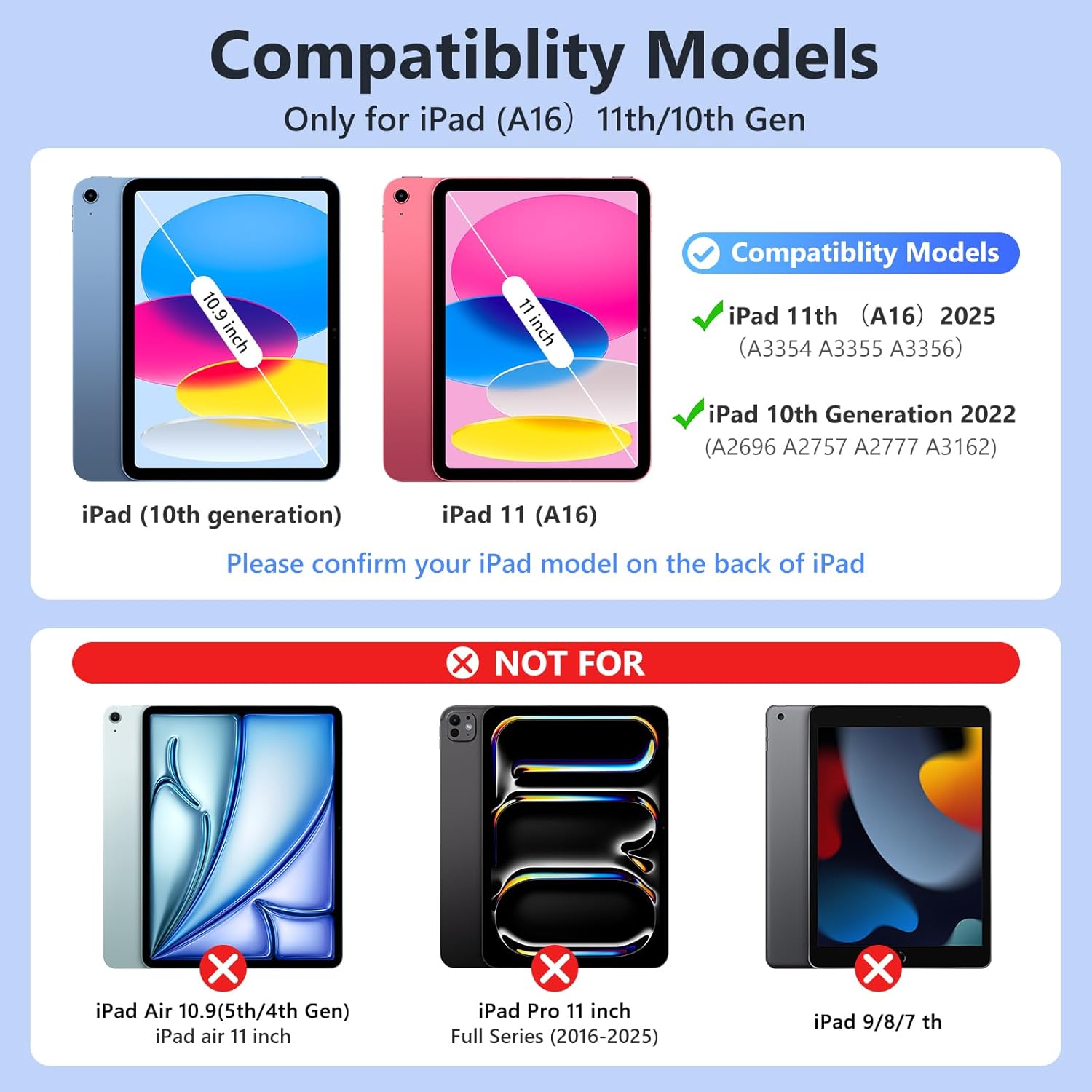
This image illustrates the compatible iPad models (10th Gen 10.9-inch and 11th Gen A16 11-inch) and highlights models that are not compatible, such as iPad Air and iPad Pro.
1.2 Contingut del paquet
En desempaquetar, assegureu-vos que hi hagi tots els elements que s'enumeren a continuació:
- 1 x FUWANG Touch Keyboard Case
- 1 x Cable de càrrega micro USB (carregador no inclòs)
- 1 x Manual d'usuari (aquest document)

This image displays the items included in the product package: the keyboard case, a USB charging cable, and the user manual.
2. Configuració
2.1 Càrrega del teclat
Before initial use, fully charge the keyboard. Use the provided Micro USB charging cable to connect the keyboard to a USB power source (e.g., computer, wall adapter). The charging indicator light will illuminate during charging.
- Temps de càrrega: 2-3 hores aproximadament
- Usable Time (fully charged): ≥100 hores
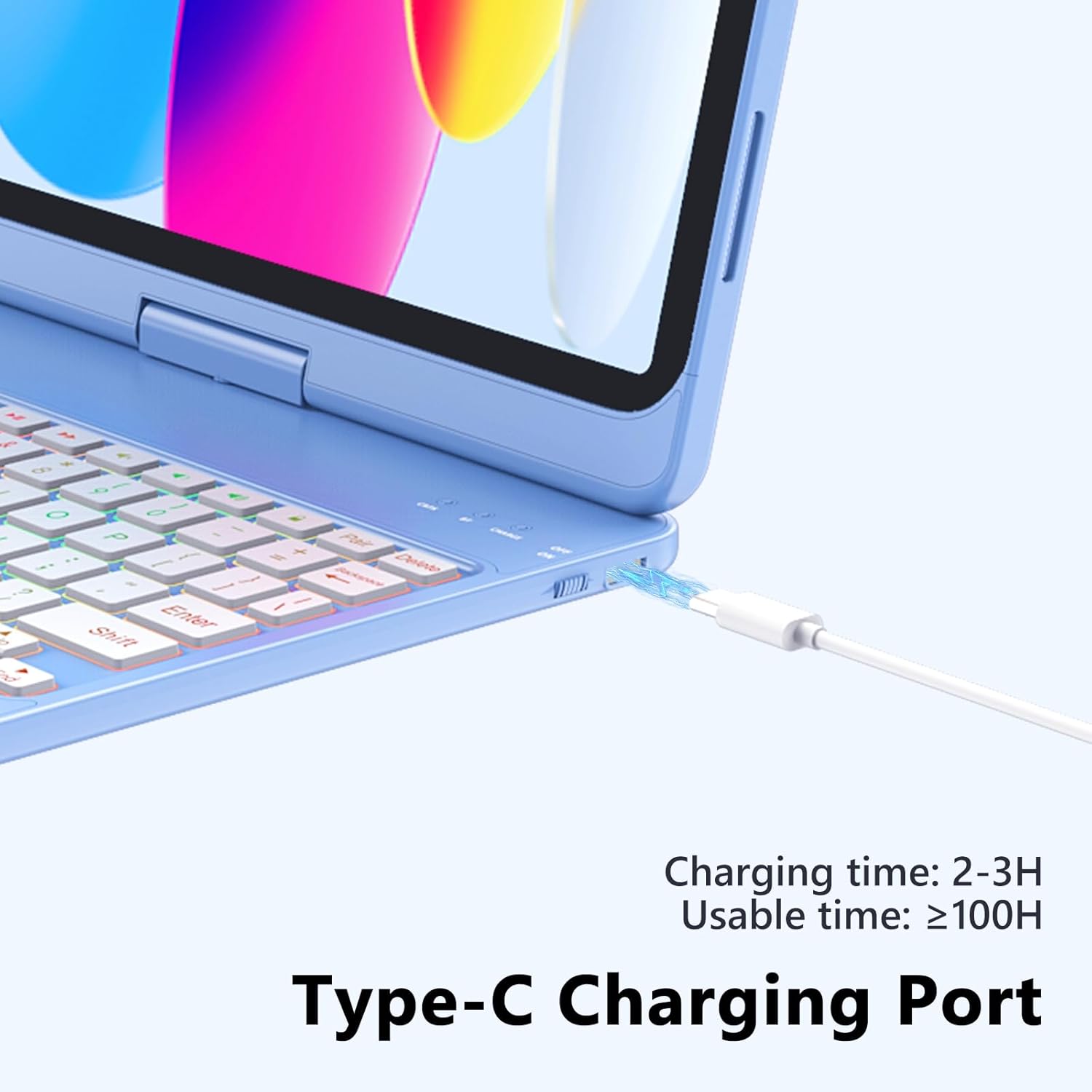
This image highlights the Type-C charging port on the keyboard case, demonstrating where to connect the charging cable.
2.2 Pairing with Your iPad
Follow these steps to connect your keyboard case to your iPad via Bluetooth:
- Locate the power switch on the keyboard. Slide it to the 'ON' position.
- Press the 'Pair' key on the keyboard for 3 seconds. The Bluetooth indicator light will flash blue, indicating it is in pairing mode.
- Al teu iPad, vés a Configuració > Bluetooth i assegureu-vos que el Bluetooth estigui habilitat.
- Your iPad will automatically search for nearby devices. Locate and tap on the 'Bluetooth Keyboard' device in the list to connect.
- Once connected, the Bluetooth indicator light on the keyboard will stop flashing.

This image visually guides the user through the Bluetooth pairing process, from turning on the keyboard to connecting it via iPad settings.
3. Instruccions de funcionament
3.1 Funcions del teclat
The keyboard features a standard QWERTY layout with additional function keys for iPadOS shortcuts. The keys utilize an upgraded scissor mechanism for a responsive and comfortable typing experience.

This diagram illustrates the scissor-switch key structure, highlighting its design for enhanced stability and a comfortable typing experience.
Teclat retroil·luminat 3.2
The keyboard features 7-color RGB LED backlighting with 3 adjustable brightness levels, allowing for comfortable typing in various lighting conditions.
- Adjusting Monochrome Backlight: Premeu FN + 💡 clau.
- Ajust de la brillantor de la llum de fons: Premeu FN + ↑ PgUp (augmentar) o FN + ↓ PgDn tecles (de disminució).
- Switching Backlight Color: Premeu FN + 🌈 clau.

This image shows the keyboard with its 7-color backlight activated, illustrating the visual effect and functionality for typing in low-light environments.

This diagram illustrates the various keyboard shortcuts for controlling backlight settings and Bluetooth connectivity.
3.3 Multi-Touch Trackpad
The integrated trackpad supports multi-gesture controls for precise navigation and an enhanced user experience.
- Turn On/Off Trackpad: Premeu FN + A clau.
Common gestures include:
- Multi-touch Trackpad: Use multiple fingers for various commands.
- Gestionar Files: Navigate and interact with files.
- Navega pel Web: Scroll and zoom in web navegadors.
- Canvia d'aplicacions: Quickly switch between open applications.
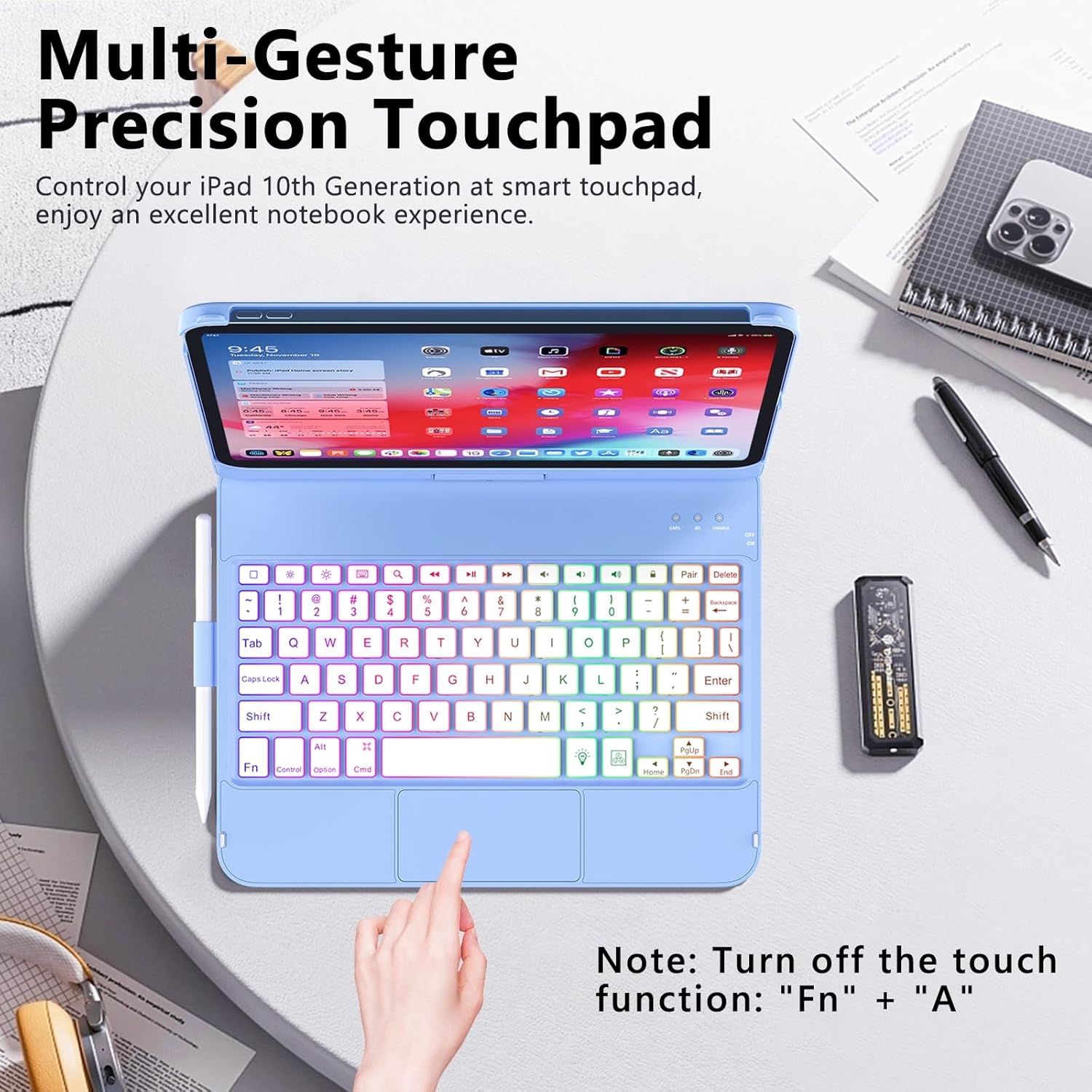
This image shows a hand demonstrating interaction with the multi-gesture precision touchpad, highlighting its responsiveness.

This diagram visually explains different multi-touch gestures supported by the trackpad, such as those for file gestió, web browsing, and app switching.
3.4 360° Rotation and Viewmodes
The case features a 360° rotatable hinge, allowing you to adjust your iPad to multiple viewing angles and modes, including laptop mode, tablet mode, and tent mode.
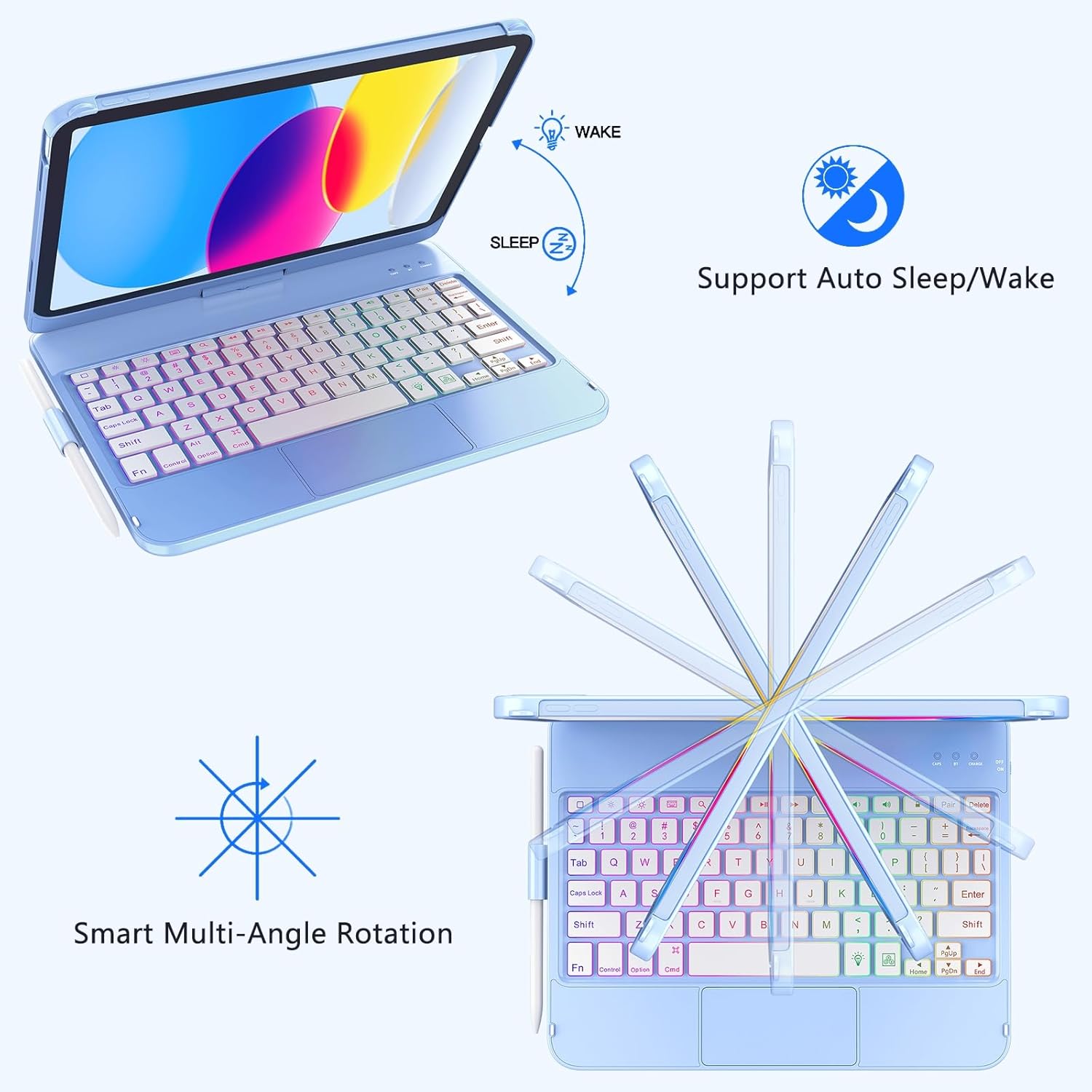
This image illustrates the smart multi-angle rotation feature, showing how the iPad can be positioned in various orientations within the case.
3.5 Funció de repòs/activació automàtica
The case supports an automatic sleep/wake function. Opening the case will wake your iPad, and closing it will put your iPad to sleep, helping to conserve battery life.
3.6 Pencil Holder
A dedicated holder for your Apple Pencil is integrated into the case design, ensuring your pencil is secure and readily accessible.
4. Manteniment
4.1 Atenció general
- Keep the keyboard case clean by wiping it with a soft, dry cloth.
- Avoid exposing the case to extreme temperatures, direct sunlight, or liquids.
- Do not use harsh chemicals or abrasive cleaners on the case or keyboard.
4.2 Cura de la bateria
- Charge the keyboard regularly, even if not in frequent use, to maintain optimal battery health.
- Eviteu esgotar completament la bateria abans de tornar-la a carregar.
5. Solució De Problemes
5.1 Keyboard Not Connecting or Disconnecting Frequently
- Assegureu-vos que el teclat estigui carregat i encès.
- Turn off and then turn on your iPad's Bluetooth.
- Forget the device in your iPad's Bluetooth settings and repeat the pairing process (Section 2.2).
- Assegureu-vos que el teclat estigui dins de l'abast efectiu del Bluetooth (normalment 10 metres).
5.2 Trackpad Issues (Delayed Response, Unintended Actions)
- Ensure the trackpad is enabled (FN + A).
- Try turning the trackpad off and on again.
- Re-pair the keyboard with your iPad.
- Check your iPad's accessibility settings for pointer control options.
5.3 Incorrect Key Output
- Verify that the correct keyboard layout is selected in your iPad's settings (Settings > General > Keyboard > Hardware Keyboard).
- Assegura't que el teu iPadOS estigui actualitzat.
5.4 Case Does Not Fit iPad
- Double-check your iPad's model number against the compatibility list in Section 1.1.
- This case is specifically designed for iPad 10th Gen (10.9-inch) and iPad 11th Gen (A16, 11-inch). It is not compatible with other iPad models like iPad Air or iPad Pro.
6. Especificacions
| Característica | Detall |
|---|---|
| Dimensions del producte | 8.55 x 1.3 x 10.98 polzades |
| Pes de l'article | 1.42 lliures |
| Tecnologia de connectivitat | Bluetooth |
| Descripció del teclat | Flexible Touch Backlit Wireless Bluetooth Keyboard |
| Característiques especials | 360° Rotatable, Backlit Keyboard Case, Comprehensive Protection, Pencil Holder, Trackpad |
| Il·luminació del teclat | 7 Colors RGB |
| Bateries | 1 bateria de ions de liti (inclosa) |
| Port de càrrega | Tipus-C |
7. Garantia i Suport
7.1 Informació de la garantia
Specific warranty details for this product may vary. Please refer to the product packaging or contact FUWANG customer support for information regarding warranty coverage and terms.
7.2 Atenció al client
If you encounter any issues or have questions not covered in this manual, please contact FUWANG customer support for assistance. Contact information can typically be found on the product packaging or the official FUWANG weblloc.