
1. Introducció
This manual provides detailed instructions for the setup, operation, and maintenance of your KOORUI MG27K1Q 27-inch QHD 240Hz VA Mini LED Gaming Monitor. Please read this manual thoroughly before using the product to ensure proper functionality and to prevent damage.
2. Contingut del paquet
Verify that all items listed below are included in your product package. If any items are missing or damaged, please contact KOORUI customer support.
- KOORUI MG27K1Q 27-inch Gaming Monitor
- Monitor Stand (Base and Support)
- Adaptador d'alimentació
- Cable DisplayPort (DP)
3. Configuració
3.1 Muntatge del suport
- Traieu amb cura els components del monitor i del suport de l'embalatge.
- Attach the stand support to the monitor panel. Ensure it clicks securely into place or is fastened with screws if provided.
- Connect the stand base to the stand support. Tighten any screws to secure the assembly.
- Col·loqueu el monitor muntat sobre una superfície plana i estable.
3.2 Connexió a dispositius
The monitor offers multiple connectivity options for various devices. Ensure the monitor is powered off before making any connections.
- DisplayPort (DP 1.4): Connect the included DisplayPort cable from your computer's graphics card to the DisplayPort input on the monitor for optimal performance, including 240Hz refresh rate and Adaptive Sync.
- HDMI (HDMI 2.0): Connect an HDMI cable from your device (PC, gaming console) to one of the two HDMI 2.0 inputs on the monitor.
- Sortida d'àudio: Use the 3.5mm audio jack to connect external speakers or headphones.
Imatge: Part posterior view of the monitor illustrating the available connection ports (DisplayPort 1.4, 2x HDMI 2.0, Audio Out) and VESA mount points. Examples of compatible devices like PS5, Xbox, Laptop, and Nintendo Switch are shown.
3.3 Connexió d'alimentació
- Connecteu l'adaptador de corrent a l'entrada d'alimentació del monitor.
- Connecteu l'adaptador de corrent a una presa de corrent.
4. Funcionament del monitor
4.1 Funcionament bàsic
- Encès/apagat: Premeu el botó d'engegada, que normalment es troba a la part posterior o inferior dreta del monitor, per encendre o apagar el monitor.
- Selecció d'entrada: Use the On-Screen Display (OSD) menu to select the desired input source (DP, HDMI 1, HDMI 2).
4.2 Característiques de visualització
The KOORUI MG27K1Q monitor is equipped with advanced display technologies for an enhanced visual experience.
- Resolució QHD (2560 x 1440): Provides sharp and detailed images.
- VA Mini LED Panel: Offers deep blacks, high contrast, and vibrant colors.
- HDR 1000: High Dynamic Range support for brighter whites and darker blacks, enhancing visual depth and realism.

Image: Visual comparison demonstrating the enhanced contrast and detail provided by HDR 1000 technology compared to a standard display.
4.3 Rendiment de joc
Designed for gaming, this monitor delivers smooth and responsive gameplay.
- Freqüència de refresc de 240 Hz: Ensures ultra-smooth motion and reduced input lag.
- Temps de resposta d'1 ms: Minimitza el desenfocament de moviment i les imatges fantasma per a una acció nítida i ràpida.
- Adaptive Sync (G-SYNC Compatible): Sincronitza la freqüència d'actualització del monitor amb la freqüència d'imatges de la GPU per eliminar el trencament i les entrebancades de la pantalla.
- Exclusive Game Display Modes: Features like Crosshair, Timer, and FPS Counter can be enabled via the OSD for an advantage en jocs.

Image: The monitor displaying a high-speed racing game, emphasizing its 240Hz refresh rate and 1ms response time for a fluid gaming experience.
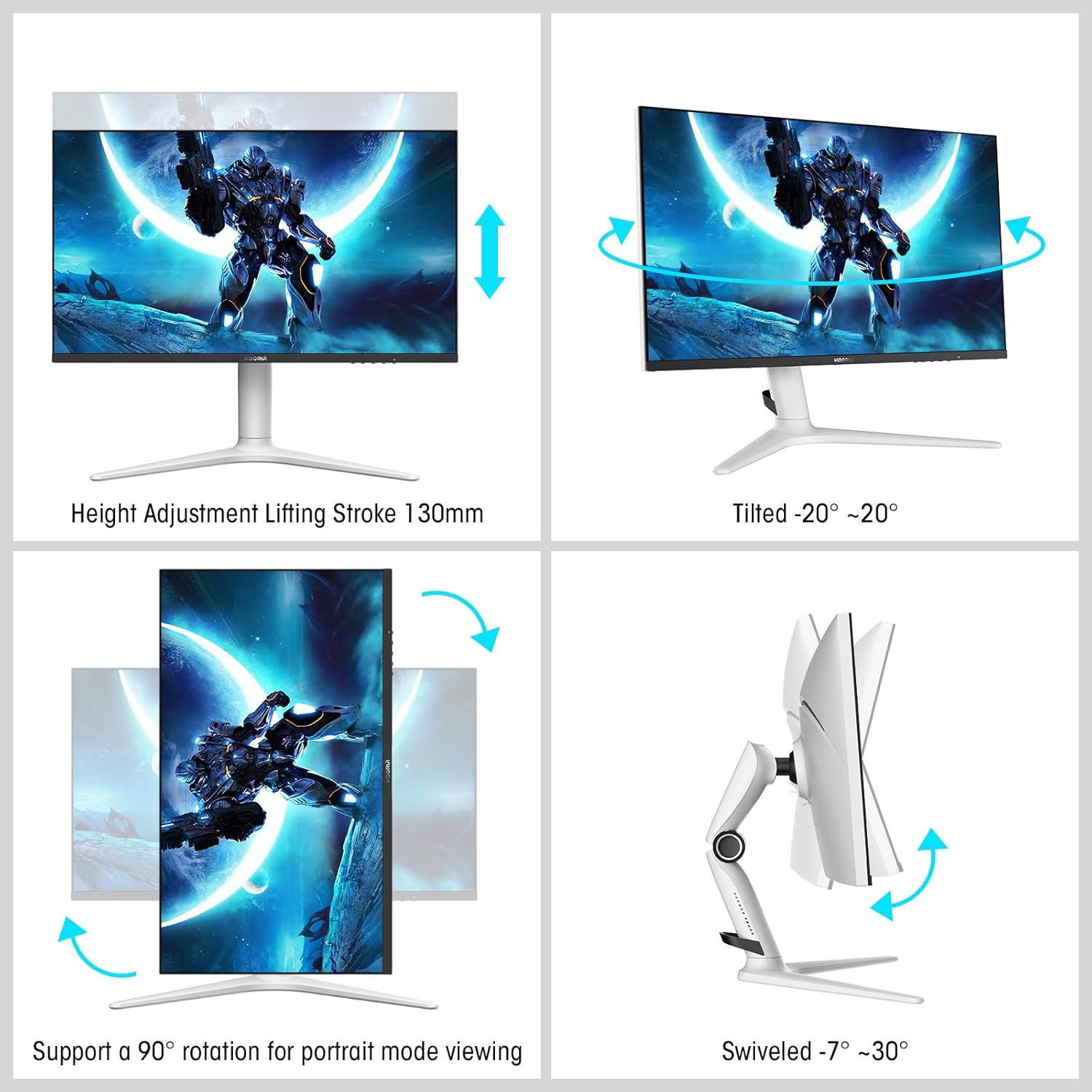
Image: A gaming scenario on the monitor, illustrating the 'Exclusive Game Display Mode' features such as Crosshair, Timer, FPS Counter, and RTS Counter, alongside Adaptive Sync functionality.
4.4 Característiques de la cura dels ulls
The monitor includes features to reduce eye strain during prolonged use.
- Filtre de llum blava: Reduces harmful blue light emissions. This can be adjusted or enabled/disabled through the OSD menu.
5. Ajustaments
The monitor stand allows for various ergonomic adjustments to optimize your viewcomoditat.
- Ajust d'alçada: Adjust the monitor height up to 130mm.
- Inclinació: Tilt the screen from -7° (downward) to 30° (upward).
- Girar: Rotate the monitor horizontally from -20° to 20°.
- Pivot: Gira la pantalla 90° per al mode retrat viewing.
- Muntatge VESA: Compatible with VESA 75x75mm mounting solutions for alternative setups.

Image: Diagrams demonstrating the monitor's ergonomic adjustments, including height, tilt, swivel, and pivot for portrait mode.
6. Especificacions
| Característica | Especificació |
|---|---|
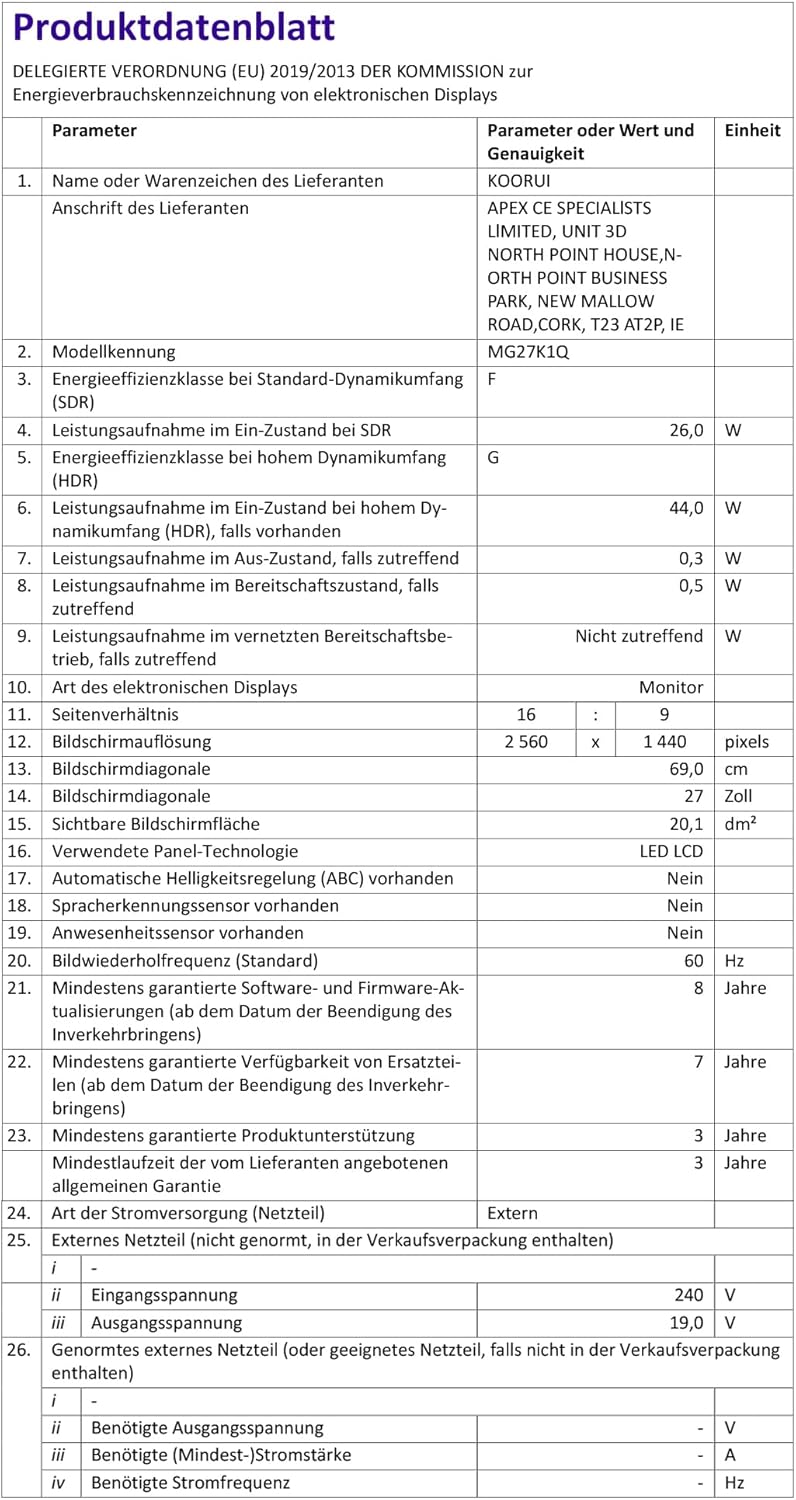
| Número de model | MG27K1Q |
| Mida de la pantalla | 27 polzades |
| Tipus de panell | VA Mini-LED |
| Resolució | QHD (2560 x 1440) |
| Relació d'aspecte | 16:9 |
| Freqüència d'actualització | 240 Hz |
| Temps de resposta | 1 ms |
| Relació de contrast (estàtica) | 3000:1 |
| Relació de contrast (dinàmica) | 20,000,000:1 |
| Brillantor | 275 nits |
| Viewangle ing | 178 graus |
| Suport HDR | HDR 1000 |
| Sincronització adaptativa | Compatible with NVIDIA G-SYNC |
| Connectivitat | 2x HDMI 2.0, 1x DisplayPort 1.4, sortida d'àudio |
| Muntatge VESA | 75x75mm |
| Consum d'energia | 90 watts |
| Dimensions (P x A x A) | 32 x 61.3 x 52.3 cm |
| Pes | 9.34 quilos |
| Característiques especials | Blue Light Filter, Gaming Modes (Crosshair, Timer, FPS Counter) |
7. Solució De Problemes
Si teniu problemes amb el monitor, consulteu els passos habituals següents per a la resolució de problemes:
- Sense energia: Assegureu-vos que l'adaptador de corrent estigui connectat correctament tant al monitor com a una presa de corrent que funcioni. Comproveu si l'indicador lluminós d'engegada del monitor està encès.
- Sense senyal: Verify that the video cable (DP or HDMI) is correctly connected to both the monitor and your computer/device. Ensure the correct input source is selected in the monitor's OSD menu. Try a different video cable or port.
- Imatge parpellejant/distorsionada: Check the video cable connections. Ensure your graphics card drivers are up to date. Try reducing the refresh rate in your display settings to see if the issue persists.
- Adaptive Sync Not Working: Ensure Adaptive Sync (G-SYNC Compatible) is enabled in both the monitor's OSD settings and your graphics card control panel. Use a DisplayPort cable for optimal performance.
- Píxels morts: While rare, a small number of dead pixels may be considered within manufacturing tolerances. Refer to the warranty policy for specific details regarding pixel defects.
8. Garantia i Suport
KOORUI provides comprehensive support for your product.
- Garantia: This monitor comes with a 3-year warranty from the date of purchase.
- Servei de substitució: A 1-year replacement service is offered for qualifying issues.
- Atenció al client: If you encounter any damages, malfunctions, or find missing accessories, please do not hesitate to contact KOORUI customer support for assistance.