
1. Introducció
The BAISHUN HDMI KVM USB Extender (Model CJX-062-US) allows for the transmission of high-definition video (up to 1080p@60Hz) and USB keyboard/mouse signals over a single Cat5e/6/7 Ethernet cable. This device extends control of a computer or other HDMI source up to 164 feet (50 meters) with zero latency, making it suitable for home theaters, gaming setups, and multi-room offices. It consists of a Transmitter (TX) unit and a Receiver (RX) unit.

Image 1.1: The BAISHUN HDMI KVM USB Extender includes a Transmitter (TX) and a Receiver (RX) unit, shown with a USB cable.
2. Contingut del paquet
Si us plau, verifiqueu que tots els elements siguin presents al vostre paquet:
- KVM Transmitter (TX) Unit: 1 PCS
- KVM Receiver (RX) Unit: 1 PCS
- USB Cable: 1 PCS
- Adaptador d'alimentació: 1 unitats
- Manual d'usuari: 1 unitat
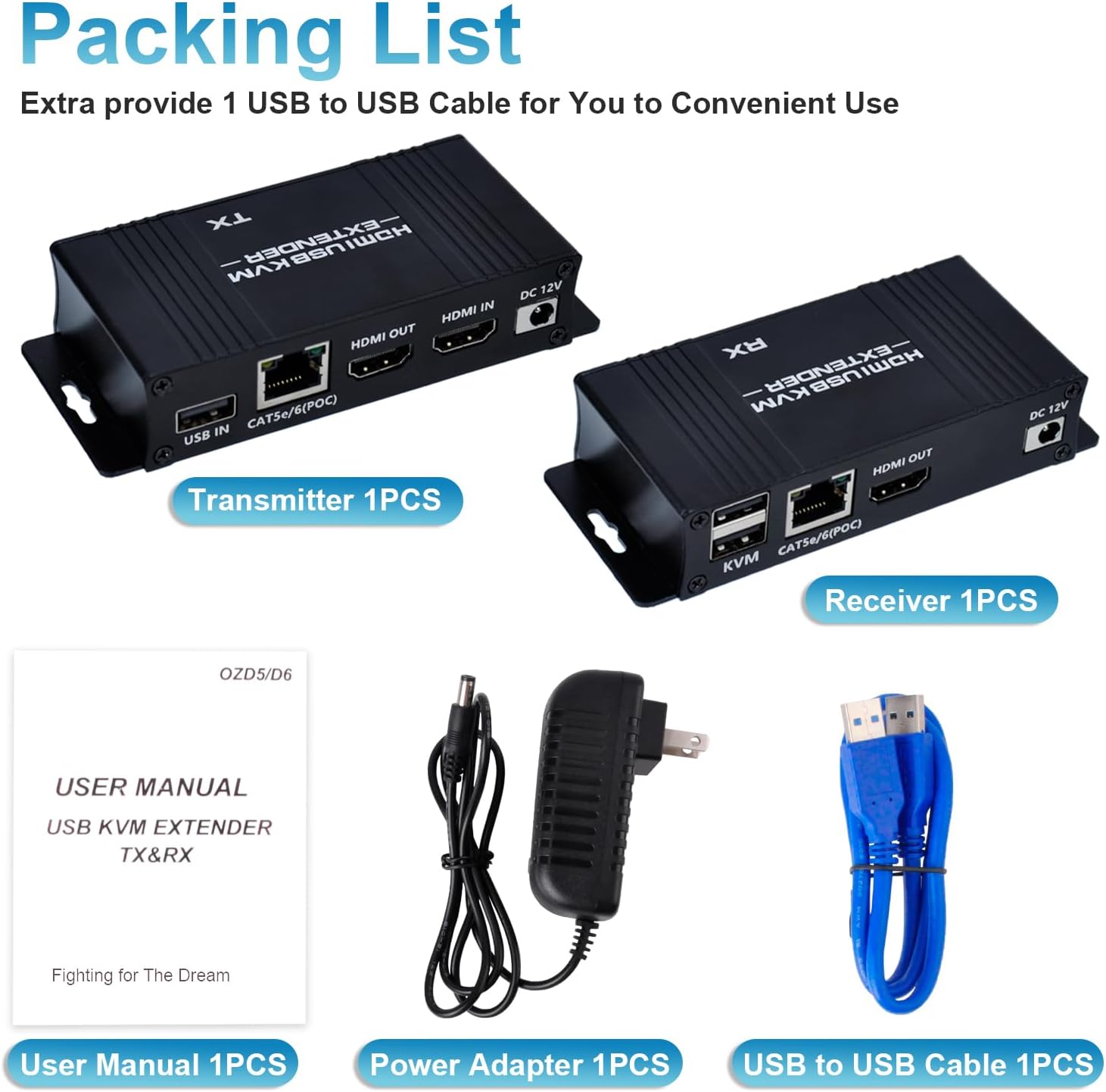
Image 2.1: The package includes the Transmitter, Receiver, USB cable, power adapter, and user manual.
3. Producte acabatview
The extender system comprises two main units:
3.1 Transmitter (TX) Unit
Connects to the source device (e.g., PC, laptop). It features:
- Port USB IN: Connects to the source PC's USB port for KVM functionality.
- CAT5e/6/7 (POC) Port: Connects to the Receiver unit via an Ethernet cable. Supports Power Over Cable (POC).
- Port HDMI IN: Connects to the source device's HDMI output.
- Port de SORTIDA HDMI: For local display monitoring (optional).
- Port DC 12V: Per a l'entrada de potència.
3.2 Receiver (RX) Unit
Connects to the display and KVM peripherals. It features:
- KVM Ports (2x USB 2.0): Connects to USB keyboard and mouse.
- CAT5e/6/7 (POC) Port: Connects to the Transmitter unit via an Ethernet cable.
- Port de SORTIDA HDMI: Connects to the display device (e.g., monitor, TV).
- Port DC 12V: For power input (only one power adapter is needed for the system, typically connected to the TX unit due to POC).

Imatge 3.1: Detallada view of the input/output ports on both the Transmitter (TX) and Receiver (RX) units.
4. Instruccions de configuració
Follow these steps to set up your HDMI KVM USB Extender:
- Connecteu la font: Connect an HDMI cable from your source device (e.g., PC, laptop) to the Entrada HDMI port on the Transmitter (TX) unit.
- Connect USB to Source: Connect the provided USB-A to USB-A cable from a USB port on your source device to the ENTRADA USB port on the Transmitter (TX) unit.
- Connecteu el cable Ethernet: Run a single Cat5e/6/7 Ethernet cable (up to 164ft / 50m) between the CAT5e/6/7 (POC) port on the Transmitter (TX) unit and the CAT5e/6/7 (POC) port on the Receiver (RX) unit. Ensure the cable is properly terminated.
- Connecta la pantalla: Connecteu un cable HDMI des del SORTIDA HDMI port on the Receiver (RX) unit to your display device (e.g., monitor, TV).
- Connect KVM Peripherals: Connecteu el teclat i el ratolí USB a KVM USB 2.0 ports on the Receiver (RX) unit.
- Aplicar potència: Connect the provided 12V DC power adapter to the DC 12V port on the Transmitter (TX) unit. Due to Power Over Cable (POC) functionality, only one power adapter is required for the entire system.
- Encès: Power on your source device and display. The extender system should automatically establish connection and display the video.

Image 4.1: Connection diagram illustrating how to connect the Transmitter (TX) to the source PC and local display, and the Receiver (RX) to the remote display, keyboard, and mouse via a Cat5e/6/7 cable.

Image 4.2: The Power Over Cable (POC) function allows the entire system to be powered by a single adapter connected to the Transmitter (TX) unit.
5. Instruccions de funcionament
Once properly set up, the BAISHUN HDMI KVM USB Extender operates automatically:
- Detecció automàtica: The extender will automatically detect the HDMI input and output resolutions.
- KVM Control: The keyboard and mouse connected to the Receiver (RX) unit will control the source device as if they were directly connected.
- Zero Latency: The system is designed for zero latency transmission, ensuring smooth video and responsive keyboard/mouse control.
- Sortida HDMI local: The Transmitter (TX) unit includes an HDMI OUT port, allowing for a local display to be connected for monitoring the source device simultaneously.

Image 5.1: The extender provides zero latency video and audio transmission, allowing for remote control of a PC with a keyboard and mouse.

Image 5.2: Keyboard input and mouse movement are smoothly synchronized over distances up to 164 feet.
6. Manteniment
To ensure optimal performance and longevity of your extender:
- Keep the units in a cool, dry, and well-ventilated area.
- Avoid exposing the units to direct sunlight, high temperatures, or excessive humidity.
- Clean the units with a soft, dry cloth. Do not use liquid or aerosol cleaners.
- Assegureu-vos que totes les connexions dels cables estiguin ben fixades i no estiguin danyats.
7. Solució De Problemes
Si teniu problemes, consulteu les solucions habituals següents:
- Sense sortida de vídeo:
- Ensure all HDMI cables are securely connected to both the source and display, and to the extender units.
- Verify that the Cat5e/6/7 Ethernet cable is properly connected between the TX and RX units and is not damaged.
- Confirm that the power adapter is connected to the TX unit and the unit is receiving power.
- Test with a shorter, known-good Ethernet cable to rule out cable issues.
- Assegureu-vos que la pantalla estigui configurada a l'entrada HDMI correcta.
- El teclat/ratolí no respon:
- Check that the USB cable is securely connected from your source PC to the ENTRADA USB port on the TX unit.
- Ensure your keyboard and mouse are connected to the KVM USB 2.0 ports on the RX unit.
- Avoid using 5.8GHz wireless keyboards/mice, as they may not be compatible. Wired or 2.4GHz wireless peripherals are recommended.
- Try connecting the keyboard and mouse directly to the source PC to confirm they are functional.
- Restart both the source PC and the extender units.
- Intermittent Signal/Flickering Video:
- Ensure the Cat5e/6/7 cable is of good quality and meets specifications for the distance.
- Check for any sources of electromagnetic interference near the Ethernet cable.
- Verify that the HDMI cables are not excessively long or damaged.
For further assistance, please contact BAISHUN customer support. Lifetime troubleshooting support is available for this product.
8. Especificacions
| Característica | Descripció |
|---|---|
| Número de model | CJX-062-US |
| Marca | BAISHUN |
| Distància de transmissió | Up to 164ft (50m) over Cat5e/6/7 Ethernet cable |
| Resolució de vídeo | Max 1080p@60Hz, supports 3D |
| Latència | Latència zero |
| Ports USB | 2x USB 2.0 (on Receiver for KVM) |
| Font d'alimentació | DC 12V (Single power adapter with Power Over Cable - POC) |
| Mètode de control | Remote (Keyboard/Mouse) |
| Protocol de connectivitat | Ethernet |
| Color | Negre |
| Dimensions (L x A x A) | 4.56 x 1.96 x 0.95 polzades (per unitat) |
| Pes de l'article | 12.6 unces |
| Material | Coure (material de contacte) |
| Certificació | ETL |

Image 8.1: The dimensions of a single extender unit are 4.56 inches in length, 1.96 inches in width, and 0.95 inches in height.
9. Garantia i Suport
BAISHUN provides lifetime troubleshooting support for the HDMI KVM USB Extender. For any technical issues, questions, or support needs, please contact BAISHUN customer service through your purchase platform or the official BAISHUN weblloc.