
1. Introducció
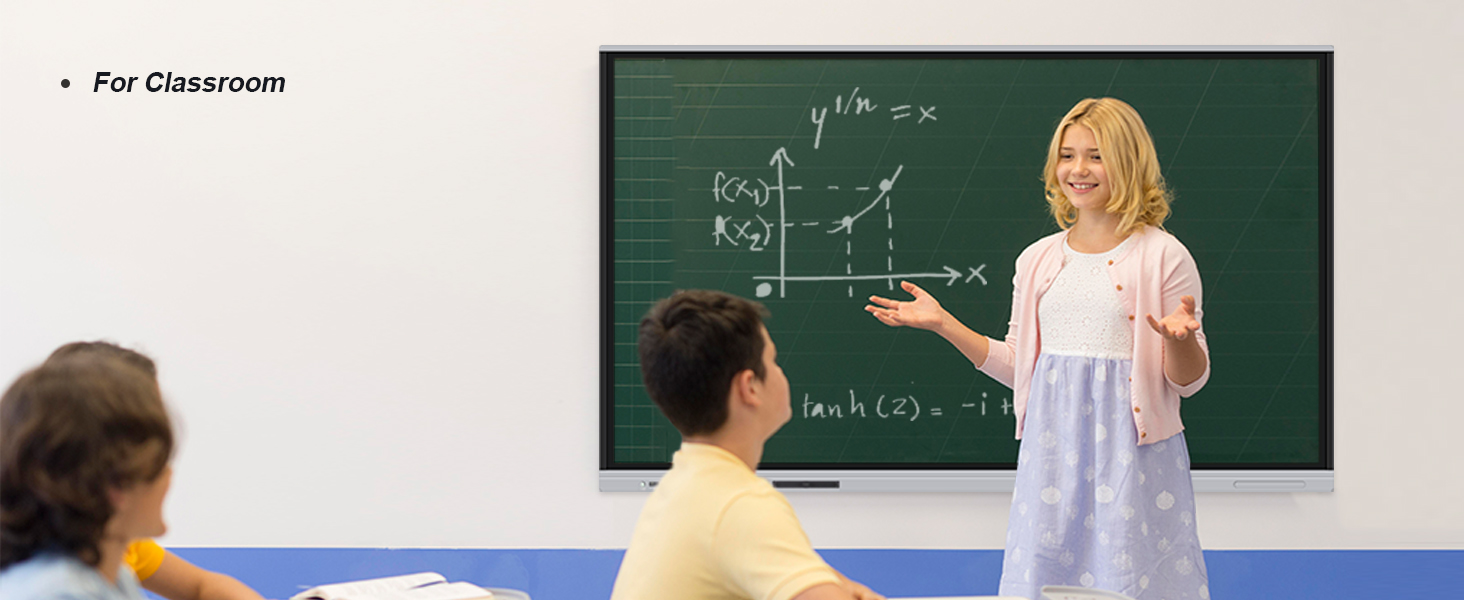
The TouchWo 65-inch 4K Interactive Smart Board is a versatile display solution designed for interactive presentations, digital signage, and collaborative work in various environments such as offices and classrooms. It features a 20-point touchscreen, Android 11 operating system, and 4K UHD resolution for a clear and responsive user experience.
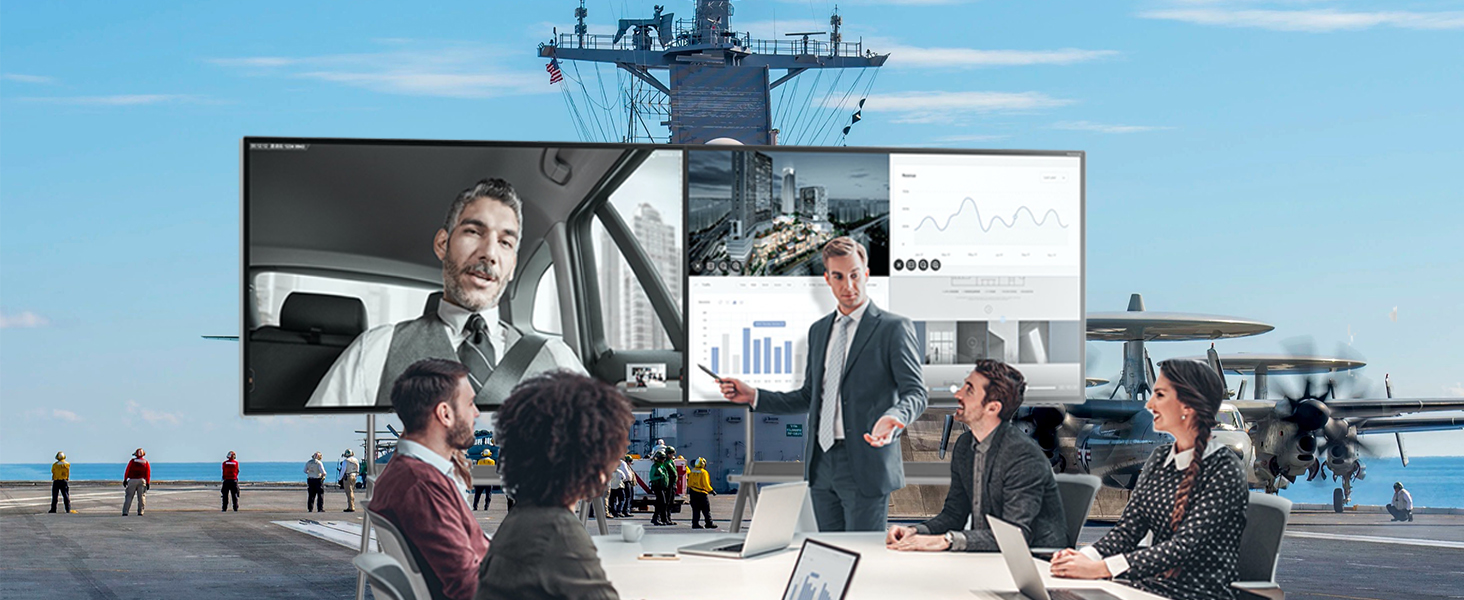
Image: The TouchWo 65-inch Smart Board in an office environment, showcasing its interactive capabilities.
Vídeo: Un overview of the TouchWo Interactive 4K Touchscreen Monitor Electronic Whiteboard, highlighting its features and applications.
2. Informació de seguretat
Please read and understand all safety instructions before operating the device. Keep this manual for future reference.
- Font d'alimentació: Use only the provided power cable. Ensure the power outlet matches the voltage requirements (110V AC).
- Ventilació: No bloquegeu les obertures de ventilació. Assegureu-vos que hi hagi un flux d'aire adequat al voltant del dispositiu per evitar el sobreescalfament.
- Col·locació: Place the smart board on a stable surface or mount it securely using the provided brackets. Avoid direct sunlight, heat sources, and moisture.
- Neteja: Desconnecteu l'alimentació abans de netejar. Feu servir un drap suau i sec. No utilitzeu netejadors líquids ni aerosols.
- Manteniment: No intenteu atendre aquest producte vosaltres mateixos. Consulteu tots els serveis a personal de servei qualificat.
3. Què s'inclou
Verifiqueu que tots els elements estiguin presents a l'embalatge:
- 1 x TouchWo Smart Whiteboard (65-inch)
- 1 x Power Line
- 1 x Presenter Pen
- 1 x Portable Stand (for mobile setup)
- 1 x Wall Mount Bracket (for wall installation)
- 1 x antena WiFi
- 1 x Stylus
- 1 x Screen Mirroring Device

Image: A visual representation of the accessories included with the TouchWo Smart Board, detailing the mobile stand, wall mount, power line, WiFi antenna, capacitive stylus, presenter pen, and screen mirroring device.
4. Configuració
4.1. Mobile Stand Assembly
Follow these steps to assemble the portable stand:
- Unpack all components of the mobile stand.
- Attach the wheels to the base of the stand using the provided wrench and screws.
- Assemble the vertical support columns and secure them to the base.
- Mount the display bracket to the top of the vertical columns using the provided screws and Allen key.
- Attach the accessory tray to the lower section of the stand.
- Carefully lift the smart board with assistance and hook it onto the display bracket. Secure the board using the locking mechanisms or screws.
Video: A detailed tutorial on how to install the Smart Whiteboard Mobile Stand.
4.2. Instal·lació de muntatge a la paret
If you prefer wall mounting, use the included wall mount bracket. Professional installation is recommended for safety and optimal placement.
- Identify a suitable wall location that can support the weight of the smart board.
- Securely attach the wall mount bracket to the wall using appropriate fasteners for your wall type.
- Attach the display rails to the back of the smart board.
- Carefully lift the smart board with assistance and hook the display rails onto the wall mount bracket. Secure the board in place.
4.3. Connexions
The smart board offers multiple connectivity options:
- Potència: Connect the power line to the smart board and a suitable power outlet.
- Wi-Fi: Attach the provided WiFi antenna to the designated port for wireless network connectivity.
- HDMI: Use HDMI IN ports to connect external devices like laptops or media players.
- USB: Utilize USB ports for connecting peripherals such as keyboards, mice, or USB drives. USB OTG supports touch functionality from connected devices.
- RJ45: Per a la connexió de xarxa amb cable.
- VGA: Per connectar dispositius de visualització més antics.
Imatge: Un primer pla view of the TouchWo Smart Board's various connectivity ports, including USB, HDMI, and the power input, demonstrating its multi-interface capabilities.
5. Instruccions de funcionament
5.1. Encendre/apagar
Press the power button located on the side or bottom of the smart board to turn it on or off. The device runs on Android 11 OS.
5.2. Basic Touch Functions
The 20-point multi-touch screen allows for intuitive interaction:
- Toc senzill: Seleccioneu elements o obriu aplicacions.
- Doble toc: Execute actions or zoom in/out.
- Mantén premut: Access context menus or move items.
- Two-Finger Tap/Pinch: Zoom in/out on images or documents.

Image: A diagram explaining the 20-point touch technology, showing different touch gestures such as single tap, double tap, press and hold, and two-finger tap/press.
5.3. Whiteboard Functionality
Access the built-in whiteboard application for interactive writing and drawing. Use the included stylus or your finger.
- Select different pen colors and sizes from the toolbar.
- Erase content using the eraser tool or by swiping with your palm.
- Annotate over presentations or documents.
- Save or share your whiteboard sessions.
Video: A demonstration of the TouchWo 65-inch Smart Whiteboard's functions, including writing, drawing, and erasing.
Video: A demonstration of the TouchWo Touchscreen Smart Whiteboard being used in a classroom setting.
5.4. Mirall de pantalla
Mirror content from your smartphone, laptop, or tablet to the smart board wirelessly.
- Ensure your device and the smart board are connected to the same network.
- Open the screen mirroring application on the smart board.
- Follow the on-screen instructions to connect your external device (e.g., scan QR code, enter PIN).
- Once connected, your device's screen will be displayed on the smart board.
Video: A demonstration of smartphone screen casting to the TouchWo Windows/Android AIO Smart Board.
Video: Demonstrates screen mirroring and portrait mode settings on the TouchWo Office Whiteboard for presentations.
5.5. Digital Signage
The smart board can be used for digital signage applications, supporting both horizontal and vertical placement for displaying images and videos.
- Utilize the Android 11 OS to install digital signage software from the Google Play Store.
- Connect additional cameras and microphones for video conferencing capabilities.
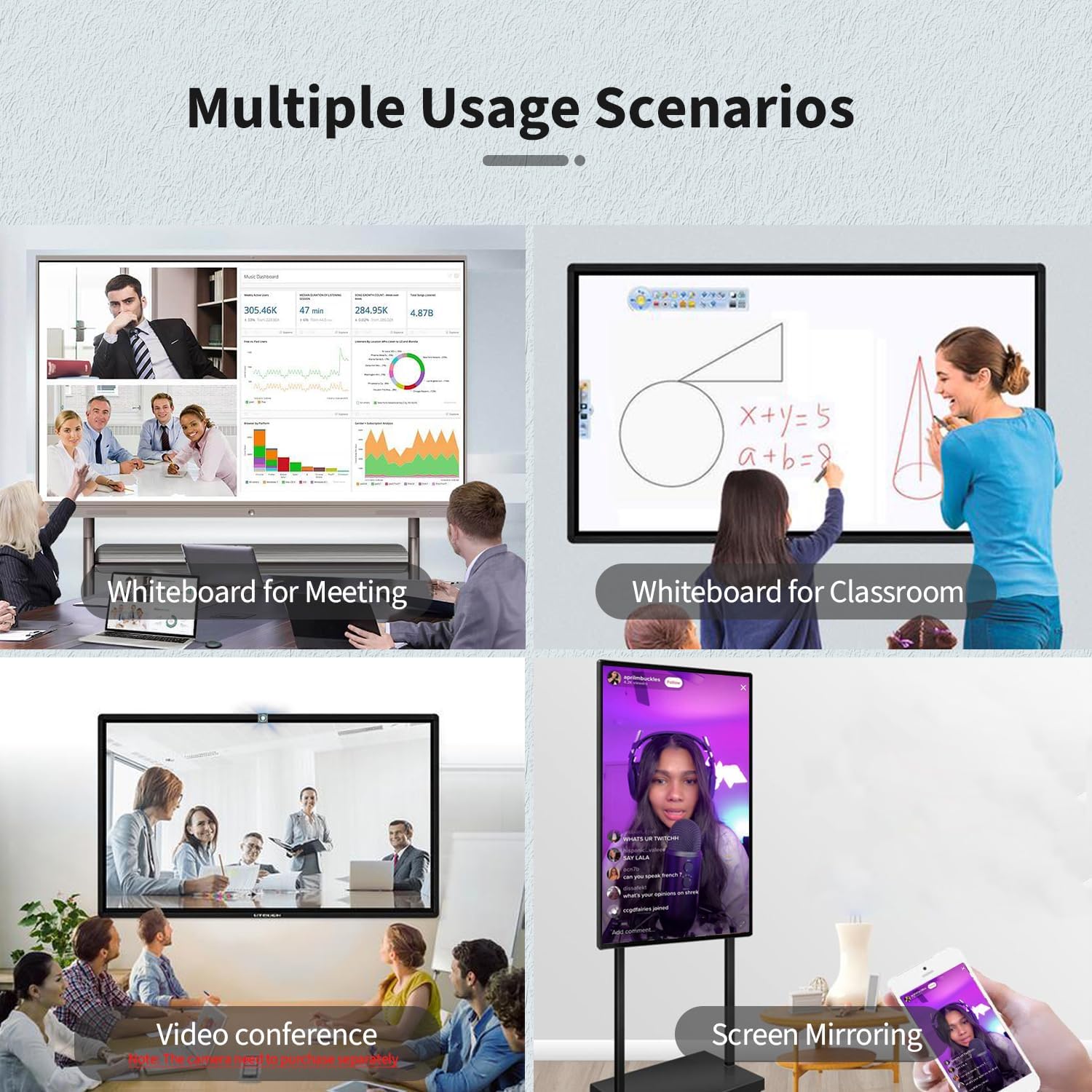
Image: Illustrates multiple usage scenarios for the smart board, including whiteboard functions for meetings and classrooms, video conferencing, and screen mirroring.
6. Especificacions
| Característica | Especificació |
|---|---|
| Marca | TouchWo |
| Número de model | RZ650B |
| Mida de la pantalla | 65 polzades |
| Resolució | 4K UHD (3840 x 2160p) |
| Sistema operatiu | Android 11 |
| RAM | 4 GB |
| ROM | 32 GB |
| Punts de contacte | 20 punts |
| Relació d'aspecte | 16:9 |
| Brillantor de la imatge | 350 lm |
| Voltage | 110 volts (CA) |
| Dimensions del producte | 3.27 x 58.46 x 34.96 polzades |
| Pes de l'article | 70.4 lliures |
| Ports USB totals | 2 |
| Altaveus incorporats | Sí |
| Connectivitat | HDMI, USB, VGA, RJ45, Wi-Fi, BT5.0 |
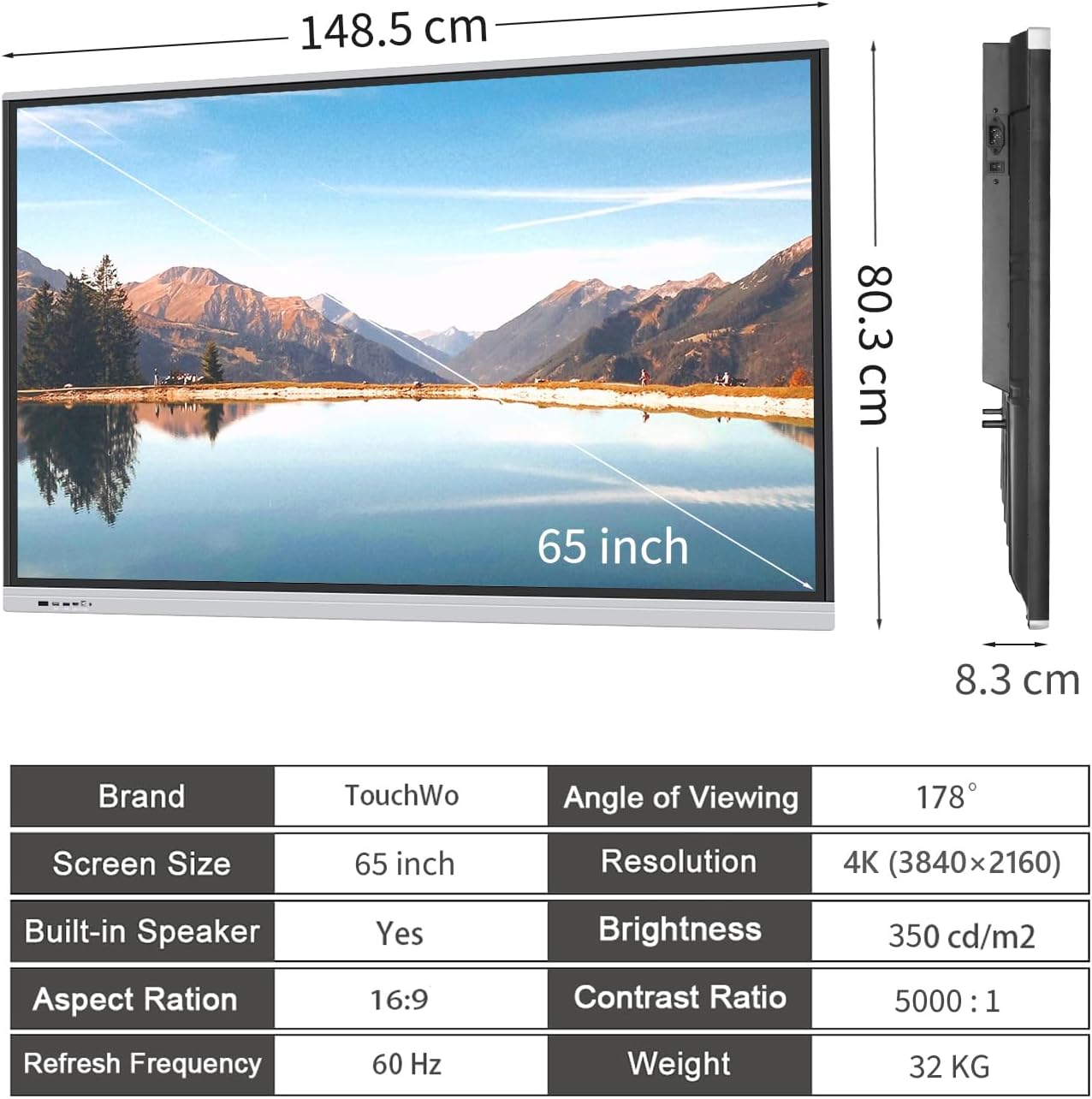
Image: Visual representation of the product dimensions and a table summarizing key specifications like screen size, resolution, and brightness.
7. Manteniment
Proper maintenance ensures the longevity and optimal performance of your TouchWo Smart Board:
- Neteja de pantalla: Netegeu suaument la pantalla amb un drap suau i sense borrissol. Per a marques difícils, netegeu lleugerament.ampNetegeu el drap amb aigua o un netejador de pantalles. Eviteu productes químics agressius.
- Eliminació de pols: Regularly dust the device's exterior and ventilation openings using a soft brush or compressed air.
- Actualitzacions de programari: Periodically check for and install system updates to ensure the latest features and security patches.
- Emmagatzematge: If storing the device for an extended period, power it off, disconnect all cables, and store it in a cool, dry place, preferably in its original packaging.
8. Solució De Problemes
Si teniu problemes, consulteu les solucions habituals següents:
- Sense energia: Ensure the power cable is securely connected and the power outlet is functional. Check the power switch on the device.
- Sense pantalla: Verify that all video cables (HDMI, VGA) are correctly connected to both the smart board and the source device. Ensure the correct input source is selected on the smart board.
- Pantalla tàctil que no respon: Restart the device. Ensure the touch USB cable is connected if using an external device for touch functionality. Clean the screen for any obstructions.
- Problemes de rèplica de pantalla: Confirm both devices are on the same Wi-Fi network. Check the screen mirroring application settings on both devices.
- Rendiment lent: Close unnecessary applications running in the background. Clear cache and temporary files.
Per a problemes persistents, contacteu amb l'atenció al client.
9. Garantia i Suport
The TouchWo 65-inch 4K Interactive Smart Board RZ650B comes with a 1 any de garantia des de la data de compra, que cobreix els defectes de fabricació. Conserveu el comprovant de compra per a reclamacions de garantia.
For technical support, warranty inquiries, or service requests, please visit the official TouchWo weblloc web o poseu-vos en contacte amb el seu departament d'atenció al client. La informació de contacte normalment es pot trobar a l'embalatge del producte o a la marca oficial. weblloc.


