
1. Introducció
This manual provides essential information for the proper installation, operation, and maintenance of your Came PLX V 5-inch LCD hands-free video intercom system. Please read this manual thoroughly before installation and use to ensure optimal performance and safety.
The Came PLX V is a modern, ultra-thin video intercom designed for residential, office, and public environments. It features a 5-inch color LCD display with soft-touch backlit buttons for intuitive use and advanced communication functionalities.
2. Característiques del producte
- Disseny elegant i modern: Ultra-thin white hands-free video intercom with refined aesthetics and soft-touch backlit buttons.
- Impeccable Audio and Video: High-quality audio and a 5-inch color LCD display (480 x 272 pixels) with OSD technology for color, brightness, and contrast adjustment.
- Funcions avançades: Supports up to 6 intercom calls and 4 auxiliary commands. Includes automatic door opener, latch function with LED icon for external automation status, AUX2 button for auxiliary functions, and concierge call.
- Easy and Universal Installation: Wall-mounted installation without masonry work. Compatible with 503 and round Ø60 mm electrical boxes.

Figura 1: Mésview of the Came PLX V Video Intercom System highlighting its elegant design, 5-inch LCD display, high-quality audio/video, customizable settings, wall-mount installation, and soft-touch backlit buttons.
3. Configuració i instal·lació
The Came PLX V video intercom is designed for straightforward wall-mounted installation. Follow these general guidelines:
- Lloc de muntatge: Choose a suitable wall location, ensuring it is compatible with 503 or round Ø60 mm electrical boxes if applicable.
- Cablejat: Connect the necessary wiring for power, video, audio, and auxiliary functions according to the detailed wiring diagram provided in the full product manual. Ensure all connections are secure.
- Muntatge segur: Securely attach the monitor to the wall using appropriate screws and anchors.
- Connexió d'alimentació: Connecteu la font d'alimentació.

Figure 2: Dimensions of the Came PLX V video intercom (154mm width, 169mm height, 25mm depth) and examples of its sleek wall-mounted appearance in various settings.
Guia de vídeo d'instal·lació:
Video 1: This video provides a practical overview of the Came PLX V video intercom, demonstrating its physical features and handling, which can be helpful for understanding the installation process.
4. Instruccions de funcionament
The Came PLX V features intuitive soft-touch buttons for easy operation:
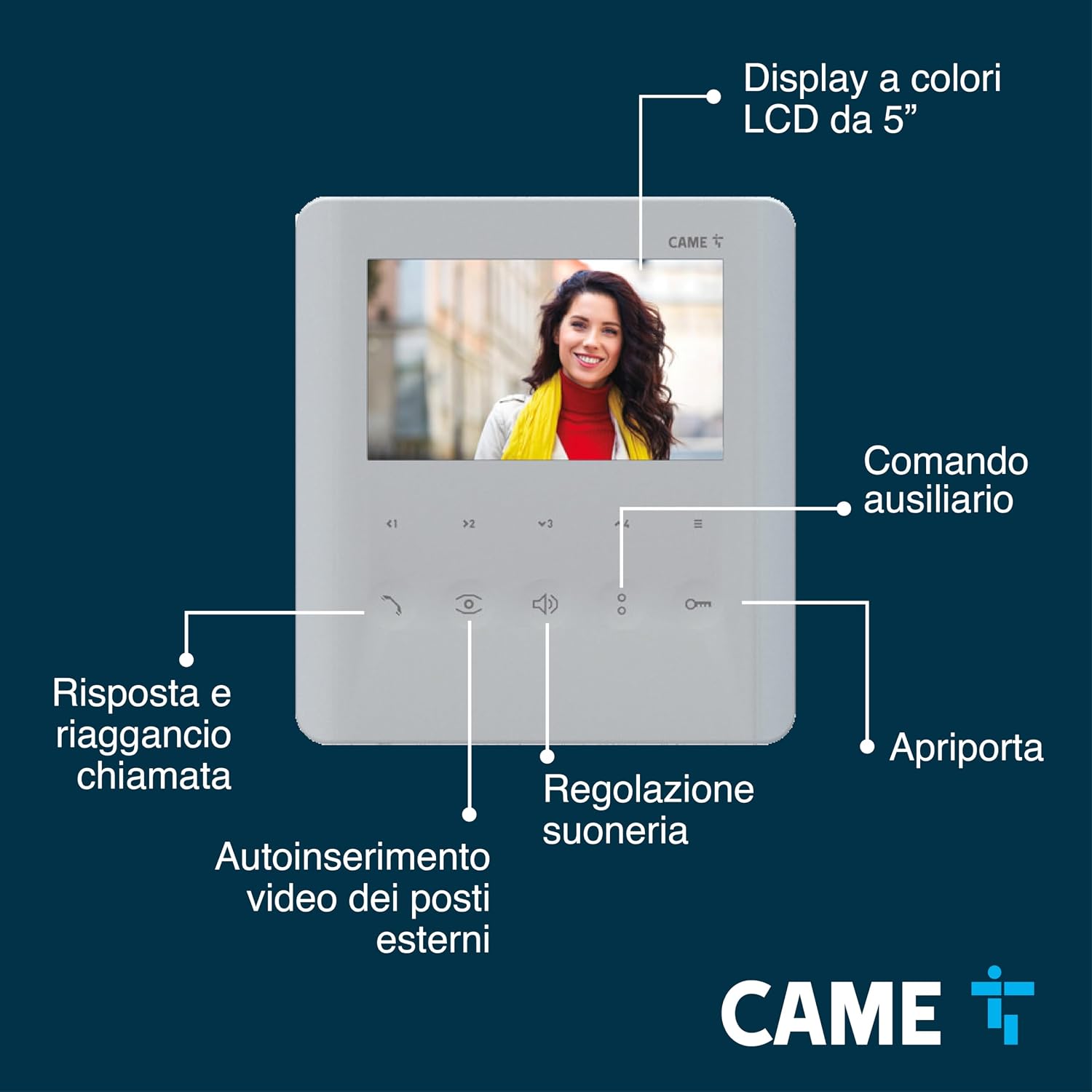
Figura 3: Detallada view of the Came PLX V 5-inch LCD display and its soft-touch controls, including call answer/hang-up, external video auto-insertion, ringtone adjustment, and door opener button.
- Respondre una trucada: When someone presses the doorbell, the monitor will display the visitor's image. Press the designated soft-touch button (typically a phone icon) to answer.
- Obrint la porta: Press the door opener button (key icon) to grant access.
- Funció d'intercomunicació: Use the intercom buttons to communicate with other internal units (up to 6 calls supported).
- Auxiliary Commands: Utilize the AUX2 button for additional functions such as controlling external automations (e.g., gate, garage door) or making a concierge call. An LED icon indicates the status of external automations.
- Video Auto-insertion: Activate video auto-insertion to view external posts without an incoming call.
- Ringtone Adjustment: Adjust the ringtone volume and type using the dedicated controls.

Figure 4: Illustration of the Came PLX V's advanced functions, including support for up to 6 intercom calls and 4 auxiliary commands, automatic door opening, latch function with LED indicator, AUX2 button, and "Panic" command for concierge assistance.
5. Manteniment
To ensure the longevity and optimal performance of your Came PLX V video intercom, follow these maintenance tips:
- Neteja: Use a soft, dry cloth to clean the display and buttons. Avoid abrasive cleaners or solvents that could damage the surface.
- Comprovació de la connexió: Inspeccioneu periòdicament totes les connexions del cablejat per assegurar-vos que estiguin ben fixades i que no presentin corrosió.
- Actualitzacions de programari: Check the Came official website or contact support for any available firmware updates to ensure your system has the latest features and security enhancements.
6. Solució De Problemes
If you encounter issues with your Came PLX V video intercom, refer to the following common troubleshooting steps:
- Sense energia:
- Check the power supply connection to the monitor and ensure the power outlet is functioning.
- Verify that the circuit breaker for the intercom system has not tripped.
- Sense vídeo/àudio:
- Ensure all wiring connections between the outdoor unit and the indoor monitor are correctly installed and secure.
- Check the brightness and contrast settings on the monitor via the OSD menu.
- Confirm that the outdoor unit's camera lens is clean and unobstructed.
- Door Opener Not Working:
- Verify the wiring to the electric lock or gate mechanism.
- Ensure the door opener button on the monitor is functioning correctly.
For more complex issues, consult the full product manual or contact Came customer support.
7. Especificacions
| Característica | Detall |
|---|---|
| Fabricant | va venir |
| Dimensions del producte | 25.8 x 5.7 x 23.6 cm |
| Pes | 580 grams |
| Mida de la pantalla | 5 polzades |
| Nom d'estil | Videocitofono PLX V 5" |
| Piles incloses/obligatòries | No |
| ASIN | B0CK8M7RNN |
| Primera data disponible | 2 d'octubre de 2023 |
8. Garantia i Suport
This product is proudly Fabricat a Itàlia, reflecting high standards of quality and craftsmanship.
For detailed warranty information, technical support, or to explore other innovative solutions, please visit the official Came website or contact their customer service directly. You can find more information about Came products and their brand story on their Botiga Amazon.