
1. Introducció
This manual provides detailed instructions for the installation, operation, and maintenance of your EBTOOLS T20 4K Dash Cam. Please read this manual thoroughly before using the device to ensure proper functionality and safety.
Contingut del paquet:
- Dash Cam (Main Unit)
- Charging Line (Type-C)
- Backup Camera with Line
- Car Charger with Line
- Ganxo
- Paquet de cargols
- White Adhesive
- Manual d'usuari
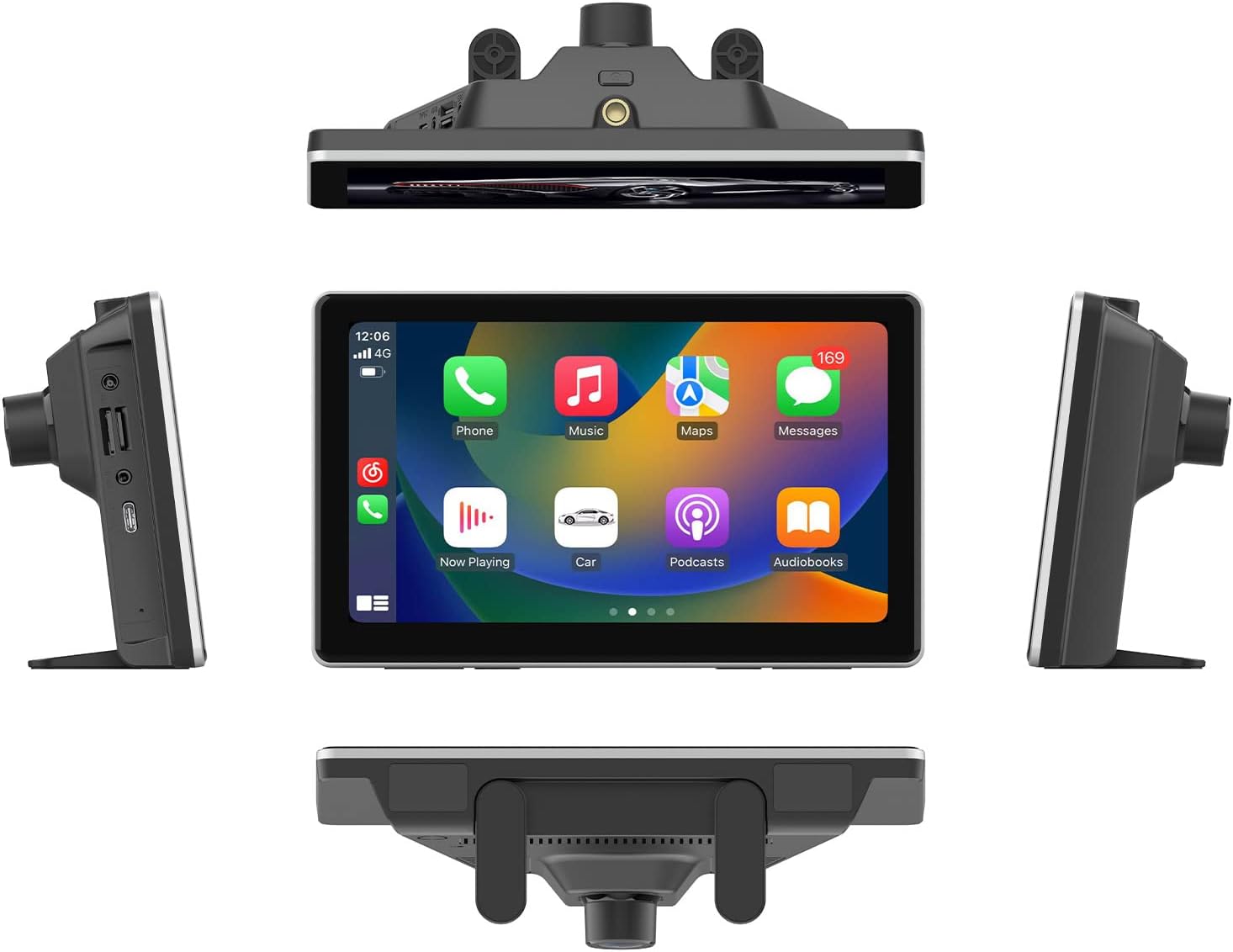
Figura 1.1: Included components of the EBTOOLS T20 Dash Cam package. This image displays the main dash cam unit, charging cable, backup camera, car charger, mounting hook, screw pack, and adhesive pad.
2. Especificacions
| Característica | Descripció |
|---|---|
| Processador | Allwinner V535, DDR32GB |
| Mòdul sense fils | 2.4/5 GHz |
| Bluetooth | BT5.0 Support |
| Transmissor FM | Supports original car audio output |
| Mida de la pantalla | 7 polzades |
| Resolució de pantalla | 1024 x 600 |
| Font d'alimentació | Type-C, Car Charger, Line (standard car charger) |
| Emmagatzematge | Memory card (up to 256GB, C10 U1 recommended, not included) |
| Càmeres | Dual external AHD camera (5V) |
| Bateria | Bateria de liti de 500 mAh integrada |
| Característiques especials | Multi-language support, Parking Monitoring, Mobile App Control, G-Sensor Collision Locking, Intelligent Voice Control, Carplay, Android Auto, Automatic App Reconnection. |
3. Configuració i instal·lació
3.1 Instal·lació de la unitat principal
- Select a suitable location on your dashboard or windshield that does not obstruct your view o interferir amb els airbags.
- Netegeu bé la superfície de muntatge.
- Attach the dash cam to the chosen location using the provided adhesive mount or suction cup mount (if included). Ensure it is securely fastened.
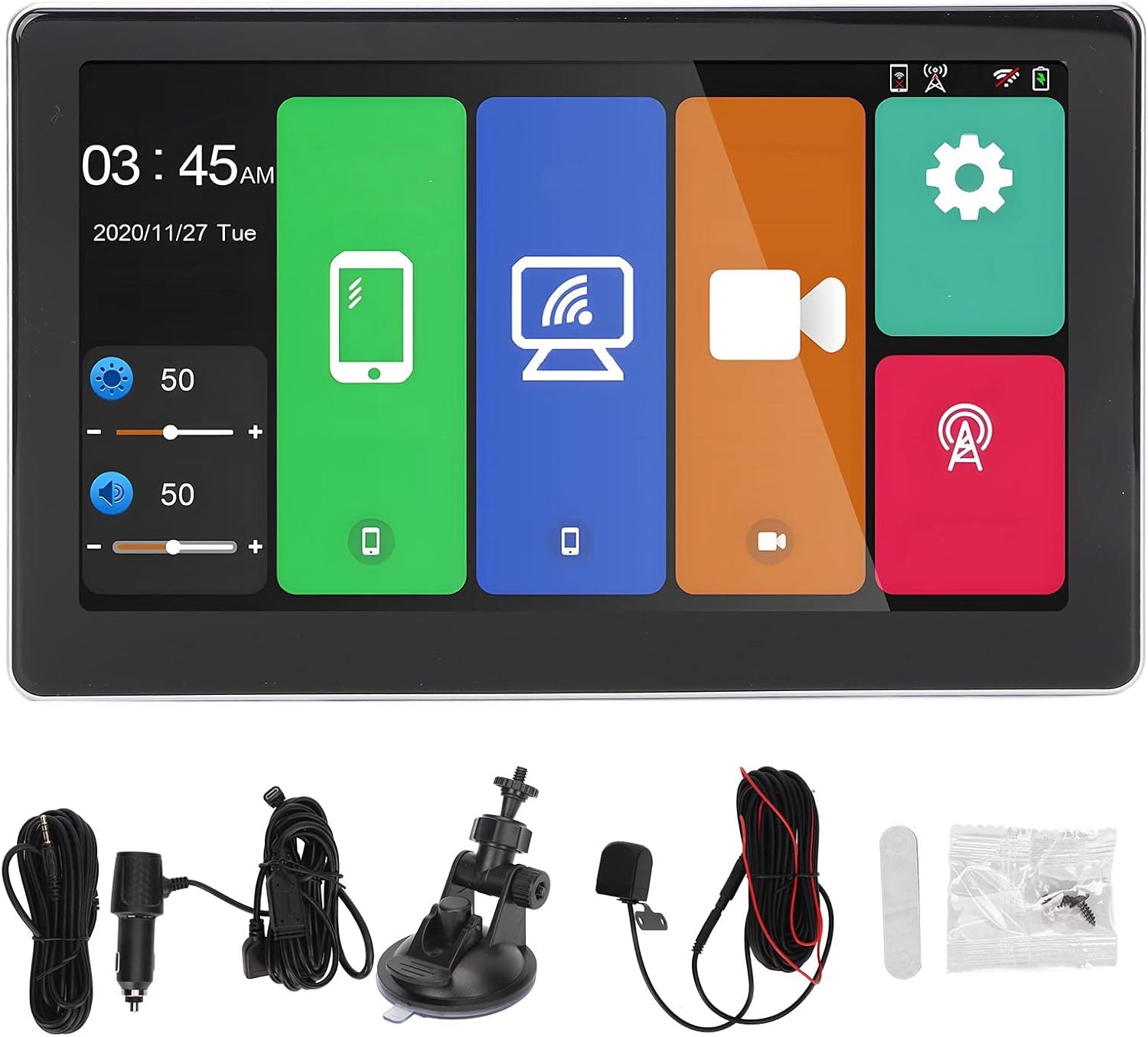
Figura 3.1: The EBTOOLS T20 Dash Cam mounted on a vehicle dashboard, shown from multiple perspectives to illustrate its placement and screen orientation.
3.2 Connexió d'alimentació
- Connect the Type-C charging line to the dash cam.
- Connecteu el carregador del cotxe a la presa de corrent de 12 V del vostre vehicle (endoll de l'encenedor de cigarrets).
- Route the cable neatly to avoid interference with driving controls.
3.3 Instal·lació de la càmera de marxa enrere (opcional)
- Mount the backup camera at the rear of your vehicle, typically above the license plate or on the rear bumper.
- Route the backup camera cable to the main dash cam unit. Ensure the cable is securely tucked away and protected from external elements.
- Connect the backup camera cable to the designated input port on the main dash cam unit.

Figura 3.2: Display of the reverse image function on the dash cam screen, featuring dynamic parking guidelines to assist with vehicle maneuvering in reverse.
3.4 Inserció de la targeta de memòria
- Assegureu-vos que la càmera del salpicader estigui apagada.
- Insert a compatible memory card (up to 256GB, C10 U1 recommended) into the designated slot.
- Format the memory card through the dash cam's settings menu upon first use to ensure optimal performance.
4. Instruccions de funcionament
4.1 Engegada/apagada
The dash cam will automatically power on when your vehicle starts and power off when the ignition is turned off (if connected to a switched power source).
4.2 Interfície principalview

Figura 4.1: The main user interface of the EBTOOLS T20 Dash Cam, featuring a 7-inch screen with intuitive icons for various functions such as phone connectivity, Wi-Fi, camera recording, and system settings.
4.3 Modes d'enregistrament
- Enregistrament en bucle: La càmera del salpicader grava vídeo contínuament per segments. Quan la targeta de memòria està plena, la més antiga files es sobreescriuen.
- G-Sensor Collision Locking: In the event of a sudden impact or collision, the G-sensor will automatically lock the current video segment to prevent it from being overwritten.
- Supervisió del pàrquing: When enabled, the dash cam will automatically start recording if it detects motion or impact while the vehicle is parked. This feature requires a continuous power supply (hardwire kit, sold separately, may be required for extended parking monitoring).
4.4 Característiques de connectivitat
4.4.1 Carplay / Android Auto
The dash cam supports both Carplay (for iOS devices) and Android Auto (for Android devices). Connect your smartphone via Bluetooth or USB to access navigation, music, calls, and other compatible apps directly on the dash cam screen.

Figura 4.2: The Carplay interface displayed on the EBTOOLS T20 Dash Cam screen, illustrating access to common smartphone applications like phone, music, and navigation.
4.4.2 Mobile App Control (Roadcam App)
Download the Roadcam app on your smartphone to control the dash cam, view viu footage, download recorded videos, and adjust settings wirelessly. The app supports independent and automatic back connection.
4.4.3 FM Transmission
Transmit audio from the dash cam to your vehicle's original car audio system via FM radio. Adjust the FM frequency on the dash cam and tune your car radio to the same frequency.

Figura 4.3: Illustration of the FM signal transmission feature, where the dash cam's audio is broadcast to the vehicle's FM radio, allowing playback through the car's speakers.
4.4.4 AUX Audio Output
For a wired audio connection, use an AUX cable to connect the dash cam to your car's AUX input. This provides a direct audio signal to your car's sound system.

Figura 4.4: Connection diagram for AUX audio output, detailing how to link the dash cam to a car's audio system using an AUX cable for direct sound transmission.
4.5 Control de veu intel·ligent
The dash cam supports intelligent voice commands for hands-free operation of certain functions. Refer to the on-screen prompts or app for available commands.
5. Manteniment
- Neteja: Use a soft, dry cloth to clean the dash cam screen and lens. Avoid abrasive cleaners or solvents.
- Targeta de memòria: Regularly format the memory card (e.g., once a month) to maintain optimal recording performance and prevent data corruption. Back up important files abans de formatar.
- Actualitzacions de firmware: Comproveu el del fabricant website or the Roadcam app for available firmware updates to ensure your device has the latest features and improvements.
- Temperatura: Avoid exposing the dash cam to extreme temperatures for prolonged periods, as this can affect battery life and device performance.
6. Solució De Problemes
- La càmera del cotxe no s'encén:
- Ensure the car charger is properly connected to both the dash cam and the vehicle's power outlet.
- Comproveu si la presa de corrent de 12 V del vehicle funciona correctament.
- Verifiqueu que el cable tipus C estigui connectat correctament.
- Recording issues (e.g., freezing, skipped frames):
- Format the memory card. A corrupted card can cause recording problems.
- Ensure you are using a high-speed memory card (Class 10, U1 or higher).
- Try a different memory card to rule out card malfunction.
- Poca qualitat d'imatge:
- Netegeu les lents de la càmera amb un drap suau.
- Assegureu-vos que s'hagi tret la pel·lícula protectora de les lents.
- Check settings for video resolution and WDR (Wide Dynamic Range) to ensure they are configured optimally.
- Carplay/Android Auto not connecting:
- Ensure Bluetooth is enabled on both the dash cam and your smartphone.
- Try reconnecting your phone via USB cable.
- Reinicieu tant la càmera del salpicader com el telèfon intel·ligent.
- FM transmission static/interference:
- Adjust the FM frequency on the dash cam to an unused frequency in your area.
- Ensure your car radio is tuned to the exact same frequency.
- Minimize other electronic devices that might cause interference.
7. Garantia i Suport
Per obtenir informació sobre la garantia i assistència tècnica, consulteu la pàgina oficial d'EBTOOLS. weblloc web o poseu-vos en contacte amb el seu servei d'atenció al client. Conserveu el rebut de compra com a comprovant de compra.
Fabricant: EBTOOLS
Número de model: T20
ASIN: B0CLH3T8TX
Data de primera disponibilitat: 18 de febrer de 2025