
VENTION TGESB
VENTION 5-in-1 USB C Hub Instruction Manual
Model: TGESB
1. Producte acabatview
The VENTION 5-in-1 USB C Hub is a versatile multiport adapter designed to expand the connectivity of your USB-C enabled devices. It integrates essential ports for charging, video output, and data transfer, making it an ideal solution for laptops, tablets, and smartphones with limited port options.

Image: The VENTION 5-in-1 USB C Hub, showcasing its compact design and the various types of cables and devices it can connect to, including USB-A devices and an HDMI cable.
2. Característiques clau
- Connectivitat 5 en 1: Combines a 4K HDMI port, 100W USB-C Power Delivery (PD) charging port, and three high-speed USB-A 3.0 data ports.
- Càrrega ràpida: The 100W USB-C PD charging port supports fast charging for compatible laptops and devices.
- Immersive 4K Visuals: HDMI port supports resolutions up to 4K@30Hz for external displays.
- Speedy Data Transfers: USB-A 3.0 ports offer data transfer speeds up to 5 Gbps.
- Disseny durador: Crafted with an aluminum shell for enhanced durability and heat dissipation.
- Àmplia compatibilitat: Compatible with most USB-C enabled devices and various operating systems.

Image: A detailed diagram illustrating the VENTION 5-in-1 USB C Hub connected to a laptop, highlighting its ports: 100W PD, three USB 3.0 (5Gbps) ports, and an HDMI (4K@30Hz) port.
Vídeo: Un vídeo oficial del producte de Vention showcasing the features and functionality of the USB C Hub, including its various ports, 4K HDMI output, and fast data transfer capabilities.
3. Configuració
3.1 Connexió del concentrador al dispositiu
- Locate the USB-C male connector on the VENTION Hub.
- Insert the USB-C connector firmly into an available USB-C port on your laptop, tablet, or smartphone.
- Ensure the connection is secure. The hub is plug-and-play and typically requires no driver installation.
3.2 Connexió de perifèrics
- Pantalla HDMI: Connect an HDMI cable from your monitor or TV to the HDMI port on the hub.
- Dispositius USB-A: Plug your USB flash drives, external hard drives, keyboards, mice, or other USB-A peripherals into the three USB 3.0 ports.
- Subministrament d'energia (PD): To charge your host device while using the hub, connect your USB-C power adapter to the 100W PD port on the hub.

Image: The VENTION USB C Hub connected to a MacBook Pro, demonstrating its 100W Power Delivery fast charging capability, with a charging progress bar indicating rapid power delivery.
4. Instruccions de funcionament
4.1 Sortida de pantalla HDMI
Once connected, your device should automatically detect the external display. You can configure display settings (e.g., mirror mode, extend mode) through your operating system's display settings.
- Mode mirall: Duplica la pantalla principal a la pantalla externa.
- Mode d'ampliació: Amplia l'escriptori a través de diverses pantalles, permetent més espai de treball.
Note: The 100W PD port on the hub is for power input only and does not support video output.

Image: A visual representation of the VENTION USB C Hub's ability to support multiple display modes (Mirror Mode and Extend Mode) at 4K@30Hz, illustrating how a laptop screen can be duplicated or extended to an external monitor.
4.2 Transferència de dades USB
The three USB 3.0 ports enable high-speed data transfer. Simply plug in your USB devices, and they will be recognized by your host system.
- Transferència gran files, photos, and videos at speeds up to 5 Gbps.
- Connect multiple USB peripherals simultaneously.

Image: A close-up of the VENTION USB C Hub's USB 3.0 ports, with an overlay indicating data transfer speeds of 5Gbps, illustrating how files can be transferred in seconds.
4.3 Lliurament de potència (PD)
The 100W PD port allows you to power your laptop or other compatible USB-C device through the hub. This ensures your device remains charged even when multiple peripherals are connected.
5. Compatibilitat
The VENTION 5-in-1 USB C Hub is designed for broad compatibility with various USB-C enabled devices and operating systems.
- Dispositius compatibles: MacBook Pro, MacBook Air, iPad Pro, iPhone 15 Pro/Pro Max, XPS, Thinkpad, Surface Go, Chromebook, and other USB-C enabled laptops, tablets, and smartphones.
- Sistemes operatius compatibles: macOS, Windows (7, 10), Chrome OS, Linux.
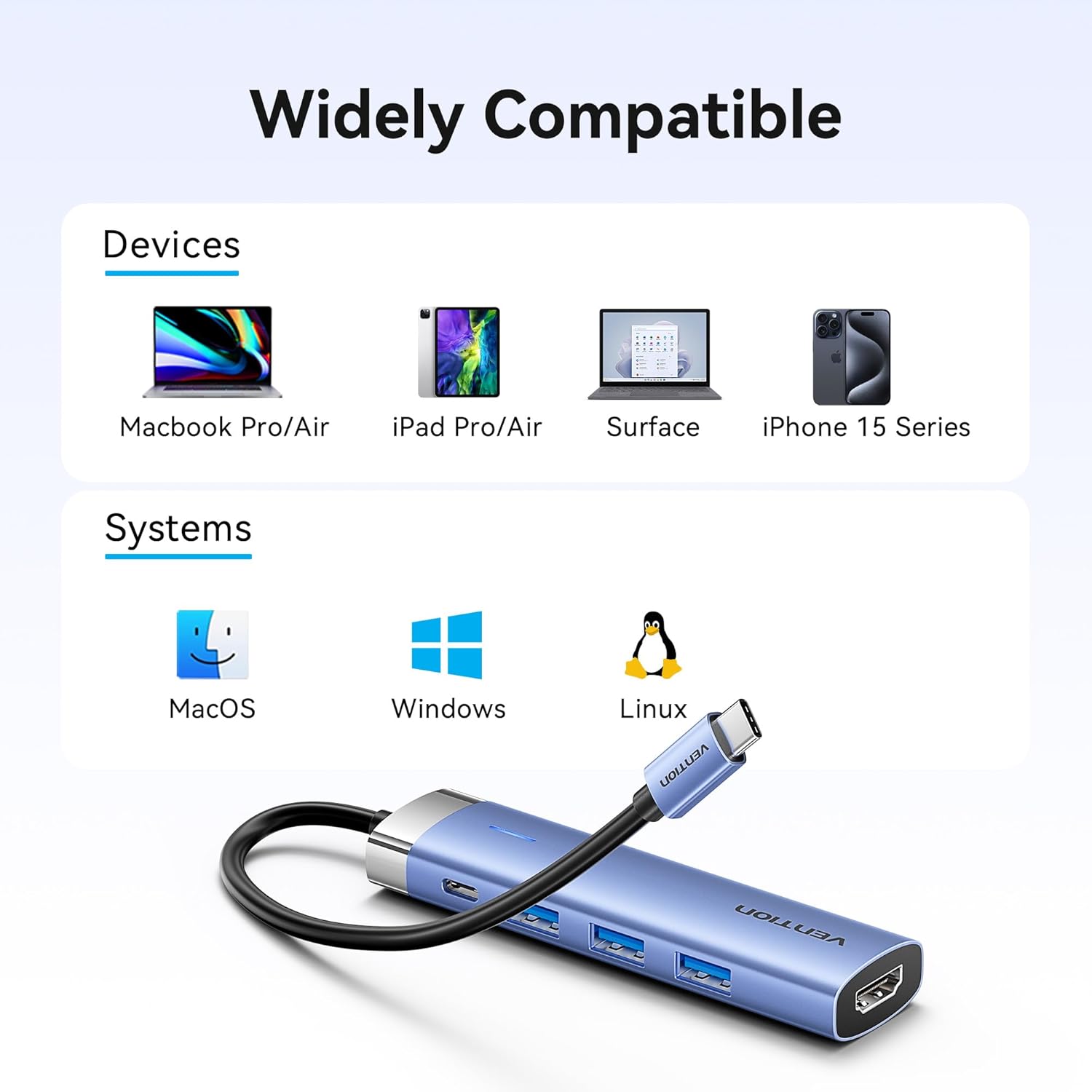
Image: A graphic illustrating the wide compatibility of the VENTION USB C Hub with various devices such as MacBook Pro/Air, iPad Pro/Air, Surface, and iPhone 15 Series, as well as operating systems like macOS, Windows, and Linux.
6. Manteniment
- Neteja: Feu servir un drap suau i sec per netejar el centre. Eviteu netejadors líquids o materials abrasius.
- Emmagatzematge: Guardeu el concentrador en un lloc fresc i sec, allunyat de la llum solar directa i de temperatures extremes.
- Manipulació: Eviteu deixar caure el concentrador ni sotmetre'l a impactes forts. No intenteu desmuntar el dispositiu.
7. Solució De Problemes
- Sense sortida de pantalla via HDMI:
- Assegureu-vos que el cable HDMI estigui connectat correctament tant al concentrador com a la pantalla.
- Verify your host device's USB-C port supports video output (DisplayPort Alternate Mode).
- Check your display settings on your computer to ensure the external monitor is detected and configured correctly.
- Try a different HDMI cable or monitor to rule out cable/monitor issues.
- Sense càrrega de subministrament d'energia (PD):
- Ensure your USB-C power adapter is connected to the PD port on the hub and is functioning correctly.
- Verifiqueu que l'adaptador de corrent proporcioni prou aiguatage for your device (e.g., 100W for a MacBook Pro).
- Check if the host device's USB-C port supports Power Delivery.
- Dispositius USB no reconeguts o transferència de dades lenta:
- Ensure USB devices are fully inserted into the hub's USB-A ports.
- Prova de connectar el dispositiu USB directament a l'ordinador per confirmar que funciona de manera independent.
- For optimal speed, ensure your USB devices are USB 3.0 compatible.
- Avoid connecting high-power consumption devices (e.g., multiple external hard drives) without external power if your host device's USB-C port has limited power output.
- Sobreescalfament del centre de control:
- It is normal for the hub to become warm during extended use, especially when charging or using multiple ports.
- Assegureu-vos que hi hagi una ventilació adequada al voltant del centre de distribució.
- Si el concentrador s'escalfa excessivament, desconnecteu-lo i deixeu-lo refredar abans de reprendre'l d'utilitzar-lo.
8. Especificacions
| Número de model | TGESB |
| Ports | 1x HDMI (4K@30Hz), 1x USB-C PD (100W), 3x USB 3.0 (5Gbps) |
| Lliurament d'energia | Fins a 100 W (entrada) |
| Velocitat de transferència de dades | Fins a 5 Gbps (USB 3.0) |
| Material | Aliatge d'alumini |
| Color | Gris |
| Dimensions (LxWxH) | 2.95 x 0.69 x 4.92 polzades |
| Pes de l'article | 1.76 unces |
9. Informació de la garantia
This VENTION product is covered by a manufacturer's warranty. Please refer to the product packaging or the official VENTION website for specific warranty terms and conditions. Retain your proof of purchase for warranty claims.
10. Suport
For technical support, troubleshooting assistance, or further inquiries, please contact VENTION customer service through the following channels:
- Assistència en línia: Visit the official VENTION weblloc web per a preguntes freqüents i recursos de suport.
- Suport per correu electrònic: Consulteu l'embalatge del producte o la informació de VENTION. weblloc web per al correu electrònic de contacte.
- Botiga Amazon: També podeu visitar el Vention Official Store on Amazon per obtenir informació sobre el producte i opcions de contacte amb el venedor.
Ask a question about this manual
Ask about setup, troubleshooting, compatibility, parts, safety, or missing instructions. Manuals+ will review the question and use this page’s manual context to help answer it.