
1. Introducció
This manual provides detailed instructions for the ARPHA 1080P Indoor Security Camera, Model B01-1. This device is designed for indoor surveillance, offering features such as 1080P HD video, night vision, motion detection, temperature monitoring, two-way audio, and integrated night lamp and alarm clock functionalities.
Característiques clau
- 1080P Night Vision: Provides clear HD images and video in low-light conditions.
- Detecció de moviment PIR: Detects human movement and sends real-time notifications via the companion app.
- Monitorització de la temperatura: Displays real-time room temperature on the device screen.
- Xerrada bidireccional: Enables remote communication through the camera via smartphone.
- Funcions integrades: Includes a night lamp, alarm clock with lullabies, and 355° horizontal pan rotation.

Figure 1: ARPHA 1080P Indoor Security Camera with its companion app interface.
2. Guia de configuració
2.1 Contingut del paquet
- ARPHA 1080P Indoor Security Camera (Model B01-1)
- Cable de càrrega USB
- Adaptador de corrent (5 V)
- Cargols de muntatge i tacs de paret
- Base Sticker for Mounting
- Manual d'instruccions
2.2 Encès
Connect the camera to a power outlet using the provided USB charging cable and power adapter. The camera will automatically power on and initiate its startup sequence.
2.3 Instal·lació de l'aplicació
Download the companion app to your smartphone. Scan the QR code found in the manual or search for "ICAM365" in your device's app store (Google Play Store for Android or Apple App Store for iOS). Follow the on-screen prompts to install the application.
2.4 Connexió del dispositiu
- Open the installed app and create a new account or log in if you already have one.
- Tap the "Add Device" or "+" icon within the app.
- Select "Surveillance Camera" and then "Wi-Fi Camera".
- Ensure the camera is powered on and the indicator light is flashing or you hear a prompt tone. Confirm this in the app.
- Seleccioneu la vostra xarxa Wi-Fi de 2.4 GHz i introduïu la contrasenya. Nota: No s'admeten xarxes Wi-Fi de 5 GHz.
- The app will guide you through the connection process, which may involve scanning a QR code displayed on your phone with the camera lens or using sound pairing.
- Once connected, you can name your device and begin using it.
2.5 Muntatge de la càmera
The ARPHA B01-1 camera can be placed on a flat surface or securely mounted to a wall.
- Per al muntatge a la paret: Use the provided mounting screws and wall plugs. Mark the desired mounting location, drill holes, insert the wall plugs, and then secure the camera's base using the screws. Alternatively, use the adhesive base sticker for a non-permanent mounting solution on smooth surfaces.
- For Surface Placement: Simply place the camera on any stable, flat surface such as a table, shelf, or desk.

Figure 2: The camera's base with mounting holes and adhesive option.
3. Instruccions de funcionament
3.1 Viu View i Xerrada bidireccional
Once connected, tap on the camera feed in the app to access the live video. To use the two-way talk feature, press and hold the microphone icon in the app to speak, and release to listen.

Figura 3: Comunicació d'àudio bidireccional a través de l'aplicació.
3.2 Visió nocturna
The camera is equipped with 1080P IR night vision, which automatically activates in low-light conditions to provide clear black and white video surveillance.

Figure 4: Enhanced 1080P IR Night Vision clarity.
3.3 Detecció de moviment PIR
Enable PIR motion detection in the app's settings. The camera will detect human movement and send instant notifications to your smartphone, allowing you to monitor activity in real-time.

Figure 5: PIR Motion Detection in action.
3.4 Monitorització de la temperatura
The camera features a built-in temperature sensor that displays the current room temperature on its digital screen and within the app interface.

Figure 6: Real-time temperature monitoring on device and app.
3.5 Night Lamp and Alarm Clock
The camera includes a night lamp for soft illumination and an alarm clock function. Customize alarm settings, including choosing from 7 different lullabies, through the app.

Figure 7: Custom alarm clock feature with app control.

Figura 8: Mésview of multiple integrated functions.
3.6 Pan Functionality
Control the camera's 355° horizontal pan rotation directly from the app to adjust the viewing angle and cover a wider area.
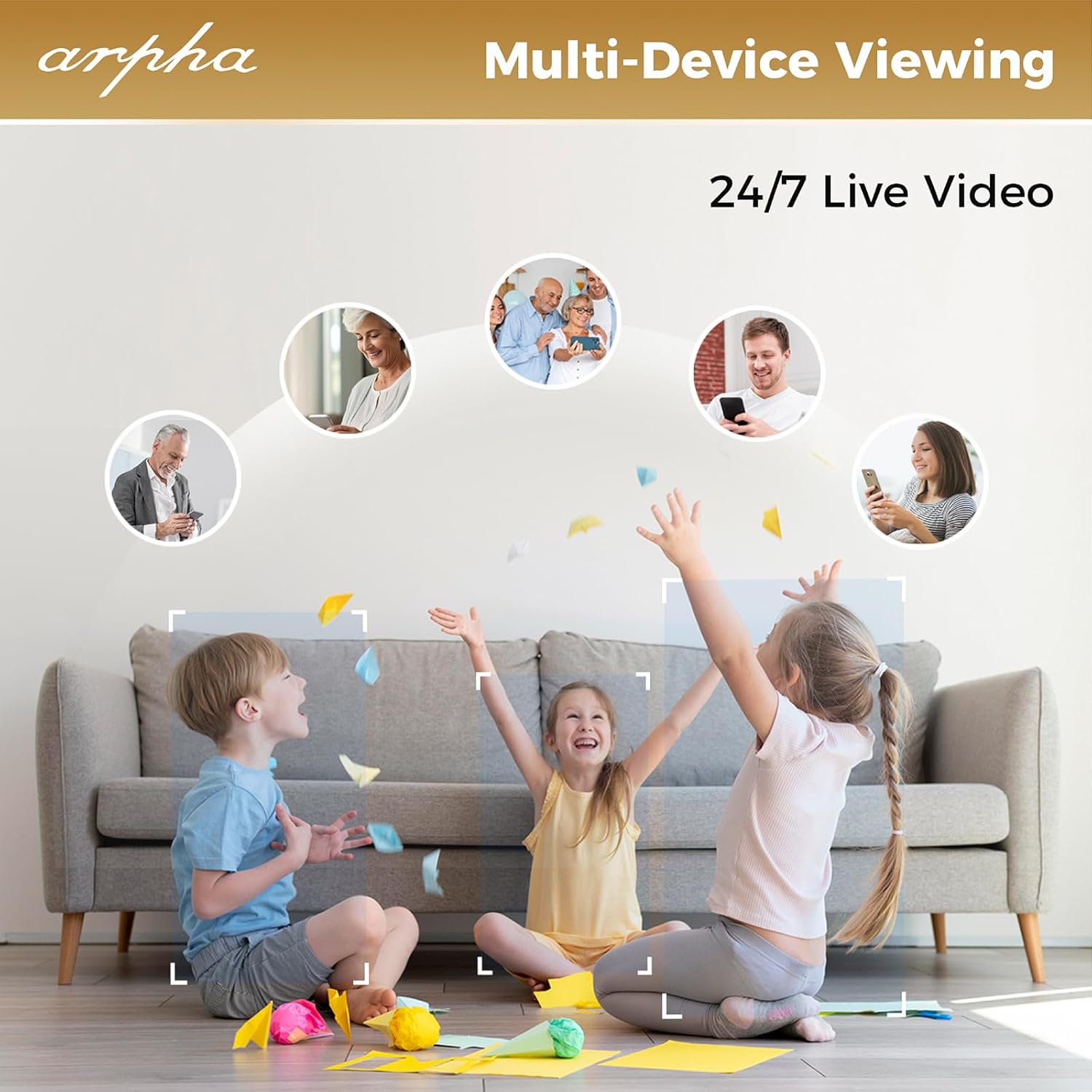
Figure 9: 355° horizontal pan rotation.
3.7 Multi-Device Viewing i emmagatzematge
The app allows for multi-device viewing, enabling multiple users to access the live feed simultaneously. The camera supports local storage via a Micro SD card (up to 128GB, not included) and offers 3 days of rolling cloud storage for recorded events.

Figure 10: Multi-device viewcapacitat d'ing.

Figure 11: Local and cloud storage options.
4. Manteniment
4.1 Neteja
To maintain optimal performance, regularly clean the camera lens and body. Use a soft, dry, lint-free cloth. Avoid using liquid cleaners, solvents, or abrasive materials, as these can damage the device.
4.2 actualitzacions de microprogramari
Periodically check the companion app for available firmware updates. Installing the latest firmware ensures your camera has the most current features, security enhancements, and bug fixes. Follow the in-app instructions for any update procedures.
5. Solució De Problemes
5.1 Problemes comuns i solucions
| Problema | Solució |
|---|---|
| No es pot connectar a la Wi-Fi | Ensure your Wi-Fi network is 2.4GHz. 5GHz networks are not supported. Verify the Wi-Fi password is correct. Try resetting the camera and attempting the connection process again. |
| Lectura de temperatura incorrecta | Ensure the camera is placed in an area with stable ambient temperature, away from direct heat sources, air conditioning vents, or drafts. If the issue persists, contact customer support. |
| No Prompt Tone During Setup | Verify the camera is powered on correctly. If no prompt tone is heard, press and hold the reset button (usually located near the Micro SD card slot) for approximately 4 seconds until a tone is emitted. |
| Poca qualitat de vídeo | Check your Wi-Fi signal strength at the camera's location. Ensure the camera lens is clean and free from obstructions. Adjust the image quality settings in the app to "High" if available. |
6. Especificacions
| Característica | Detall |
|---|---|
| Ús interior/exterior | Interior |
| Dispositius compatibles | Android/IOS |
| Font d'alimentació | Elèctric amb cable |
| Protocol de connectivitat | Wi-Fi (només 2.4 GHz) |
| Tipus de controlador | Push Button, Remote (via App) |
| Tipus de muntatge | Wall Mount, Surface Placement |
| Resolució de captura de vídeo | 1080p (FHD) |
| Dimensions de l'article (L x A x A) | 6.8 x 4.7 x 2.4 polzades |
| Pes de l'article | 11.7 unces |
| Tipus d'alerta | Àudio i moviment |
| Tipus d'habitació | Nursery (Recommended) |
| Característiques especials | Temperature monitoring, Night light, Alarm clock, 355° Pan |
7. Garantia i Suport
For warranty information, technical support, or any inquiries regarding your ARPHA 1080P Indoor Security Camera, please refer to the contact details provided on the product packaging or visit the official ARPHA weblloc. Conserveu el rebut de compra per a reclamacions de garantia.