
1. Introducció
Welcome to the C idea Kids Tablet P1150 user manual. This guide provides essential information for setting up, operating, maintaining, and troubleshooting your new 10.1-inch Android 13 tablet. Designed for children aged 3 and above, this tablet offers a safe and engaging platform for learning and entertainment with robust parental controls and eye protection features.
2. Informació de seguretat
- Supervisió d'adults: Always ensure children use the tablet under adult supervision.
- Càrrega: Use only the provided charger and cable. Do not allow children to handle the charger unsupervised.
- Aigua i humitat: Keep the tablet away from water, liquids, and high humidity.
- Temperatura: Eviteu exposar la tauleta a temperatures extremes (calor o fred).
- Temps de pantalla: Monitor screen time to prevent eye strain and encourage healthy habits.
- Neteja: Disconnect the tablet from power before cleaning. Use a soft, dry cloth.
- Danys físics: Do not drop, bend, or puncture the tablet. The protective case helps, but is not indestructible.
3. Contingut del paquet
Marqueu la casella per als elements següents:
- C idea Kids Tablet P1150 (10.1-inch)
- Protective EVA Case with adjustable stand
- Bolígraf
- Cable de càrrega USB
- Adaptador d'alimentació
- Manual d'usuari (aquest document)
4. Producte acabatview
The C idea Kids Tablet P1150 features a 10.1-inch Full HD display with eye protection, powered by an Unisoc T310 Quad-Core processor and Android 13. It comes with 4GB RAM and 64GB internal storage, expandable up to 1TB via a MicroSD card. The tablet is equipped with dual cameras (5MP front, 8MP rear) and a 6000mAh battery for extended use.
Característiques principals:
- Pantalla FHD de 10.1 polzades: Vibrant 1280x800 pixel screen with 400 nits brightness and 120Hz eye protection mode.
- Rendiment potent: Unisoc T310 Quad-Core processor for smooth operation.
- Sistema operatiu Android 13: Google Certified with access to Google Play Store and pre-installed iWawa app.
- AmpEmmagatzematge: 4GB RAM + 64GB ROM, expandable up to 1TB with a MicroSD card.
- Bateria de llarga durada: 6000mAh battery for hours of use.
- Controls parentals: Comprehensive tools for managing content, screen time, and safe browsing.
- Disseny durador: Comes with a non-toxic, child-safe EVA foam case.

Image: The C idea Kids Tablet P1150 demonstrating its eye protection feature, comparing a screen with low blue light mode to one without.

Image: An illustration highlighting the Unisoc T310 Quad-Core processor, emphasizing the tablet's performance.
5. Configuració
5.1 Càrrega inicial
- Connecteu el cable de càrrega USB al port de càrrega de la tauleta.
- Plug the other end of the cable into the power adapter, then plug the adapter into a wall outlet.
- Allow the tablet to charge completely before first use (approximately 3-4 hours). The battery icon on the screen will indicate charging status.
5.2 Engegada/apagada
- Per encendre: Press and hold the Power button (usually on the side or top edge) for a few seconds until the C idea logo appears.
- Per apagar: Press and hold the Power button until a menu appears. Select "Power off" and confirm.
- Per reiniciar: Press and hold the Power button until a menu appears. Select "Restart" and confirm.
5.3 Assistent de configuració inicial
Upon first power-on, you will be guided through a setup wizard:
- Escolliu l'idioma: Trieu el vostre idioma preferit.
- Connecta't a Wi-Fi: Select your Wi-Fi network and enter the password. This is crucial for downloading apps and updates.
- Compte de Google: Sign in with an existing Google account or create a new one. This is required to access the Google Play Store.
- Data i hora: Estableix la data i l'hora correctes o permet que la xarxa les estableixi automàticament.
- Controls parentals: You will be prompted to set up parental controls, which is highly recommended for children's use. (See Section 7 for details).
5.4 Inserció d'una targeta MicroSD
To expand storage, you can insert a MicroSD card (up to 1TB):
- Localitza la ranura per a targetes MicroSD al lateral de la tauleta.
- Gently insert the MicroSD card into the slot with the gold contacts facing down, until it clicks into place.
- The tablet will detect the card and may prompt you to format it for internal or portable storage. Follow the on-screen instructions.
6. Instruccions de funcionament
6.1 Navegació bàsica
- Toca: Toca una icona per obrir una aplicació o seleccionar un element.
- Llisca: Arrossegueu el dit per la pantalla per desplaçar-vos per pàgines o llistes.
- Pessiga per fer zoom: Feu servir dos dits per ampliar o reduir les fotos i web pàgines.
- Botó d'inici: Et retorna a la pantalla d'inici.
- Botó enrere: Torna a la pantalla anterior.
- Botó d'aplicacions recents: Shows recently opened applications.
6.2 Connexió a Wi-Fi
- Vés a Configuració > Xarxa i Internet > Wi-Fi.
- Activa/desactiva el Wi-Fi On.
- Seleccioneu la xarxa desitjada de la llista i introduïu la contrasenya si se us demana.
6.3 Descàrrega d'aplicacions
The tablet comes with the Google Play Store and iWawa app pre-installed.
- Google Play Store: Open the Play Store app, search for desired educational or entertainment apps, and tap "Install."
- iWawa: This app is specifically designed for children, offering a curated selection of games and educational content. It also integrates parental control features.

Image: The C idea Kids Tablet P1150 showing the Android 13 operating system interface with various applications, indicating Google certification.

Imatge: Múltiple views of the C idea Kids Tablet P1150 highlighting its 10.1-inch FHD screen, dual speakers, and parental control options such as setting time limits and managing apps.
6.4 Ajust de la configuració de la pantalla
- Brillantor: Swipe down from the top of the screen to open the Quick Settings panel. Drag the brightness slider to adjust.
- Mode de protecció ocular: This mode reduces blue light emission. It can usually be found in Configuració > Mostra > Eye Comfort Shield o similar.
6.5 Ús de les càmeres
The tablet has a 5MP front camera and an 8MP rear camera.
- Obriu el Càmera aplicació.
- Toqueu la icona de la càmera per canviar entre la càmera frontal i la posterior.
- Toqueu el botó de l'obturador per fer una foto o iniciar/aturar la gravació de vídeo.
7. Controls parentals
The C idea Kids Tablet P1150 offers robust parental control features to ensure a safe and controlled environment for your child. These settings can be accessed through the tablet's main settings or the pre-installed iWawa app.
7.1 Configuració del Child Profiles
- Navega a Configuració > Benestar digital i controls parentals o obrir el iWawa aplicació.
- Crea un nou professional infantilfile, providing their name and age.
- Set a PIN or password for the parental control section to prevent children from altering settings.
7.2 Filtret de contingut
You can filter content to ensure your child only accesses age-appropriate material:
- Within the child's profile settings, you can approve or block specific apps.
- Gestionar web browsing by enabling safe search and blocking inappropriate webllocs.
7.3 Screen Time Management
Control how long your child can use the tablet:
- Set daily time limits for overall tablet usage or for individual apps.
- Schedule bedtime mode to automatically lock the tablet during specific hours.
7.4 Safe Browsing
The parental control features allow you to manage and monitor your child's online activities, ensuring they browse safely.
8. Manteniment
8.1 Neteja de la tauleta
- Always power off the tablet and disconnect it from the charger before cleaning.
- Use a soft, lint-free cloth to wipe the screen and body. For stubborn smudges, slightly dampNetegeu el drap amb aigua o un netejador de pantalles.
- No utilitzeu productes químics agressius, netejadors abrasius ni aerosols.
8.2 Cura de la bateria
- Avoid completely draining the battery frequently. Charge it before it reaches 0%.
- Do not leave the tablet charging for excessively long periods after it's full.
- Store the tablet in a cool, dry place if not used for an extended period, with the battery charged to about 50%.
8.3 Actualitzacions de programari
Regularly check for and install software updates to ensure optimal performance and security:
- Connecteu la tauleta a una xarxa Wi-Fi.
- Vés a Configuració > Sistema > Actualització del sistema.
- Seguiu les instruccions que apareixen a la pantalla per descarregar i instal·lar les actualitzacions disponibles.
8.4 Gestió d'emmagatzematge
To maintain smooth performance, manage the tablet's storage:
- Regularly delete unused apps and files.
- Move photos and videos to the MicroSD card or cloud storage.
- Esborra la memòria cau de les aplicacions a Configuració > Aplicacions > [Selecciona l'aplicació] > Emmagatzematge i memòria cau > Esborra la memòria cau.

Image: The C idea Kids Tablet P1150 illustrating its storage capabilities: 4GB RAM, 64GB internal storage, and support for up to 1TB via TF (MicroSD) card.
9. Solució De Problemes
If you encounter issues with your C idea Kids Tablet P1150, refer to the following common problems and solutions:
| Problema | Solució |
|---|---|
| La tauleta no s'encén. | Ensure the battery is charged. Connect to the charger and wait a few minutes before attempting to power on again. If still unresponsive, perform a hard reset by holding the power button for 10-15 seconds. |
| Problemes de connexió Wi-Fi. | Check if Wi-Fi is enabled in settings. Restart your Wi-Fi router. Forget the network and reconnect. Ensure the tablet is within range of the Wi-Fi signal. |
| Les aplicacions es bloquegen o funcionen lentament. | Close background apps. Clear app cache (Settings > Apps > [App Name] > Storage & cache). Restart the tablet. Ensure sufficient storage space is available. |
| Tablet is not charging. | Verify the charging cable and adapter are securely connected. Try a different outlet. Inspect the charging port for debris or damage. Use only the original charger. |
| La pantalla no respon. | Restart the tablet. If the issue persists, a factory reset might be necessary (backup data first). |
If the problem persists after trying these solutions, please contact C idea customer support.
10. Especificacions
Below are the technical specifications for the C idea Kids Tablet P1150:
| Característica | Especificació |
|---|---|
| Nom del model | P1150 |
| Marca | C idea |
| Mida de la pantalla | 10.1 polzades |
| Resolució de visualització | 1280 x 800 píxels (FHD) |
| Tipus de visualització | LCD, IPS Wide Viewangle ing |
| Max Display Brightness | 400 Nit |
| Sistema operatiu | Android 13 |
| Processador | Unisoc T310 Quad-Core, 1.6 GHz |
| RAM | 4 GB |
| Emmagatzematge intern | 64 GB |
| Emmagatzematge ampliable | Up to 1 TB (MicroSD/TF Card) |
| Càmera posterior | 8 MP |
| Càmera frontal | 5 MP |
| Resolució de captura de vídeo | FHD 1080p |
| Capacitat de la bateria | 6000 mAh (polímer de liti) |
| Durada de la bateria | Up to 5 Hours (usage dependent) |
| Connectivitat | Wi-Fi (802.11a/b/n/ac), Bluetooth |
| Ports | 1x USB, 3.5mm Headphone Jack |
| Dimensions (L x A x A) | 23.6 x 15.5 x 0.7 cm |
| Components inclosos | Tablet, Stylus, Protective Case |
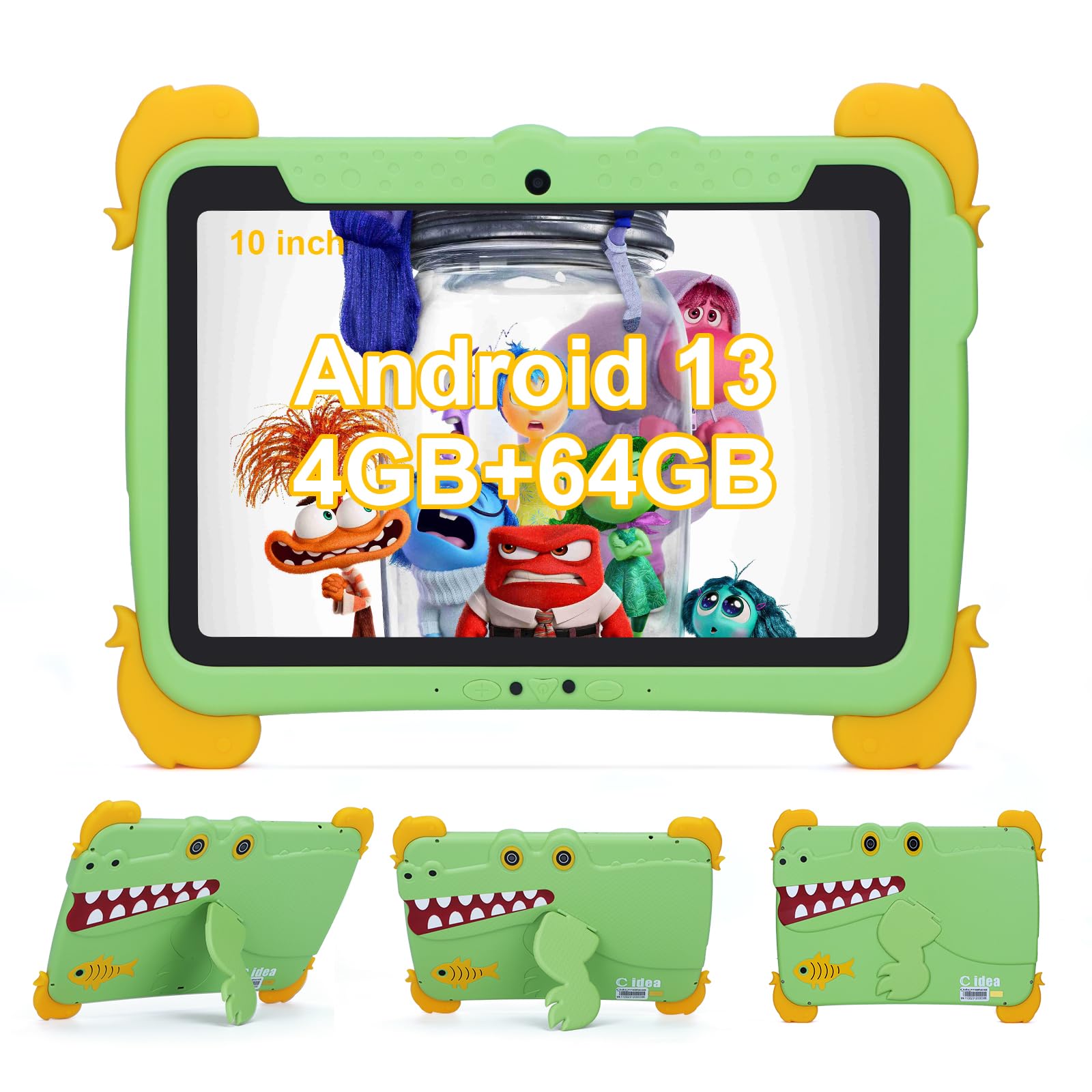
Image: The C idea Kids Tablet P1150 in its protective case, highlighting its technical features including Wi-Fi 5, 10.1-inch IPS display, and eye protection.
11. Garantia i Suport
C idea is committed to providing quality products and customer satisfaction.
- Garantia: Your C idea Kids Tablet P1150 comes with a 2 any de garantia gratuïta des de la data de compra.
- Devolucions: Oferim a Política de devolució sense motiu de 30 dies.
- Suport tècnic: Long-term technical support is available.
- Atenció al client: For any inquiries or assistance, please contact our Atenció al client en línia les 24 hores. Refer to the contact information provided with your purchase or on the official C idea weblloc.


