
TECKNET TK-MS317
Manual d'instruccions del ratolí sense fil TECKNET
Model: TK-MS317 | Marca: TECKNET
Introducció
This manual provides comprehensive instructions for the setup, operation, and maintenance of your TECKNET Wireless Mouse. Designed for versatility and comfort, this mouse offers multiple connectivity options and adjustable sensitivity to enhance your computing experience.

Image: The TECKNET Wireless Mouse in black, shown alongside its charging cable, highlighting its sleek design and rechargeable feature.
Contingut del paquet
- TECKNET Wireless Mouse
- Cable de càrrega
- Manual d'instruccions (aquest document)
Configuració
1. Powering On and Connection Modes
The TECKNET Wireless Mouse supports three modes: 2.4G wireless via USB-A receiver, Bluetooth 5.0/3.0, and Off. A switch located on the underside of the mouse allows you to select your preferred mode.

Image: The mouse demonstrating dual device connection, showing a laptop connected via 2.4G USB-A and a tablet via Bluetooth, illustrating the versatility of connection modes.
Connexió sense fil 2.4G:
- Locate the USB-A receiver stored in the compartment on the underside of the mouse.
- Inseriu el receptor USB-A en un port USB disponible de l'ordinador.
- Feu lliscar l'interruptor de la part inferior del ratolí a la posició "2.4G".
- El ratolí s'hauria de connectar automàticament a l'ordinador.
Bluetooth Connection (BT5.0/3.0):
- Feu lliscar l'interruptor de la part inferior del ratolí a la posició "BT".
- Press and hold the Bluetooth pairing button (located near the mode switch on the underside) until the LED indicator flashes blue, indicating pairing mode.
- On your computer or device, go to Bluetooth settings and search for "TECKNET Mouse" (or similar).
- Select the mouse to pair. The LED indicator will turn solid blue once connected.

Image: A detailed diagram illustrating the various components of the TECKNET Wireless Mouse, including the scroll wheel, left/right buttons, forward/backward buttons, DPI switch, Bluetooth pairing button, USB receiver storage, Type-C charging port, and the 2.4G/Off/BT mode switch.
Instruccions de funcionament
Ajust de DPI:
The mouse features 6 adjustable DPI levels (800/1200/1600/2400/3200/4800) to customize cursor sensitivity. Press the DPI switch button located just below the scroll wheel to cycle through the settings. The LED indicator will flash to indicate the current DPI level (e.g., 1 flash for 800 DPI, 2 flashes for 1200 DPI, etc.).

Image: The TECKNET Wireless Mouse with a visual representation of its 4800 DPI capability, emphasizing precise control for various tasks.
Silent Click Operation:
The mouse is designed for quiet operation, making it ideal for environments where noise reduction is important, such as libraries or offices. The main click buttons produce an inaudible click sound.

Image: A user operating the TECKNET Wireless Mouse in a quiet setting, with an icon indicating its silent click feature, ensuring minimal disturbance.
Disseny ergonòmic:
The mouse features an ergonomic design that fits the natural curvature of the human palm, providing comfortable use during extended periods and reducing fatigue.

Image: A visual representation highlighting the ergonomic design of the TECKNET Wireless Mouse, showing how it conforms to the hand for comfortable use.
Botons laterals:
The mouse includes forward and backward buttons on the side for convenient navigation. Please note that these side buttons are not compatible with macOS.
Indicador LED:
The LED indicator on the mouse provides status information:
- Llum vermella: Indicates DPI adjustment, low battery, or charging status.
- Llum blava: Indica l'estat de la connexió Bluetooth.
- Llum verda: Indicates 2.4G wireless connection status.

Image: A diagram explaining the different LED indicator colors and their meanings on the TECKNET Wireless Mouse, including red for DPI/low battery/charging, blue for Bluetooth, and green for 2.4G connection.
Càrrega i durada de la bateria
The TECKNET Wireless Mouse is rechargeable, eliminating the need for disposable batteries. A charging cable is included in the package.
- Temps de càrrega: Approximately 1.5 to 2 hours for a full charge.
- Durada de la bateria: Up to 3 months of usage on a single full charge (based on 2 hours of daily use).
- Indicador de càrrega: The LED indicator will show a red light during charging.

Image: The TECKNET Wireless Mouse connected via its charging cable, illustrating its long-lasting 700mAh battery and quick charging capability.
Video: This video demonstrates the features of the TECKNET Wireless Mouse, including its multi-mode connectivity, silent click, ergonomic design, and rechargeable battery. It highlights the ease of use and versatility for various computing needs.
Compatibilitat
The TECKNET Wireless Mouse is widely compatible with various operating systems and devices:
- Windows
- macOS (Note: Side buttons are not compatible with macOS)
- Chrome OS
- Linux
- Laptops, computers, and other compatible devices.
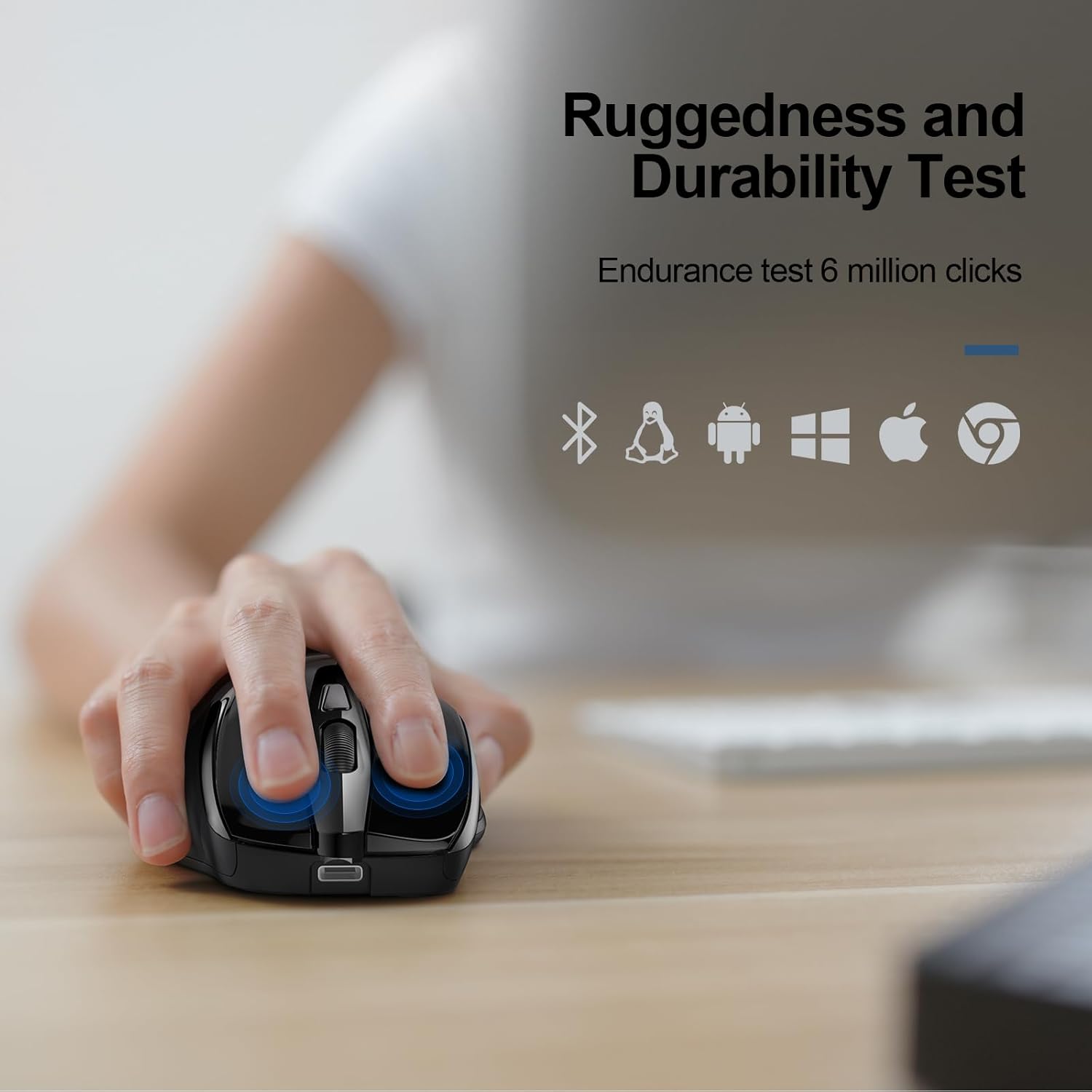
Image: Icons representing Bluetooth, Linux, Android, Windows, Apple, and Chrome OS, indicating the broad compatibility of the TECKNET Wireless Mouse across different platforms.
Manteniment
To ensure the longevity and optimal performance of your TECKNET Wireless Mouse, follow these maintenance guidelines:
- Mantingueu el ratolí net netejant-lo regularment amb un drap suau i sec.
- Avoid exposing the mouse to extreme temperatures, humidity, or direct sunlight.
- Do not disassemble the mouse, as this may void the warranty.
- Store the USB receiver in its designated compartment when not in use to prevent loss.
Resolució de problemes
If you encounter issues with your TECKNET Wireless Mouse, please try the following steps:
- El ratolí no respon:
- Ensure the mouse is powered on and the correct connection mode (2.4G or BT) is selected.
- For 2.4G, verify the USB receiver is securely plugged into a working USB port.
- For Bluetooth, ensure Bluetooth is enabled on your device and the mouse is properly paired. Try re-pairing if necessary.
- Check the battery level. If low, connect the charging cable.
- Connexió intermitent:
- Move the mouse closer to the receiver/device to reduce interference.
- Eviteu utilitzar el ratolí en superfícies molt reflectants o transparents.
- Assegureu-vos que no hi hagi altres dispositius sense fil que causin interferències.
- Cursor movement is erratic:
- Netegeu el sensor òptic de la part inferior del ratolí.
- Try adjusting the DPI setting to a different level.
- Use the mouse on a suitable surface (e.g., mouse pad, opaque desk).
Especificacions
| Característica | Detall |
|---|---|
| Número de model | TK-MS317 |
| Tecnologia de connectivitat | Wireless (2.4G, Bluetooth 5.0/3.0), USB A |
| Nivells de DPI | 800/1200/1600/2400/3200/4800 |
| Característiques especials | Rechargeable, Silent Click, Ergonomic Design |
| Detecció de moviment | Òptic |
| Pes de l'article | 5 unces |
| Dimensions del paquet | 4.92 x 3.98 x 1.77 polzades |
| País d'origen | Xina |
Garantia i Suport
TECKNET offers a 36-month warranty for this product (registration may be required). If you encounter any problems during use, please feel free to contact our professional customer service team for assistance.
For further support, visit the official TECKNET weblloc web o consulteu la informació de contacte proporcionada amb la vostra compra.
Ask a question about this manual
Ask about setup, troubleshooting, compatibility, parts, safety, or missing instructions. Manuals+ will review the question and use this page’s manual context to help answer it.