
1. Introducció
The Cleyver HC95 is a wired headset designed for professional communication, offering clear audio and a noise-cancelling microphone. It features an integrated Busylight to indicate user availability and is optimized for various communication platforms, ensuring efficient and focused conversations.
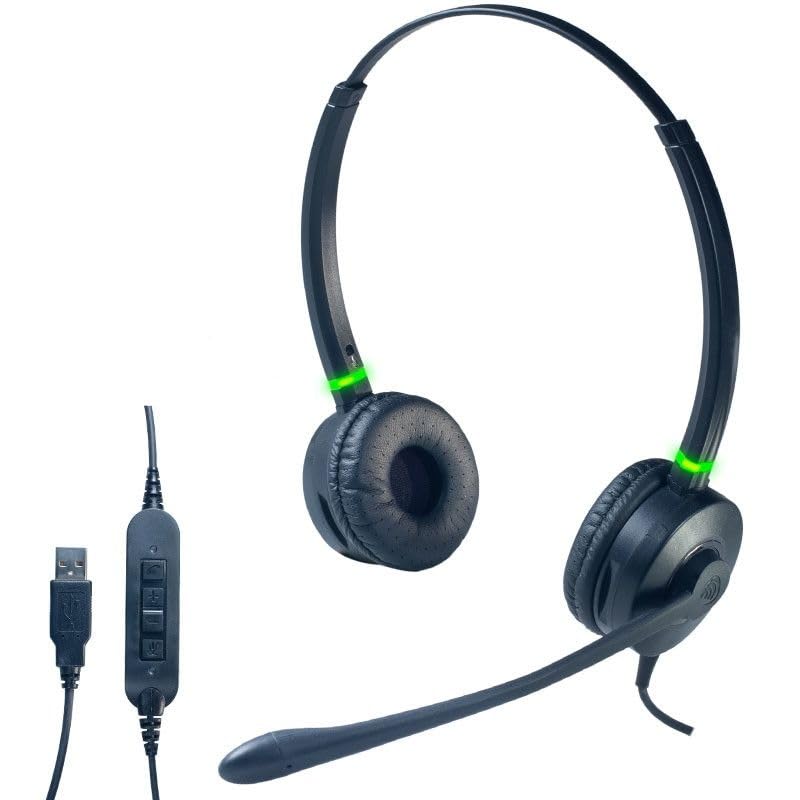
Un front view of the Cleyver HC95 wired headset, highlighting its over-ear design and microphone boom.
2. Contingut del paquet
Marqueu la casella per als elements següents:
- Cleyver HC95 Wired Headset (with integrated USB-A cable)
- Manual d'usuari (aquest document)
3. Configuració
- Connecteu els auriculars: Plug the USB-A connector of the Cleyver HC95 headset into an available USB port on your computer.
- Instal·lació automàtica: Your operating system (Windows, macOS, Linux) should automatically detect and install the necessary drivers. This may take a few moments.
- Selecciona com a dispositiu predeterminat: Once installed, navigate to your computer's sound settings and select the Cleyver HC95 as your default audio input (microphone) and output (speaker) device for calls and media.
- Configuració del programari: For optimal performance with communication software (e.g., Microsoft Teams, Skype for Business, Zoom), ensure the Cleyver HC95 is selected as the audio device within the application's settings.

The inline control unit for the Cleyver HC95 headset, featuring buttons for call management, volume adjustment, and microphone mute, along with the USB-A connector.
4. Instruccions de funcionament
4.1 Com portar els auriculars
- Adjust the headband for a comfortable fit over your head.
- Position the earcups over your ears. The HC95 features an over-ear design for comfort during extended use.
- Rotate the microphone boom arm to position the microphone approximately 2-3 cm (1 inch) from the corner of your mouth for optimal voice pickup.
4.2 Inline Control Functions
The inline control unit provides easy access to essential call management features:
- Botó de trucada: Premeu per respondre o finalitzar una trucada.
- Puja el volum (+): Premeu per augmentar el volum d'escolta.
- Baixar el volum (-): Premeu per reduir el volum d'escolta.
- Botó de silenci: Press to mute or unmute the microphone. An LED indicator on the control unit may show the mute status.
4.3 Funcionalitat de Busylight
The integrated Busylight on the earcups provides a visual indication of your call status to those around you.
- Llum verda: Indicates you are available or on a call.
- Llum vermella: Indicates you are busy or in a meeting.

Headset with green Busylight, indicating availability.

Headset with red Busylight, indicating busy status.
5. Característiques
- Extreme Comfort: The lightweight design ensures a comfortable, pressure-free wearing experience, even during extended periods of use.
- Qualitat de so excepcional: Enjoy clear and crisp conversations thanks to wideband audio technology.
- Advanced Noise-Cancelling Microphone: The long boom microphone effectively reduces up to 80% of ambient background noise, making it ideal for use in noisy office environments.
- Acoustic Protection and Busylight Indicators: Built-in acoustic protection safeguards your hearing. Integrated luminous indicators on the earcups signal your availability to colleagues, minimizing interruptions.
- Optimized for Communication Software: The headset is pre-configured for efficient communication with platforms like Microsoft Skype for Business and Microsoft Teams. It also offers extended compatibility with various other softphones and operating systems.
6. Manteniment i cura
- Neteja: Use a soft, dry cloth to clean the headset. For ear cushions, gently wipe with a slightly damp drap i deixeu-lo assecar completament a l'aire abans d'usar-lo. No utilitzeu productes químics agressius ni netejadors abrasius.
- Emmagatzematge: Guardeu els auriculars en un lloc fresc i sec, allunyat de la llum solar directa i de temperatures extremes. Eviteu enredar el cable.
- Cura del cable: Do not pull on the cable to disconnect the headset. Always grasp the USB connector. Avoid bending or twisting the cable excessively.
- Resistència a l'aigua: Aquests auriculars no són resistents a l'aigua. Eviteu l'exposició a líquids.
7. Solució De Problemes
7.1 No hi ha so dels auriculars
- Assegureu-vos que els auriculars estiguin ben connectats a un port USB.
- Check your computer's sound settings to confirm the Cleyver HC95 is selected as the default output device.
- Verify the volume on the inline control unit and your computer is not muted or set too low.
- Test the headset on a different USB port or another computer to rule out port issues.
7.2 El micròfon no funciona
- Ensure the microphone is not muted via the inline control unit or within your communication software.
- Check your computer's sound settings to confirm the Cleyver HC95 is selected as the default input device.
- Adjust the microphone gain/level in your computer's sound settings.
- Ensure the microphone boom arm is correctly positioned near your mouth.
7.3 Busylight Not Functioning
- Assegureu-vos que els auriculars estiguin connectats correctament i que l'ordinador els reconegui.
- The Busylight functionality is often integrated with specific communication software (e.g., Microsoft Teams). Ensure the software is running and the headset is selected as the active device.
- Restart your communication software or computer.
8. Especificacions
| Número de model | ODHC95USB |
| Marca | Cleyver |
| Tecnologia de connectivitat | Cablejat (USB-A) |
| Micròfon | Micròfon boom amb cancel·lació de soroll |
| Qualitat d'àudio | Àudio de banda ampla |
| Mètode de control | Inline Remote Control, Voice Control |
| Col·locació de l'orella | Sobre l'orella (circumaural) |
| Control de soroll | Aïllament acústic |
| Material | Acer inoxidable, alumini |
| Color | Negre |
| Dispositius compatibles | Softphone software including Skype for Business, Microsoft Teams, Cisco, Avaya, and 3CX |
| Nivell de resistència a l'aigua | No resistent a l'aigua |
9. Garantia i Suport
For warranty information, technical support, or service inquiries, please refer to the documentation provided with your purchase or contact Cleyver customer support directly. Keep your proof of purchase for warranty claims.