
1. Introducció
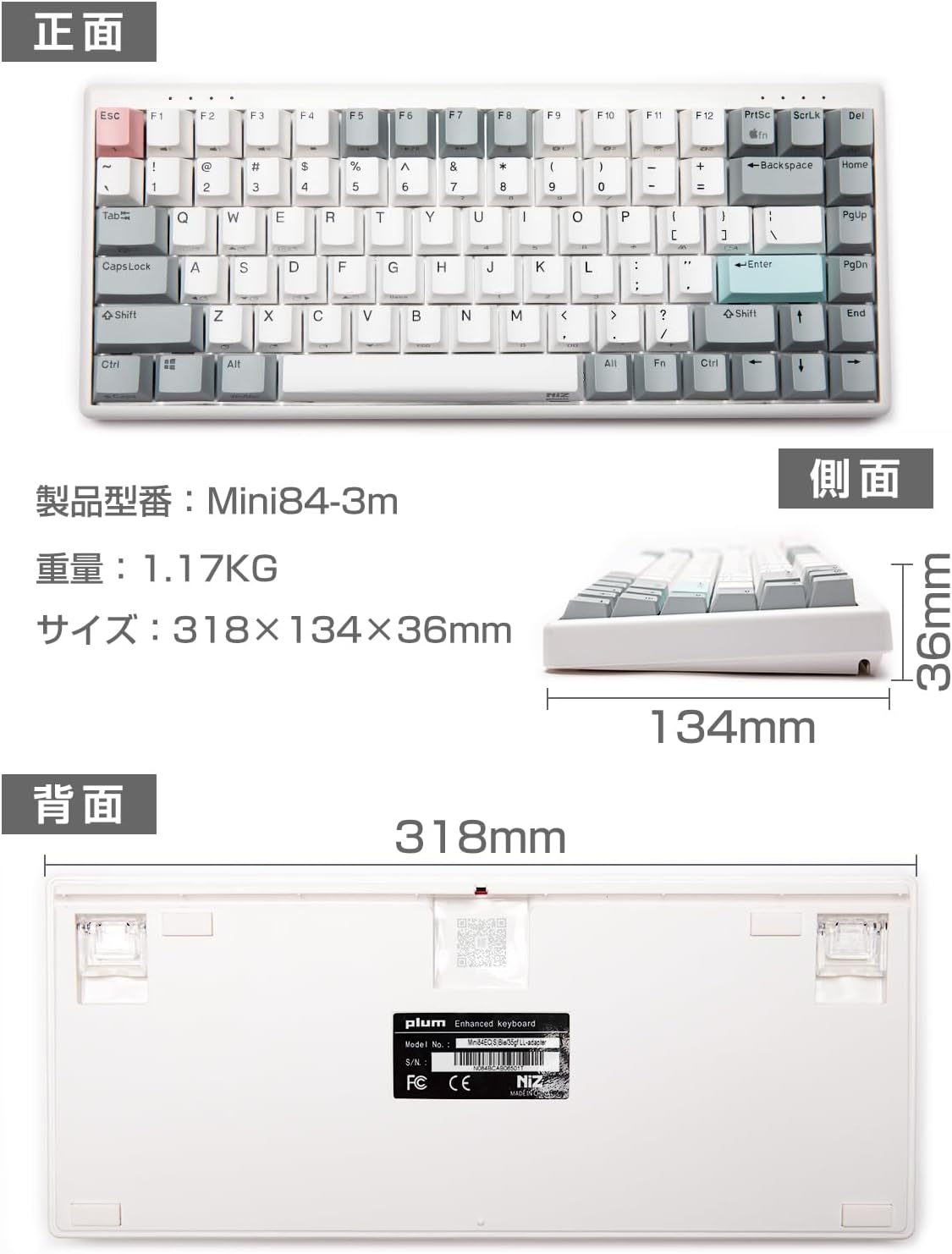
Gràcies per la compraasing the NiZ Mini84-pro Wireless Keyboard. This keyboard features an 84-key layout, electrostatic capacitive switches, and multiple connectivity options. It is designed for comfortable and efficient typing across various operating systems.
This manual provides essential information for setting up, operating, and maintaining your keyboard. Please read it carefully before use.

2. Configuració
2.1 Contingut del paquet
Abans de començar, assegureu-vos que tots els elements estiguin presents al paquet:
- NiZ Mini84-pro Wireless Keyboard
- Cable USB tipus C a USB tipus A
- Receptor USB 2.4G
- Extractor de tecles
- Additional Springs (for key weight adjustment)
- Manual d'usuari

2.2 Opcions de connectivitat
The NiZ Mini84-pro keyboard supports three connection modes: Bluetooth 5.0, 2.4G USB Receiver, and Wired USB Type-C.
2.2.1 Bluetooth 5.0 Connection (Up to 2 devices)
- Manteniu premut el botó Fn clau i qualsevol F9 or F10 simultaneously to enter Bluetooth pairing mode. The indicator light will flash.
- On your device (PC, smartphone, tablet), navigate to Bluetooth settings and select "NIZ BT5.2" to connect.
- To switch between paired Bluetooth devices, short press Fn + F9 or Fn + F10.

2.2.2 2.4G USB Receiver Connection (1 device)
- Inseriu el receptor USB de 2.4 G a un port USB disponible de l'ordinador.
- Manteniu premut el botó Fn clau i F11 simultaneously. The keyboard will automatically recognize and connect to the receiver.
- To switch to the 2.4G connection, short press Fn + F11.

2.2.3 Wired USB Type-C Connection
Connect the keyboard to your computer using the provided USB Type-C to USB Type-A cable. The keyboard will function as a wired keyboard and charge simultaneously.

2.3 Encès/Apagat
Locate the power switch on the side of the keyboard to turn it on or off.
3. Instruccions de funcionament
3.1 Compatibilitat amb SO
The NiZ Mini84-pro keyboard is compatible with Windows, macOS, Android, and Linux operating systems. You can seamlessly switch between Windows and Mac layouts using specific key combinations.

3.2 Key Mapping and Customization
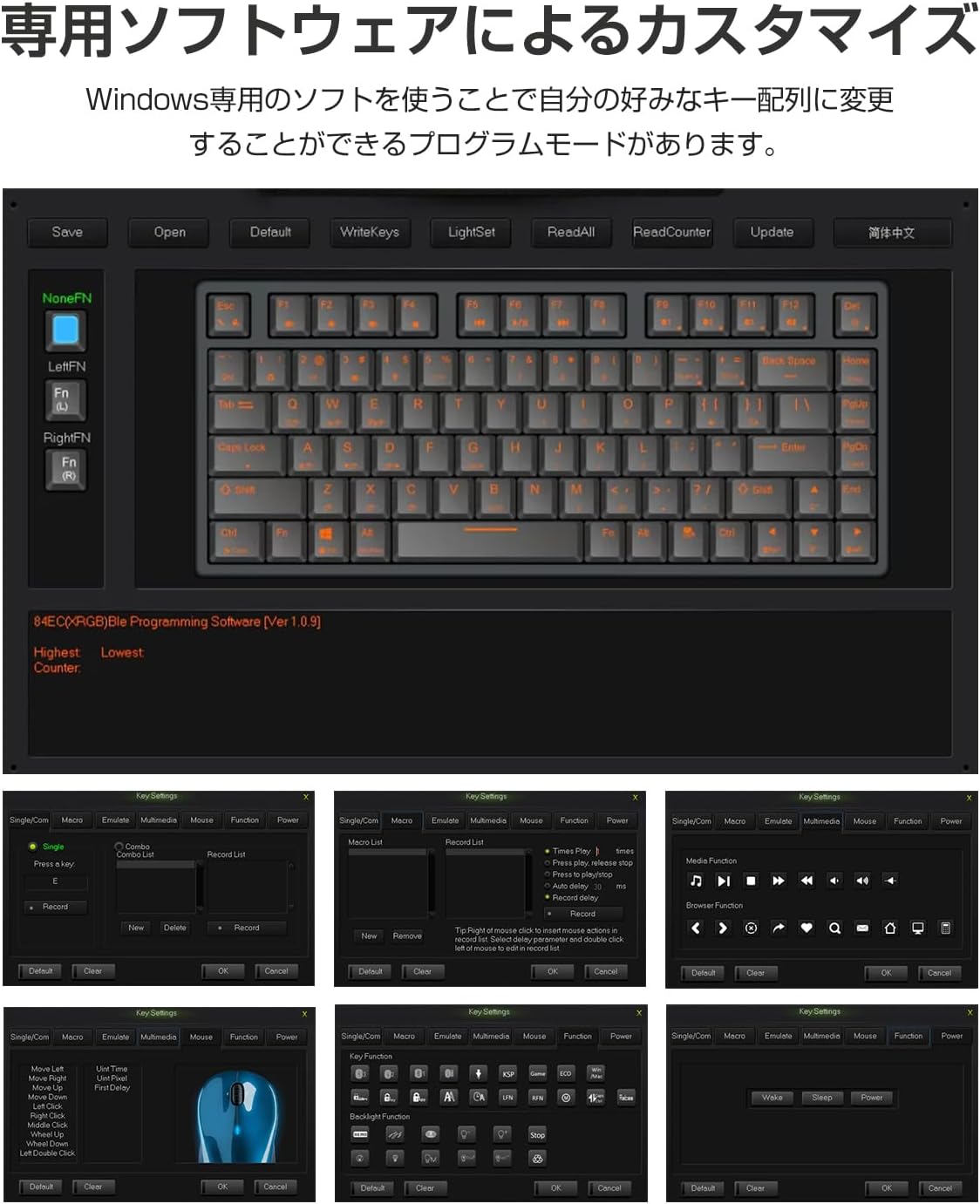
The keyboard offers high customization through its dedicated software (Windows only). This software allows you to:
- Change key assignments (key remapping).
- Create Combo functions.
- Set up Macro functions.
Once settings are saved using the Windows software, they will apply when using the keyboard with Mac devices as well.
3.3 APC (Actuation Point Change) Function
The APC function allows you to adjust the actuation point (the depth at which a key press is registered) for each key. This can be set to High (2mm), Medium (2.5mm), or Low (3mm) to suit your typing preference.

3.4 Key Weight Adjustment
The keyboard comes with a default key weight of 35g. For users who prefer a heavier key feel, additional springs are included to increase the key weight to 45g. To adjust, carefully remove the keycap using the provided keycap puller and insert the spring onto the switch stem before replacing the keycap.


4. Manteniment
4.1 Neteja
To clean your keyboard, power it off and disconnect it from any devices. Use a soft, lint-free cloth slightly dampened with water or a mild cleaning solution. Avoid spraying liquids directly onto the keyboard. For cleaning between keycaps, use a can of compressed air.
4.2 Substitució de les tecles
The PBT two-color molded keycaps are durable and resistant to wear. If you wish to replace keycaps, use the provided keycap puller to gently remove them. Ensure proper alignment when pressing new keycaps back onto the switches.

4.3 Informació sobre la bateria
The keyboard features a built-in 3000mAh battery. When the battery is low, connect the keyboard via the USB Type-C cable to charge. The indicator light will show charging status.
5. Solució De Problemes
- Keyboard not connecting via Bluetooth/2.4G: Ensure the keyboard is powered on and in the correct pairing mode (Fn+F9/F10 for Bluetooth, Fn+F11 for 2.4G). Check your device's Bluetooth settings or try re-inserting the 2.4G USB receiver.
- Les tecles no responen: Check the connection (wired, Bluetooth, 2.4G). Ensure the keyboard is charged. If using wireless, try connecting via USB cable.
- Typing lag or intermittent connection: Ensure the keyboard is within range of your device. Avoid interference from other wireless devices. Try switching to a different connection mode or restarting the keyboard and your device.
- Keyboard feels unstable on a flat surface: The keyboard chassis may sometimes experience slight warping during shipping. Gently hold both ends of the keyboard and apply slight opposing pressure to straighten it.
- Customization software not working: The dedicated software is for Windows only. Ensure you are running it on a Windows operating system.
6. Especificacions
| Característica | Descripció |
|---|---|
| Marca | AKEEYO (NiZ) |
| Número de model | NIZ-Mini84-pro |
| Tecnologia de connectivitat | Bluetooth 5.0, 2.4G Wireless, USB Type-C Wired |
| Recompte de claus | 84 claus |
| Tipus de canvi | Electrostatic Capacitive (Cherry MX compatible) |
| Key Weight | 35g (Adjustable to 45g with included springs) |
| Material de claus | PBT (Two-color molded) |
| Disseny | English (QWERTY) |
| Dispositius compatibles | Windows, macOS, Android, Linux |
| Dimensions (L x A x A) | 31.8 cm x 13.4 cm x 3.6 cm |
| Font d'alimentació | Bateria recarregable de 3000 mAh |
| Característiques especials | Customizable Key Mapping, APC Function, Silent Operation |

7. Garantia i Suport
This product comes with a 1-year warranty from the date of purchase. If you encounter any issues or have questions, please contact customer support. For support inquiries, please refer to the contact information provided by AKEEYO, the seller.