
Introducció
This manual provides detailed instructions for setting up and using your OMOTON Bluetooth Keyboard and Mouse Combo. Designed for seamless compatibility with macOS 11.3 or above, this combo enhances your productivity across various Mac devices, including MacBook, MacBook Air, MacBook Pro, iMac, iMac Pro, Mac Pro, and Mac mini.

Image: The OMOTON Bluetooth Keyboard and Mouse Combo, featuring a full-size keyboard with numeric keypad and a compact, ergonomic mouse.
Contingut del paquet
- OMOTON Bluetooth Keyboard
- OMOTON Bluetooth Mouse
- Manual d'usuari
Configuració
1. Instal·lació de la bateria
The keyboard requires two AAA batteries, and the mouse requires one AA battery (batteries are not included).
- Localitzeu el compartiment de la bateria a la part inferior del teclat i del ratolí.
- Obriu la tapa del compartiment de la bateria.
- Introduïu les piles, assegurant-vos la polaritat correcta (+/-).
- Tanqueu la tapa del compartiment de la bateria.
2. Instruccions d'emparellament Bluetooth
Follow these steps to pair your keyboard and mouse with your Mac device.

Image: Visual guide for Bluetooth pairing, showing battery insertion, power switch, Mac Bluetooth settings, and pairing button.
- Vinculació del teclat:
- Insert two AAA batteries into the keyboard and slide the power switch to the ON position.
- Press and hold the 'Fn' + 'BT1' keys for 3-5 seconds until the LED indicator flashes blue. This activates pairing mode.
- A la vostra Mac, aneu a Configuració del sistema > Bluetooth i assegureu-vos que el Bluetooth estigui activat.
- Select "OMOTON Keyboard" from the list of available devices to complete the pairing. The blue indicator will turn off upon successful connection.
- Vinculació del ratolí:
- Insert one AA battery into the mouse and slide the power switch to the ON position.
- Press the 'CONNECT' button on the underside of the mouse. The LED indicator will flash.
- A la vostra Mac, aneu a Configuració del sistema > Bluetooth.
- Select "OMOTON Mouse" from the list of available devices to complete the pairing.
Consell:
The keyboard supports three independent Bluetooth channels (BT1, BT2, BT3). To pair with additional devices, press and hold 'Fn' + 'BT2' or 'Fn' + 'BT3' to enter pairing mode for the respective channel, then repeat the pairing steps.

Image: Detailed instructions for keyboard pairing, highlighting battery insertion, power switch, and Bluetooth channel selection.
Instruccions de funcionament
Característiques del teclat
- Disseny a mida completa: Inclou un teclat numèric per a una entrada de dades eficient.
- macOS Shortcut Keys: A dedicated row of function keys provides quick access to macOS controls such as brightness, volume, media playback, and Mission Control.
- Scissor-Switch Mechanism: Provides a responsive and quiet typing experience.
- Disseny ergonòmic: The keyboard features a slight tilt for comfortable typing.

Image: Diagram illustrating the multimedia function keys on the keyboard and their corresponding actions for Mac.
Multimedia Key Functions:
- escapar
- Bright Down (F1)
- Bright Up (F2)
- Open Mission Control (F3)
- Open Launchpad (F4)
- Previous Track (F7)
- Play/Pause (F8)
- Next Track (F9)
- Mute (F10)
- Volume Down (F11)
- Volume Up (F12)
- Expulsar

Imatge: Una imatge superior view of the keyboard, highlighting the multimedia keys and their F-key assignments, along with Bluetooth channel indicators.
Funcions del ratolí
- DPI ajustable: Cycle through 800, 1200, and 1600 DPI settings to adjust cursor sensitivity.
- Clics silenciosos: Designed for quiet operation, minimizing click noise.
- Disseny ergonòmic: Contoured shape for comfortable use.
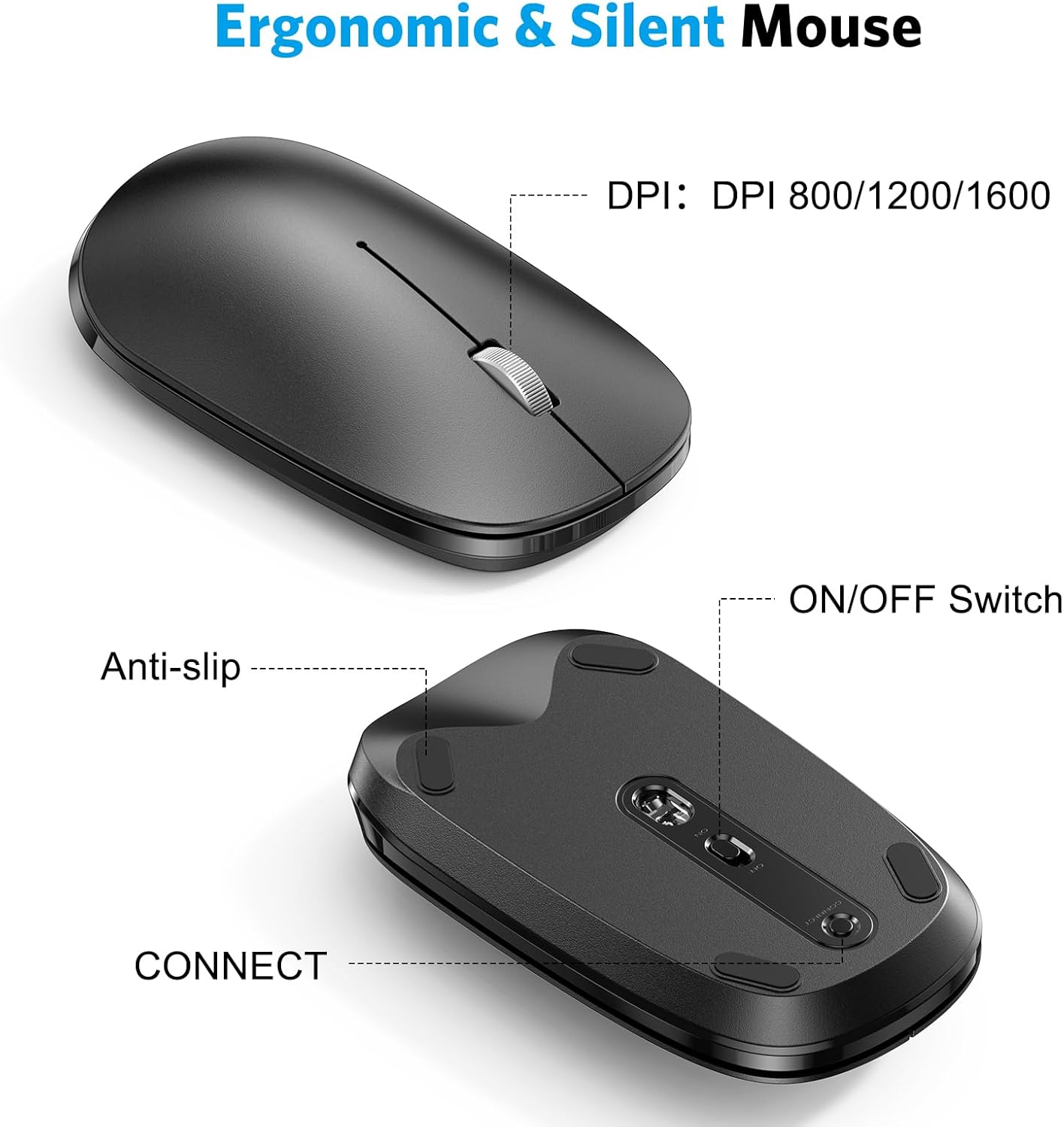
Imatge: Primer pla views of the mouse, indicating the DPI switch, ON/OFF switch, and CONNECT button, along with anti-slip pads.

Image: Diagram illustrating the three adjustable DPI levels (800, 1200, 1600) for the mouse, controlled by a button near the scroll wheel.
Mode d'estalvi d'energia
Both the keyboard and mouse are equipped with an automatic power-saving mode. After a period of inactivity, they will enter sleep mode to conserve battery life. To reactivate, simply press any key on the keyboard or move/click the mouse.
Manteniment
Neteja
- Use a soft, dry cloth to wipe the surfaces of the keyboard and mouse.
- Per a la brutícia persistent, lleugerament dampNetegeu el drap amb aigua o un netejador suau i no abrasiu. Eviteu la humitat excessiva.
- No utilitzeu productes químics agressius, dissolvents ni netejadors abrasius.
Emmagatzematge
- Guardeu els dispositius en un lloc fresc i sec, allunyat de la llum solar directa i de temperatures extremes.
- Si l'emmagatzemeu durant un període prolongat, traieu les piles per evitar fuites.
Resolució de problemes
Problemes de connexió
- Ensure Batteries are Fresh: Low batteries can cause intermittent connections or prevent pairing. Replace batteries if necessary.
- Encès: Verify that both the keyboard and mouse are switched ON.
- Bluetooth habilitat: Confirm that Bluetooth is enabled on your Mac device.
- Reemparella els dispositius: If connection is lost, try unpairing the devices from your Mac's Bluetooth settings and then re-pairing them following the setup instructions.
- Interferència: Move the devices closer to your Mac and away from other wireless devices that might cause interference.
Keys Not Responding / Mouse Tracking Issues
- Comproveu les bateries: Assegureu-vos que les bateries no s'esgotin.
- Reconnection Delay: After entering power-saving mode, there might be a brief delay (a few seconds) for the devices to reconnect when reactivated.
- Neteja els sensors: Pel que fa al ratolí, assegureu-vos que el sensor òptic de la part inferior estigui net i lliure d'obstruccions.
- Superfície: Assegureu-vos que el ratolí s'utilitzi sobre una superfície adequada i no reflectant.
Especificacions
| Marca | OMOTON |
| Model | B0CQ3RQJ8B |
| Tecnologia de connectivitat | Bluetooth |
| Dispositius compatibles | MacBook Pro/Air, iMac, iMac Pro, Mac Mini, Mac Pro (macOS 11.3 or Above) |
| Bateries del teclat | 2 piles AAA (no incloses) |
| Bateries de ratolí | 1 x piles AA (no incloses) |
| Nivells de DPI del ratolí | 800, 1200, 1600 |
| Dimensions del teclat | Aprox. 17.1 x 4.76 x 0.86 polzades (434 x 121 x 21.9 mm) |
| Dimensions del ratolí | Aprox. 4.3 x 2.5 x 0.9 polzades (110 x 63 x 23 mm) |
| Pes de l'article | 1.61 lliures (combinades) |

Image: Diagram showing the physical dimensions of both the OMOTON keyboard and mouse.
Garantia i Suport
OMOTON products are designed for reliability and performance. For warranty information or technical support, please refer to the contact details provided with your product packaging or visit the official OMOTON weblloc.
If you encounter any issues not covered in this manual, please contact OMOTON customer service for assistance.