
1. Introducció
This manual provides detailed instructions for the installation, operation, and maintenance of your MekedeTech Android Car Radio Stereo GPS Navigation system. This unit is designed for Ford Fiesta models from 2008 to 2017, offering an upgraded in-car entertainment and navigation experience with advanced features like 4G LTE, Wireless CarPlay, and Android Auto.
Please read this manual thoroughly before installation and use to ensure proper function and to maximize your experience with the device.
2. Característiques clau
- Compatibilitat: Specifically designed for Ford Fiesta 2008-2017 models.
- Sistema operatiu: SO Android 12.
- Processador: 8-Core A53 1.8GHz CPU for fast performance.
- Memòria: 4GB RAM and 32GB ROM for smooth operation and storage.
- Visualització: 9-inch IPS touch screen with 1280x720 resolution.
- Connectivitat: Built-in 4G LTE module (SIM card slot), Wi-Fi, and Bluetooth 5.0.
- Integració del telèfon intel·ligent: Wireless CarPlay and Wired Android Auto support.
- Navegació: Integrated GPS navigation with pre-installed maps.
- Àudio: Built-in DSP sound system for enhanced audio quality, 4*50W power output.
- Control del volant: Supports original steering wheel control functions.
- Suport multimèdia: Wide range of audio (APE/FLAC/WAV/MP3/WMA) and video (MKV/RMVB/AVI/MP4/MDV) formats.
3. Contingut del paquet
The package includes all necessary accessories for installation. Please verify that all items are present before proceeding with installation:
- MekedeTech Android Car Radio Stereo Head Unit
- Dash Kit (specific to Ford Fiesta 2008-2017)
- Cable d'alimentació
- Cable RCA
- Reversing Camera Cable (if included with your specific model)
- Cables USB
- Antena GPS
- Antena 4G
- Micròfon extern (si s'inclou)
- Manual d'usuari (aquest document)
4. Guia d'instal·lació
Professional installation is recommended. Ensure the vehicle's battery is disconnected before starting the installation process.
4.1 Preparació per a la instal·lació
Before beginning, ensure you have all the necessary tools and components. Familiarize yourself with your vehicle's dashboard layout.

Image 1: Comparison of the Ford Fiesta dashboard before and after the installation of the MekedeTech Android Car Radio Stereo. The left panel shows the original car radio, and the right panel shows the new Android head unit seamlessly integrated.
4.2 Connecting the Cooling Fan (If Applicable)
Some models include an optional cooling fan to manage internal temperatures, especially during prolonged use or in hot climates. Connect the cooling fan as shown in the diagram below.
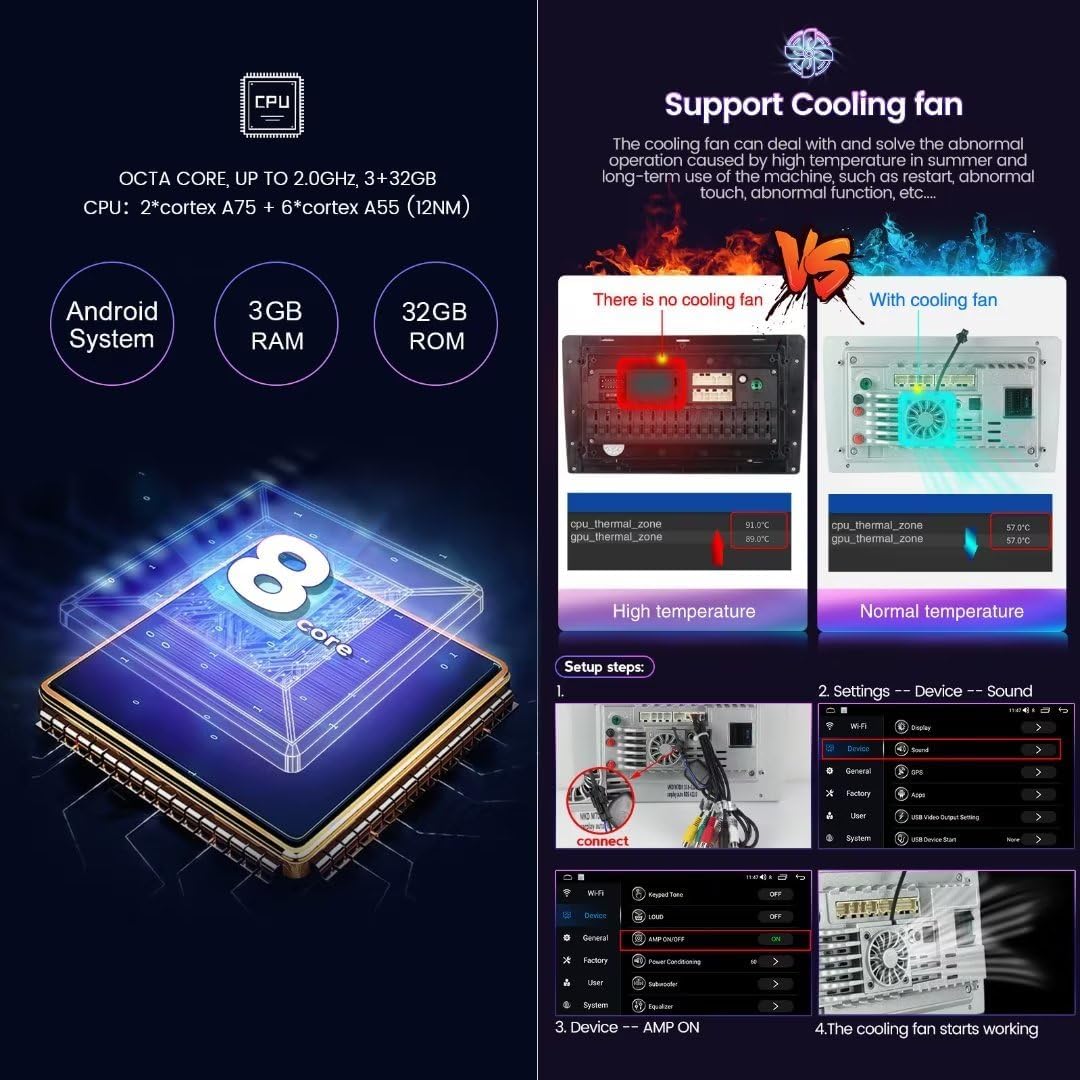
Imatge 2: Detallada view of the internal components, highlighting the 8-core CPU and the cooling fan. The image also illustrates the setup steps for connecting the cooling fan and accessing device sound settings.
- Connect Cooling Fan: Locate the cooling fan connector on the back of the head unit and securely attach the fan cable.
- Verificar el funcionament: After installation, navigate to the device settings to confirm the cooling fan is recognized and operating correctly. (Settings > Device > Sound)
4.3 Connexions de cablejat
Connect the power cable, RCA cables, USB cables, and other necessary wiring to the corresponding ports on the head unit and your vehicle's harness. Ensure all connections are secure to prevent intermittent issues.
- Cable de corrent: Connecteu el cablejat d'alimentació principal.
- Cables RCA: Per a exteriors ampamplificadors, subwoofers o entrades/sortides de vídeo auxiliars.
- Cables USB: For connecting USB devices or for wired Android Auto.
- Antena GPS: Munteu l'antena GPS en un lloc amb llum clara view of the sky, typically on the dashboard.
- Antena 4G: Mount the 4G antenna for optimal signal reception.
- Càmera de marxa enrere: If installing a reversing camera, connect its video and power cables as per the camera's instructions.
4.4 Finalizing Installation
Once all connections are made, carefully reassemble the dashboard components. Reconnect the vehicle's battery and test the unit's functionality.
5. Configuració inicial
After successful installation, power on the unit and follow these steps for initial configuration.
5.1 System Language and Time
Upon first boot, you may be prompted to select your preferred language and set the correct time zone. If not, navigate to Settings > System to adjust these options.
5.2 Connexió Wi-Fi
To access online features, connect the unit to a Wi-Fi network.
- Vés a Configuració > Xarxa i Internet > Wi-Fi.
- Activeu el Wi-Fi i seleccioneu la xarxa desitjada de la llista.
- Introduïu la contrasenya si se us demana i connecteu-vos.
5.3 4G LTE Connection
The unit supports 4G LTE connectivity via a SIM card. This allows internet access without a Wi-Fi hotspot.

Image 3: Illustration of the built-in 4G LTE module with a SIM card slot, and a visual representation of the Digital Sound Processor (DSP) for enhanced audio.
- Insereix la targeta SIM: Locate the 4G SIM card slot (one on the back of the main unit, one on the RCA cable) and insert a compatible 4G SIM card.
- Enable Mobile Data: Vés a Configuració > Xarxa i Internet > Xarxa mòbil i assegureu-vos que les dades mòbils estiguin habilitades.
- Configuració de l'APN: If internet access is not automatic, you may need to configure APN settings manually. Refer to your mobile carrier for the correct APN details.
5.4 Vinculació Bluetooth
Pair your smartphone or other Bluetooth devices for hands-free calling and audio streaming.
- Vés a Configuració > Dispositius connectats > Vincula un dispositiu nou.
- Al dispositiu mòbil, activeu el Bluetooth i cerqueu els dispositius disponibles.
- Select the car stereo's Bluetooth name (e.g., "MekedeTech Car Stereo") from your phone's list and confirm the pairing code.
6. Instruccions de funcionament
6.1 Navegació per la pantalla d'inici
The home screen provides access to all main functions. Swipe left or right to navigate between screens, and tap icons to open applications.
6.2 Navegació GPS
The unit comes with built-in GPS navigation and pre-installed maps. Tap the "Navigation" or "Maps" icon to launch the application. Ensure the GPS antenna is properly installed for accurate positioning.
CarPlay sense fil 6.3 / Android Auto
Connect your iPhone or Android smartphone for seamless integration of apps, navigation, music, and calls.

Image 4: Visual guide demonstrating the user interfaces for Wireless CarPlay (iOS system) and Wireless Android Auto (Android system), along with their respective connection steps.
6.3.1 Wireless CarPlay (iOS System)
- Connectar Bluetooth: Ensure your iPhone is paired with the car stereo via Bluetooth.
- Open Car Link App: On the car stereo, open the "Car Link" or similar application.
- Espera la connexió: The system will automatically connect to CarPlay. (Wired connection via USB is also supported if wireless fails or is preferred).
6.3.2 Wireless Android Auto (Android System)
- Connectar Bluetooth: Ensure your Android phone is paired with the car stereo via Bluetooth.
- Open Car Link App: On the car stereo, open the "Car Link" or similar application.
- Espera la connexió: The system will automatically connect to Android Auto. (Wired connection via USB is also supported if wireless fails or is preferred).
6.4 Reproducció multimèdia
Access various multimedia functions:
- Ràdio: Sintonitza emissores de FM/AM.
- Música: Reprodueix àudio files from internal storage, USB drives, or streaming apps.
- Vídeo: Reprodueix el vídeo files from internal storage or USB drives.
- Música Bluetooth: Stream audio from your paired smartphone.
6.5 Comandaments al volant
The unit retains your vehicle's original steering wheel control functions. This allows you to adjust volume, change tracks/channels, and answer calls without taking your hands off the steering wheel.
7. Manteniment
To ensure the longevity and optimal performance of your MekedeTech car stereo, follow these maintenance guidelines:
- Neteja de la pantalla: Feu servir un drap suau i sense borrissol per netejar suaument la pantalla tàctil. Eviteu productes de neteja o dissolvents abrasius.
- Actualitzacions de programari: Periodically check for and install system software updates to ensure the latest features and security patches.
- Eviteu temperatures extremes: No exposeu la unitat a temperatures extremes de calor o fred durant períodes prolongats.
- Connexions segures: Reviseu periòdicament totes les connexions del cablejat per assegurar-vos que es mantinguin segures.
8. Solució De Problemes
Si teniu problemes amb l'estèreo del vostre cotxe, consulteu els següents problemes i solucions habituals:
| Problema | Causa possible | Solució |
|---|---|---|
| La unitat no s'encén. | Connexió d'alimentació fluixa, fusible fundit, problema amb la bateria del vehicle. | Comproveu les connexions del cable d'alimentació. Inspeccioneu els fusibles del vehicle. Assegureu-vos que la bateria del vehicle estigui carregada. |
| Sense so. | Volum massa baix, silenci activat, problema de cablejat de l'altaveu, configuració de sortida d'àudio incorrecta. | Increase volume. Check if mute is active. Verify speaker wiring. Check audio settings in the system. |
| Senyal GPS perdut o inexacte. | Antena GPS mal instal·lada o obstruïda. | Assegureu-vos que l'antena GPS tingui una visió clara view del cel. Comproveu la connexió de l'antena. |
| El Bluetooth no es connecta. | Bluetooth off on either device, incorrect pairing process, interference. | Ensure Bluetooth is enabled on both devices. Re-attempt pairing. Clear previous pairings. |
| No s'inicia el CarPlay/Android Auto. | Incorrect connection steps, phone compatibility issues, app not updated. | Follow connection steps carefully. Ensure phone OS and apps are updated. Try wired connection. |
| La pantalla tàctil no respon. | Bloqueig del sistema, error temporal del programari. | Restart the unit (if possible, refer to system reset instructions). If persistent, contact support. |
9. Especificacions
| Característica | Detall |
|---|---|
| Marca | MekedeTech |
| Model | 8-Core 4+32G |
| Tipus de vehicle compatible | Ford Fiesta (2008-2017) |
| Sistema operatiu | Android 12 |
| CPU | 8-Core A53 1.8GHz |
| Memòria (RAM) | 4 GB |
| Emmagatzematge (ROM) | 32 GB |
| Mida de la pantalla | 9 polzades |
| Tipus de visualització | LCD IPS |
| Resolució | 1280 x 720 |
| Tipus de pantalla tàctil | Capacitiva |
| Tecnologia de connectivitat | Wireless (Wi-Fi, Bluetooth, Cellular) |
| Connectivity Protocols | Bluetooth 5.0, Cellular (4G LTE), Wi-Fi |
| Característiques especials | 4G LTE, Bluetooth, Touchscreen, Wireless Android Auto, Wireless CarPlay, Built-in GPS, DSP Sound System |
| Mode de sortida d'àudio | estèreo |
| Potència de sortida | 4 * 50W |
| Formats d'àudio compatibles | APE, FLAC, WAV, MP3, WMA, etc. |
| Formats de vídeo compatibles | MKV, RMVB, AVI, MP4, MDV, etc. |
| Tipus de mapa | A tot el món |
| Entrada de la interfície humana | Touchscreen, Steering Wheel Controls |
10. Garantia i Suport
This MekedeTech Android Car Radio Stereo GPS Navigation system comes with a 1 anys de garantia des de la data de compra.
The warranty covers manufacturing defects and malfunctions under normal use. It does not cover damage caused by improper installation, misuse, accidents, or unauthorized modifications.
For technical support, warranty claims, or further assistance, please contact MekedeTech customer service through the retailer where the product was purchased or visit the official MekedeTech weblloc per obtenir informació de contacte.
Si us plau, conserveu el comprovant de compra per motius de garantia.