
Introducció
This manual provides detailed instructions for the setup, operation, and maintenance of your DOOGEE T10E Portable Tablet Keyboard. Please read this manual carefully before using the product to ensure proper functionality and longevity.
The DOOGEE T10E is a versatile Bluetooth keyboard designed to enhance your tablet experience, offering a comfortable typing solution and a protective case. It features a multi-touch trackpad and supports various shortcut modes for increased productivity.
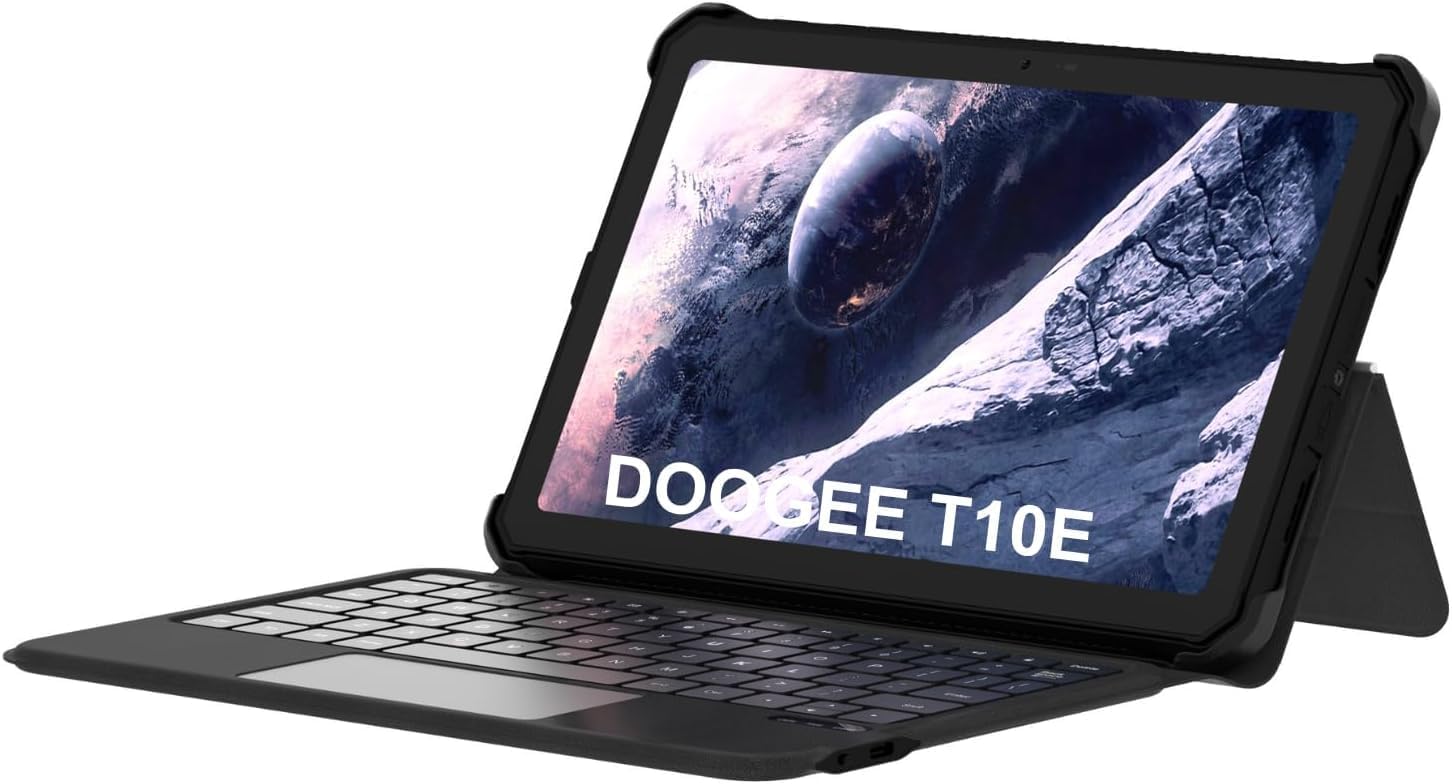
Image: The DOOGEE T10E Portable Tablet Keyboard with a tablet inserted, showcasing its laptop-like form factor.
Contingut del paquet
Assegureu-vos que tots els elements siguin presents al paquet:
- DOOGEE T10E Portable Tablet Keyboard
- Cable USB (per carregar)
- Manual d'usuari (aquest document)
Instruccions de configuració
1. Càrrega del teclat
Before initial use, fully charge the keyboard. Connect the provided USB cable to the keyboard's charging port and the other end to a USB power adapter (not included) or a computer's USB port.
The charging indicator light will typically show red while charging and turn off or change color when fully charged. A full charge ensures extended usage time.
2. Attaching Your Tablet to the Case
The keyboard comes integrated with a protective case. Carefully align your tablet with the case's frame and gently press it into place, ensuring all edges are securely fitted. The case is designed to protect your tablet from scratches and bumps.

Image: The DOOGEE T10E keyboard case, showing the tablet slot and the detachable keyboard.
3. Emparellament Bluetooth
To connect the keyboard to your tablet via Bluetooth:
- Ensure the keyboard is powered on and fully charged. Look for a power switch, usually on the side or back of the keyboard.
- Activate Bluetooth on your tablet. Navigate to your tablet's Configuració > Bluetooth.
- Al teclat, premeu Connecta't or Maridatge button (often indicated by a Bluetooth icon or a specific function key combination, e.g., Fn + C). The Bluetooth indicator light on the keyboard will start blinking, indicating it's in pairing mode.
- On your tablet, search for available Bluetooth devices. You should see "DOOGEE T10E Keyboard" or a similar name appear in the list.
- Select the keyboard from the list to initiate pairing. Your tablet may display a pairing code; type this code on the keyboard and press Entra.
- Once paired, the Bluetooth indicator light on the keyboard will stop blinking and remain solid, or turn off. Your tablet will confirm the connection.

Image: The DOOGEE T10E keyboard case highlighting Bluetooth LE Pairing, Multi-touch Trackpad, and Multi Shortcut Modes.
Instruccions de funcionament
1. Funcions bàsiques del teclat
The DOOGEE T10E features a standard QWERTY layout with 64 keys, providing a comfortable typing experience. All standard alphanumeric keys, symbols, and function keys (F1-F12) are available.
- Tecles de funció (Fn): Many keys have secondary functions accessible by holding down the Fn key and pressing the desired function key (e.g., volume control, media playback, screen brightness). Refer to the keycap legends for specific functions.
- Majúscules activades: Premeu el botó Bloqueig de majúscules key to toggle uppercase letters. An indicator light may illuminate when Caps Lock is active.
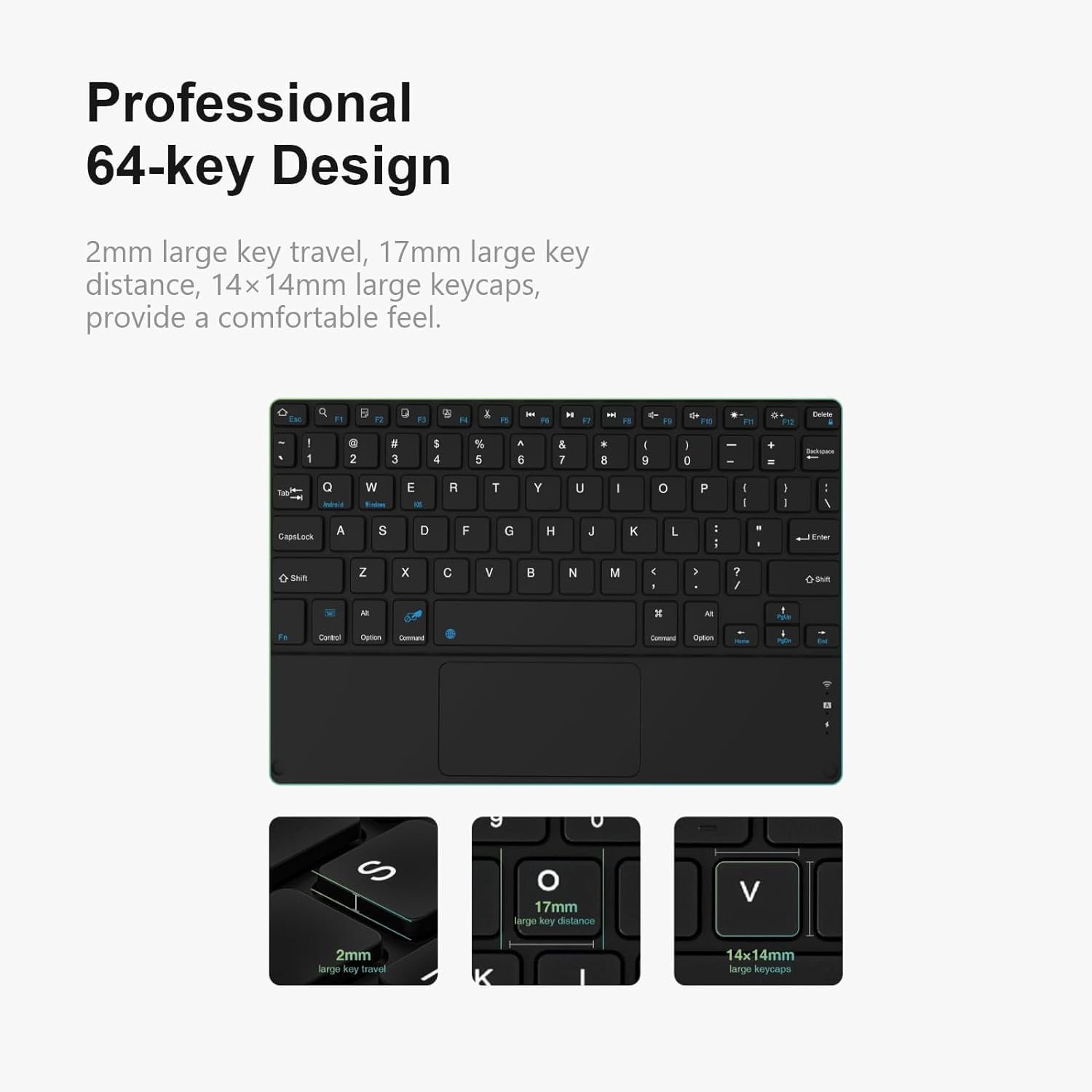
Imatge: Detallada view of the DOOGEE T10E keyboard's 64-key layout, showing key travel, key distance, and keycap size.
2. Ús del touchpad
The integrated multi-touch trackpad (approximately 3772mm²) allows for intuitive navigation and control of your tablet. It supports various gestures:
- Toc amb un sol dit: Funciona com un clic esquerre.
- Toc amb dos dits: Functions as a right-click (context menu).
- Arrossegament amb un sol dit: Mou el cursor.
- Desplaçament amb dos dits: Scrolls up or down on web pàgines o documents.
- Pessiga per fer zoom: Feu servir dos dits per apropar o allunyar els dits per fer zoom.
- Gestos de lliscament: Depending on your tablet's operating system, additional multi-finger swipe gestures may be supported for app switching or other functions.

Image: The DOOGEE T10E keyboard's large touchpad, illustrating various touch gestures for full screen control.
3. Multi Shortcut Modes
The keyboard supports various shortcut modes to enhance productivity. These shortcuts often involve combinations of the Fn key with other keys, or specific key combinations for common operating system functions. Consult your tablet's operating system documentation for a full list of supported keyboard shortcuts.
Manteniment
Proper maintenance ensures the longevity and performance of your DOOGEE T10E keyboard.
- Neteja: Utilitzeu un drap suau i sense pelusa lleugerament dampened with water or a mild cleaning solution to wipe the keyboard and case surfaces. Avoid harsh chemicals, abrasive cleaners, or excessive moisture.
- Eliminació de pols: Feu servir aire comprimit per eliminar la pols i les restes que hi ha entre les tecles.
- Emmagatzematge: When not in use, store the keyboard in a cool, dry place away from direct sunlight and extreme temperatures. Ensure the tablet is securely in the case to protect both devices.
- Càrrega: Recharge the keyboard regularly, even if not used frequently, to maintain battery health.
Resolució de problemes
If you encounter issues with your DOOGEE T10E keyboard, refer to the following common problems and solutions:
- El teclat no es connecta per Bluetooth:
- Assegureu-vos que el teclat estigui encès i completament carregat.
- Make sure Bluetooth is enabled on your tablet.
- Place the keyboard and tablet within close proximity (within 10 meters).
- Try unpairing the keyboard from your tablet's Bluetooth settings and then re-pairing it.
- Restart both your tablet and the keyboard.
- Keys are not responding:
- Comproveu si el teclat està connectat per Bluetooth.
- Ensure the keyboard is sufficiently charged.
- Restart the keyboard and tablet.
- Touchpad is not working:
- Verify the keyboard is connected.
- Assegureu-vos que el touchpad no es desactivi accidentalment (alguns teclats tenen una tecla de funció per activar/desactivar el touchpad).
- Clean the touchpad surface to remove any obstructions.
- Autonomia curta de la bateria:
- Assegureu-vos que el teclat estigui completament carregat abans d'utilitzar-lo.
- Reduce backlight usage if applicable (this model does not specify backlight, but it's a general tip).
- Apagueu el teclat quan no l'utilitzeu.
Especificacions
| Característica | Detall |
|---|---|
| Marca | DOOGEE |
| Model | T10E |
| Dispositius compatibles | Laptop, Smart TV, Smartphone, Tablet |
| Descripció del teclat | Autònom |
| Estil | Modern |
| Material | Estirol acrilonitril butadiè |
| Components inclosos | Cable USB |
| Font d'alimentació | Alimentat per USB |
| Tipus de canvi | Membrana |
| Disposició del teclat | QWERTY |
| Pes de l'article | 1.37 lliures (0.62 kg) |
| Dimensions del paquet | 11.3 x 7.44 x 1.18 polzades (28.7 x 18.9 x 3 cm) |
Garantia i Suport
For warranty information and technical support, please refer to the warranty card included with your product or contact DOOGEE customer service directly. You can typically find contact details on the official DOOGEE weblloc web o a través del vostre distribuïdor.
Conserveu el rebut de compra com a comprovant de compra per a reclamacions de garantia.