
1. Introducció
The KCEVE KCDZUS302DP KVM Switch allows three DisplayPort-enabled computers to share two DisplayPort monitors, a keyboard, a mouse, and other USB 3.0 peripherals. This device is designed to streamline your workspace by eliminating the need for multiple sets of peripherals for different computers. It supports high-resolution video output and offers flexible display modes.
2. Característiques del producte
- 3 Computers, 2 Monitors: Connects up to three computers to two DisplayPort monitors.
- Connectivitat USB 3.0: Features four USB 3.0 ports for sharing a keyboard, mouse, USB printers, scanners, and other USB devices with faster data transfer rates (up to 5Gbps).
- Suport d'alta resolució: Supports resolutions up to 8K@30Hz and 4K@144Hz. Backward compatible with lower resolutions. Requires DisplayPort 1.4 cables for optimal performance at high resolutions.
- Modes de visualització dual: Supports both Copy Mode (main screen duplicated to second monitor) and Extend Mode (desktop extended across two monitors).
- Múltiples mètodes de commutació: Switch between connected computers using physical buttons on the KVM switch or the included wired remote control.
- Plug and Play: Driver-free installation, compatible with various operating systems including Linux, Windows, Chrome OS, and macOS.
3. Contingut del paquet
Si us plau, verifiqueu que tots els elements siguin presents al vostre paquet:
- 1x KCEVE Dual Monitor USB 3.0 DP KVM Switch
- 1 x manual d'usuari
- 1x DC12V Power Adapter (1.5m/4.92ft)
- 1x Wired Remote (1.52m/4.98ft)
- 2x DisplayPort 1.4 Cables (1.5m/4.92ft)
- 3x USB 3.0 Cables (1.5m/4.92ft)

Image: Contents of the KVM Switch package, including the switch, cables, power adapter, and user manual.
4. Diagrama del producte
Familiarize yourself with the ports and controls on your KVM switch:

Image: Detailed diagram of the KVM switch showing front panel (ON/OFF switch, PC selection buttons, USB 3.0 ports, Wired Remote port) and rear panel (DP Monitor outputs, DP Input ports for PC1, PC2, PC3, USB 3.0 Input ports for PC1, PC2, PC3, DC12V power input).
- Panell frontal: Power ON/OFF switch, PC selection buttons (PC1, PC2, PC3), USB 3.0 peripheral ports (for keyboard, mouse, etc.), Wired Remote port.
- Panell posterior: DP Monitor Output ports (OUT A, OUT B), DP Input ports (INPUT A1, B1 for PC1; INPUT A2, B2 for PC2; INPUT A3, B3 for PC3), USB 3.0 Input ports (USB3.0 for PC1, PC2, PC3), DC12V power input.
5. Instruccions de configuració
Segueix aquests passos per configurar el commutador KVM:
- Apagueu els dispositius: Ensure all computers and monitors are powered off before beginning the connection process.
- Connectar monitors: Connect your two DisplayPort monitors to the 'DP MONITOR OUT A' and 'DP MONITOR OUT B' ports on the KVM switch using DisplayPort cables.
- Connect Computers (Video): For each computer (PC1, PC2, PC3), connect its DisplayPort outputs to the corresponding 'DP INPUT A' and 'DP INPUT B' ports on the KVM switch. For example, PC1's DisplayPort outputs connect to 'DP INPUT A1' and 'DP INPUT B1'. Nota: Each computer requires two DisplayPort connections to the KVM switch for dual monitor support.
- Connect Computers (USB): For each computer (PC1, PC2, PC3), connect a USB 3.0 cable from a USB 3.0 port on your computer to the corresponding 'USB3.0 INPUT' port on the KVM switch (e.g., PC1's USB to 'USB3.0 INPUT 1').
- Connecteu els perifèrics: Connect your keyboard, mouse, and any other USB 3.0 peripherals (e.g., printer, U disk) to the 'USB3.0' ports on the front panel of the KVM switch.
- Connecteu el comandament a distància amb cable (opcional): If desired, connect the wired remote control to the 'Wired Remote' port on the front panel.
- Connectar l'alimentació: Plug the DC12V power adapter into the 'DC/12V' port on the KVM switch, then plug the adapter into a power outlet.
- Encès: Turn on the KVM switch using the ON/OFF switch, then power on your monitors and computers.

Image: An illustration demonstrating the connection of three computers to the KVM switch, two monitors, and shared USB peripherals like a keyboard, mouse, and printer.
5.1 Input and Output Compatibility
The KVM switch has specific requirements for input and output adapters:
- Supported Input Converters: MINI DP to DP Cable, USB-C to DP Adapter, USB-C to Dual DP Dock.
- Unsupported Input Converters: HDMI to DP, DVI/VGA to DP.
- Supported Output Converters: DP to HDMI Cable.
- Unsupported Output Converters: DP to USB-C/DVI/VGA.
Important: If your device lacks native DisplayPort outputs, ensure you use compatible adapters. Using unsupported adapters may result in display issues.
6. Instruccions de funcionament
Once the KVM switch is set up, you can easily switch between connected computers.
6.1 Canviar entre ordinadors
You have two methods to switch between PC1, PC2, and PC3:
- Botons físics: Press the 'PC1', 'PC2', or 'PC3' button on the front panel of the KVM switch to select the desired computer.
- Comandament a distància per cable: Press the button on the wired remote control to cycle through the connected computers.
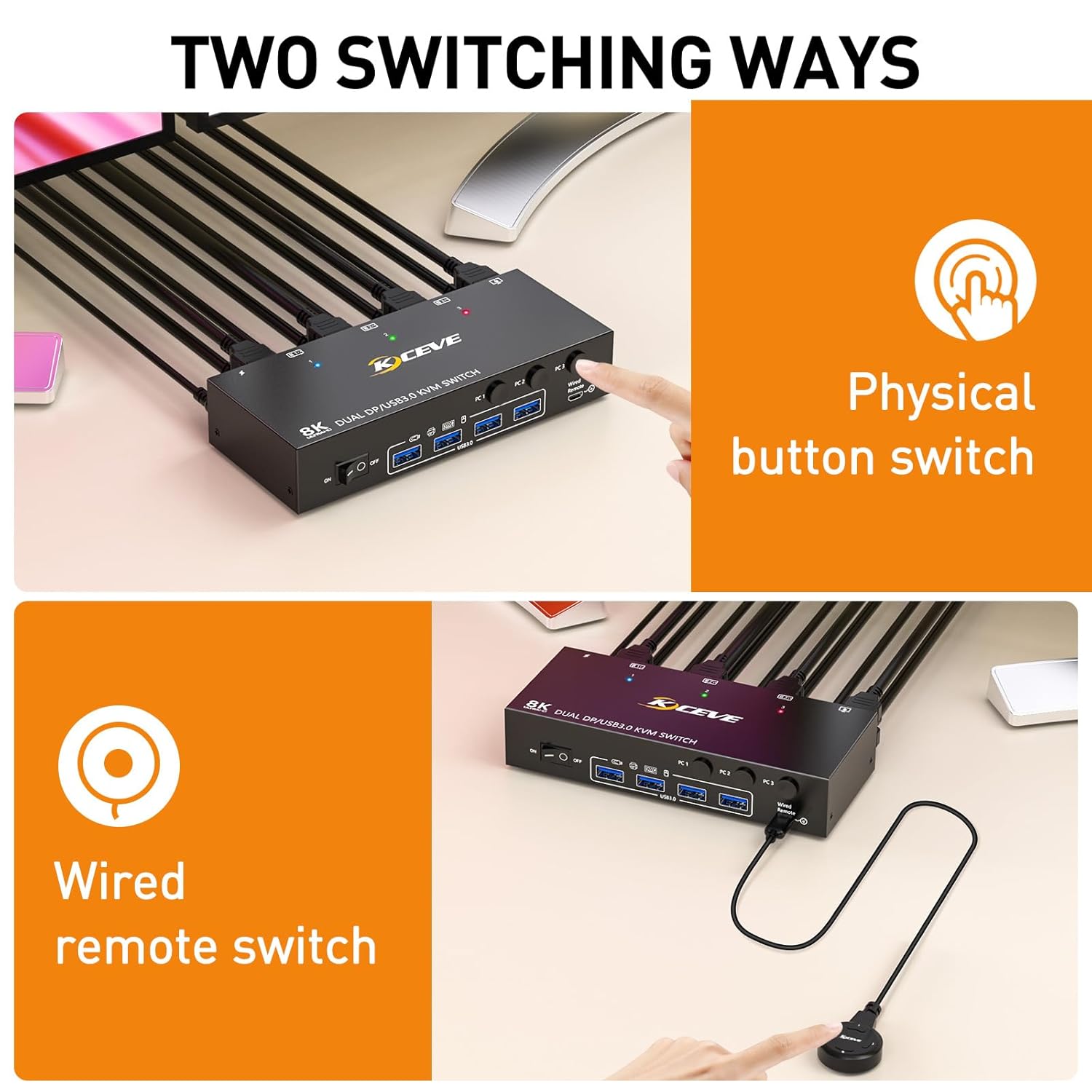
Image: Demonstrates the two methods for switching between computers: using the physical buttons on the KVM switch and using the wired remote control.
6.2 Indicadors LED
The KVM switch features LED indicators on the front panel to show which computer is currently active:

Image: Close-up of the KVM switch's LED indicators, showing distinct colors for each active PC (e.g., blue for PC1, green for PC2, red for PC3).
- A lit LED next to 'PC1', 'PC2', or 'PC3' indicates the currently selected computer.
7. Modes de visualització
El commutador KVM admet dos modes de visualització principals per als monitors duals:
- Copy Mode (Duplicate Mode): In this mode, the same image or content from the main screen is duplicated onto the second output screen. Both monitors display identical content.
- Mode d'ampliació: In this mode, your desktop is extended across both monitors, allowing you to drag windows from one screen to the other. This provides a larger workspace.
To switch between Duplicate and Extend modes on Windows, press Tecla Windows + P and select your preferred display option.

Image: Visual representation of Copy Mode, where both monitors show identical content, and Extend Mode, where the desktop spans across two monitors.
8. Resolution Support
The KVM switch supports high-definition video resolutions:
- Suporta fins a 8K@30Hz.
- Suporta fins a 4K@144Hz.
- Backward compatible with lower resolutions.
For achieving 8K@30Hz or 4K@144Hz resolutions, it is essential to use high-quality DisplayPort 1.4 cables. Ensure your graphics card and monitors also support these resolutions.

Image: A monitor displaying a high-resolution image, highlighting the KVM switch's support for 8K@30Hz and 4K@144Hz resolutions.
9. Manteniment
To ensure the longevity and optimal performance of your KCEVE KVM switch, follow these maintenance guidelines:
- Neteja: Feu servir un drap suau i sec per netejar l'exterior del dispositiu. Eviteu utilitzar netejadors líquids o materials abrasius.
- Ventilació: Assegureu-vos que el commutador KVM estigui col·locat en una zona ben ventilada per evitar el sobreescalfament. No bloquegeu cap obertura de ventilació.
- Medi ambient: Keep the device away from direct sunlight, heat sources, moisture, and dust.
- Gestió de cables: Organitzeu els cables amb cura per evitar tensió als ports i desconnexions accidentals.
10. Solució De Problemes
If you encounter issues with your KVM switch, please refer to the following troubleshooting steps:
- Sense pantalla al monitor:
- Ensure the KVM switch is powered on and the power adapter is securely connected.
- Verify that all DisplayPort cables are securely connected between the computers, KVM switch, and monitors.
- Check if the correct input source is selected on your monitors.
- Confirm that your DisplayPort cables are DisplayPort 1.4 compliant, especially for high resolutions. Lower quality or older cables may not support the required bandwidth.
- If using adapters (e.g., USB-C to DP), ensure they are compatible as per the 'Input and Output Compatibility' section.
- Try connecting a computer directly to a monitor to rule out issues with the computer's video output or the monitor itself.
- Restart the KVM switch, monitors, and computers.
- El teclat/ratolí no respon:
- Ensure the USB 3.0 cables are securely connected from each computer to the KVM switch.
- Verify that the keyboard and mouse are connected to the designated USB 3.0 peripheral ports on the KVM switch.
- Try connecting the keyboard and mouse directly to the computer to confirm they are functioning correctly.
- Some specialized gaming keyboards/mice with advanced features may require direct connection or specific drivers.
- Pantalla/parpelleig intermitent:
- This can often be caused by cable quality. Replace DisplayPort cables with certified DisplayPort 1.4 cables.
- Reduïu la resolució de la pantalla o la freqüència d'actualització per veure si el problema persisteix.
- Ensure there is no electromagnetic interference from other devices.
- USB 3.0 Devices Not Detected:
- Ensure the USB 3.0 cables from the computers to the KVM switch are connected to USB 3.0 ports on the computers.
- Some high-power USB devices may require an external power source or a powered USB hub.
11. Especificacions
| Característica | Especificació |
|---|---|
| Número de model | KCDZUS302DP |
| Marca | KCEVE |
| Ports d'entrada | 3 x DisplayPort (Dual DP per PC), 3 x USB 3.0 (Type-B) |
| Ports de sortida | 2 x DisplayPort, 4 x USB 3.0 (Type-A) |
| Resolució de vídeo | Fins a 8K@30Hz, 4K@144Hz |
| Velocitat de transferència de dades USB | 5 Gbps (USB 3.0) |
| Mètodes de canvi | Physical buttons, Wired remote |
| Vol. Operatiutage | DC 12V |
| Material | Metall |
| Dimensions (L x A x A) | 8.03 x 7.99 x 2.64 polzades (aprox.) |
| Pes de l'article | 2.05 lliures (aprox.) |
| UPC | 714855572840 |
12. Garantia i Suport
KCEVE provides a one-year professional warranty for this product. If you have any questions, encounter issues, or require technical assistance, please contact KCEVE customer support. Refer to the product packaging or the KCEVE official weblloc per obtenir informació de contacte.