
1. Introducció
This manual provides comprehensive instructions for the installation, operation, and maintenance of your MekedeTech Android 13 Car Radio Stereo. This head unit is designed as a direct replacement and upgrade for Honda Acura MDX vehicles manufactured between 2007 and 2013. Please read this manual thoroughly before installation and use to ensure proper function and to maximize your experience with the device.
2. Contingut del paquet
Verifiqueu que tots els elements que s'enumeren a continuació siguin presents al vostre paquet. Si falta algun element o hi ha algun malmès, poseu-vos en contacte amb el servei d'atenció al client.
- 9-inch Android Car Touch Screen Head Unit
- Cable d'alimentació
- Cables USB (x2)
- Cable AUX
- Antena GPS
- Joc de cables RCA
- Cable d'entrada de la càmera de marxa enrere
- Micròfon (MIC)
- 4G Antenna (if applicable to your model variant)

Figura 2.1: Included components in the MekedeTech Android 13 Car Radio Stereo package.
3. Compatibilitat i notes importants
This head unit is specifically designed for a plug-and-play fit in Honda Acura MDX models from 2007 to 2013. However, specific conditions must be met for proper installation and functionality.
- Models compatibles: Honda Acura MDX 2007, 2008, 2009, 2010, 2011, 2012, 2013.
- Requisit: Your vehicle must have an existing Botó AUX i el original large screen.
- Models incompatibles: This unit will NO fit if your vehicle has an HDD button or if it does not have the original large screen.

Figura 3.1: Visual guide for compatible and incompatible dashboard configurations.
4. Configuració i instal·lació
The MekedeTech Android 13 Car Radio Stereo is designed for a plug-and-play installation. All necessary accessories, including the dash kit, power cable, RCA cable, reversing camera cable, and USB cables, are provided. While designed for ease of installation, professional installation is recommended to ensure correct wiring and optimal performance, especially if you are unfamiliar with car audio systems.
4.1 Comprovació prèvia a la instal·lació
- Ensure your vehicle matches the compatibility requirements (Honda Acura MDX 2007-2013 with AUX button and original large screen).
- Disconnect the vehicle's battery before beginning installation to prevent electrical shorts.
- Carefully remove the original head unit and dashboard trim according to your vehicle's service manual.
4.2 Connexions de cablejat
Connect the provided cables to their corresponding ports on the new head unit and the vehicle's wiring harness. Refer to the wiring diagrams provided with your specific unit for detailed connections.
- Cable de corrent: Connect to the vehicle's main power harness.
- Cables RCA: Per a exteriors ampamplificadors, subwoofers o entrades/sortides de vídeo auxiliars.
- Cables USB: For connecting USB devices, external storage, or wired Android Auto.
- Antena GPS: Muntar en un lloc amb claredat view del cel per a una recepció òptima del senyal.
- Reversing Camera Cable: Connect to your aftermarket backup camera (if installed).
- Micròfon: Connect for hands-free calling and voice commands.
4.3 Postinstal·lació
- Securely mount the new head unit into the dashboard.
- Torneu a connectar la bateria del vehicle.
- Turn on the ignition and test all functions of the new head unit.

Figura 4.1: Before and After installation of the MekedeTech Android 13 Car Radio Stereo.
5. Instruccions de funcionament
Your MekedeTech Android 13 Car Radio Stereo offers a wide range of features. This section details how to use the primary functions.
5.1 CarPlay sense fil i Android Auto amb cable
Enjoy seamless integration with your smartphone for navigation, music, calls, and more.
- For Wireless CarPlay (iOS System):
- Connect your iPhone to the head unit via Bluetooth.
- On the head unit, open the "Car Link" application.
- Espereu que s'estableixi la connexió.
- For Wireless Android Auto (Android System):
- Connect your Android phone to the head unit via Bluetooth.
- On the head unit, open the "Car Link" application.
- Espereu que s'estableixi la connexió.
- For Wired Android Auto: Connect your Android phone directly to one of the USB ports using a compatible USB cable.

Figura 5.1: Wireless CarPlay and Android Auto interface and connection steps.
5.2 Bluetooth 5.0 Functionality
El mòdul Bluetooth 5.0 integrat permet trucades amb mans lliures i transmissió d'àudio sense fil.
- Maridatge: Go to the Bluetooth settings on the head unit and your smartphone. Cerca and select the head unit's Bluetooth name to pair.
- Trucades mans lliures: Once paired, you can make and receive calls directly from the head unit's screen. Call history, contacts, and caller ID are supported.
- Música Bluetooth: Stream audio from your paired device to the car stereo system.
Connectivitat Wi-Fi 5.3
The unit supports 5G Wi-Fi, allowing you to connect to a mobile hotspot or home Wi-Fi network for internet access, app downloads, and online services.
- Connexió: Navigate to the Wi-Fi settings on the head unit, select your desired network, and enter the password.
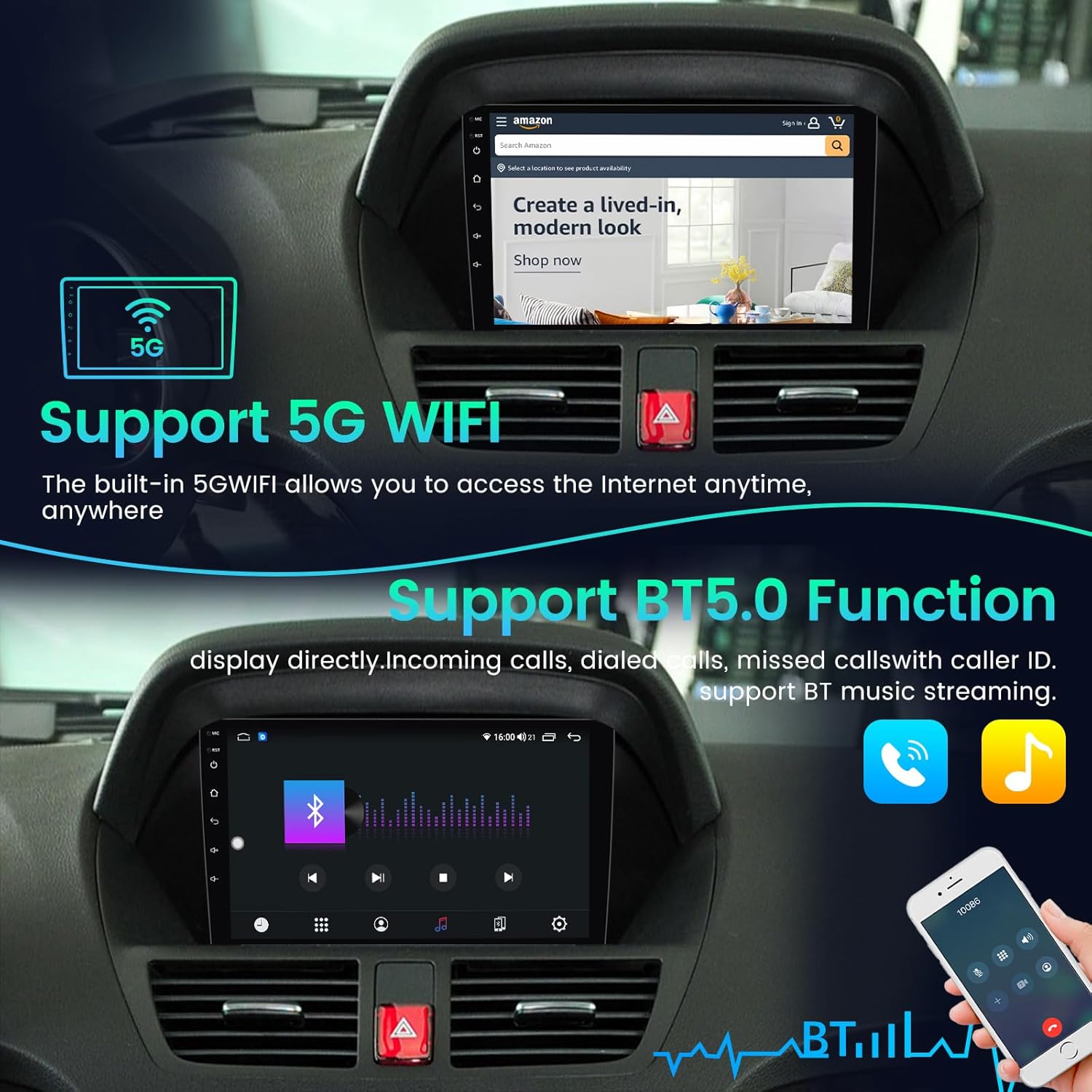
Figura 5.2: 5G Wi-Fi and Bluetooth 5.0 features.
5.4 Built-in GPS Navigation
The integrated GPS system provides accurate, omni-directional map display and real-time traffic conditions.
- Using Navigation: Open the pre-installed navigation application or download your preferred navigation app from the Google Play Store.
- Actualitzacions de mapes: Ensure your maps are up-to-date for the best navigation experience.
5.5 Funcionalitat de pantalla dividida
The split-screen feature allows you to run and view two applications simultaneously, enhancing multitasking capabilities.
- Activació de la pantalla dividida: Typically, long-press the recent apps button or drag an app to one side of the screen to activate split-screen mode.

Figura 5.3: Split screen and built-in GPS navigation in use.
5.6 Control del volant (SWC)
The unit retains your original steering wheel control functions, allowing you to safely manage audio and calls without taking your hands off the wheel.
- Configuració: In most cases, SWC will work automatically. If not, access the SWC settings in the unit's menu to map the buttons.
5.7 Darrera View Entrada de càmera
The head unit supports input from an aftermarket rear view camera, automatically displaying the camera feed when the vehicle is in reverse gear.
6. Manteniment
Un manteniment adequat garanteix la longevitat i el rendiment òptim de l'equip de música del vostre cotxe.
- Neteja de pantalla: Feu servir un drap suau i sense borrissol per netejar suaument la pantalla tàctil. Per a taques difícils, fregueu lleugerament.ampNetegeu el drap amb aigua o un netejador de pantalles. Eviteu productes químics agressius.
- Actualitzacions de programari: Comproveu periòdicament si hi ha actualitzacions de programari a través de la configuració de la unitat o del fabricant. weblloc web per assegurar-vos que disposeu de les darreres funcions i correccions d'errors.
- Condicions ambientals: Eviteu exposar la unitat a temperatures extremes, a la llum solar directa durant períodes prolongats o a una humitat excessiva.
7. Solució De Problemes
If you encounter issues with your car stereo, refer to the following common troubleshooting steps.
| Problema | Causa possible | Solució |
|---|---|---|
| La unitat no s'encén | Incorrect wiring; Blown fuse; Incompatible vehicle model. | Check all power connections and fuses. Ensure your vehicle meets the specific compatibility requirements (AUX button, original large screen). Consult a professional installer. |
| Sense sortida de so | Cables d'altaveu desconnectats; Volum massa baix; Silenciament activat; Font d'àudio incorrecta. | Check speaker wire connections. Increase volume. Deactivate mute. Select the correct audio source. |
| CarPlay/Android Auto no es connecta | Bluetooth not paired; "Car Link" app not open; USB cable issue (for wired AA); Phone software issue. | Ensure Bluetooth is paired and "Car Link" app is open. Try a different USB cable. Restart phone and head unit. |
| Senyal GPS feble o inexacte | GPS antenna improperly placed or disconnected. | Assegureu-vos que l'antena GPS estigui muntada en un lloc amb claredat view del cel i està connectat de manera segura. |
| La pantalla tàctil no respon | Error de programari; Danys a la pantalla. | Restart the head unit. If the problem persists, contact customer support. |
If these steps do not resolve your issue, please contact MekedeTech customer support for further assistance.
8. Especificacions
| Característica | Detall |
|---|---|
| Marca | MekedeTech |
| Número de model | 2ead9476-ab3e-409e-af1f-61efd23c4546 |
| Sistema operatiu | Android 13 |
| Mida de la pantalla | 9 polzades |
| Resolució de pantalla | 1024*600 |
| Processador | Quad Core |
| RAM | 2 GB |
| ROM (emmagatzematge intern) | 32 GB |
| Connectivitat | Bluetooth 5.0, USB, Wi-Fi (5G supported) |
| Característiques especials | Built-in Wireless CarPlay, Wired Android Auto, Touchscreen, Built-in Bluetooth, GPS Navigation, Split Screen, FM Radio, 1080P Video Playback, RCA Input/Output, Rear View Entrada de càmera, control del volant |
| Dispositius compatibles | Telèfon intel·ligent, iPhone |
| Mode de sortida d'àudio | Estèreo (configuració de canal de so envoltant 4.0) |
| Mètode de control | Aplicació, Toc |
| Fabricant | Shenzhen Mekede Technology Co.,Ltd |
9. Informació de la garantia
This MekedeTech Android 13 Car Radio Stereo comes with a 1 anys de garantia from the date of purchase. This warranty covers manufacturing defects and malfunctions under normal use. It does not cover damage caused by improper installation, misuse, accidents, unauthorized repairs, or normal wear and tear.
Conserveu el vostre comprovant de compra per a reclamacions de garantia.
10. Atenció al client
For technical assistance, troubleshooting beyond this manual, or warranty inquiries, please contact MekedeTech customer support through the retailer where you purchased the product or visit the official MekedeTech weblloc per obtenir informació de contacte.
When contacting support, please have your product model number (2ead9476-ab3e-409e-af1f-61efd23c4546) and proof of purchase readily available.