
1. Introducció
This manual provides essential information for the safe and efficient operation of your Displays2go 43-inch Touch Screen Digital Kiosk. Please read this manual thoroughly before installation and use, and retain it for future reference. This interactive kiosk is designed for various public and commercial environments, offering a user-friendly interface powered by Android 11 OS.
2. Informació de seguretat
Observeu les següents precaucions de seguretat per evitar danys al dispositiu o lesions a vosaltres mateixos o a altres persones:
- Ensure the kiosk is placed on a stable, level surface to prevent tipping.
- No exposeu el dispositiu a l'aigua, la humitat ni a temperatures extremes.
- Use only the provided power adapter and cable.
- Eviteu bloquejar les obertures de ventilació per evitar el sobreescalfament.
- No intenteu obrir ni reparar el dispositiu vosaltres mateixos. Encarregueu totes les tasques de manteniment a personal qualificat.
- Keep children away from the device during operation and maintenance.
- Desconnecteu l'alimentació abans de netejar o moure la unitat.
3. Contingut del paquet
Carefully unpack the box and ensure all items listed below are present and undamaged. If any items are missing or damaged, contact Displays2go customer support immediately.
- 43-inch Touch Screen Digital Kiosk Unit
- Cable d'alimentació
- Control remot
- Drap de neteja
- Guants de protecció
- Manual d'usuari (aquest document)
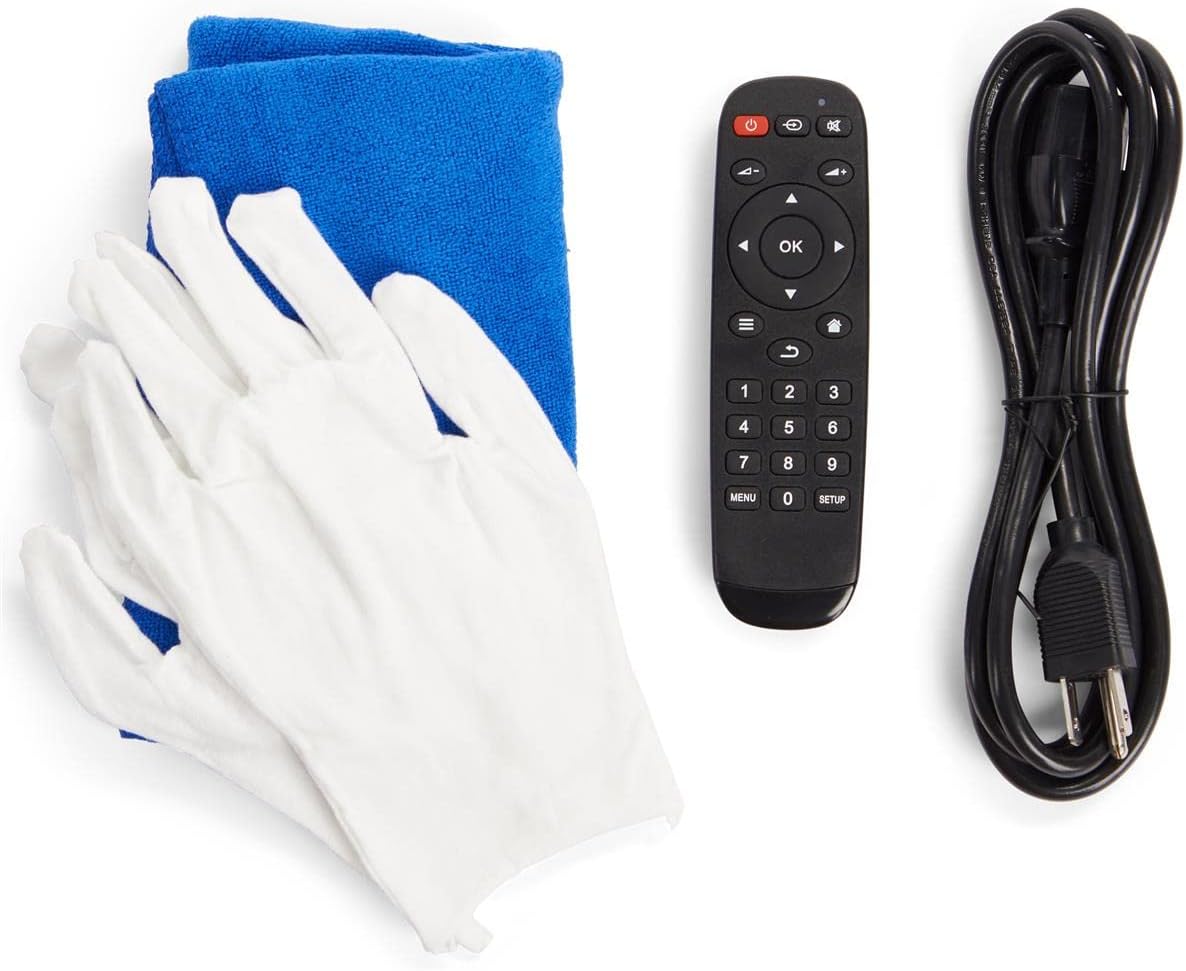
Figure 3.1: Included accessories for the digital kiosk.
4. Producte acabatview
The Displays2go 43-inch Touch Screen Digital Kiosk features a robust design and an intuitive interface for interactive digital signage applications.

Figura 4.1: Frontal view of the 43-inch Touch Screen Digital Kiosk.
4.1. Components clau
- 43-inch LCD Panel: High-quality display with 20-point IR touch technology.
- Sistema operatiu Android 11: Pre-installed operating system for versatile application support.
- Marc d'alumini resistent: Durable construction for high-traffic environments.
- Altaveus integrats: For dynamic audio content.
- Ports de connectivitat: USB, Ethernet, Wi-Fi, Bluetooth.
- Floor Levelers: Adjustable feet for enhanced stability.

Figure 4.2: Connectivity ports located on the rear panel.

Figura 4.3: lateral view illustrating the screen's ergonomic tilt.
5. Configuració
5.1. Desembalatge i col·locació
- Carefully remove the kiosk from its packaging. It is recommended to have two people for safe handling due to its weight.
- Place the kiosk in your desired location, ensuring it is on a stable, level surface.
- Adjust the four floor levelers at the base of the unit to ensure maximum stability and prevent wobbling.
5.2. Potència de connexió
- Locate the power input port on the rear panel of the kiosk (refer to Figure 4.2).
- Connect the provided power cable to the kiosk's power input.
- Route the power cable through the integrated cable management system in the base for a tidy appearance (see Figure 5.1).
- Connecteu l'altre extrem del cable d'alimentació a una presa de corrent amb connexió a terra.

Figure 5.1: Integrated cable management system.
5.3. Engegada inicial
- Locate the power switch on the rear panel (refer to Figure 4.2).
- Flip the power switch to the 'ON' position. The kiosk will begin to boot up.
- The initial boot process may take a few moments. The Android 11 OS home screen will appear once complete.
6. Instruccions de funcionament
6.1. Android 11 OS Navigation
The kiosk operates on Android 11, providing a familiar and intuitive user experience. You can navigate using the touch screen or the provided remote control.
- Pantalla tàctil: Interact directly with the display using gestures similar to a tablet or smartphone.
- Comandament a distància: Use the remote for basic navigation, volume control, and power functions.
6.2. Connectivitat de xarxa
The kiosk supports multiple network connection methods:
- Wi-Fi: Access Wi-Fi settings from the Android system menu to connect to available wireless networks.
- Ethernet (LAN): Connect an Ethernet cable to the LAN port on the rear panel for a wired network connection.
- Bluetooth: Pair Bluetooth-enabled devices (e.g., speakers, keyboards) through the Android settings.
6.3. USB Ports Usage
The kiosk is equipped with two USB ports (refer to Figure 4.2) for connecting external devices such as:
- USB flash drives for content transfer.
- External keyboards or mice.
- Other compatible USB peripherals.
6.4. DiViEx Slideshow Software
The kiosk comes with DiViEx slideshow software pre-installed. This application allows for easy creation and management of multimedia presentations. Refer to the DiViEx software's in-app help or online documentation for detailed usage instructions.
6.5. Gestió de continguts
Content can be uploaded and managed through various methods:
- Transferència USB: Còpia files directly from a USB drive to the kiosk's internal storage.
- Transferència de xarxa: Utilize network shares or cloud services accessible via the Android OS.
- Google Play Store: Download and install compatible content management applications from the Google Play Store.
7. Manteniment
7.1. Cleaning the Kiosk
To maintain the appearance and functionality of your kiosk:
- Desconnecteu sempre l'alimentació abans de netejar.
- Use the provided soft cleaning cloth (or a similar lint-free cloth) to gently wipe the screen and frame.
- Per a marques persistents a la pantalla, fregueu lleugeramentampen the cloth with a screen-safe cleaning solution. Do not spray liquid directly onto the screen.
- Avoid abrasive cleaners, solvents, or harsh chemicals, as these can damage the display and finish.
7.2. Actualitzacions de firmware
Displays2go provides regular firmware updates to enhance performance and add new features. Check the Displays2go support website or contact customer service for information on available updates and installation instructions.
8. Solució De Problemes
This section addresses common issues you might encounter. For problems not listed here, contact Displays2go customer support.
| Problema | Causa possible | Solució |
|---|---|---|
| Kiosk does not power on. | Power cable not connected; Power switch off; Faulty outlet. | Ensure power cable is securely connected. Check power switch position. Test outlet with another device. |
| La pantalla tàctil no respon. | Screen is dirty; Software glitch; External interference. | Clean the screen thoroughly. Restart the kiosk. Ensure no strong light sources are directly hitting the IR sensors. |
| No hi ha connexió Wi-Fi. | Wi-Fi is off; Incorrect password; Router issue; Out of range. | Check Wi-Fi settings in Android. Verify password. Restart router. Move kiosk closer to router. |
| Display shows no image. | Kiosk is off; Input source issue; Display settings. | Ensure kiosk is powered on. Check if the display is in standby mode. Restart the kiosk. |
9. Especificacions
Detailed technical specifications for the Displays2go 43-inch Touch Screen Digital Kiosk:
| Característica | Especificació |
|---|---|
| Número de model | 00840844186788 |
| Mida de la pantalla | 43 polzades |
| Resolució | 1920 x 1080 (FHD 1080p) |
| Relació d'aspecte | 16:9 |
| Tecnologia tàctil | 20-point IR Display |
| Sistema operatiu | OS Android 11 |
| Connectivitat | Wi-Fi, Bluetooth, Ethernet (LAN), 2x USB Ports, Type-C, TF Card Slot |
| Superfície de la pantalla | brillant |
| Pes de l'article | 90.4 lliures |
| Fabricant | Displays2go |
| Data de primera disponibilitat | 1 de març de 2024 |
10. Garantia i Suport
Displays2go is a trusted US-based brand committed to customer satisfaction. While specific warranty details are not provided in this manual, the product typically includes a manufacturer's warranty against defects in materials and workmanship. Please refer to your purchase documentation or the official Displays2go weblloc web per obtenir informació detallada sobre els termes i condicions de la garantia.
For technical assistance, troubleshooting, or any inquiries regarding your 43-inch Touch Screen Digital Kiosk, please contact Displays2go expert technical support. Information regarding returns is generally available for 30 days from the purchase date.
Visita el Botiga Displays2go a Amazon per a més informació o per contactar amb el suport.