
Introducció
Welcome to the FightBox M1-PC All Button Leverless Arcade Fight Stick Game Controller instruction manual. This guide provides essential information for setting up, operating, and maintaining your new arcade controller. Please read this manual thoroughly to ensure optimal performance and longevity of your device.

Image: The FightBox M1-PC controller, featuring a red ball-top joystick and an array of red and black buttons on a black casing.
Característiques del producte
- Traditional Detachable Arcade Joystick and All Button LeverLess Layout Are Combined
- Traditional Arcade Joystick Size, Large Size Is More Stable
- Large 30mm Sanwa Brand Push Buttons For Traditional Joysticks As Action Buttons
- Professional Fighting Board Extreme Speed Minimized Delay
- SOCD Supported The Tournament Standard For All Button Leverless Style Game Controller

Imatge: Un angle view of the FightBox M1-PC controller, showcasing the joystick and button layout.

Image: Close-up of Sanwa brand joystick (JLF-TP-8YT) and push buttons (OBSF-24, OBSF-30) used in the controller.
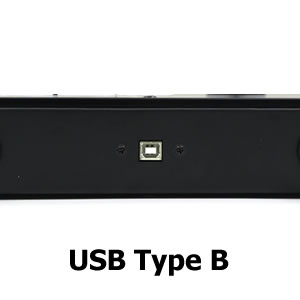
Image: The RetroArcade Crafts arcade joystick board, indicating the internal components.
Configuració
To set up your FightBox M1-PC controller, connect the USB Type-B port on the controller to your PC, PS3, or Nintendo Switch using a compatible USB cable. The device is plug-and-play for most systems, requiring no additional drivers for basic functionality.

Imatge: Lateral view of the controller highlighting the USB Type-B port for connection.

Imatge: Part inferior view of the FightBox M1-PC controller, showing the 'FIGHTBOX' branding and rubber feet for stability.
Instruccions de funcionament
Disseny de botons
The FightBox M1-PC features a standard arcade button layout with a detachable joystick and additional leverless buttons. Refer to the diagram below for button assignments and functions.

Image: Diagram illustrating the button layout for the PC version of the FightBox M1-PC, showing HOME, MODE, R3, L3, START, SELECT, and action buttons (X, Y, A, B, R1, R2, L1, L2).
Canvi de mode
- El CASA button is used to switch between PC360 mode (default) and other modes.
- El MODE button is used to switch between the cross keys (D-pad) and the left/right stick inputs.
Modes SOCD
The controller supports three types of Simultaneous Opposing Cardinal Directions (SOCD) modes, which are crucial for competitive play in fighting games. These modes determine how simultaneous opposing directional inputs are registered.
- Up priority SOCD mode (Default): If Up and Down are pressed simultaneously, Up input is prioritized.
- Neutral (CAPCOM) SOCD mode: If opposing directions are pressed simultaneously, all inputs are cancelled, resulting in a neutral input.
- Last win SOCD mode: The last directional input pressed is registered.

Image: Table detailing the three SOCD modes (Up priority, Neutral (CAPCOM), Last win) and their corresponding outputs for various directional inputs.
Demostració del producte
Video: A demonstration of the FightBox M1-PC All Button Leverless Arcade Game Controller, showcasing its design and in-game performance with gameplay footage.
Manteniment
- Neteja: Use a soft, dry cloth to clean the surface of the controller. Avoid abrasive cleaners or solvents.
- Emmagatzematge: Guardeu el controlador en un lloc fresc i sec, allunyat de la llum solar directa i de temperatures extremes.
- Manipulació: Avoid dropping the controller or exposing it to excessive force, which could damage internal components.
Resolució de problemes
- Controller not recognized: Ensure the USB cable is securely connected to both the controller and the device (PC, PS3, Switch). Try a different USB port or cable.
- Botons que no responen: Check the mode settings using the HOME and MODE buttons. Ensure the correct input mode is selected for your game.
- Retard d'entrada: Ensure you are using a direct USB connection. Avoid USB hubs if possible, or use a powered USB hub.
- Detachable joystick issues: Ensure the joystick is properly seated and secured if you are using it.
Especificacions
| Característica | Detall |
|---|---|
| ASIN | B0CXMYH9SF |
| Dimensions del producte | 15.75 x 8.66 x 1.97 polzades |
| Pes de l'article | 6.16 lliures |
| Fabricant | FightBox |
| Data de primera disponibilitat | 25 de gener de 2024 |
| Compatibilitat | PC, PS3, Nintendo Switch |

Image: Diagram showing the dimensions of the FightBox M1-PC controller: 40cm length, 22cm width, 5cm height, and 2.0 KG weight.
Garantia i Suport
For warranty information and technical support, please refer to the official FightBox weblloc web o poseu-vos en contacte amb el distribuïdor on vau comprar el producte. Conserveu el comprovant de compra per a qualsevol reclamació de garantia.