1. Introducció
This manual provides comprehensive instructions for setting up, operating, and maintaining your NIIMBOT K3 Label Printer. Please read this manual carefully before use to ensure optimal performance and longevity of your device.
1.1 Què hi ha a la caixa
- NIIMBOT K3 Label Printer
- Cable USB
- Adaptador d'alimentació
- Manual de producte
- Label Paper Roll (50x30mm)

Figure 1.1: Contents of the NIIMBOT K3 Label Printer package.
2. Configuració
2.1 Connexió d'alimentació
Connect the power adapter to the printer's power port and then plug it into a wall outlet. Ensure the printer is powered on using the ON/OFF switch located at the back.
2.2 Càrrega d'etiquetes
- Press the 'Open' button on the top cover to open the paper bin.
- Adjust the guide plates inside the paper bin to match the width of your label roll.
- Insert the label roll, ensuring the labels feed smoothly from the top and are correctly aligned with the print head.
- Tanqueu la coberta superior fermament fins que encaixi al seu lloc.
- Press and hold the paper feed key (button with printer icon) for a few seconds to align the paper. The printer will automatically feed a few labels to detect the label size.

Figure 2.1: Steps for loading label paper into the NIIMBOT K3 printer.
Video 2.1: Demonstrates the unboxing and initial setup, including loading labels into the K3 printer.
3. Instruccions de funcionament
3.1 Bluetooth Connection (Smartphone)
- Download the official NIIMBOT app from your smartphone's app store (Android/iOS).
- Activa el Bluetooth al teu telèfon intel·ligent.
- Open the NIIMBOT app and search for your K3 printer. Pair the device within the app (do not pair directly through phone's Bluetooth settings).
- Once connected, the app will automatically recognize the label type. You can then edit and print your labels directly from the app.

Figure 3.1: The NIIMBOT K3 printer supports both Bluetooth and USB connections.

Figure 3.2: The NIIMBOT App offers a powerful interface for designing and printing labels.
3.2 USB Connection (PC)
- Visiteu el NIIMBOT oficial website to download the NIIMBOT Desktop APP and necessary drivers for Windows 7/10.
- Connect the K3 printer to your PC using the provided USB cable.
- Open the NIIMBOT Desktop APP. The software should detect the connected printer.
- Select or create a label template, edit the content, and initiate printing.

Figure 3.3: USB connection for PC requires downloading the desktop application and drivers.

Figure 3.4: Workflow for using the K3 printer with a PC.
Video 3.1: Comprehensive guide on connecting and using the K3 printer with both PC and smartphone.
3.3 Label Compatibility and Feeding Modes
The NIIMBOT K3 printer is designed to work with thermal labels from various brands, supporting label widths from 0.85 to 3.14 inches. For optimal performance and auto-recognition features, using NIIMBOT brand labels is recommended. It supports both roll paper loaded inside and foldable thermal label paper.

Figure 3.5: The K3 printer is compatible with various thermal label brands.

Figure 3.6: The K3 printer supports both roll and folding paper feeding modes.
3.4 Aplicacions
The NIIMBOT K3 Label Printer is versatile and ideal for a wide range of applications, including:
- Barcode and QR code labels
- Address and mailing labels
- Product labels (food ingredients, clothing, bottle labels)
- File folder labels and fixed asset tracking
- Name ID cards and price tags
- Shipping labels (note: not for 4''x6'' shipping labels)
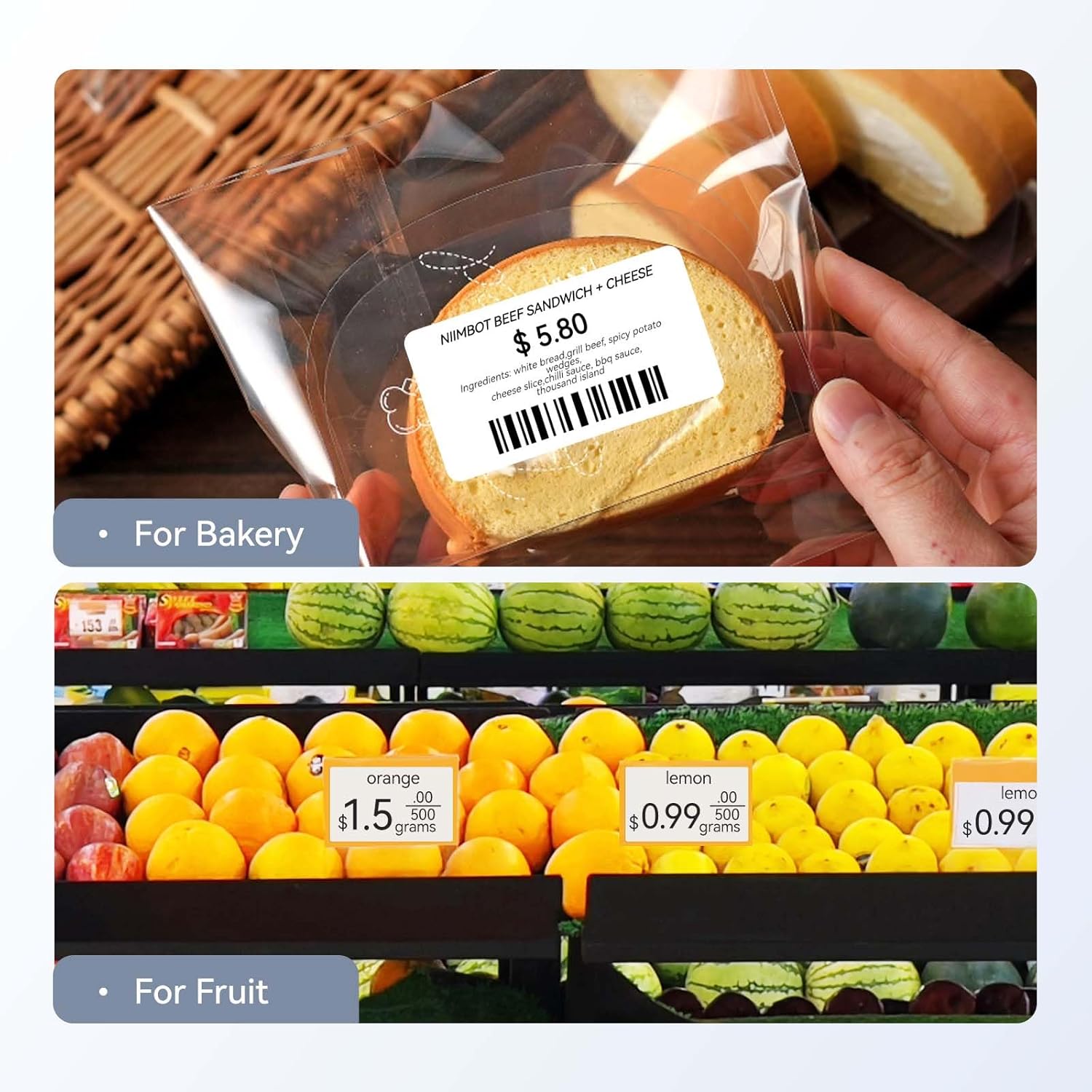
Figure 3.7: The K3 printer is ideal for multiple scenarios in retail, office, and warehouse environments.
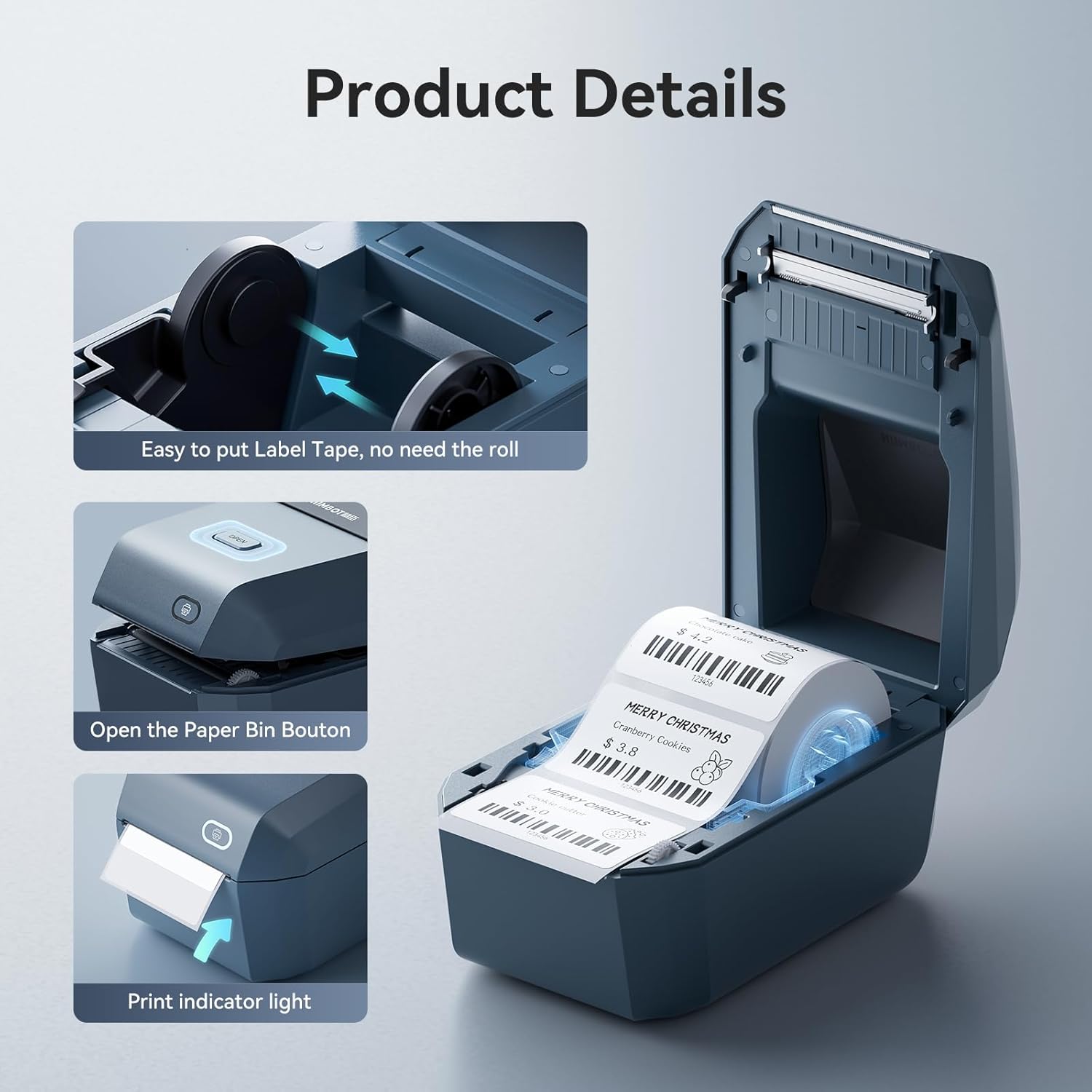
Figura 3.8: Examples of food labels for bakery and fruit products.
4. Manteniment
4.1 Neteja del capçal d'impressió
Regularly clean the print head to ensure clear and consistent print quality. Use a lint-free cloth lightly dampened with isopropyl alcohol. Gently wipe the print head surface. Allow it to dry completely before closing the cover and resuming operation.
4.2 Storing Labels
Store thermal labels in a cool, dry place away from direct sunlight and heat to prevent premature fading or damage to the thermal coating.
5. Solució De Problemes
If you encounter issues with your NIIMBOT K3 Label Printer, refer to the table below for common problems and their solutions.
| Problema | Causa possible | Solució |
|---|---|---|
| Printer not turning on/responding | Sense alimentació, connexió fluixa, interruptor apagat. | Ensure power adapter is securely connected and plugged in. Check the ON/OFF switch on the back of the printer. |
| Cannot connect to PC via USB | Missing or incorrect drivers/software, USB cable issue. | Download and install the latest drivers and NIIMBOT Desktop APP from the official website. Try a different USB port or cable. Ensure your PC runs Windows 7/10. |
| Labels not feeding correctly or misaligned | Improper label loading, guide plates not adjusted. | Open the paper bin and re-insert the label roll, ensuring it's straight and the guide plates are snug against the roll. Press and hold the paper feed key to auto-calibrate. |
| Poor print quality (faded, blank lines) | Dirty print head, low quality labels, incorrect print density. | Clean the print head as described in the Maintenance section. Use high-quality thermal labels. Adjust print density settings in the NIIMBOT app/software. |
| No es pot connectar mitjançant Bluetooth | Bluetooth not enabled, incorrect pairing method, app issue. | Ensure Bluetooth is enabled on your smartphone. Pair the printer ONLY through the NIIMBOT app, not directly through your phone's Bluetooth settings. Restart the app and printer. |
6. Especificacions
| Característica | Especificació |
|---|---|
| Marca | NIIMBOT |
| Nom del model | K3-BLUE |
| Tecnologia d'impressió | Tèrmica |
| Tecnologia de connectivitat | Bluetooth, USB |
| Dispositius compatibles | Smartphone (Android & iOS); PC (Windows 7/10) |
| Mida màxima del suport de la impressora | 3.14 inch label width (0.85 - 3.14 inches) |
| Velocitat màxima d'impressió en monocrom | 180 mm/s |
| Dimensions del producte | 3.59 x 2.24 x 2.24 polzades |
| Pes de l'article | 2.65 lliures |
| Mètode de control | App |
7. Garantia i Suport
The NIIMBOT K3 Label Printer comes with a free replacement service for up to 12 months if the device malfunctions. For any issues or inquiries before and after sales, please contact NIIMBOT customer support via Amazon. We are committed to serving you at any time.


