
1. Introducció
Thank you for choosing the FIDECO M.2 NVMe SSD Enclosure. This device provides a high-speed, portable solution for your M.2 NVMe SSDs, offering tool-free installation and broad compatibility. Please read this manual carefully before installation and use to ensure proper operation and longevity of your product.

The FIDECO M.2 NVMe SSD Enclosure, shown with its versatile USB-C to USB-A/C cable.
2. Contingut del paquet
Si us plau, verifiqueu que tots els elements que s'enumeren a continuació estiguin inclosos al vostre paquet:
- 1x FIDECO M.2 NVMe SSD Enclosure
- 1x USB C to C (with attached A adapter) Cable
- 1x Coixinet tèrmic
- 1x Rubber Fastener (for shorter SSDs)
- 1 x manual d'usuari

Davant view de l'embalatge del producte.
3. Especificacions
| Característica | Descripció |
|---|---|
| Model | M210 |
| Material | Alumini |
| Tipus d'SSD compatibles | M.2 NVMe SSD (M Key & M+B Key) |
| Mides SSD compatibles | 2230, 2242, 2260, 2280 |
| Interfície | USB 3.2 Gen 2 tipus C |
| Velocitat de transferència de dades | Up to 10Gbps (Theoretical) |
| Protocols compatibles | UASP, Recortar |
| Sistemes compatibles | Windows, Mac OS, Linux |
| Dimensions | 4.53 x 1.38 x 0.47 polzades |
| Pes | 3.2 unces |

The enclosure supports various M.2 NVMe SSD sizes and key types.
4. Configuració i instal·lació
4.1. SSD Installation (Tool-Free Design)
The FIDECO M.2 NVMe SSD Enclosure features a convenient sandwich-style, tool-free design for easy SSD installation.
- Obre la tapa: Gently open the enclosure lid upwards.
- Inseriu SSD: Align your M.2 NVMe SSD with the M-Key or M+B Key slot inside the enclosure and insert it firmly. For 2280 SSDs, use the buckle at the end to secure it. For shorter SSDs (2230/2242/2260), use the provided rubber plug to fix the SSD in place.
- Aplicar coixinet tèrmic: Peel off the protective film from both sides of the thermal pad and place it directly onto the SSD chip. This ensures optimal heat dissipation by making contact with the aluminum lid.
- Tanqueu la tapa: Carefully close the lid until it clicks securely into place.

Visual guide for the tool-free installation process.
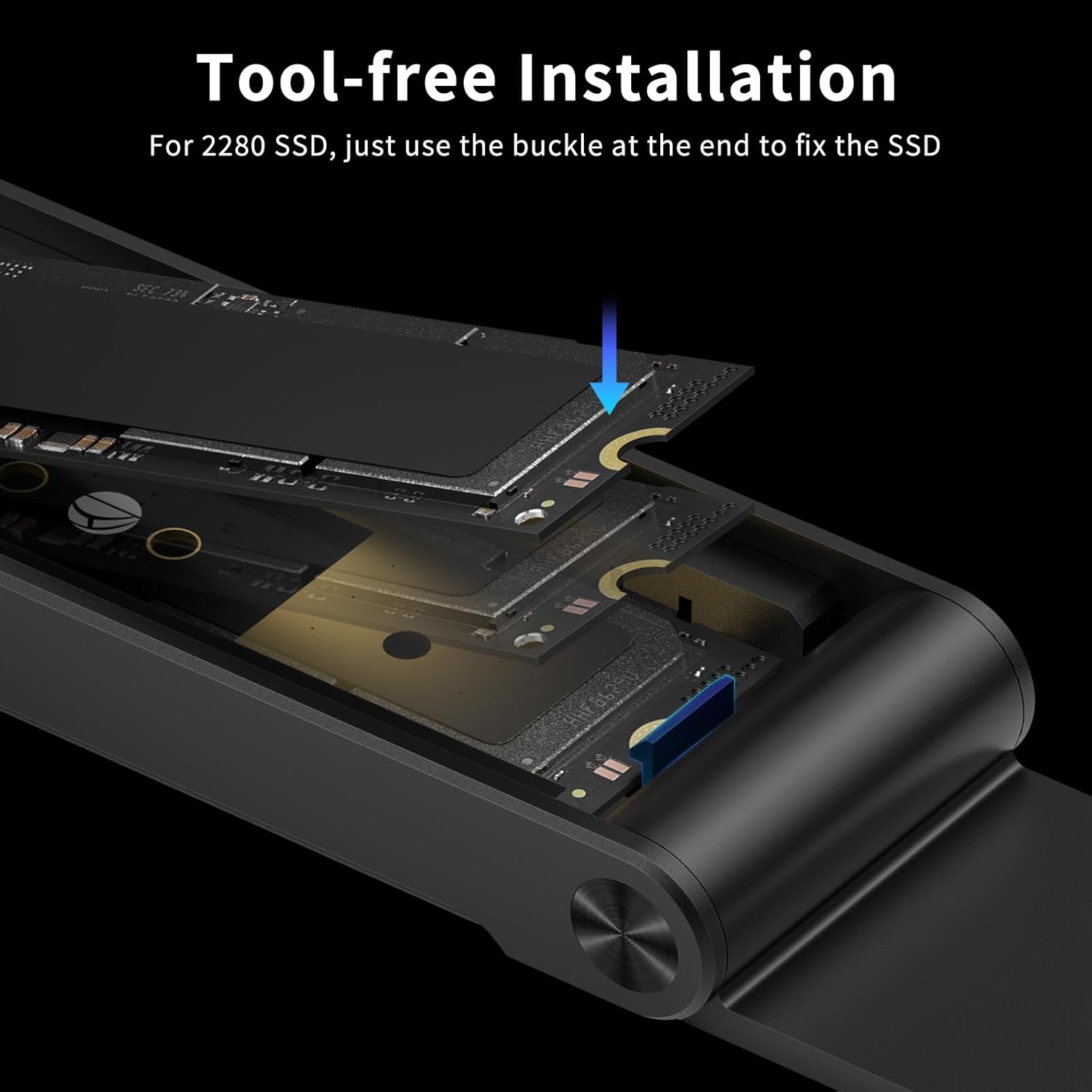
The buckle mechanism secures 2280 SSDs without tools.
4.2. Initial Setup for New SSDs
For a brand new SSD, it needs to be initialized and formatted before it can be recognized and used by your computer. This process is typically done through Disk Management on Windows or Disk Utility on Mac OS. We recommend formatting the SSD to exFAT for maximum compatibility across Windows, Mac OS, and Linux systems. NTFS is only compatible with Windows.
5. Instruccions de funcionament
5.1. Connexió a dispositius
Connect the FIDECO NVMe SSD Enclosure to your computer or compatible device using the provided USB C to C (A) cable. The enclosure supports USB 3.2 Gen 2, offering theoretical transfer speeds of up to 10Gbps. The included cable features a USB-A adapter for broader compatibility with various USB ports.
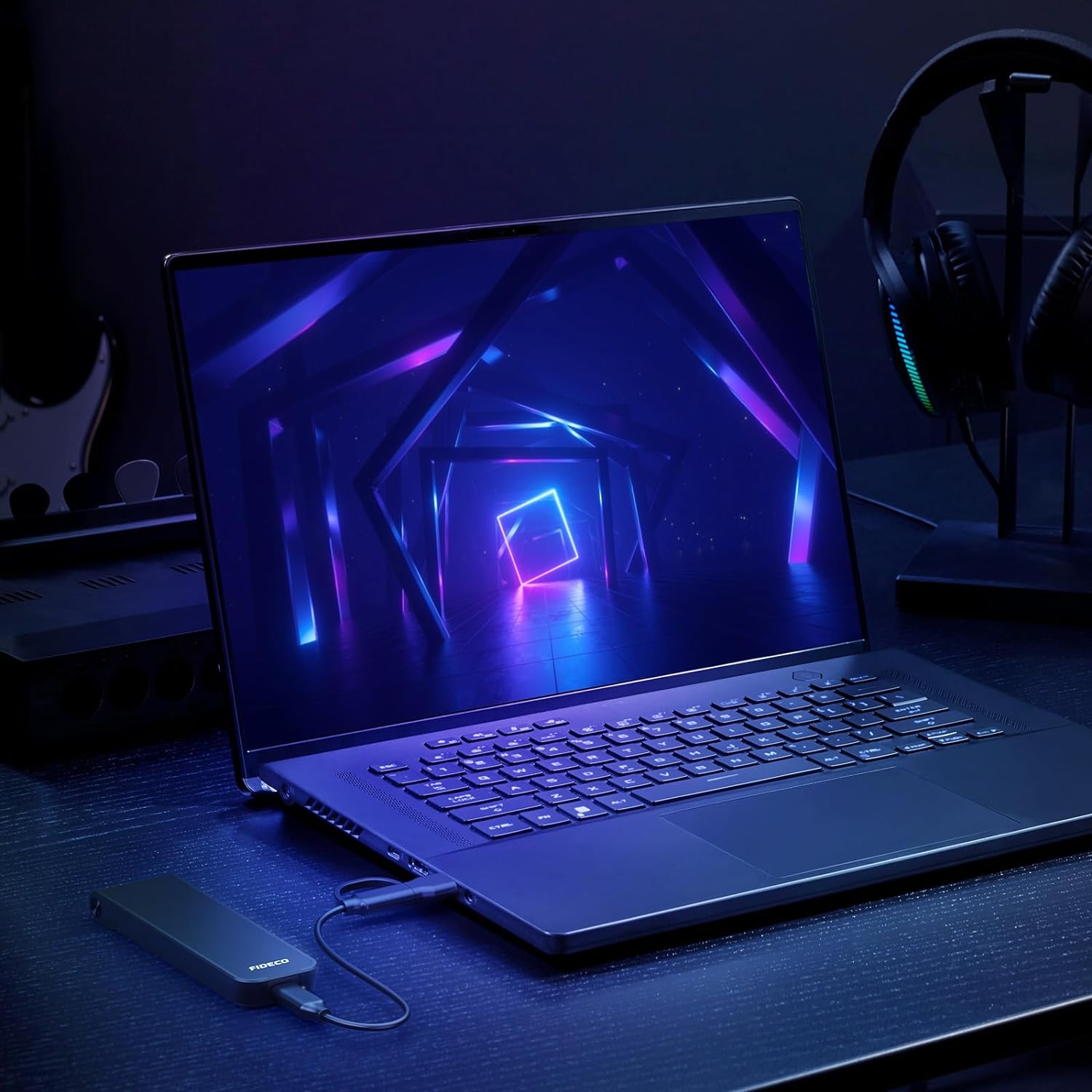
The enclosure seamlessly connects to laptops for high-speed data access.
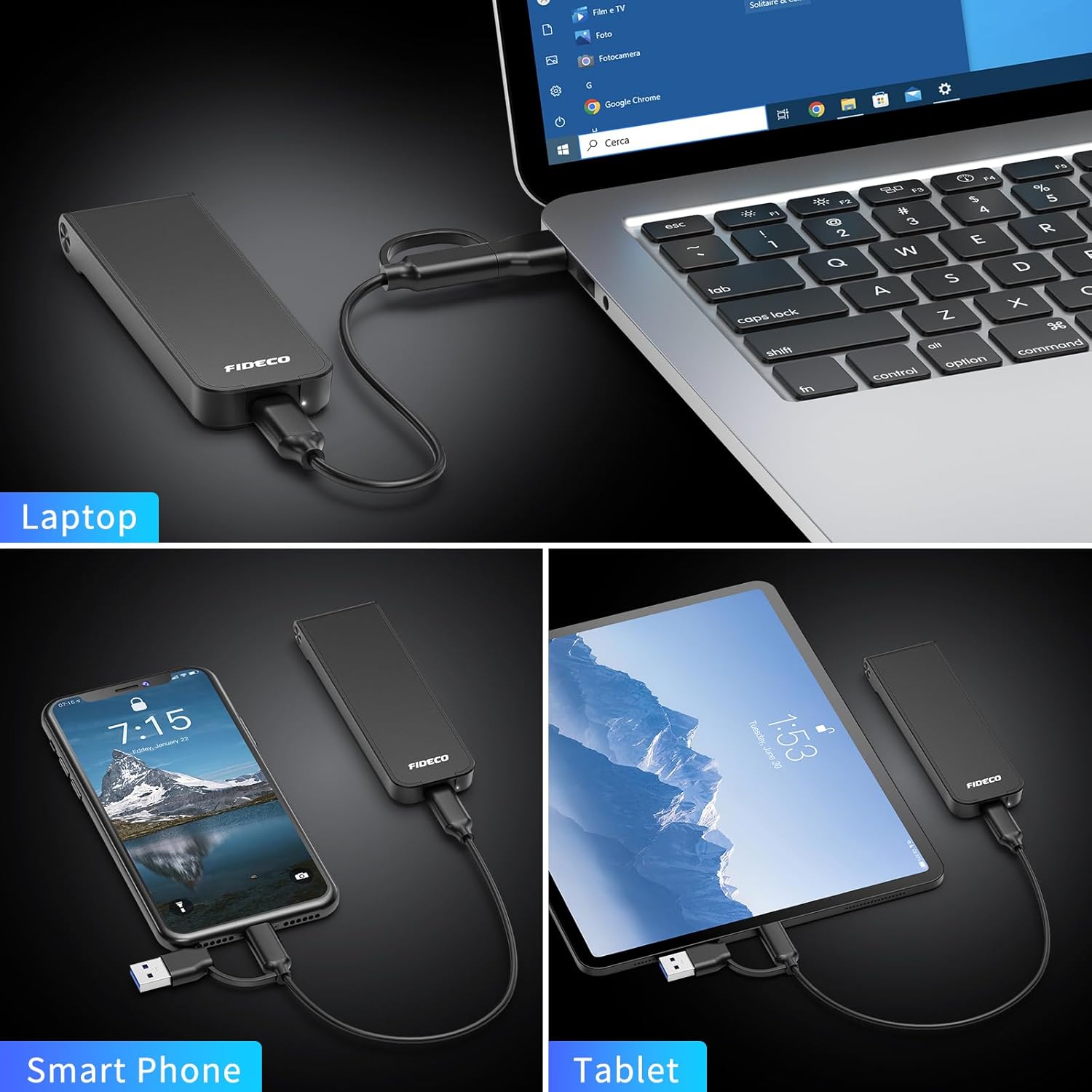
The versatile cable allows connection to various devices, including laptops, smartphones, and tablets.
5.2. Transferència de dades
Once connected and recognized by your system, the SSD will appear as an external drive. You can now drag and drop files, copy, paste, or use backup software to transfer data to and from the enclosure. The USB 3.2 Gen 2 interface, combined with UASP support, ensures efficient and fast data transfers.

Experience high transfer speeds up to 10Gbps for efficient data management.
6. Manteniment
To ensure the longevity and optimal performance of your FIDECO M.2 NVMe SSD Enclosure, follow these maintenance guidelines:
- Neteja: Use a soft, dry cloth to clean the exterior of the enclosure. Avoid using liquid cleaners or solvents.
- Emmagatzematge: Guardeu la caixa en un lloc fresc i sec, allunyat de la llum solar directa i de temperatures extremes.
- Thermal Pad: Ensure the thermal pad is properly placed on the SSD to facilitate heat dissipation. The sandwich design of the enclosure is optimized for this.
- Manipulació: Handle the enclosure with care to prevent drops or impacts that could damage the internal components.

The sandwich design and thermal pad ensure effective heat dissipation for your SSD.
7. Solució De Problemes
If you encounter any issues with your FIDECO M.2 NVMe SSD Enclosure, please refer to the following common problems and solutions:
- SSD no reconegut:
- Ensure the SSD is properly seated in the enclosure and the lid is securely closed.
- For new SSDs, ensure they have been initialized and formatted (refer to Section 4.2).
- Prova de connectar la carcassa a un port USB diferent de l'ordinador.
- Prova amb un altre cable USB si està disponible.
- Verify that your computer's operating system is up to date.
- Velocitats de transferència lentes:
- Ensure you are connected to a USB 3.0 (or higher) port on your computer. USB 2.0 ports will limit speeds.
- Verify that your SSD itself is capable of high speeds.
- Tanqueu altres aplicacions que puguin estar utilitzant molts recursos del sistema.
- For SSDs with capacity 2TB or larger, it is recommended to plug the USB cable to the back USB port of your computer case for stable power delivery.
- La carcassa es desconnecta aleatòriament:
- Assegureu-vos que el cable USB estigui connectat correctament pels dos extrems.
- Try a different USB port or a direct connection to the computer (avoiding USB hubs if possible).
- Check for updated USB drivers on your computer.
8. Garantia i Suport
FIDECO products come with a standard warranty. For specific warranty terms and conditions, please refer to the warranty card included in your package or visit the official FIDECO website. If you require technical support, firmware updates, or have any other questions, please do not hesitate to contact our customer service team:
Correu electrònic: support@fideco.cn
Our support team is dedicated to assisting you with any product-related inquiries.