
Introducció
This manual provides comprehensive instructions for the setup, operation, maintenance, and troubleshooting of your Dexnor Keyboard Case. This accessory is designed to enhance the functionality of your Samsung Galaxy Tab S6 Lite, transforming it into a versatile productivity tool.
Compatibilitat: This keyboard case is exclusively compatible with the Samsung Galaxy Tab S6 Lite 10.4 inch models released in 2024 (SM-P620/P625), 2022 (SM-P613/P619), and 2020 (SM-P610/P615). Please verify your tablet model before use.

Image: Samsung Galaxy Tab S6 Lite compatibility details, highlighting the 10.4-inch screen size and specific model numbers for 2020, 2022, and 2024 releases.
Contingut del paquet
Assegureu-vos que tots els elements estiguin presents al vostre paquet:
- 1 x Dexnor Bluetooth Keyboard Case
- 1 x cable de càrrega USB-C
- 1 x Quick-start Guide
- 1 x Manual d'usuari (aquest document)
Producte acabatview
The Dexnor Keyboard Case integrates several features to enhance your tablet experience:
- Magnetic Floating Cantilever Stand: Provides stable and adjustable viewangles d'ajust.
- Trackpad multitàctil: Supports multi-finger gestures for precise navigation.
- Wireless Backlit Keyboard: Features 7 solid color backlights and 3 adjustable brightness levels for comfortable typing in various lighting conditions.
- Porta-llapis S: Securely stores your S Pen for quick access and prevents loss.
- Bateria recarregable de llarga durada: Offers extended working and standby times.
- Auto Wake/Sleep Function: Conserves battery life by automatically waking or sleeping the tablet when the case is opened or closed.
- Practical Shortcut Keys: A full row of dedicated keys for media control, volume, and other functions.

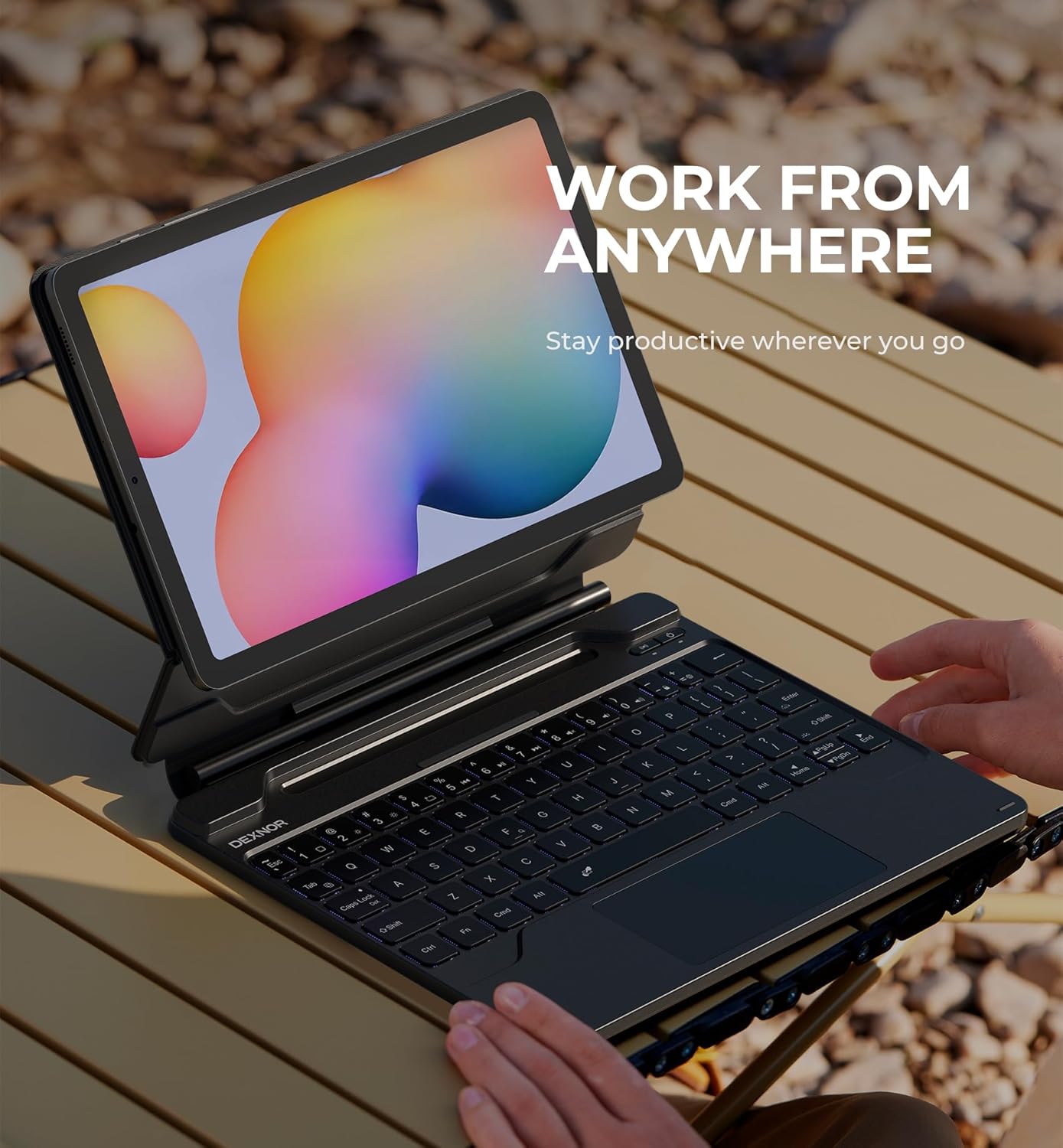
Image: The Dexnor Keyboard Case with a Samsung Galaxy Tab S6 Lite tablet, showcasing the backlit keyboard and floating display.
Configuració
1. Attaching Your Tablet
- Obriu la funda del teclat.
- Align your Samsung Galaxy Tab S6 Lite with the magnetic back panel of the case.
- The tablet will securely snap into place due to the strong magnetic connection.

Image: The Dexnor Keyboard Case with a tablet attached, illustrating its use on a lap and a table, highlighting the secure magnetic attachment.
2. Càrrega del teclat
- Locate the USB-C charging port on the side of the keyboard.
- Connect the included USB-C cable to the keyboard and a compatible USB power adapter (not included).
- L'indicador lluminós de càrrega s'il·luminarà. Una càrrega completa sol trigar aproximadament 3.5 hores.
3. Pairing the Keyboard (Bluetooth)
- Assegureu-vos que el teclat estigui carregat.
- Turn on the keyboard by sliding the power switch (usually located on the side). The Bluetooth indicator light will flash.
- On your Samsung Galaxy Tab S6 Lite, go to Configuració > Connexions > Bluetooth.
- Turn on Bluetooth. Your tablet will search for available devices.
- Select "Dexnor Keyboard" (or a similar name) from the list of available devices.
- Follow any on-screen prompts to complete the pairing process. The Bluetooth indicator light on the keyboard will stop flashing once successfully paired.
Instruccions de funcionament
1. Encendre/apagar
- To power on, slide the power switch to the 'ON' position.
- Per apagar-lo, feu lliscar l'interruptor d'alimentació a la posició "OFF".
2. Ajust del suport
The magnetic floating cantilever stand allows for flexible viewing angles. Gently adjust the tablet's position to achieve your desired angle for typing, viewing, or drawing. The stand is designed to be stable on various surfaces.

Imatge: Side profile of the Dexnor Keyboard Case illustrating the adjustable angles of the floating cantilever stand, including a 125-degree maximum tilt.
3. Using the Backlit Keyboard
The keyboard features 7 solid color backlights and 3 adjustable brightness levels.
- Premeu el botó Bombeta key (usually next to the Spacebar or Function keys) to cycle through backlight colors.
- Premeu Fn + Light Bulb key to adjust backlight brightness (Low, Medium, High, Off).

Imatge: Primer pla view of the Dexnor keyboard with its keys illuminated in blue, demonstrating the backlit feature.
4. Using the Multi-Touch Trackpad
The integrated trackpad supports various multi-finger gestures for efficient navigation:
- Toc amb un sol dit: Feu clic amb el botó esquerre.
- Toc amb dos dits: Right-click (context menu).
- Desplaçament amb dos dits: Desplaça't amunt/avall o esquerra/dreta.
- Pessiga per fer zoom: Apropar o allunyar el contingut.
- Lliscament cap amunt amb tres dits: View aplicacions obertes.
- Three Finger Swipe Left/Right: Canvia entre aplicacions obertes.
Imatge: Detallada view of the Dexnor keyboard's multi-touch trackpad, highlighting its illuminated surface and precision capabilities.
5. Ús de les tecles de drecera
The top row of keys provides quick access to common functions:
- Esc: Home/Back
- F1-F12: Various functions such as screen brightness, media control (play/pause, next/previous track), volume control, and search. Refer to the key icons for specific functions.
- Tecla Fn: Use in combination with other keys to access secondary functions.
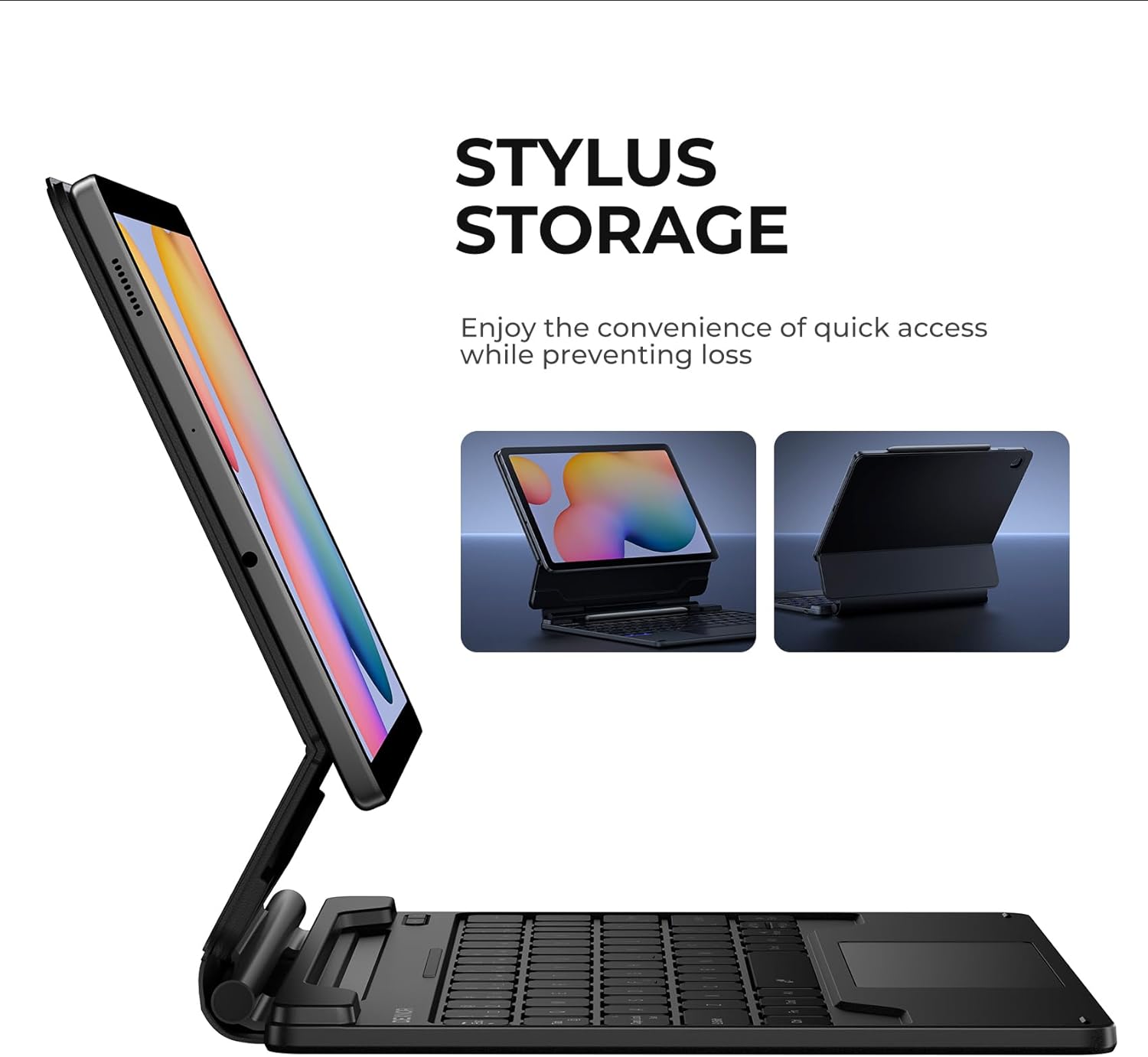
6. S Pen Storage
The integrated magnetic S Pen holder provides a convenient and secure location for your S Pen.
- Simply place your S Pen into the designated slot on the case. The magnetic attraction will hold it in place.
- This ensures your S Pen is always accessible and reduces the risk of misplacement.
Imatge: Lateral view of the Dexnor Keyboard Case illustrating the magnetic S Pen holder, with the S Pen securely stored.
Manteniment
- Neteja: Utilitzeu un suau, damp cloth to wipe the exterior of the case. Avoid harsh chemicals or abrasive materials. For the keyboard keys, use a soft brush or compressed air to remove dust and debris.
- Emmagatzematge: When not in use for extended periods, store the keyboard case in a cool, dry place. Ensure the keyboard is powered off to conserve battery life.
- Eviteu líquids: Do not expose the keyboard case to excessive moisture or submerge it in water.
Resolució de problemes
- El teclat no es connecta:
- Assegureu-vos que el teclat estigui encès i carregat.
- Verify Bluetooth is enabled on your tablet.
- Try unpairing and re-pairing the keyboard in your tablet's Bluetooth settings.
- Restart both the keyboard and your tablet.
- La llum de fons no funciona:
- Assegureu-vos que el teclat tingui prou bateria carregada.
- Press the backlight key to cycle through brightness levels and colors.
- Trackpad Unresponsive:
- Assegureu-vos que el teclat estigui connectat mitjançant Bluetooth.
- Clean the trackpad surface to remove any dirt or obstructions.
- Restart the keyboard and tablet.
- Durada de la bateria curta:
- Assegureu-vos que el teclat estigui completament carregat abans d'utilitzar-lo.
- Reduce backlight brightness or turn it off when not needed.
- Ensure the keyboard is powered off when not in use.
Especificacions
| Número de model | DK006 |
| Dimensions del producte | 9.85 x 7.95 x 0.72 polzades |
| Pes de l'article | 1.43 lliures |
| Tecnologia de connectivitat | Bluetooth |
| Tipus de bateria | 1 bateria de ions de liti (inclosa) |
| Capacitat de la bateria | 650 mAh |
| Temps de treball | Up to 200 hours (without backlight) |
| Temps d'espera | Fins a 1200 hores |
| Temps de càrrega | Aprox. 3.5 hores |
| Colors de contrallum | 7 colors RGB |
| Nivells de brillantor | 3 nivells ajustables |
Garantia i Suport
Dexnor provides a Garantia del fabricant de 1 anys for this product, covering defects in materials and workmanship under normal use. Additionally, lifetime technical support is available to assist you with any questions or issues you may encounter.
For technical assistance or warranty claims, please contact Dexnor customer support through the retailer's platform or the official Dexnor weblloc.


