
MageGee Moon104
Manual d'usuari del teclat mecànic sense fil MageGee Moon104
Model: Moon104
Introducció
This manual provides comprehensive instructions for the setup, operation, maintenance, and troubleshooting of your MageGee Moon104 Wireless Mechanical Keyboard. Please read this manual thoroughly to ensure optimal performance and longevity of your device.

Image: The MageGee Moon104 Wireless Mechanical Keyboard, showcasing its full layout and the included USB receiver.
Contingut del paquet
En obrir el paquet, comproveu que hi hagi tots els elements:
- MageGee Moon104 Wireless Mechanical Keyboard
- Cable USB-C a USB-A
- Receptor USB de 2.4 GHz
- Manual d'usuari (aquest document)
Especificacions
| Característica | Detall |
|---|---|
| Model | Moon104 |
| Dimensions (L x A x A) | 16.73" x 16.73" x 0.98" (42.49 cm x 42.49 cm x 2.49 cm) |
| Pes de l'article | 2.33 lliures (1.06 kg) |
| Connectivitat | USB-C Wired, 2.4GHz Wireless, Bluetooth 3.0/5.0 |
| Tipus de teclat | Mecànic, Low Profile |
| Interruptors | Interruptors mecànics marrons |
| Il·luminació de fons | RGB Backlit (Seven-color breathing system) |
| Compatibilitat | Windows, macOS |
| Ús recomanat | Oficina |

Imatge: Un cop mésview of the MageGee Moon104 keyboard's key features, including its tri-mode connectivity, low-profile switches, RGB backlighting, and ergonomic design.
Configuració
1. Càrrega del teclat
Before first use, it is recommended to fully charge the keyboard using the provided USB-C cable. Connect the USB-C end to the keyboard and the USB-A end to a powered USB port on your computer or a wall adapter.

Imatge: Un primer pla view of the MageGee Moon104 keyboard showing the detachable USB-C cable connected to its port.
2. Connexió del teclat
The MageGee Moon104 supports three connection modes: USB-C Wired, 2.4GHz Wireless, and Bluetooth.

Image: The MageGee Moon104 keyboard demonstrating its tri-mode connection capabilities, showing both wired USB-C and the 2.4GHz receiver in use.
2.1. Connexió amb cable USB-C
- Connect the USB-C end of the cable to the keyboard's port.
- Connect the USB-A end to an available USB port on your computer.
- El teclat es reconeixerà automàticament i estarà llest per al seu ús.
2.2. Connexió sense fil de 2.4 GHz
- Locate the 2.4GHz USB receiver (usually stored in a compartment on the keyboard or included separately).
- Connecteu el receptor USB a un port USB disponible de l'ordinador.
- Al teclat, premeu Fn + Q to switch to 2.4GHz wireless mode. The indicator light will confirm the connection.
2.3. Connexió Bluetooth
- Al teclat, premeu Fn + W or Fn + E to select a Bluetooth channel (BT1 or BT2). The indicator light will flash, indicating pairing mode.
- On your device (computer, laptop, smart TV), enable Bluetooth and search for new devices.
- Select "MageGee Moon104" from the list of available devices to pair.
- Once paired, the indicator light on the keyboard will become solid.
Instruccions de funcionament
1. Switching Between Connection Modes
To switch between the three connection modes, use the following key combinations:
- Fn + TAB: Switch to USB-C Wired Mode
- Fn + Q: Switch to 2.4GHz Wireless Mode
- Fn + W: Switch to Bluetooth Channel 1 (BT1)
- Fn + E: Switch to Bluetooth Channel 2 (BT2)
2. Control de retroiluminació RGB
The keyboard features an RGB backlight system with multiple effects and brightness levels.

Image: The MageGee Moon104 keyboard displaying its vibrant RGB backlighting across the keys.
- Ajust de brillantor: Ús Fn + ↑ (increase brightness) and Fn + ↓ (reduir la brillantor).
- Canvi de modes d'il·luminació: Ús Fn + → or Fn + ← to cycle through different RGB effects.
- Ajust de velocitat: Ús Fn + - (decrease speed) and Fn + = (increase speed) for dynamic lighting effects.
3. Windows/macOS Compatibility Switch
The keyboard includes a physical switch to toggle between Windows and macOS layouts for optimal key mapping.

Image: A close-up of the MageGee Moon104 keyboard highlighting the physical switch to select between Windows and Mac operating system compatibility.
- Localitza el WIN/MAC switch on the side or back of the keyboard.
- Slide the switch to the appropriate operating system setting.
4. Tecles de funció (F1-F12)
The F-keys often have secondary functions accessible by pressing them in combination with the Fn key. Refer to the keycaps for specific icons indicating these functions (e.g., media control, volume, brightness).
Disseny ergonòmic
The MageGee Moon104 is designed with ergonomics in mind to reduce wrist strain during extended use. It features low-profile mechanical switches and adjustable tilt feet.

Image: The MageGee Moon104 keyboard positioned on a desk, showcasing its ergonomic profile and comfortable typing angle.
- Peus inclinables ajustables: Extend the feet on the underside of the keyboard to adjust the typing angle to your preference.
- Pro baixfile Interruptors: El low-profile design of the mechanical switches contributes to a flatter keyboard, reducing the need for excessive wrist extension.
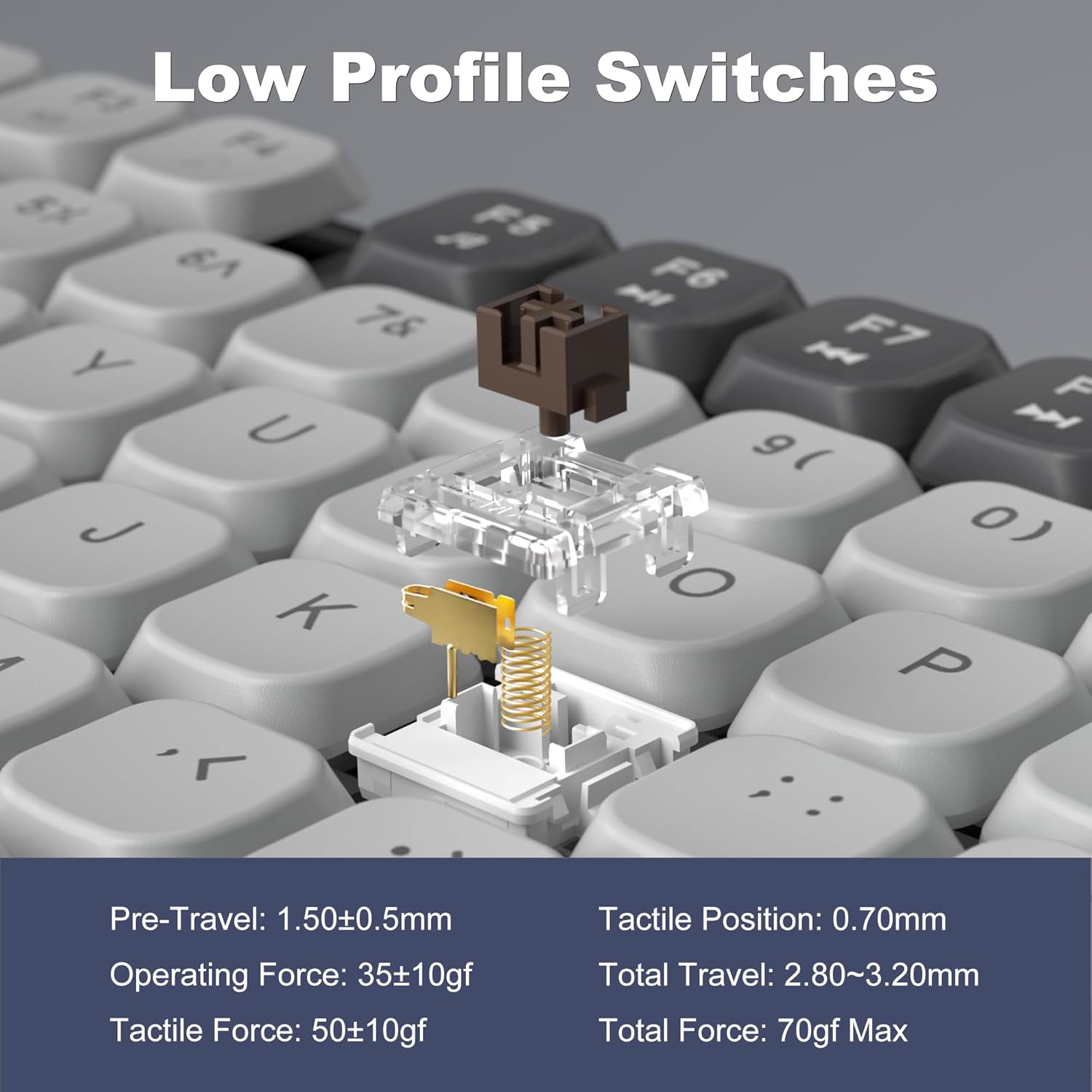
Image: A detailed diagram illustrating the internal structure and operational specifications of the low-profile mechanical switches used in the MageGee Moon104 keyboard.
Manteniment
Per garantir la longevitat i el rendiment òptim del teclat, seguiu aquestes pautes de manteniment:
- Neteja: Use a soft, dry cloth to wipe the surface of the keyboard. For deeper cleaning, use compressed air to remove dust and debris from between the keycaps. Avoid using harsh chemicals or abrasive materials.
- Emmagatzematge: Quan no l'utilitzeu durant períodes prolongats, guardeu el teclat en un lloc fresc i sec, allunyat de la llum solar directa i de temperatures extremes.
- Cura de la bateria: Avoid fully discharging the battery frequently. Charge the keyboard regularly to maintain battery health.
Resolució de problemes
If you encounter issues with your MageGee Moon104 keyboard, refer to the following common solutions:
- El teclat no respon:
- Assegureu-vos que el teclat estigui carregat.
- Verify the correct connection mode is selected (Wired, 2.4GHz, or Bluetooth).
- Per a 2.4 GHz, assegureu-vos que el receptor USB estigui ben connectat.
- For Bluetooth, ensure the keyboard is paired and within range of your device. Try re-pairing if necessary.
- If using wired mode, try a different USB port or cable.
- La retroiluminació no funciona o és incorrecta:
- Check backlight brightness settings using Fn + ↑.
- Canvieu pels modes d'il·luminació utilitzant Fn + → or Fn + ←.
- Assegureu-vos que la bateria del teclat tingui prou càrrega.
- Keys Not Registering or Double Typing:
- Clean the affected key with compressed air to remove any debris.
- Assegureu-vos que el teclat estigui completament carregat.
- If the issue persists, try connecting the keyboard to a different device to rule out software or driver issues on your primary computer.
- Function Keys (F1-F12) Not Working:
- Assegureu-vos que esteu prement el botó Fn key in combination with the desired F-key for secondary functions.
- Verify the keyboard is set to the correct operating system (Windows/Mac) using the physical switch.
Garantia i Suport
MageGee provides a 1-year warranty for the Moon104 Wireless Mechanical Keyboard. If you encounter any product issues or have questions, please contact MageGee customer support via Amazon email. They aim to reply within 24 hours and provide a satisfactory solution.
Per obtenir ajuda, visiteu el MageGee Store on Amazon or contact their customer service directly through your Amazon order details.
Ask a question about this manual
Ask about setup, troubleshooting, compatibility, parts, safety, or missing instructions. Manuals+ will review the question and use this page’s manual context to help answer it.