
1. Introducció
Thank you for choosing the Gawfolk GF270C 27-inch Curved Gaming Monitor. This manual provides essential information for setting up, operating, and maintaining your monitor. Please read it thoroughly before use to ensure proper functionality and to maximize your viewexperiència.
2. Instruccions de seguretat importants
- Do not expose the monitor to rain or moisture to prevent fire or electric shock hazards.
- No obriu el monitor casing. No hi ha peces a l'interior que l'usuari pugui reparar. Demaneu totes les tasques de manteniment a personal qualificat.
- Col·loqueu el monitor sobre una superfície estable i plana per evitar que caigui.
- Assegureu-vos que hi hagi una ventilació adequada al voltant del monitor. No bloquegeu les obertures de ventilació.
- Feu servir només l'adaptador de corrent que s'inclou amb el monitor.
- Desconnecteu l'endoll de la presa de corrent si no heu d'utilitzar el monitor durant un període prolongat.
- Eviteu col·locar objectes pesats al cable d'alimentació.
- Mantingueu el monitor allunyat de la llum solar directa, de fonts de calor i de temperatures extremes.
3. Contingut del paquet
Si us plau, comproveu el contingut del paquet per assegurar-vos que hi hagi tots els elements:
- Gawfolk GF270C 27-Inch Curved Gaming Monitor
- Suport de monitor (base i coll)
- Adaptador d'alimentació
- Cable HDMI
- Cable DisplayPort (DP)
- Manual d'usuari
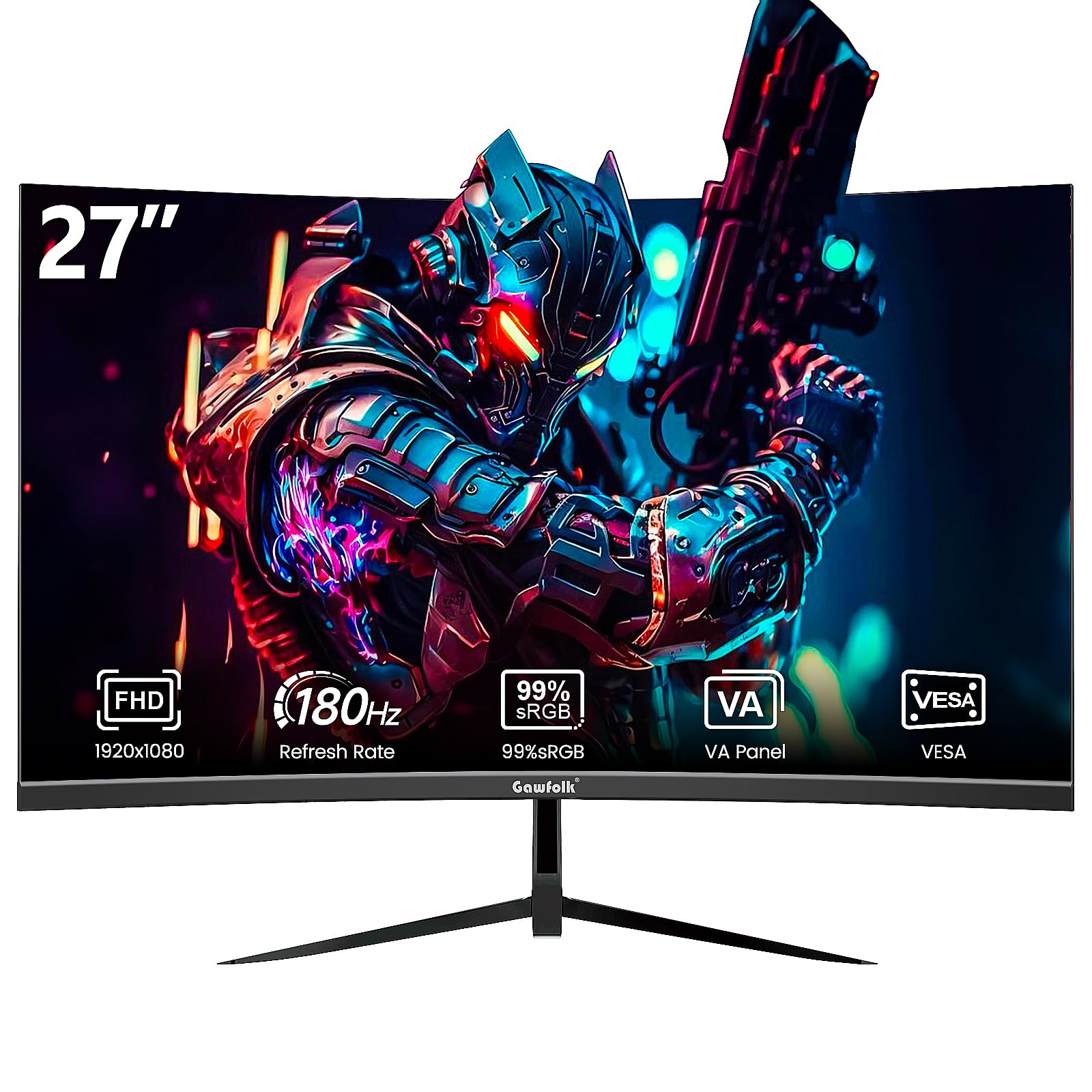
Image: Gawfolk GF270C monitor and typical accessories.
4. Guia de configuració
4.1 Muntatge del suport
Segueix aquests passos per fixar el suport al monitor:
- Col·loqueu amb cura el monitor cara avall sobre un drap suau i net per evitar ratllades.
- Attach the stand neck to the back of the monitor by aligning the tabs and pushing until it clicks into place or securing with screws if provided.
- Attach the stand base to the stand neck, securing it with the thumb screw or screws provided.
- Carefully lift the monitor and place it on a stable desk.
4.2 Wall Mounting (VESA)
The monitor supports VESA 100mm x 100mm mounting. To wall mount the monitor, you will need to remove the stand neck (if attached) and use a compatible VESA wall mount kit (sold separately).

Imatge: Part posterior view of the monitor showing VESA 100x100mm mounting points and port locations.
4.3 Connexió del monitor
Connect your devices to the monitor using the available ports:
- Connexió d'alimentació: Connect the power adapter to the monitor's DC 12V input and then plug it into a power outlet.
- Connexió HDMI: Connect one end of the HDMI cable to the monitor's HDMI port and the other end to the HDMI output of your computer or gaming console. (Supports up to 144Hz refresh rate via HDMI).
- Connexió DisplayPort (DP): Connect one end of the DisplayPort cable to the monitor's DP port and the other end to the DisplayPort output of your computer or gaming console. (Supports up to 180Hz refresh rate via DP).
- Sortida d'àudio: Connect external speakers or headphones to the 3.5mm Audio Out port for audio playback.
Note: Exact refresh rate performance depends on your CPU, consoles, and applications.
5. Instruccions de funcionament
5.1 Engegada/apagada
- Encès: Press the power button located on the monitor. The power indicator light will illuminate.
- Apagar: Press the power button again to turn off the monitor.
5.2 Menú de visualització en pantalla (OSD)
The OSD menu allows you to adjust various monitor settings. The specific controls (buttons or joystick) are typically located on the back or bottom of the monitor.
- Accessing the OSD: Press the OSD menu button (or push the joystick) to open the menu.
- Navegació: Use the directional buttons or joystick to navigate through the menu options.
- Selecció: Press the select button (or push the joystick in) to confirm a selection.
- Sortida: Use the exit button or navigate to the 'Exit' option to close the OSD menu.
5.3 Configuració comuna de l'OSD
- Brillantor/Contrast: Ajusta la luminància i el contrast generals de la pantalla.
- Configuració de color: Modifiqueu la temperatura de color, el gamma i els nivells RGB individuals.
- Font d'entrada: Manually select between HDMI and DisplayPort inputs.
- Mode d'imatge: Choose from preset display modes (e.g., Standard, Game, Movie, Text).
- Característiques del joc: Enable/disable Adaptive-Sync, Crosshair function, and other gaming-specific enhancements.
- Llum blava baixa: Adjust the blue light filter level to reduce eye strain.
6. Característiques de joc
The Gawfolk GF270C monitor is equipped with features designed to enhance your gaming experience.
6.1 High Refresh Rate (180Hz)
Experience smoother motion and reduced input lag with a high refresh rate of up to 180Hz. This allows for more frames per second, providing a competitive edge in fast-paced games.

Image: Visual representation of smoother motion at 180Hz compared to lower refresh rates.
6.2 Tecnologia de sincronització adaptativa
Adaptive-Sync technology synchronizes the monitor's refresh rate with your graphics card's frame rate, eliminating screen tearing and stuttering for fluid gameplay. This feature is automatically enabled when compatible hardware is detected and configured.

Image: Visual comparison of screen tearing with Adaptive-Sync off versus smooth display with Adaptive-Sync on.
6.3 Crosshair Function (Gameplay Assist)
The monitor includes a built-in crosshair function, which can be enabled via the OSD menu. This feature provides an on-screen aiming reticle, potentially assisting in games that lack a native crosshair or for improved precision.

Image: Depiction of the monitor's gameplay assist feature, showing an on-screen crosshair for improved targeting.
6.4 Low Blue Light & Flicker-Free
To reduce eye strain during extended use, the monitor incorporates Low Blue Light and Flicker-Free technologies. The Low Blue Light feature minimizes harmful blue light emissions, while Flicker-Free technology eliminates screen flickering, providing a more comfortable viewexperiència.

Image: Monitor displaying content with reduced blue light, illustrating the eye care feature.
7. Manteniment
7.1 Neteja del monitor
- Desconnecteu sempre el monitor abans de netejar-lo.
- Utilitzeu un drap suau i sense pelusa dampesbandida amb aigua o un netejador de pantalles suau i no abrasiu.
- No ruixeu el netejador directament sobre la pantalla.
- Eviteu utilitzar benzè, diluent, netejadors a base d'amoníac o materials abrasius.
7.2 Emmagatzematge
When storing the monitor, ensure it is kept in a cool, dry place, away from direct sunlight and extreme temperatures. If possible, use the original packaging for protection.
8. Solució De Problemes
If you encounter issues with your monitor, please refer to the following table for common problems and solutions.
| Problema | Causa possible | Solució |
|---|---|---|
| Sense poder | Cable d'alimentació no connectat; Presa de corrent no funciona; Monitor apagat. | Ensure power cable is securely connected. Test the power outlet. Press the monitor's power button. |
| Sense senyal | Cable de vídeo no connectat; font d'entrada incorrecta seleccionada. | Check HDMI/DP cable connections. Select the correct input source via the OSD menu. |
| Image Flickering | Faulty cable; Graphics card issue; Refresh rate mismatch. | Replace video cable. Update graphics drivers. Ensure refresh rate is set correctly in OS display settings. |
| Incorrect Resolution/Refresh Rate | OS display settings incorrect; Cable limitation. | Adjust resolution and refresh rate in your computer's display settings. Ensure you are using a DisplayPort cable for 180Hz. |
| Els colors semblen esborrats o incorrectes | Configuració de color a l'OSD; Configuració de la targeta gràfica. | Adjust color settings (brightness, contrast, gamma) in the OSD menu. Check graphics card color settings. |
9. Especificacions del producte
| Característica | Especificació |
|---|---|
| Número de model | GF270C |
| Mida de la pantalla | 27 polzades |
| Tipus de panell | VA (Curved) |
| Resolució | FHD 1920 x 1080p |
| Relació d'aspecte | 16:9 |
| Freqüència d'actualització | Up to 180 Hz (DP), Up to 144 Hz (HDMI) |
| Temps de resposta | 1 mil·lisegon |
| Relació de contrast | 3000:1 |
| Brillantor | 250 Candela |
| Gamma de colors | 99% sRGB |
| Viewangle ing | 178 graus |
| Connectivitat | 1x HDMI, 1x DisplayPort, 1x USB (Charging Only), 1x 3.5mm Audio Out |
| Compatibilitat VESA | 100 mm x 100 mm |
| Característiques especials | Adaptive-Sync, Curved, Eye Care, Flicker-Free, Frameless |
| Dimensions (P x A x A) | 4.7 "P x 26.7" W x 17.7" H |
| Pes | 4.7 quilos |
10. Garantia i Suport
Your Gawfolk GF270C monitor comes with a Garantia del fabricant de 12 mesos des de la data de compra. Aquesta garantia cobreix defectes de fabricació i avaries en condicions d'ús normal.
For technical support, warranty claims, or any questions regarding your product, please contact Gawfolk customer service. Refer to the contact information provided on the product packaging or the official Gawfolk weblloc.
Please have your model number (GF270C) and proof of purchase ready when contacting support.