
EZVIZ H9c
EZVIZ H9c 3K Dual-Lens Camera User Manual
Model: H9c
1. Introducció
Thank you for choosing the EZVIZ H9c 3K Dual-Lens Camera. This advanced outdoor security camera features unique dual-lens technology, combining a wide-angle lens with a pan-tilt-zoom lens for comprehensive surveillance. Designed for robust outdoor use, the H9c provides intelligent tracking, 3K resolution, and enhanced night vision capabilities to ensure your property is protected.
This manual provides detailed instructions for the installation, operation, and maintenance of your H9c camera. Please read it carefully before use and retain it for future reference.
2. Contingut del paquet
Please check that all components are present and in good condition upon opening the package. If any items are missing or damaged, contact your retailer or EZVIZ customer support.
- EZVIZ H9c 3K Dual-Lens Camera
- Adaptador d'alimentació
- Plantilla de muntatge
- Screw Kit (screws and wall plugs)
- Kit impermeable
- Guia d'inici ràpid
3. Producte acabatview
Familiarize yourself with the various parts of your EZVIZ H9c camera.
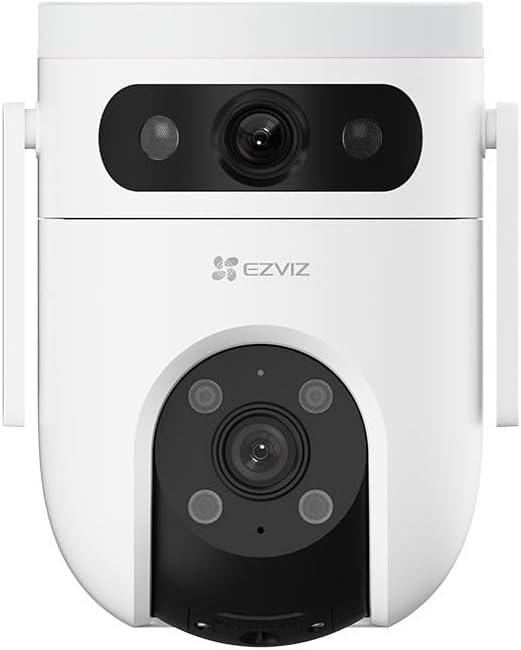
Figura 3.1: Frontal View - Shows the upper wide-angle lens, lower pan-tilt-zoom lens, and EZVIZ logo. The upper lens includes IR lights for night vision, and the lower lens has additional IR/spotlights.

Figura 3.2: lateral View - Illustrates the mounting bracket and the sleek profile of the camera, highlighting its outdoor-ready design.
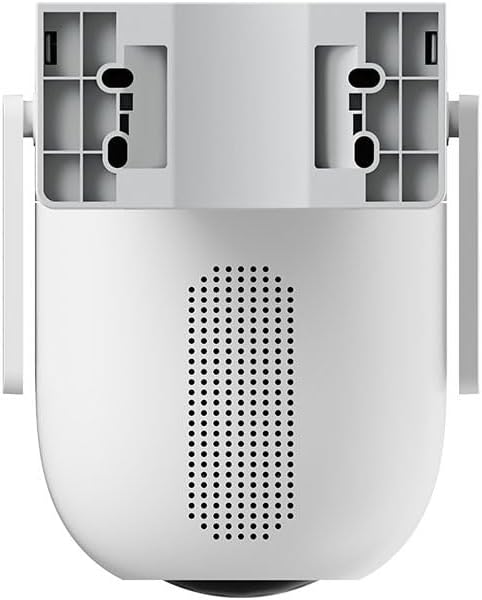
Figura 3.3: Esquena View - Displays the speaker grille for two-way audio and ventilation openings.

Figura 3.4: A baix View - Reveals the MicroSD card slot, protected by a cover, for local storage of recordings.
Components clau:
- Upper Wide-Angle Lens: Provides a broad overview de la zona vigilada.
- Lower Pan-Tilt-Zoom (PTZ) Lens: Offers detailed views and can track subjects with 5x optical zoom and 360-degree field of view.
- Llums infrarojes (IR): For clear night vision.
- Micròfon: Per a entrada d'àudio.
- Ponent: Per a comunicació d'àudio bidireccional i sirena.
- Ranura per a targeta MicroSD: Per a emmagatzematge de vídeo local (targeta no inclosa).
- Botó de restabliment: Used for factory reset (typically located near the SD card slot).
- Port d'alimentació: Per connectar l'adaptador de corrent.
4. Configuració i instal·lació
4.1 Configuració inicial
- Baixeu l'aplicació EZVIZ: Cerca "EZVIZ" a l'App Store (iOS) o a Google Play Store (Android) i descarrega l'aplicació oficial.
- Crea un compte EZVIZ: Obre l'aplicació i segueix les instruccions que apareixen a la pantalla per registrar un compte nou o iniciar la sessió si ja en tens un.
- Enceneu la càmera: Connect the power adapter to the camera's power port and plug it into a power outlet. Wait for the indicator light to flash blue, indicating it's ready for setup.
- Afegeix una càmera a l'aplicació: In the EZVIZ app, tap the "+" icon on the home screen to add a new device. Scan the QR code located on the camera or its packaging. Follow the in-app prompts to connect the camera to your Wi-Fi network. Ensure your Wi-Fi network is 2.4 GHz.
- Inseriu la targeta MicroSD (opcional): If you wish to store recordings locally, gently insert a MicroSD card (Class 10 or higher, up to 512GB) into the designated slot on the camera (refer to Figure 3.4). Ensure the camera is powered off before inserting or removing the card.
4.2 Muntatge de la càmera
The H9c camera is designed for outdoor installation. Choose a location that provides the desired viewing angle, has a stable Wi-Fi signal, and is within reach of a power outlet.
- Trieu una ubicació: Select a sturdy surface (wall or ceiling) that can support the camera's weight. Ensure there are no obstructions to the camera's field of view.
- Utilitzeu la plantilla de muntatge: Place the mounting template (included in the package) on the desired installation surface and mark the screw holes.
- Forats: Drill pilot holes at the marked positions. Insert wall plugs if mounting on masonry or concrete.
- Assegureu la càmera: Align the camera's mounting base with the drilled holes and secure it using the provided screws.
- Impermeable les connexions: Use the waterproof kit to protect the power cable connection from moisture, especially for outdoor installations.
- Ajust d'angle: Once mounted, adjust the camera's angle in the EZVIZ app to ensure optimal coverage.
5. Funcionament de la càmera
The EZVIZ H9c camera offers a range of features accessible through the EZVIZ mobile application.
5.1 Dual-Lens Functionality
The H9c utilizes two lenses for enhanced surveillance:
- Lent gran angular: Provides a static, broad view of the area, ideal for general monitoring.
- Pan-Tilt-Zoom (PTZ) Lens: This lens can be remotely controlled via the app to pan horizontally (360 degrees), tilt vertically, and zoom in (5x optical zoom) for detailed inspection.
- Seguiment intel·ligent: If the wide-angle lens detects a person, the PTZ lens can automatically rotate to track the person's movement, ensuring continuous coverage of the activity. This allows for simultaneous monitoring of a wide area and detailed tracking of specific events.
5.2 Detecció de moviment i alertes
- Zones de detecció personalitzables: Defineix àrees específiques dins de la càmera view on voleu que la detecció de moviment estigui activa.
- Human Shape Detection: The camera can intelligently distinguish human shapes from other moving objects, reducing false alarms.
- Notificacions instantànies: Receive real-time alerts on your smartphone when motion is detected.
- Defensa activa: Upon detection, the camera can activate a siren and strobe lights to deter intruders.
5.3 Visió nocturna
The H9c provides clear surveillance even in low-light conditions:
- Visió nocturna per infrarojos: Automatically switches to black and white infrared mode in the dark.
- Visió nocturna en color: With built-in spotlights, the camera can provide full-color night vision when sufficient ambient light is available or when spotlights are activated.
5.4 Àudio bidireccional
Communicate with visitors or deter intruders using the built-in microphone and speaker. Access this feature through the live view in the EZVIZ app.
5.5 Enregistrament i emmagatzematge de vídeo
- Emmagatzematge local: Supports MicroSD card storage (up to 512GB) for continuous or event-based recording.
- Emmagatzematge al núvol: Optional EZVIZ CloudPlay subscription service for secure cloud storage.
- Reproducció: View foo gravattage directly from the EZVIZ app.
6. Manteniment
Un manteniment regular garanteix un rendiment òptim i una llarga vida útil de la càmera.
- Neteja: Netegeu suaument la lent i el cos de la càmera amb un drap suau iamp cloth. Do not use harsh chemicals or abrasive cleaners. Ensure the camera is powered off before cleaning.
- Actualitzacions de firmware: Comproveu i instal·leu regularment si hi ha actualitzacions de firmware a través de l'aplicació EZVIZ. Les actualitzacions sovint inclouen millores de rendiment, noves funcions i millores de seguretat.
- Gestió de targetes MicroSD: If using a MicroSD card, periodically check its status in the app. Format the card regularly (e.g., monthly) to maintain optimal recording performance. Back up important footage abans de formatar.
- Font d'alimentació: Ensure the power adapter and cable are free from damage. Replace if any wear or tear is observed.
- Condicions ambientals: While designed for outdoor use, avoid exposing the camera to extreme temperatures outside its operating range or direct, prolonged water submersion.
7. Solució De Problemes
If you encounter issues with your EZVIZ H9c camera, refer to the following common problems and solutions.
7.1 Camera Offline / Cannot Connect
- Comproveu la potència: Ensure the camera is properly connected to a power source and the adapter is working.
- Senyal Wi-Fi: Verify that your Wi-Fi router is working and the camera is within range. Try moving the camera closer to the router or using a Wi-Fi extender.
- Configuració del router: Confirm your Wi-Fi network is 2.4 GHz. Ensure there are no MAC address filters or other network restrictions preventing the camera from connecting.
- Reinicieu els dispositius: Power cycle both the camera and your Wi-Fi router.
- Restableix la càmera: If the issue persists, press and hold the reset button on the camera for 5-10 seconds until the indicator light flashes, then re-add the camera through the EZVIZ app.
7.2 Mala qualitat d'imatge
- Neteja la lent: Ensure the camera lens is clean and free from dust, dirt, or smudges.
- Ample de banda de xarxa: A weak Wi-Fi signal can affect video quality. Check your network speed and camera's signal strength in the app.
- Condicions d'il·luminació: Ensure adequate lighting for optimal color vision. In very low light, the camera will switch to black and white night vision.
7.3 Motion Detection Not Working / Too Many False Alarms
- Comprova la configuració: Verify that motion detection is enabled in the EZVIZ app and detection sensitivity is appropriately set.
- Zones de detecció: Adjust detection zones to focus on critical areas and exclude irrelevant ones (e.g., moving trees, busy roads).
- Human Shape Detection: Ensure human shape detection is enabled to filter out non-human movements.
8. Especificacions
| Nom del model | H9c |
| Marca | EZVIZ |
| Resolució | 3K (50 MP Photosensor Resolution) |
| Tecnologia de connectivitat | Sense fil (Wi-Fi) |
| Característiques especials | Night Vision, Dual-Lens, Pan-Tilt-Zoom, Intelligent Tracking, Two-Way Audio |
| Entorn d'ús | A l'aire lliure |
| Zoom òptic | 5x |
| Camp de View | 360 Degrees (PTZ lens) |
| Nivell de resistència a l'aigua | Resistent a l'aigua |
| Material | Plàstic |
| Pes | 200 grams |
| Components inclosos | Camera and two 3K-lenses |
| Upper Temperature Range | 100 graus centígrads |
| Format de gravació de vídeo | AVI |
9. Garantia i Suport
For detailed warranty information, please refer to the warranty card included with your product or visit the official EZVIZ website. EZVIZ provides technical support and customer service to assist with any questions or issues you may encounter.
EZVIZ oficial Weblloc: www.ezviz.com
You can find FAQs, troubleshooting guides, and contact information for customer support on their weblloc.
Ask a question about this manual
Ask about setup, troubleshooting, compatibility, parts, safety, or missing instructions. Manuals+ will review the question and use this page’s manual context to help answer it.