
1. Introducció
The KCEVE 8K DisplayPort KVM Switch allows you to control two computers from a single set of keyboard, mouse, and monitor. This device is designed to streamline your workspace and enhance productivity by eliminating the need for multiple peripheral sets. It supports high-resolution video output and high-speed USB 3.0 data transfer.
2. Contingut del paquet
Si us plau, verifiqueu que tots els elements que s'enumeren a continuació estiguin inclosos al vostre paquet:
- 1 x KCEVE 8K DisplayPort KVM Switch Unit
- 2 x USB 3.0 A-to-A Cables (1.5m)
- 1 x Wired Remote Control Button (1.5m)
- 1 x USB Power Cable (5V)
- 1 x Manual d'usuari
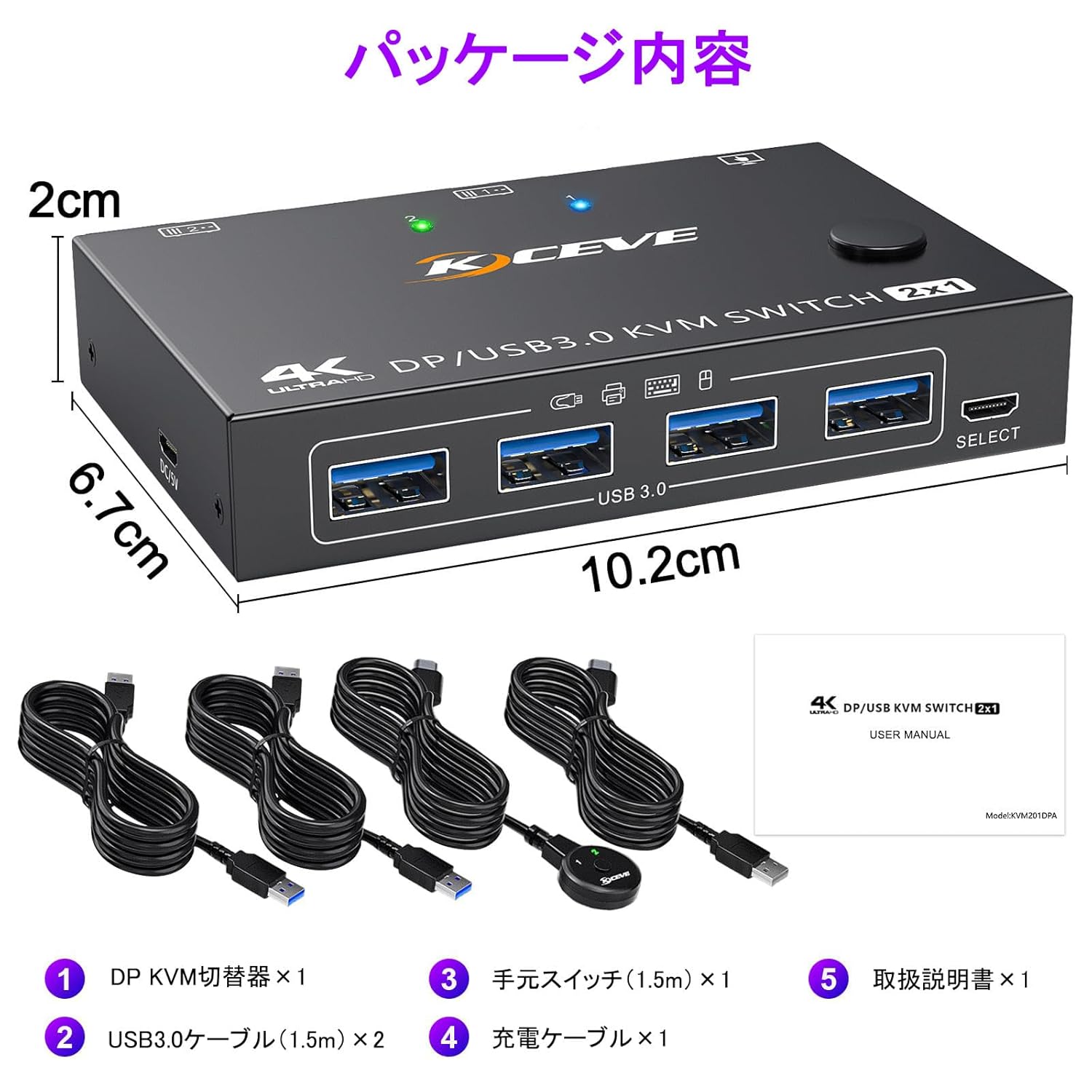
Image: Package contents including the KVM switch, cables, remote, and user manual. Dimensions are shown as 10.2cm x 6.7cm x 2cm.
3. Característiques del producte
- 2-in-1 Out KVM Functionality: Control two computers using a single keyboard, mouse, and monitor.
- Suport d'alta resolució: Equipped with DisplayPort 1.4, supporting resolutions up to 8K@30Hz, 4K@144Hz, 3440x1440@144Hz, 4K@60Hz, 1920x1080@60Hz, and 1080P.
- High-Speed USB 3.0 Ports: Features four USB 3.0 ports with data transfer speeds up to 5Gbps, significantly faster than USB 2.0 (480Mbps). Supports various USB devices including keyboards, mice, printers, scanners, and U-disks.
- Canvi fàcil: Switch between connected computers using either the button on the main unit or the included wired remote control.
- Driver-Free & Plug-and-Play: No driver installation required. Simply connect and use.
- Àmplia compatibilitat: Compatible with various operating systems including Windows 11/10/8.1/8/7/XP/Vista, Mac OS, Linux, and ChromeOS. Supports DP input devices such as PCs, laptops, TV boxes, PS3, PS4, and PS5.

Image: The KVM switch connected to a monitor displaying high-resolution content, highlighting 4K@144Hz and 8K@30Hz support.

Image: The KVM switch showing its four USB 3.0 ports and a comparison indicating USB 3.0 is 10 times faster than USB 2.0.

Image: The KVM switch illustrating its driver-free, plug-and-play functionality and compatibility with Windows, Vista, Chrome OS, Mac OS, and Linux. It also shows connection to keyboard, mouse, U disk, and printer.
4. Instruccions de configuració
Segueix aquests passos per connectar el teu commutador KVM:
- Connecta el monitor: Connect your DisplayPort monitor to the KVM switch's 'MONITOR DP' output port.
- Connecteu els perifèrics: Connect your keyboard, mouse, and other USB devices (e.g., printer, USB drive) to the four 'USB 3.0' ports on the front of the KVM switch.
- Connect PC 1:
- Connect your first PC's DisplayPort output to the KVM switch's 'PC 1 DP' input port.
- Connect your first PC's USB 3.0 port to the KVM switch's 'PC 1 USB 3.0' input port using one of the provided USB 3.0 A-to-A cables.
- Connect PC 2:
- Connect your second PC's DisplayPort output to the KVM switch's 'PC 2 DP' input port.
- Connect your second PC's USB 3.0 port to the KVM switch's 'PC 2 USB 3.0' input port using the second provided USB 3.0 A-to-A cable.
- Connect Remote Switch (Optional): Plug the wired remote control into the 'SELECT' port on the KVM switch.
- Connectar l'alimentació: If you are using high-power USB devices or experiencing unstable connections, connect the included 5V USB power cable to the 'DC 5V' port on the KVM switch and to a USB power source (e.g., computer USB port, USB wall adapter).
Notes importants:
- Each PC requires both a DisplayPort cable and a USB 3.0 cable connected to the KVM switch for full functionality.
- If your PC lacks a DisplayPort output, a USB-C to DisplayPort adapter may be used.
- For optimal 8K resolution, DisplayPort 1.4 cables should not exceed 1.5 meters in length.

Image: Detailed connection diagram showing how to connect two PCs, a monitor, keyboard, mouse, USB disk, and printer to the KVM switch, along with the remote switch and power input.
5. Instruccions de funcionament
To switch between the connected computers, use one of the following methods:
- Botó del panell frontal: Press the 'SELECT' button located on the front panel of the KVM switch.
- Comandament a distància per cable: Press the button on the included wired remote control.
The LED indicator on the KVM switch will illuminate to show which PC is currently active.

Image: The KVM switch illustrating the two methods for switching between computers: the button on the unit and the wired remote switch.
6. Manteniment
To ensure the longevity and optimal performance of your KVM switch, please observe the following maintenance guidelines:
- Keep the device in a dry environment and avoid exposure to moisture or liquids.
- Netegeu l'exterior de la unitat amb un drap suau i sec. No utilitzeu productes químics agressius ni netejadors abrasius.
- Avoid placing the KVM switch in areas with extreme temperatures or direct sunlight.
- Assegureu-vos una ventilació adequada al voltant de la unitat per evitar el sobreescalfament.
7. Solució De Problemes
If you encounter any issues while using the KCEVE KVM switch, please refer to the following common solutions:
- Sense sortida de pantalla:
- Ensure all DisplayPort cables are securely connected between the PCs, KVM, and monitor.
- Verify that your monitor and PC graphics card support the selected resolution and refresh rate.
- Check the length of your DisplayPort cables. For 8K resolution, cables should not exceed 1.5 meters.
- Try restarting the KVM switch and both connected PCs.
- USB Devices Not Working or Unstable:
- Ensure the 5V USB power cable is connected to the KVM switch, especially if using high-power USB devices (e.g., external hard drives, gaming keyboards with backlighting).
- Verify that the USB 3.0 A-to-A cables are securely connected between the PCs and the KVM switch.
- Some wireless keyboard/mouse combinations may require their receiver to be connected directly to a PC or a powered USB hub if experiencing issues.
- Resolució o freqüència d'actualització incorrecta:
- Confirm that your PC's graphics settings, monitor, DisplayPort cables, and KVM switch all support the desired resolution and refresh rate.
- Update your graphics card drivers on both PCs.
- Delay During Switching:
- A brief delay (typically a few seconds) is normal as the KVM switch re-enumerates USB devices and video signals when switching between computers.
8. Especificacions
| Marca | KCEVE |
| Model | KVM3210PA |
| Versió DisplayPort | 1.4 |
| Suport de resolució màxima | 8K@30Hz, 4K@144Hz, 3440x1440@144Hz |
| Estàndard USB | USB 3.0 (5 Gbps) |
| Ports USB | 4 x USB 3.0 (for peripherals) |
| Mètode de canvi | Push Button (on unit), Wired Remote Control |
| Entrada de potència | DC 5V |
| Material | Metall |
| Dimensions del producte (LxWxH) | 10.2 x 3.1 x 3.1 cm |
| Classificació impermeable | IP20 |
| Certificacions | CE, RoHS |
9. Garantia i Suport
This KCEVE KVM Switch comes with a one-year warranty service.
If you have any questions, concerns, or require technical assistance, please do not hesitate to contact our customer support. You can typically find contact information or a support link through your purchase history on the platform where you bought the product.