
VENTION ADCB0-1
VENTION Wireless HDMI Transmitter and Receiver Kit ADCB0-1 User Manual
Model: ADCB0-1
Introducció
This manual provides detailed instructions for the setup, operation, and maintenance of your VENTION Wireless HDMI Transmitter and Receiver Kit (Model ADCB0-1). This device allows for wireless transmission of HDMI signals from a source device to a display, supporting both 2.4GHz and 5GHz frequencies for stable video and audio streaming.
Producte acabatview
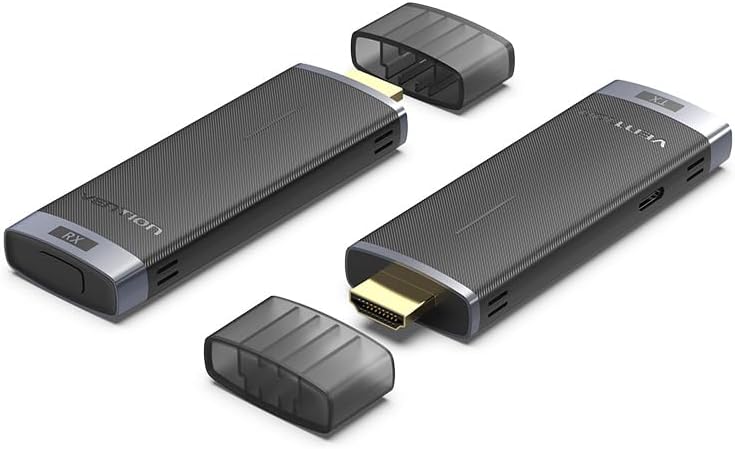
Image: The VENTION Wireless HDMI Transmitter (TX) and Receiver (RX) units, shown with their protective caps removed, highlighting the HDMI connectors.
Què hi ha a la caixa

Imatge: Una imatge detallada view of the kit contents, including the Wireless HDMI Transmitter, Wireless HDMI Receiver, HDMI Extension Cable, USB-C Power Cords, User Manual, and Warranty Card.
- 1 transmissor HDMI sense fil (TX)
- 1 x Receptor HDMI sense fil (RX)
- 1 x HDMI Extension Cable (0.2 m)
- 2 x USB-C Power Cord (1 m)
- 1 x Manual d'usuari
- 1 x Targeta de garantia
Especificacions
| Característica | Detall |
|---|---|
| Número de model | ADCB0-1 |
| Tecnologia de connectivitat | HDMI Wireless (2.4GHz/5GHz) |
| Dimensions del producte | 6.77 x 5.6 x 1.18 polzades |
| Pes de l'article | 6 unces |
| Resolució de sortida | Fins a 1080P@60Hz |
| Interval de transmissió sense fil | Fins a 40 metres (132 peus) en zones obertes |
| Latència | Approximately 0.1 seconds (5GHz) |
| Compatible Devices (Transmitter) | PC, Laptop, TV Box, Gaming Console, Camera |
| Compatible Devices (Receiver) | TV, monitor, projector |
| Característica especial | Built-In Bluetooth (Note: Product description mentions this, but its function in wireless HDMI is not detailed. Assume for potential future features or specific models.) |
Guia de configuració
Follow these steps to set up your VENTION Wireless HDMI Kit:

Image: Visual representation of the three main setup steps: connecting the receiver, adjusting the display input source, and connecting the transmitter.
- Connecteu el receptor (RX):
Plug the Wireless HDMI Receiver (RX) into an available HDMI input port on your display device (TV, monitor, or projector). If the port is difficult to access, use the provided HDMI Extension Cable.
Connect one of the USB-C Power Cords to the RX unit and the other end to a 5V/2A power adapter (not included) or a USB port on your display device that provides sufficient power. The RX unit requires external power to function.
- Adjust Input Source on Display:
Using your display's remote control, select the correct HDMI input source that corresponds to the port where the RX unit is connected. For example, if connected to HDMI 2, select HDMI 2.
- Connecteu el transmissor (TX):
Plug the Wireless HDMI Transmitter (TX) into the HDMI output port of your source device (PC, laptop, gaming console, etc.).
Connect the second USB-C Power Cord to the TX unit and the other end to a 5V/2A power adapter (not included) or a USB port on your source device. The TX unit also requires external power.
- Connexió automàtica:
Once both TX and RX units are powered and connected, they should automatically pair and establish a wireless connection. The indicator light on both units will show their status (e.g., solid blue for connected).

Image: A diagram illustrating how the Transmitter (TX) connects to source devices like a PC or laptop, and the Receiver (RX) connects to display devices such as a monitor or projector.
Instruccions de funcionament
Basic Operation (Plug & Play)
The VENTION Wireless HDMI Kit is designed for plug-and-play functionality. After successful setup, your source device's display should automatically mirror or extend to the connected display.
Display Modes (Mirror/Extend)
You can configure your computer's display settings to either mirror (duplicate) your primary screen or extend your desktop to the wirelessly connected display.

Image: A visual comparison of 'Extend mode' where the display acts as a secondary screen, and 'Mirror mode' where it duplicates the primary screen.
One-Touch Disconnect/Reconnect
The receiver unit features a button for quick disconnection and reconnection. Pressing this button can temporarily pause the transmission or re-establish the connection if needed.

Image: The VENTION Wireless HDMI Receiver (RX) connected to a laptop, illustrating the one-touch disconnect and reconnect button on the unit.
Multi-Point Connections (Conference Hub)
The system supports connecting up to eight Transmitter (TX) units to a single Receiver (RX) unit. This allows for seamless switching between multiple source devices, ideal for presentations or collaborative environments.

Image: A diagram illustrating how multiple Transmitter (TX) units from different laptops can connect wirelessly to a single Receiver (RX) unit, enabling easy switching between sources.
Interval de transmissió sense fil
The kit offers a wireless transmission range of up to 132 feet (40 meters) in open, unobstructed environments. Performance may vary based on obstacles like walls and other wireless interference.

Image: A visual representation of the wireless transmission capability, showing a laptop with a TX unit and a large screen with an RX unit, indicating a range of up to 131 feet (40 meters) in open areas.
Optimal Performance (5GHz vs. 2.4GHz)
The device operates on both 2.4GHz and 5GHz frequencies. For faster, more stable transmission and lower latency (approximately 0.1 seconds), the 5GHz band is recommended. The 2.4GHz band may offer wider compatibility but can experience slower speeds and higher signal loss in congested environments.

Image: A comparison showing a clear, fast transmission on a 5GHz connection versus a slower, loading transmission on a 2.4GHz connection, highlighting the benefits of 5GHz for efficiency and stability.
Resolució de problemes
- Sense senyal a la pantalla:
- Ensure both TX and RX units are properly powered via their USB-C cables.
- Verify that the RX unit is connected to the correct HDMI input on your display and that the display's input source is selected accordingly.
- Check that the TX unit is securely connected to the HDMI output of your source device.
- Try pressing the one-touch disconnect/reconnect button on the RX unit.
- Reinicieu tant el dispositiu d'origen com la pantalla.
- Poor Video/Audio Quality or Intermittent Connection:
- Ensure the TX and RX units are within the recommended transmission range (up to 132 feet/40 meters).
- Minimize obstacles (walls, furniture) between the TX and RX units.
- Reduce potential interference from other wireless devices (Wi-Fi routers, cordless phones) by moving them further away or changing channels if possible.
- Ensure both units are receiving adequate power.
- If possible, try using the 5GHz band for a more stable connection.
- Problemes de so:
- Verify that the audio output settings on your source device are correctly configured for HDMI output.
- Comproveu els nivells de volum tant al dispositiu font com a la pantalla.
- Ensure the RX unit is fully inserted into the HDMI port of the display.
Manteniment
- Neteja: Feu servir un drap suau i sec per netejar l'exterior de les unitats. No utilitzeu netejadors líquids ni aerosols.
- Emmagatzematge: When not in use for extended periods, store the units in a cool, dry place, away from direct sunlight and extreme temperatures.
- Manipulació: Handle the units with care. Avoid dropping them or subjecting them to strong impacts.
Informació de seguretat
- No exposeu el dispositiu a l'aigua, la humitat ni a temperatures extremes.
- Do not attempt to disassemble or modify the device. This will void the warranty and may cause damage or injury.
- Use only the provided USB-C power cords. Ensure power adapters meet the specified 5V/2A requirement.
- Mantingueu el dispositiu allunyat de camps magnètics forts.
- Aquest dispositiu només està dissenyat per a ús interior.
Garantia i Suport
For warranty information, please refer to the Warranty Card included in your product packaging. For technical support or further assistance, please contact VENTION customer service through the official VENTION weblloc web o els canals d'assistència del vostre distribuïdor.
You can visit the VENTION Store for more product information: Botiga oficial VENTION
Ask a question about this manual
Ask about setup, troubleshooting, compatibility, parts, safety, or missing instructions. Manuals+ will review the question and use this page’s manual context to help answer it.