
1. Introducció
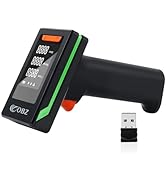
Thank you for choosing the OBZ Mini Bluetooth Barcode Scanner. This compact and versatile device is designed to efficiently scan 1D and 2D barcodes, enhancing productivity in various environments such as retail, warehousing, and inventory management. This manual provides detailed instructions for setup, operation, and maintenance to ensure optimal performance.

Image 1.1: The OBZ Mini Bluetooth Barcode Scanner's ultra-mini pocket design, highlighting its portability and lightweight nature. Dimensions are shown as 90mm/3.5in length, 30mm/1.2in width, and 21mm/0.8in thickness. A wrist lanyard is included for secure carrying.
Característiques principals:
- Compacte i portàtil: Ultra-mini size (3.5*1.18*0.78 inches) and lightweight (1.5oz) for easy carrying.
- Connexió 3 en 1: Supports Bluetooth, 2.4G Wireless, and USB Wired connections.
- Advanced Decoding: Upgraded CMOS sensor and decoding chip for fast and accurate scanning of 1D/2D barcodes from paper and electronic screens.
- Àmplia compatibilitat: Works with Mac OS, Windows, iOS, Android, PC, and POS systems.
- Multiple Data Upload Modes: Instant Upload, Automatic Storage, and Inventory Storage modes.
- Llarga vida útil de la bateria: Equipped with an 800mAh battery for extended operation.
2. Producte acabatview
Familiarize yourself with the components of your OBZ Mini Bluetooth Barcode Scanner.

Imatge 2.1: Detallada view of the scanner's components, including the Trigger Button, Power Port, Buzzer, Hanging Rope Hole, Scan Lens, LED 1 (Bluetooth Light), and LED 2 (Power Light).
3. Configuració
3.1 Càrrega de l'escàner
Before first use, fully charge the scanner. Connect the scanner to a USB power source using the provided USB cable. The LED indicator will show charging status.
3.2 Modes de connexió
The scanner offers three connection methods: Bluetooth, 2.4G Wireless, and USB Wired. Choose the mode that best suits your device and environment.

Image 3.1: The 3-in-1 connection options for the scanner, showing Bluetooth and 2.4GHz wireless connections with a maximum range of 100m/330ft, and a USB wired connection. Compatible devices include smartphones, tablets, laptops, and PCs.
3.3 Vinculació Bluetooth
Per connectar-se mitjançant Bluetooth, seguiu aquests passos:
- Turn on the scanner by pressing the trigger button.
- Scan the 'Bluetooth Connection' barcode from your instruction manual (or the provided setup sheet).
- For Windows/Linux PCs: Scan the 'Bluetooth Setup Code' (Image 3.2) first. Then, scan the 'Pairing Code I' and 'Pairing Code II' in sequence.
- For iOS/Android devices (phones/tablets) and Mac OS: Directly scan 'Pairing Code I' and 'Pairing Code II' in sequence.
- On your host device (PC, tablet, phone), go to Bluetooth settings and search for 'RB_Scanner_HID'. Select it to pair.
- Once paired, the scanner's Bluetooth LED will turn solid blue.
Note: For Mac OS, Bluetooth connection is not directly supported. Use the 2.4G wireless USB dongle connection with an adapter if necessary.

Image 3.2: Barcodes for Bluetooth setup. The top barcode is for computer Bluetooth connection only. The bottom two barcodes are for pairing in sequence.
3.4 Connexió sense fil 2.4G
Per connectar-se mitjançant 2.4G sense fil:
- Insert the 2.4G USB dongle into your computer's USB port.
- Engegueu l'escàner. S'hauria de connectar automàticament al dongle.
- The scanner's LED will indicate a successful connection.
3.5 Connexió amb cable USB
To connect via USB wired mode:
- Connect the scanner directly to your computer using the USB cable.
- The scanner will function as a plug-and-play device.
4. Instruccions de funcionament
4.1 Escaneig de codis de barres
To scan a barcode, point the scanner's lens at the barcode and press the trigger button. A successful scan will be indicated by a beep and/or vibration (if enabled).

Image 4.1: The scanner in use, demonstrating its ability to read various 1D (e.g., PDF417, ISSN/ISBN) and 2D (e.g., QR Code, Aztec, DataMatrix) barcodes from both physical labels and digital screens.
4.2 Tipus de codis de barres compatibles
The scanner supports a wide range of 1D and 2D barcode symbologies, including but not limited to:
- 1D: UPC/EAN, Code 128, Code 39, Code 93, Code 11, Interleaved 2 of 5, Industrial 2 of 5, Matrix 2 of 5, Standard 2 of 5, Codabar, MSI, GS1 DataBar.
- 2D: QR Code, PDF417, MicroPDF417, DataMatrix, Aztec, Maxicode.
It can also effectively scan damaged, distorted, colorful, reflective, and inverse barcodes.

Image 4.2: Visual representation of the scanner's upgraded 2X faster reading speed, capable of processing various 1D and 2D barcode types without missing scans.
4.3 Modes de càrrega de dades
The scanner offers three data upload modes:
- Mode de càrrega instantània: Barcode data is immediately transmitted to your connected device upon scanning.
- Automatic Storage Mode / Inventory Mode: Scanned data is stored internally in the scanner's memory. This mode supports storing up to 200,000 characters. Data can be uploaded to your device later when needed.
To switch between modes, refer to the specific configuration barcodes in your product manual.

Image 4.3: Illustration of the two primary data upload modes: Instant Upload, where data is sent directly to a connected device, and Automatic Storage/Inventory Mode, where data is saved internally for later upload.
4.4 Modes d'escaneig
The scanner supports three scanning modes:
- Mode d'activació clau: Scan by pressing the trigger button for each barcode.
- Mode de detecció automàtica: The scanner automatically detects and scans barcodes when they are presented within its field of view.
- Mode continu: The scanner continuously emits a scan beam, scanning any barcode it detects.
Refer to the configuration barcodes in your product manual to select your preferred scanning mode.
5. Opcions de configuració
The scanner offers various customization options to tailor its functionality to your specific needs. These options are typically configured by scanning special barcodes found in the detailed instruction booklet that came with your scanner.
5.1 Sound and Vibration Settings
You can adjust the volume of the scanner's beep or enable/disable vibration feedback for scan confirmations.

Image 5.1: Configuration options for sound volume (Low, Medium, High, Turn off) and vibration (on/off) feedback.
5.2 Data Formatting
Customize how scanned data is outputted, including:
- Prefix/Suffix: Afegiu caràcters personalitzats abans o després de les dades escanejades.
- End Character: Configure the end character (e.g., CR&LF for a new line, TAB).
- Barcode Conversion: Convert certain barcode types if needed.
Imatge 5.2: Ex.amples of data formatting with prefixes and suffixes, demonstrating how to add date, time, or custom text to scanned barcode data.
5.3 Altres configuracions
Additional settings may include transmission speed, multi-language keyboard support, and factory default reset.
6. Manteniment
6.1 Cura de la bateria
The scanner is equipped with a Lithium Polymer battery. To prolong battery life:
- Eviteu descarregar completament la bateria amb freqüència.
- Charge the scanner regularly, even if not in constant use.
- Guardeu l'escàner en un lloc fresc i sec quan no l'utilitzeu durant períodes prolongats.

Image 6.1: The scanner features an 800mAh high-capacity battery, providing approximately 6 hours of scanning time.
6.2 Neteja
Use a soft, dry cloth to clean the scanner's exterior. For the scan lens, use a lens cleaning cloth to avoid scratches. Do not use abrasive cleaners or solvents.
7. Solució De Problemes
Si teniu problemes amb l'escàner, consulteu els problemes i solucions més comuns següents:
| Problema | Causa possible | Solució |
|---|---|---|
| L'escàner no s'encén. | Bateria baixa. | Charge the scanner for at least 2 hours. |
| No es pot emparellar per Bluetooth. | Incorrect pairing sequence or mode. | Ensure you have scanned the correct Bluetooth setup codes for your operating system (refer to Section 3.3). Try unpairing and re-pairing. |
| Scanner not recognized in 2.4G wireless mode. | USB dongle not properly inserted or faulty. | Ensure the dongle is fully inserted. Try a different USB port. |
| No es poden escanejar codis de barres. | Barcode damaged, poor lighting, or incorrect scanning mode. | Ensure the barcode is clear and well-lit. Adjust scanning distance. Check if the correct scanning mode is selected (refer to Section 4.4). |
| Les dades escanejades són incorrectes o incompletes. | Incorrect data formatting settings. | Review and adjust data formatting options (prefix/suffix, end character) using the configuration barcodes in your manual (refer to Section 5.2). |
For more complex issues, please refer to the comprehensive configuration guide provided with your scanner or contact customer support.
8. Especificacions
| Característica | Detall |
|---|---|
| Dimensions del producte | 3.5 x 1.2 x 0.8 polzades |
| Pes de l'article | 3.84 unces |
| Bateries | Necessita 1 bateria de polímer de liti (inclosa) |
| Dispositius compatibles | iPhone, iPad, smart phone, tablet, laptop, computer, POS, iOS, Android, Mac OS, Windows, Linux |
| Font d'alimentació | Battery-Powered, Corded Electric |
| Tecnologia de connectivitat | Bluetooth, 2.4G Wireless, USB Cable |
| Fabricant | OBZ |
| Data de primera disponibilitat | 12 de maig de 2024 |
9. Garantia i Suport
9.1 Informació de la garantia
Your OBZ Mini Bluetooth Barcode Scanner comes with a standard manufacturer's warranty. Please retain your proof of purchase for warranty claims. For specific warranty terms and conditions, refer to the documentation included with your product or visit the official OBZ weblloc.
9.2 Atenció al client
If you require further assistance, technical support, or have questions not covered in this manual, please contact OBZ customer service through the retailer's platform or the official OBZ support channels. Provide your product model and purchase details for efficient service.