
1. Introducció
Welcome to the user manual for your new BOOX Tablet Go 10.3. This ePaper E Ink tablet is designed to provide a comfortable and efficient digital experience for reading, writing, and productivity. With its 10.3-inch HD Carta 1200 glass screen and 300 PPI resolution, it offers a paper-like display that is gentle on the eyes. This manual will guide you through the setup, operation, maintenance, and troubleshooting of your device.
The BOOX Tablet Go 10.3 features a 2.4Ghz Octa-core CPU, 4GB RAM, and 64GB ROM, ensuring smooth performance for various tasks. It supports Wi-Fi and Bluetooth 5.0 connectivity, and runs on Android 12, allowing for the installation of third-party applications. Its ultra-thin design (4.6mm) and lightweight build (approx. 375g) make it highly portable for everyday use.
2. Què hi ha a la caixa
Upon unboxing your BOOX Tablet Go 10.3, please ensure all the following items are present:
- BOOX Tablet Go 10.3 Device
- BOOX Stylus

Image: The BOOX Tablet Go 10.3 with its accompanying stylus, displaying a daily schedule on its screen.
3. Guia de configuració
3.1 Encès inicial
- Press and hold the Power Button located on the side of the device until the BOOX logo appears.
- Segueix les instruccions que apareixen a la pantalla per seleccionar el teu idioma i la teva regió.
3.2 Connexió a Wi-Fi
- From the home screen, tap on the 'Settings' icon.
- Navigate to 'Network & Internet' and select 'Wi-Fi'.
- Toggle Wi-Fi to 'On' and select your preferred network from the list.
- Introduïu la contrasenya del Wi-Fi si se us demana i toqueu "Connecta".
3.3 Google Play Store Setup
Your BOOX Tablet Go 10.3 comes with the Google Play Store pre-installed, allowing you to download a wide range of applications.
- Locate and tap the 'Play Store' icon on your home screen or app drawer.
- Sign in with your Google account. If you don't have one, you can create one.
- Once signed in, you can browse and download apps like Kindle, Libby, OneNote, and more.
4. Instruccions de funcionament
4.1 Navegació bàsica
The BOOX Tablet Go 10.3 features a responsive touch screen for intuitive navigation. Swipe left or right to move between pages, tap icons to open applications, and use gestures for various functions.
4.2 Note-Taking Features
The device offers an exceptional note-taking experience with its included stylus and paper-like feel. The Notes app provides various tools to enhance your creativity and productivity.
- Stylus Interaction: The BOOX stylus provides 4,096 levels of pressure sensitivity, allowing for precise and natural writing and drawing.
- Plantilles: Utilize numerous pre-installed templates for different purposes, such as daily schedules, meeting notes, or creative sketches. You can also import custom templates.
- Art Tools: Ignite your creativity with a variety of brushes and lines. The Smart Scribe feature helps you effortlessly create precise shapes and straight lines.
- Lasso Tool: Easily select, move, and organize your notes or drawings using the Free Lasso or Smart Lasso tools.
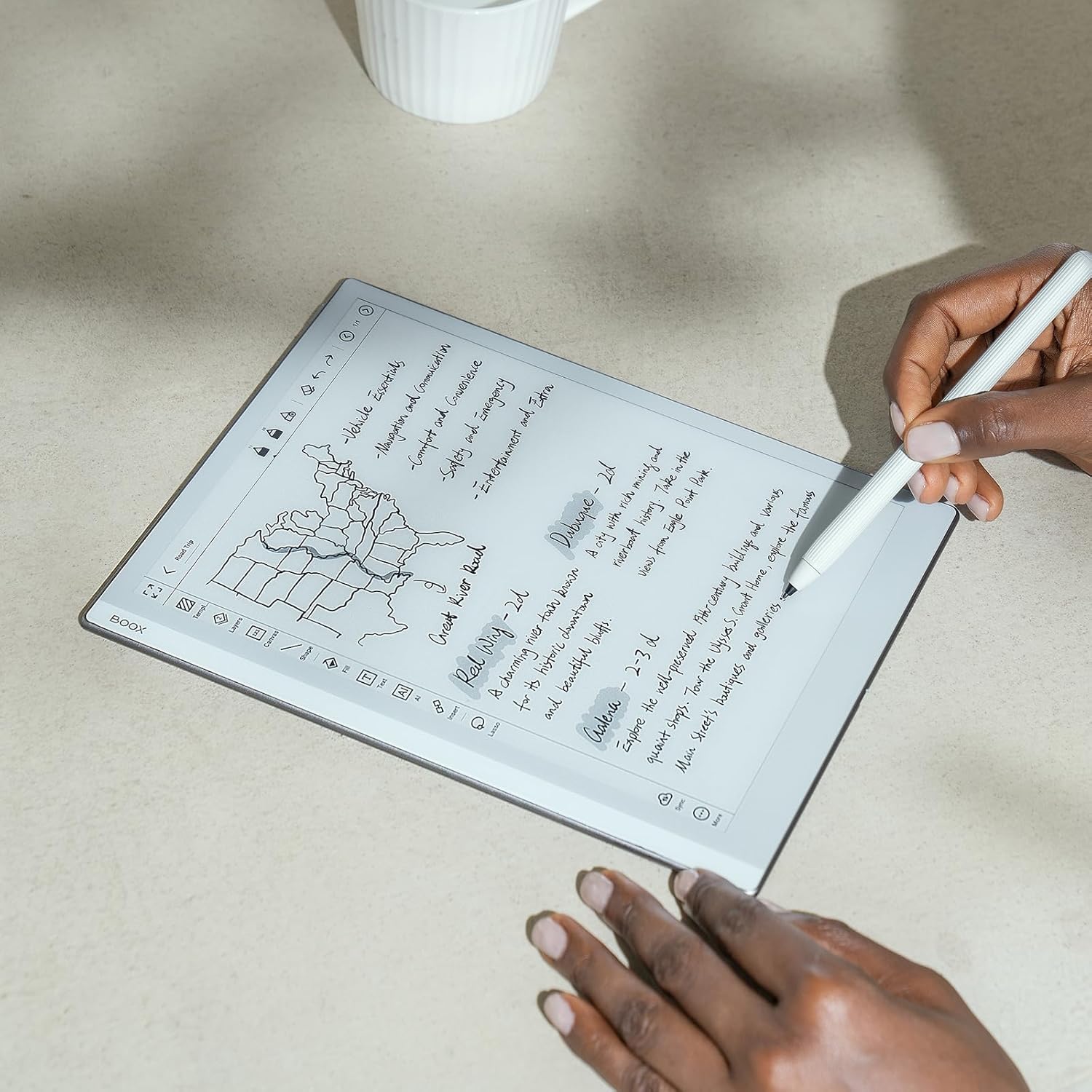
Image: A user's hands writing notes on the BOOX Tablet Go 10.3, demonstrating the natural writing experience.

Image: A user's hands drawing a detailed sketch on the BOOX Tablet Go 10.3, showcasing its artistic capabilities.
Video: Demonstrates the pen-to-paper writing feel on the BOOX Tablet Go 10.3, highlighting its responsiveness and precision.
4.3 Experiència de lectura
The BOOX Tablet Go 10.3 is optimized for an immersive and comfortable reading experience, especially with its E Ink display that mimics real paper.
- NeoReader: The built-in NeoReader app supports a wide range of document formats including PDF, EPUB, MOBI, and more.
- Pantalla agradable per a la vista: The Carta 1200 screen with 300 PPI offers crisp, clear text without the need for a front light, making it ideal for reading in natural light conditions and reducing eye strain.
- Mode fosc: Customize your reading experience by enabling dark mode for a more flexible and concentrated view, especially in low-light environments (when external light is available).
- Rotació automàtica: The device features a G-sensor for auto-rotation, ensuring the display is always in the correct orientation regardless of how you hold it.

Image: The BOOX Tablet Go 10.3 displaying its library interface, showcasing various e-books.

Image: The BOOX Tablet Go 10.3 displaying a PDF document, demonstrating its ability to render complex layouts.
Video: Highlights the lightweight ePaper design of the BOOX Go Series, emphasizing its portability and ease of use for everyday tasks.
Video: Showcases the ultra-thin design and paper-like weight of the BOOX Go 10.3, making it comfortable to hold for extended periods.
4.4 File Gestió i compartició
The device allows for easy management and sharing of your content.
- Onyx Cloud: Upload your notes and documents to the free Onyx Cloud for secure backup and access across devices.
- Opcions per compartir: Share your ideas and content through email or other third-party applications installed from the Google Play Store.
5. Manteniment i cura
5.1 Neteja de la pantalla
To maintain optimal screen clarity, gently wipe the screen with a soft, lint-free cloth. For stubborn smudges, slightly dampNetegeu el drap amb aigua o un netejador de pantalles dissenyat específicament per a electrònica. Eviteu utilitzar productes químics agressius o materials abrasius.
5.2 Optimització de la durada de la bateria
The BOOX Tablet Go 10.3 is equipped with a 3,700mAh Li-ion Polymer battery. To maximize battery life:
- Reduce screen refresh rate if not needed for dynamic content.
- Desactiva el Wi-Fi i el Bluetooth quan no els utilitzis.
- Close background applications that are not actively being used.
- Eviteu temperatures extremes, ja que poden afectar el rendiment de la bateria.
6. Solució De Problemes
6.1 Problemes comuns i solucions
- El dispositiu no s'encén: Ensure the device is charged. Connect it to a power source and try powering it on after a few minutes. If the issue persists, perform a hard reset by holding the power button for 10-15 seconds.
- La pantalla no respon: If the screen is unresponsive, try restarting the device. If the problem continues, ensure the screen is clean and free of debris.
- El llapis no funciona: Check if the stylus tip is worn out and needs replacement. Ensure there are no magnets near the screen, as they can interfere with stylus functionality.
- Les aplicacions es bloquegen/es bloquegen: Close and reopen the app. Clear the app's cache in 'Settings > Apps'. If the issue persists, consider reinstalling the app.
- Problemes de connectivitat Wi-Fi: Restart your Wi-Fi router. Forget the network on your device and reconnect. Ensure you are within range of the Wi-Fi signal.
7. Especificacions tècniques
| Característica | Especificació |
|---|---|
| Pantalla | 10.3" HD Carta 1200 glass screen with flat cover-lens |
| Resolució | 2480x1860 (300 ppi) B/W |
| Toca | BOOX stylus touch (4,096 levels of pressure sensitivity) + capacitive touch |
| CPU | 2.4Ghz Octa-core |
| RAM | 4 GB |
| ROM | 64 GB |
| Connectivitat | Wi-Fi (2.4GHz + 5GHz) + BT 5.0 |
| Sensor G | For Auto Rotation |
| Llum frontal | No Front Light |
| Sistema operatiu | Android 12 |
| Document Formats | PDF, CAJ, DJVU, CBR, CBZ, EPUB, AZW3, MOBI, TXT, DOC, DOCX, FB2, CHM, RTF, HTML, ZIP, PRC, PPT, PPTX, EPUB3 |
| Formats d'imatge | PNG, JPG, BMP, TIFF |
| Formats d'àudio | WAV, MP3 |
| Botons | Botó d'engegada |
| Ports | USB-C (Supports OTG or audio jack) |
| Àudio | Built-in Dual Speakers, Built-in Microphone |
| Bateria | 3,700mAh Li-ion Polymer |
| Dimensions | 235*183*4.6mm (9.3" x 7.2" x 0.18") |
| Pes | Aprox. 375 g (13.2 oz) |
8. Garantia i Suport
BOOX products are designed for durability and performance. For information regarding your product's warranty, please refer to the warranty card included in your product packaging or visit the official BOOX website. The manufacturer typically provides firmware updates and cloud storage for registered users.
For technical support, troubleshooting assistance, or any inquiries about your BOOX Tablet Go 10.3, please contact BOOX customer service through their official website or the support channels provided in your product documentation. Keep your purchase receipt handy for warranty claims.